
Creating a Shopify connection for Mergado Marketplaces#
This step-by-step guide explains how to create a Shopify app, set the required API permissions, and connect your Shopify store to Mergado Marketplaces for order synchronization.
If you want to use order import for Shopify, you first need to create a Shopify connection in Mergado Keychain.
If you already have a connection to Mergado via API through a “custom app” in the Shopify admin in Mergado Keychain, you just need to update the list of permissions for that app in Shopify as described below.
This guide strictly follows the official Shopify documentation and current user interface for creating apps using the Shopify Developer Dashboard.
Official sources: https://shopify.dev/docs/apps/build/dev-dashboard/create-apps-using-dev-dashboard
You are creating a custom API app for one specific e-shop. The app does not need to be published to the Shopify App Store.
What you will need#
- A Shopify account with admin access to the online store
- Access to the Shopify Developer Dashboard
1. Creating an app in Shopify#
For Mergado Marketplaces to have API access to your Shopify account, you need to create an app with the required permissions:
a) Open the Shopify Developer Dashboard#
You can access the Shopify Developer Dashboard in two ways:
Option A: Direct access
- Go to https://dev.shopify.com/
- Log in with your Shopify account
- Open the Apps section in the left menu
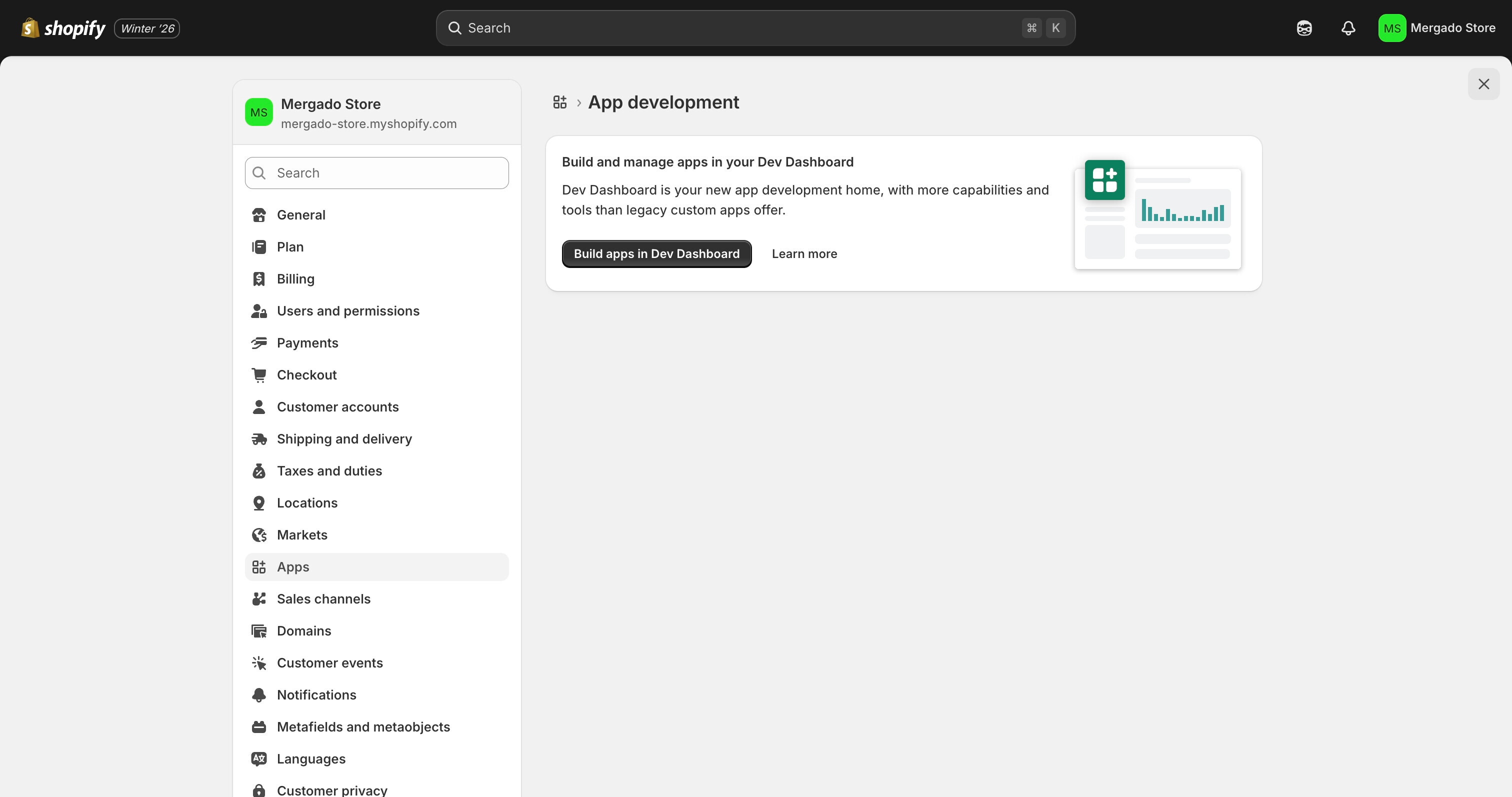
Option B: Via the Shopify admin
- Open the Shopify admin of your e-shop
- Go to Settings → Apps
- Click on Develop apps
- Click on Build apps in Dev Dashboard
b) Create a new app#
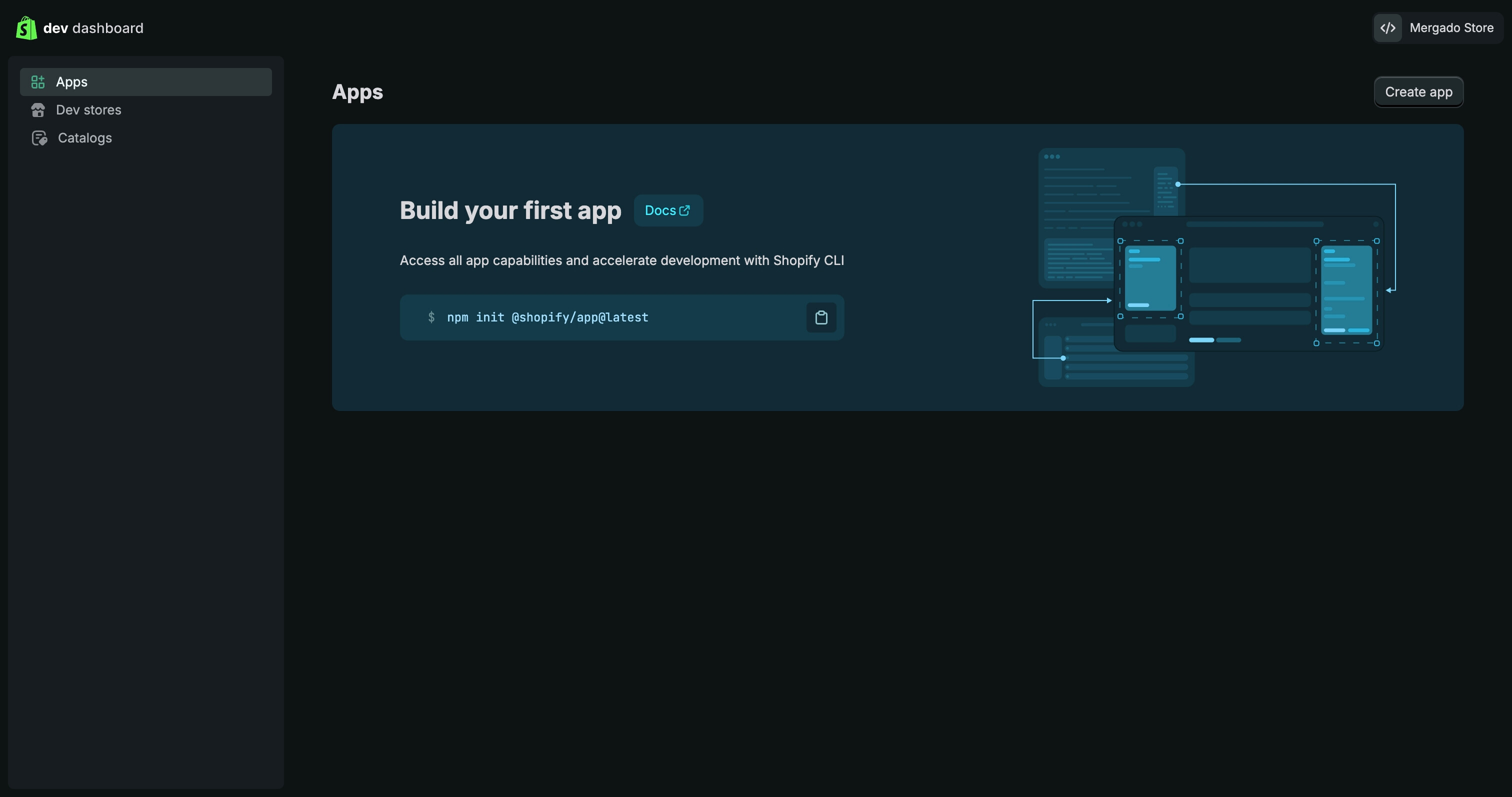
- Make sure you are in the Apps section
- Click on Create app
- Choose Start from Dev Dashboard
- Enter the app name (e.g.,
Mergado integration) - Click on Create
After creating the app, you will be redirected to the Versions tab.
c) Create an app version and set permissions (scopes)#
Every app must have at least one version to be installable in an e-shop.
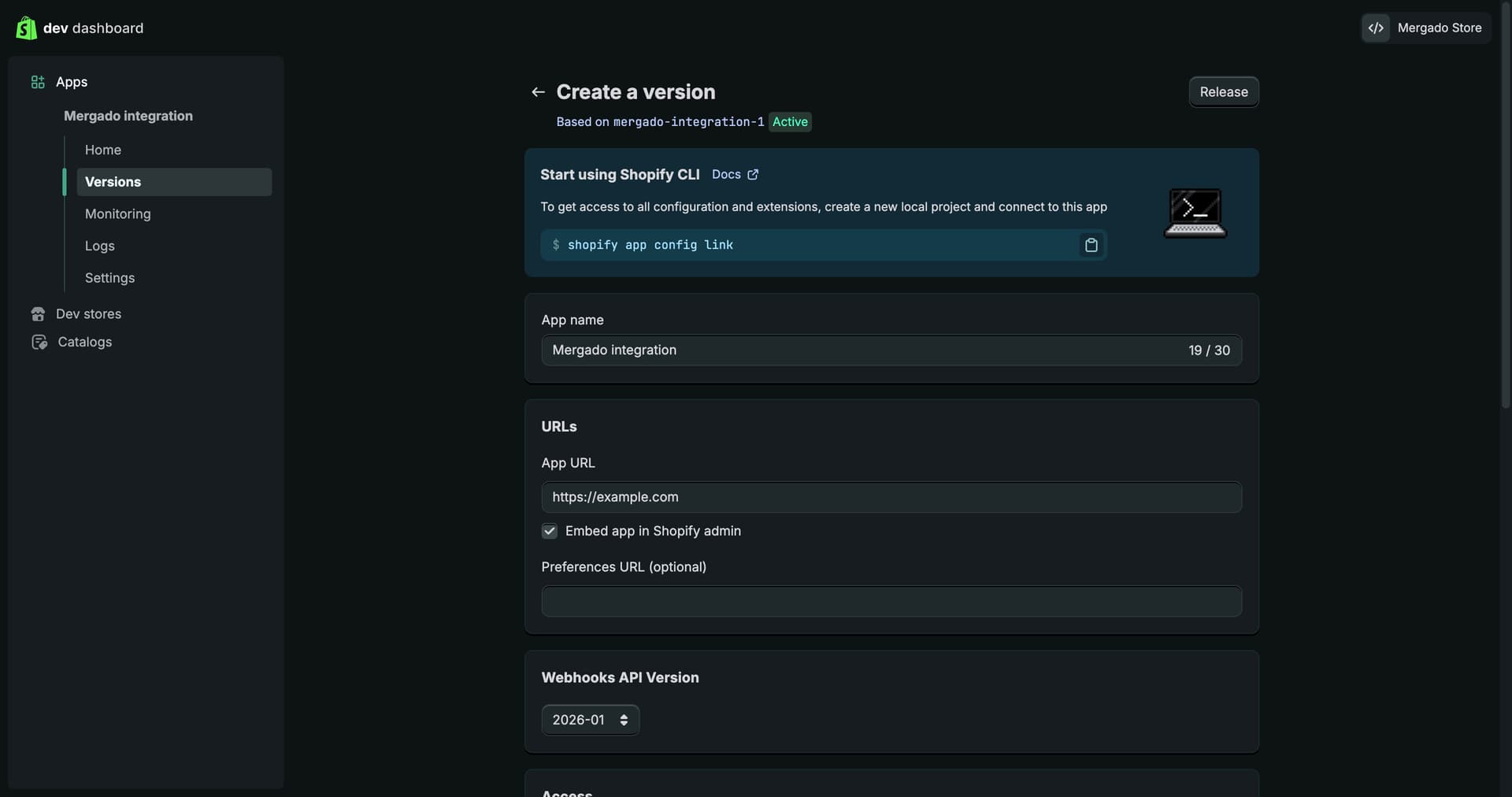
- In the URLs section, find the App URL field
- Replace the default value
https://example.comwith:
https://app.mergado.comThis step is required for the integration with Mergado to work correctly. If the default value remains, authorization will not function properly.
- Below the App URL field, uncheck the Embed app in Shopify admin option
d) Setting access permissions#
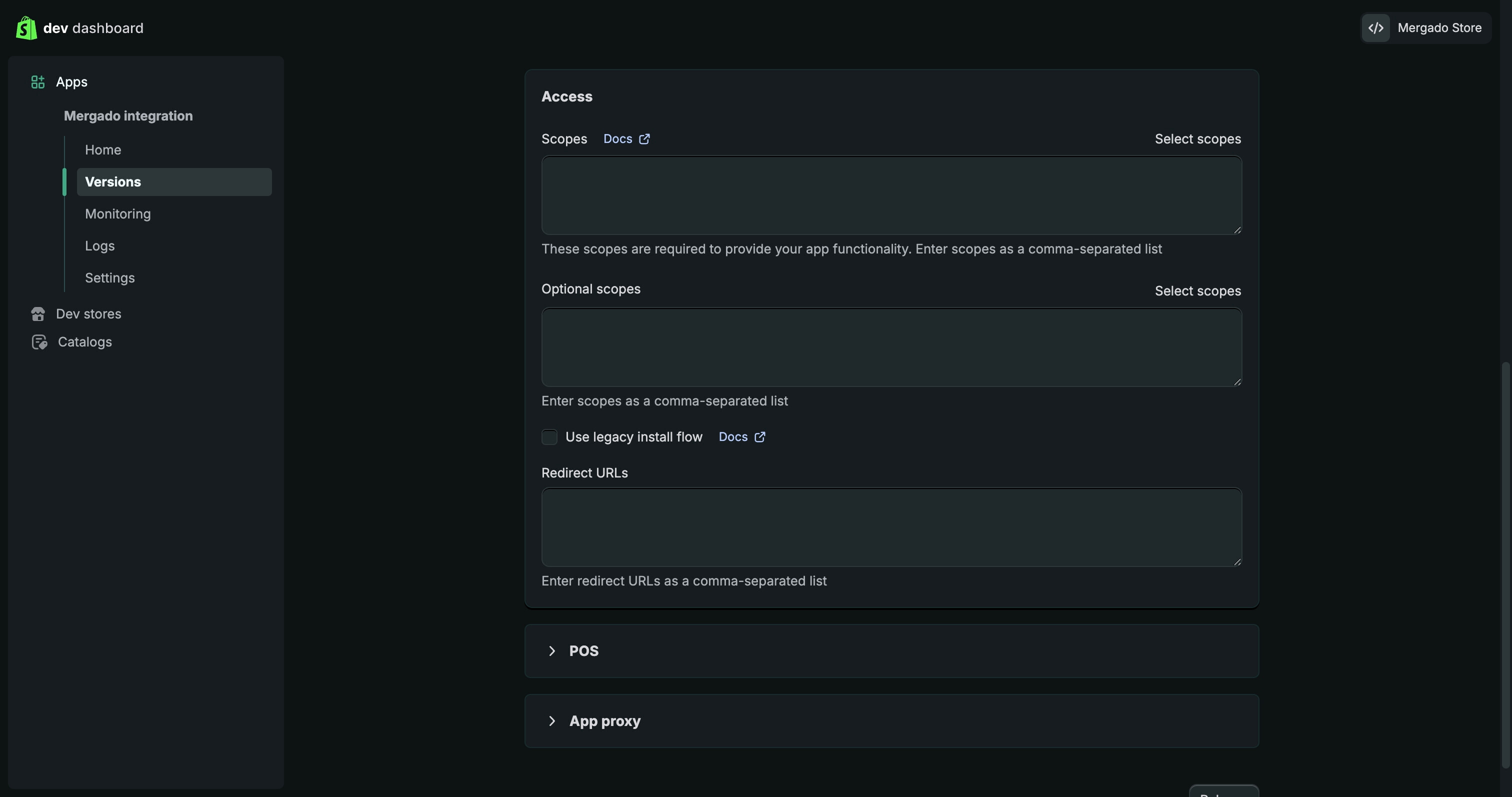
- In the Access section, click on Select scopes
- In the modal window, search for and check:
Required permissions for Mergado Marketplaces:
read_customers+write_customerswrite_orders+read_ordersread_productsread_shipping+write_shippingwrite_order_edits+read_order_edits
And if you also want to import products into Mergado via API, add:
write_productsread_productsread_marketswrite_marketsread_metaobjects
- Confirm by clicking Done
e) Publishing (releasing) the version#
- Scroll down on the page
- Click on Release
- In the confirmation window, you can leave the version name empty
- Confirm by clicking Release
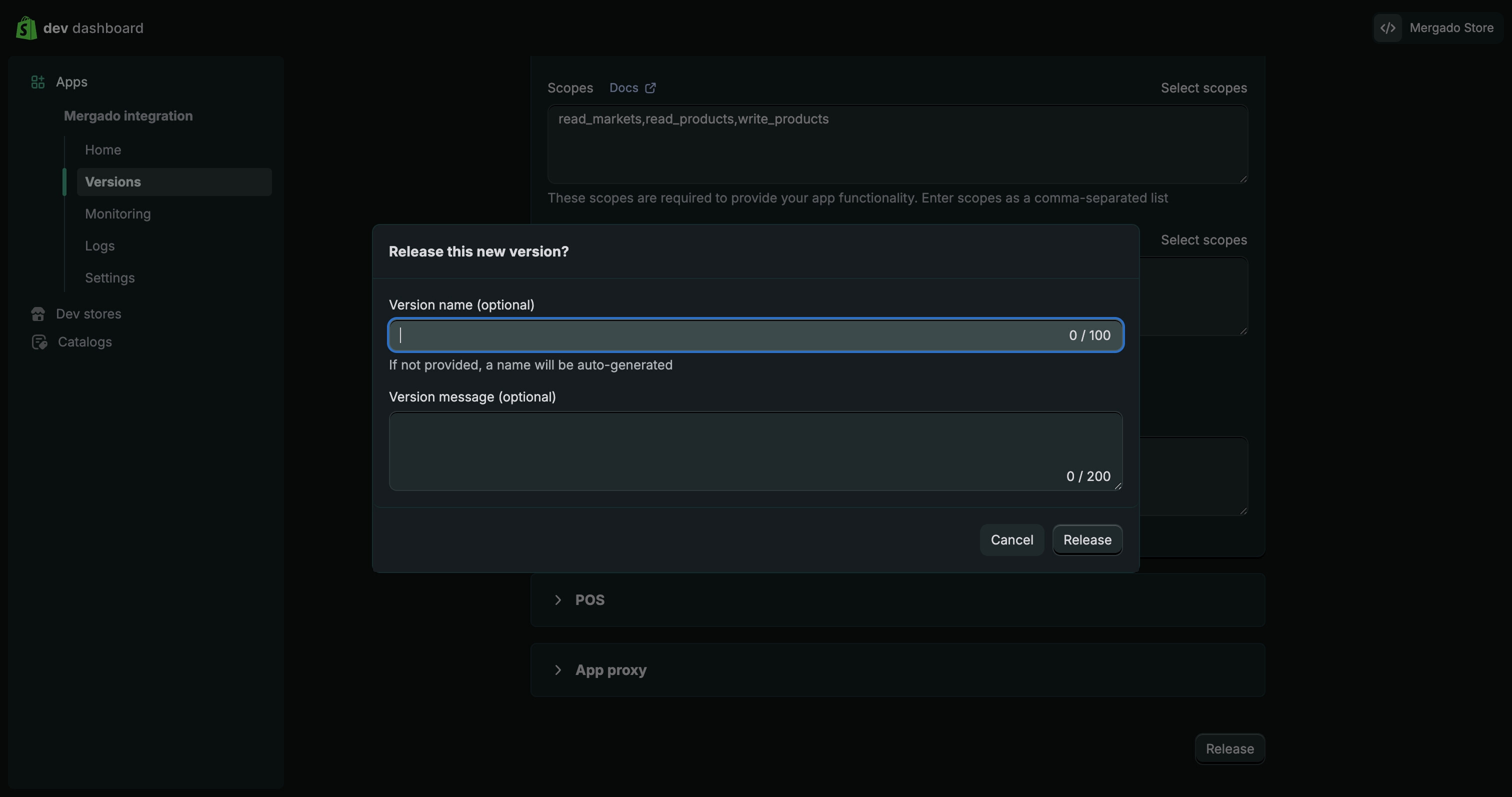
The app version is now published and ready for installation.
f) Install the app in your e-shop#
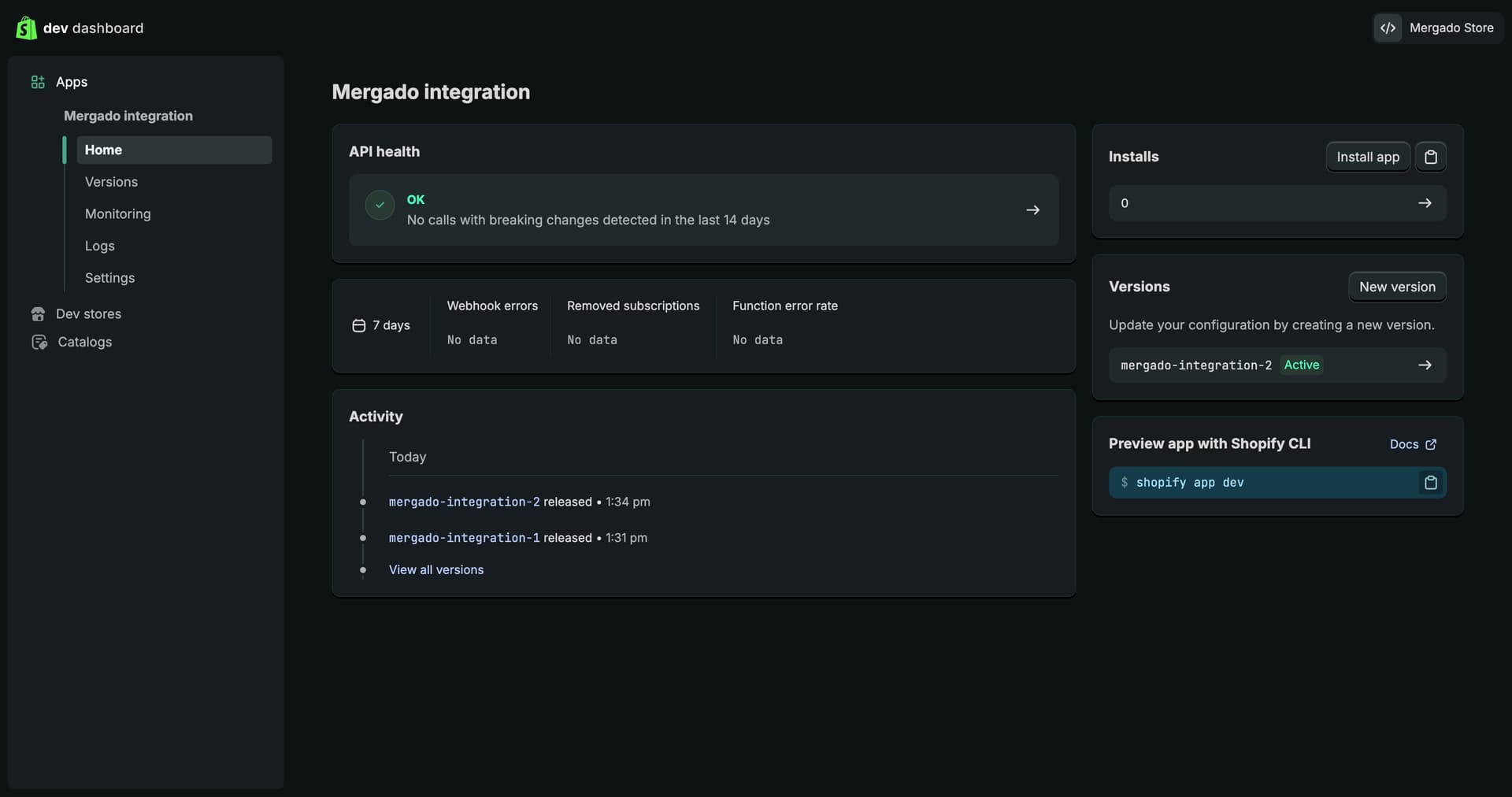
- Open Home in the left menu
- Click on Install app in the top right corner
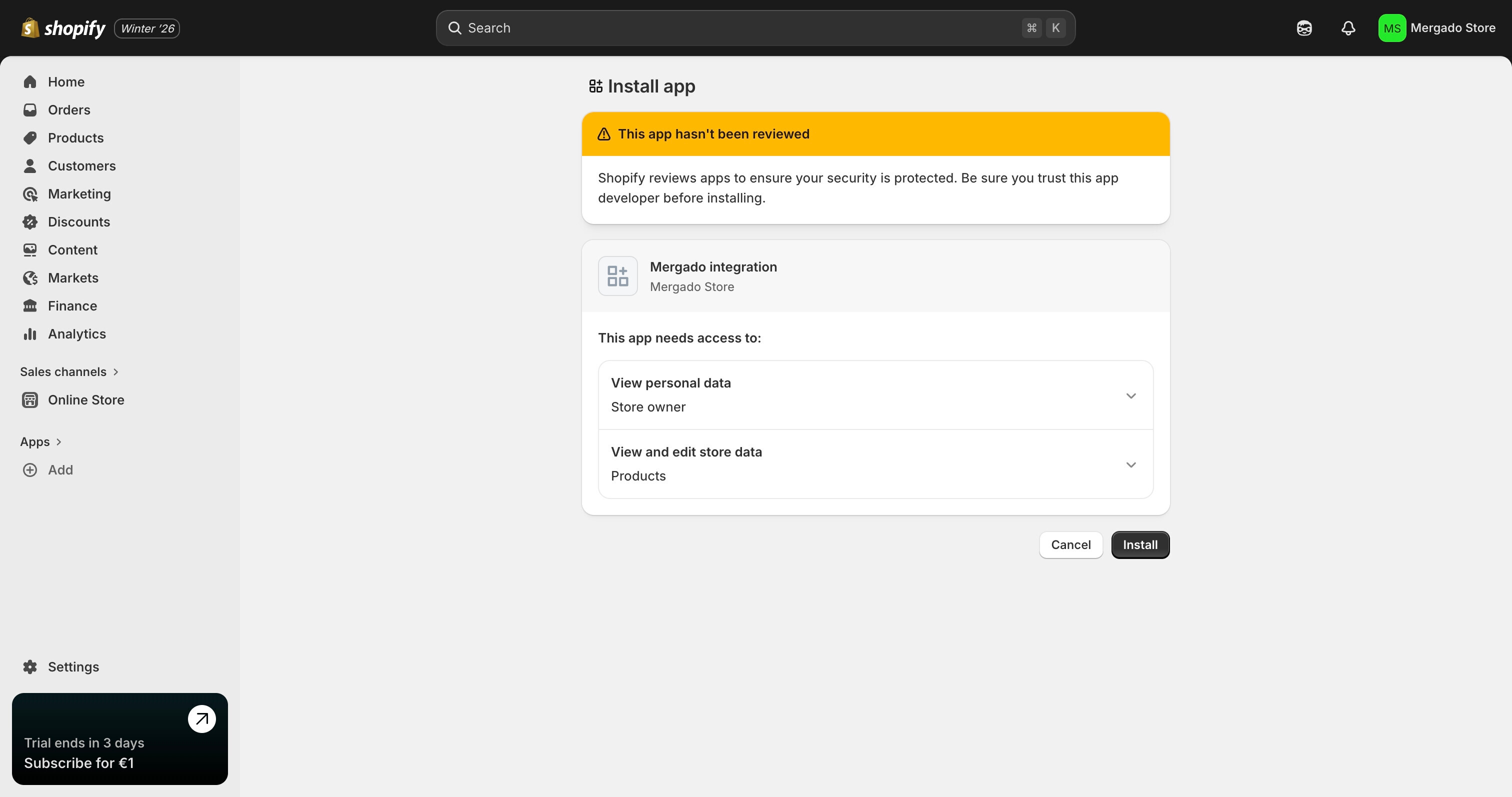
- Select the Shopify e-shop you want to connect with Mergado
- You will be redirected to the Shopify admin
- Confirm the installation by clicking Install
The app is now installed in your e-shop.
2. Connecting Shopify in Mergado Keychain#
a) Obtain the API access credentials (Client ID and token)#
After installing the app, you need to obtain two values that you will use for the integration with Mergado:
- Client ID
- API access token (Secret)
Steps:
- Go back to the Shopify Developer Dashboard
- Open your app
- Go to Settings
- In the Credentials section:
- copy the Client ID value (the field is located above the Secret value)
- copy the Secret value
Client ID is used to identify the app, Secret serves as the API access token. Both values are required for the Mergado integration to work correctly.
b) Get the online store URL#
- Open the Shopify admin of the connected online store
- In the left menu, open Home
- In the Domains section, copy the online store URL
Example:
your-store.myshopify.com
c) Connect Shopify with Mergado#
- Open Mergado Keychain
- Fill in:
- Shopify URL → enter the online store URL
- Client ID → enter the copied Client ID from the Shopify Developer Dashboard
- Client Secret → enter the copied Secret
- Click Log in
3. Activating orders in Mergado Marketplaces#
Go to the “Connections” section in Mergado Marketplaces, click the “Order synchronization” button for Shopify to enable order synchronization, and save your changes. You can easily pause synchronization at any time on the activation page. Orders are synchronized every 5 minutes.
ℹ️ The order management system does not synchronize retroactively. So you don’t need to worry about your system being flooded with all previous orders when you start it.
Done! 🎉 From now on, orders will be regularly transferred between your marketplaces and Shopify.