
Animated GIF#
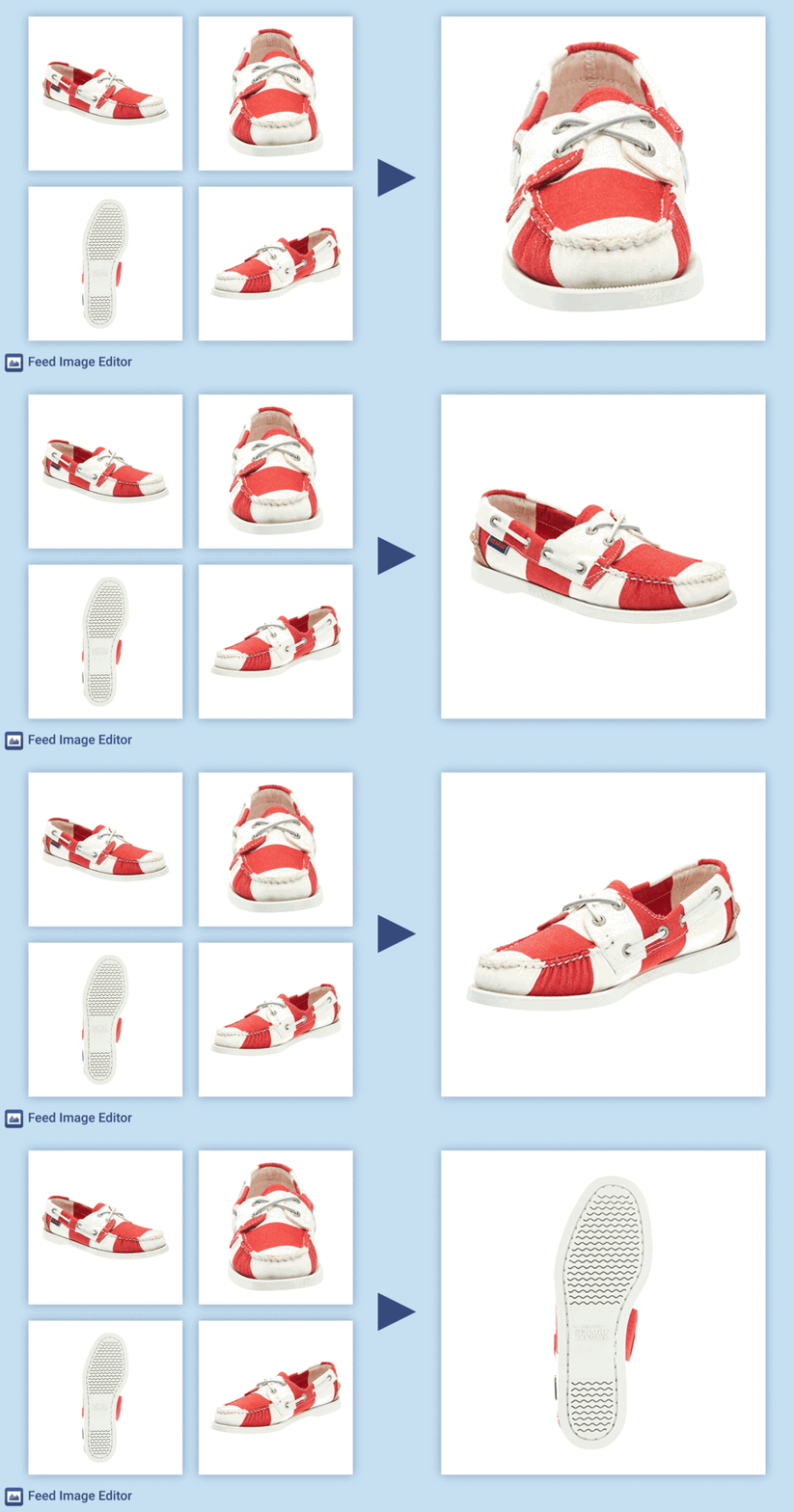
Animated GIF is a Feed Image Editor feature that automatically creates an animated file suitable for advertising on Facebook from product images. The GIF cycles through several images, letting you show the product from multiple angles, highlight its features, or add a call to action within a single ad format.
How it works#
Feed Image Editor assembles the GIF from the product’s main image and its alternative images that are part of the feed. Each frame of the animation corresponds to one image. Their order, timing, and edits are set in the template.
What you need#
To create a GIF, products in the feed need not only a main image but also alternative images. The more alternative images a product has, the longer and more content-rich a GIF you can build.
Setting it up in the extension#
-
Open Feed Image Editor and choose a product query and the Facebook output format.
-
Go to tab 4 in the right panel.
-
Select the Animated GIF option.
-
Set the display time for each frame – from 0 to 10 seconds per frame.
-
Optionally, set a longer display time for the last frame. This is especially useful when the last frame contains a CTA (call to action), such as a discount code or a link to a promotion.
Editing the frames#
The main image, which forms the first frame of the GIF, can be edited freely in the template before export – add a logo, graphic elements, dynamic elements (such as the current price or discount amount), or use preset templates.
When a GIF comes in handy#
The GIF format is suitable anywhere a static image is not enough to showcase a product:
-
Fashion and accessories – showing the product from multiple sides or on a model.
-
Products with variants – cycling through colors or designs.
-
Promotions and discounts – animated highlighting of a discount offer with a CTA at the end.
-
Services – visualizing a process or story connected to the service.
FAQ#
Do I need alternative images for every product? What if I don’t have them?#
A GIF cannot be created without alternative images in the feed – the animation needs at least two frames. If a product is missing alternative images, they need to be added to the feed on the online store’s side first, or uploaded manually.
How many frames can a GIF contain?#
There is currently no maximum limit on the number of frames. The number of frames corresponds to the number of available product images (main + alternative).
Can I set different display times for different frames, or only a uniform one?#
The extension lets you set a uniform time for all frames and separately set a longer time for the last frame. Individual timing for each frame separately is not possible.
Does the GIF only work for Facebook, or for other platforms too?#
Check the current documentation of the specific channel you want to advertise on.
Can I add dynamic elements to the GIF, such as the current price?#
Yes. Dynamic elements (price, discount, availability, and similar) can be inserted into the template of the main frame just like in standard graphic templates. Dynamic data is filled in from the feed during generation.
How does the GIF end up in Facebook Ads?#
Feed Image Editor generates the GIF as an output file in the feed. Integration with Facebook Ads works the standard way, through the feed set up in Mergado, the same as with any other images.