
Connecting Mergado MCP to ChatGPT desktop app#
In addition to regular chat, the ChatGPT Desktop app also lets you use external MCP servers. Thanks to MCP server support, ChatGPT can securely work directly with your Mergado account and use its tools. You can download the ChatGPT desktop app here: https://chatgpt.com/work/
Info: We are also preparing an official Mergado plugin for the web version of ChatGPT. Until it is approved, you can use the ChatGPT desktop app with MCP server support.
Tip: The ChatGPT desktop app is currently available for Windows and macOS. If you use Linux, you can join the waitlist at https://openai.com/form/chatgpt-app/.
Connection details#
| Setting | Value |
|---|---|
| MCP Server URL | https://mcp.mergado.com |
| Authentication | OAuth (ChatGPT detects it automatically, no token needed) |
Steps#
1. Add the MCP server#
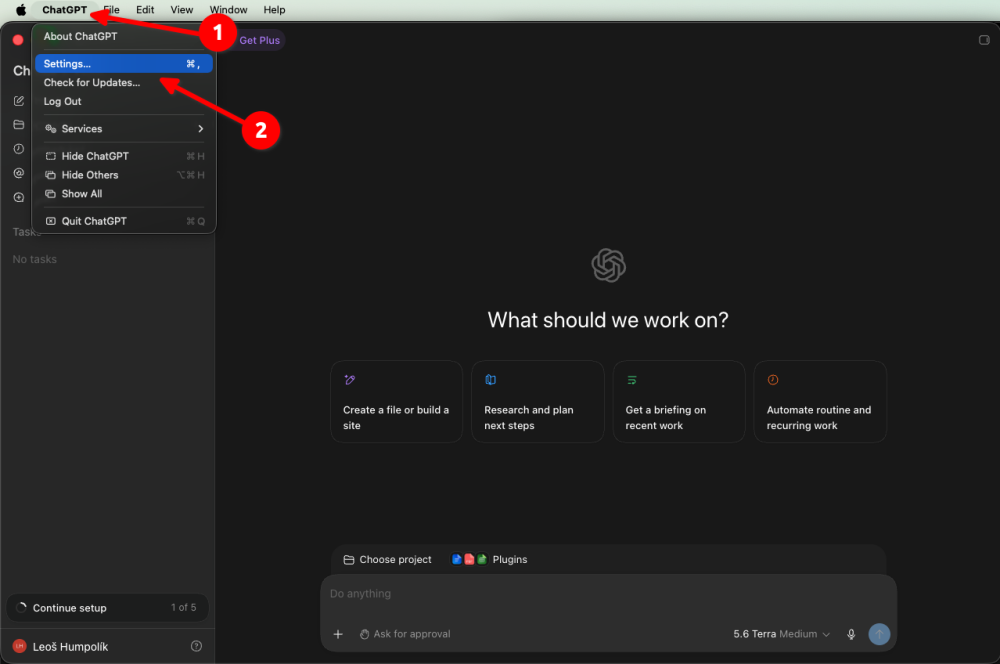
Open the app settings: ChatGPT → Settings…
2. Add a new MCP server#
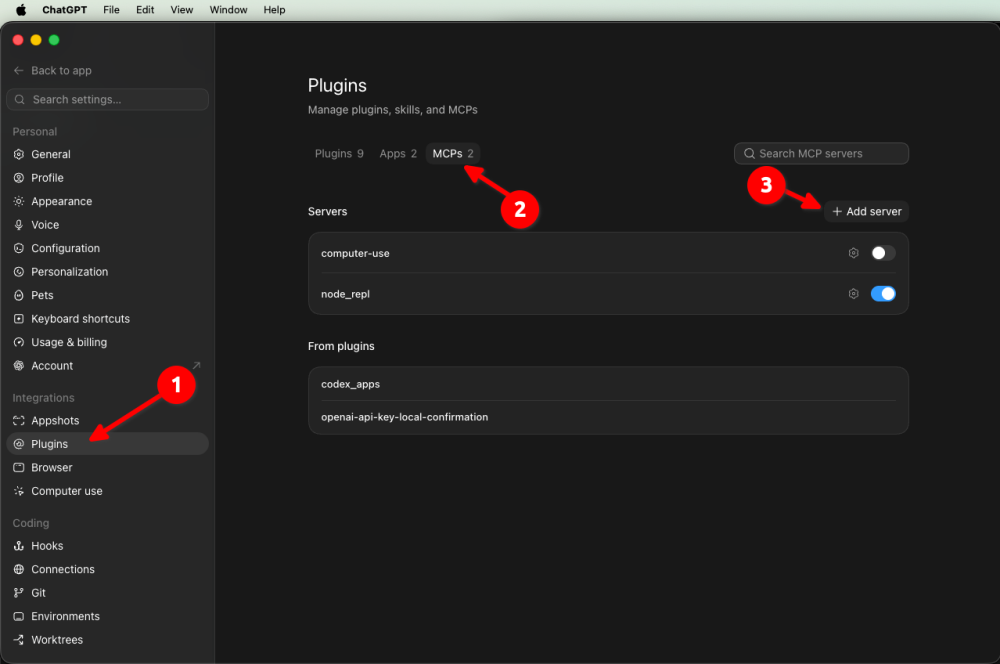
In the settings, open the Plugins → MCPs section and click + Add server.
3. Fill in the MCP server parameters#
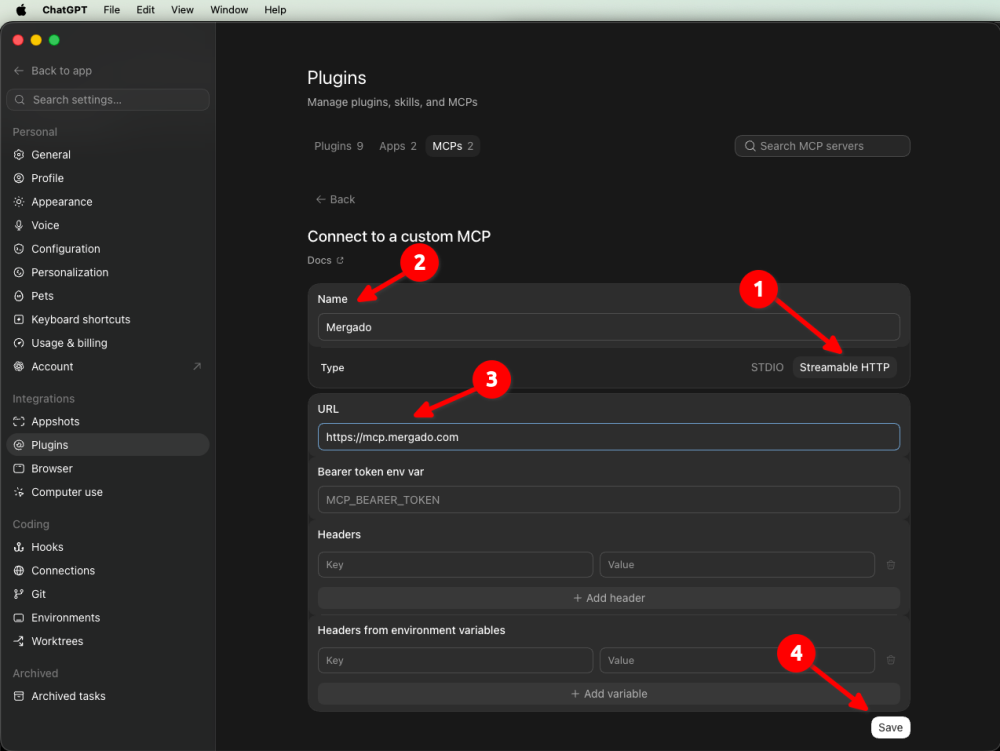
| Field | Value |
|---|---|
| Type | Streamable HTTP |
| Name | Mergado |
| URL | https://mcp.mergado.com |
Click Save.
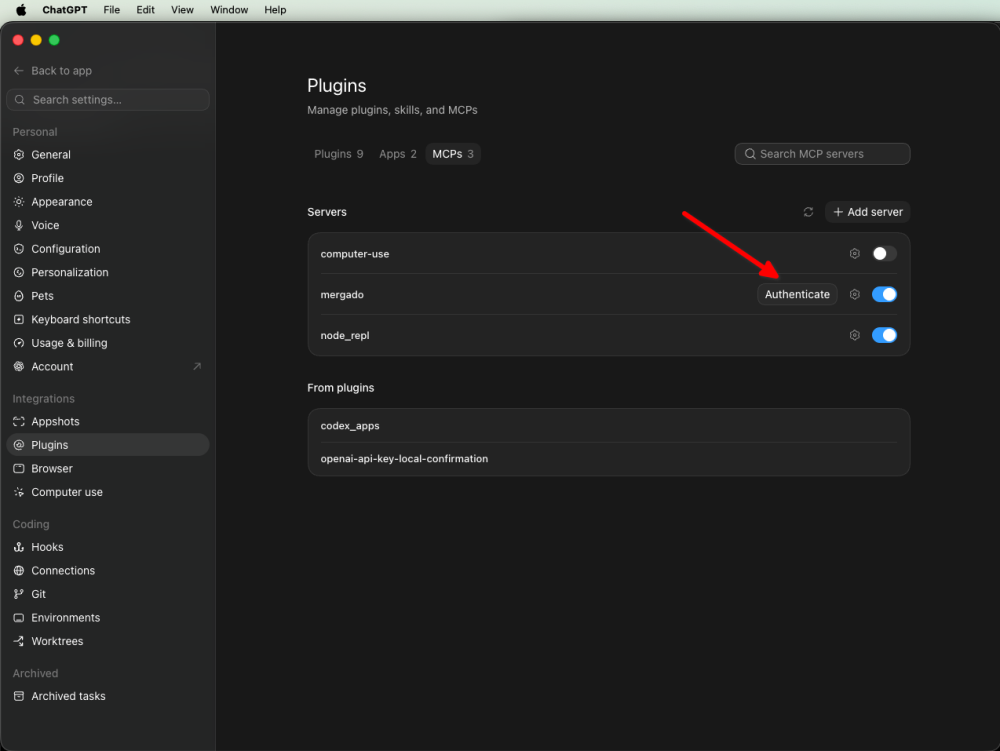
4. Click Authenticate#
This starts the application’s authorization.
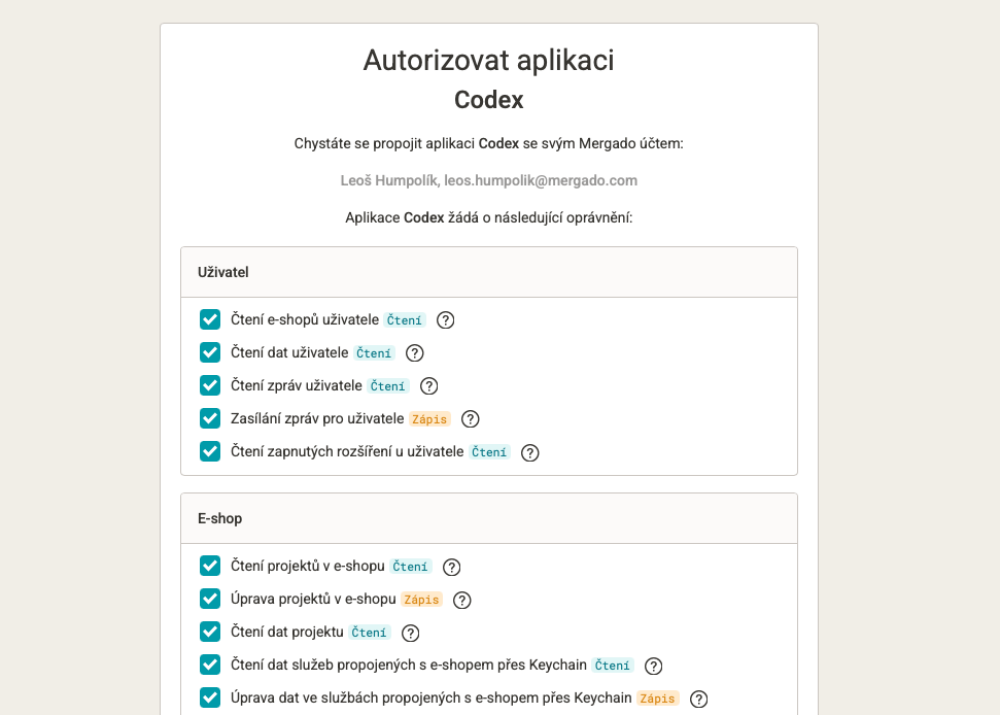
5. Authorize the application in Mergado#
- If you are not signed in, Mergado will prompt you to sign in.
- The Mergado authorization page opens.
- Review the requested permissions and click Allow.
- Grant only the permissions you actually need. What ChatGPT can do in Mergado corresponds to the permissions you grant.
6. Test the connection#
Open a new chat and try, for example:
List the available Mergado MCP tools.
or
List available tools.
If the Mergado tools show up, the connection was completed successfully and you can start using all the available Mergado MCP features.
For example:
Run a feed audit on project XY and summarize what needs to be fixed.