
Connecting Mergado MCP to Gumloop#
Gumloop is a no-code AI automation platform for building AI agents and workflows without writing code. This guide shows how to connect Gumloop’s built-in MCP Server app to the Mergado MCP server. Authorization runs over OAuth – you don’t need to generate any token, you just confirm access in your Mergado account.
Connection details#
| Setting | Value |
|---|---|
| MCP Server URL | https://mcp.mergado.com |
| Authentication | OAuth (Gumloop detects it automatically, no token needed) |
Steps#
1. Add the MCP Server app#
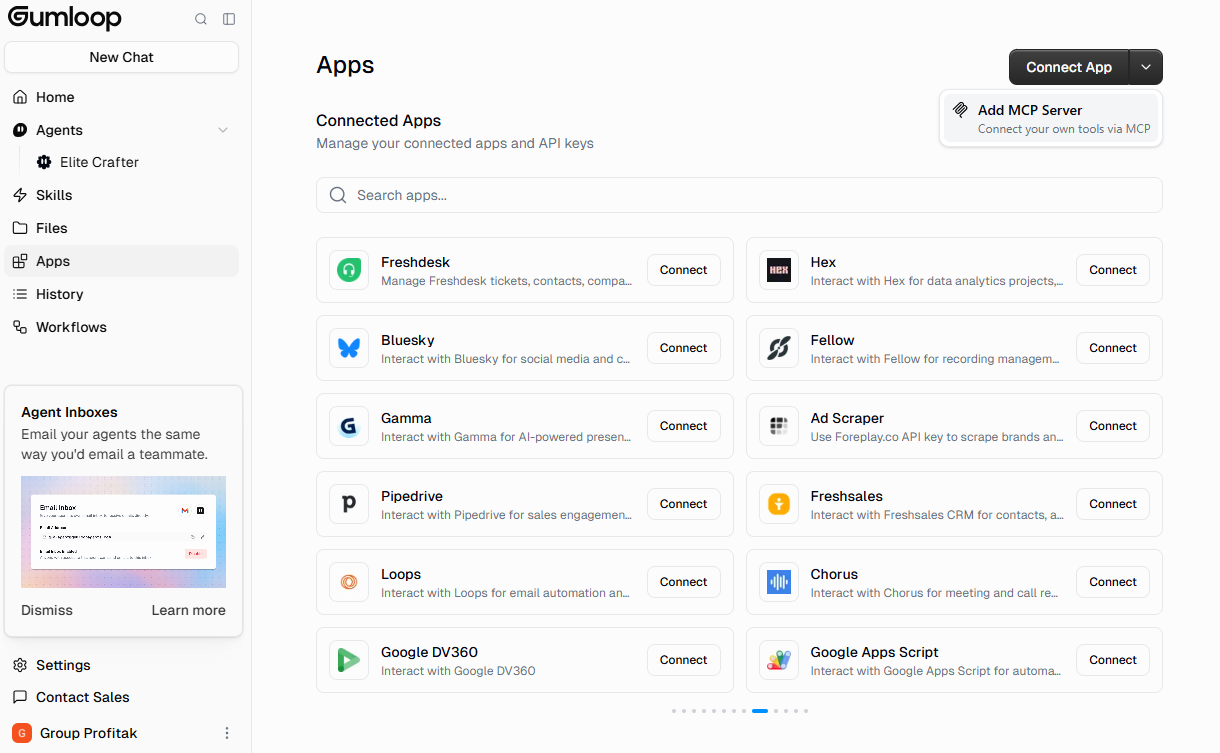
In Gumloop’s left menu, open Apps and in the top right click the arrow next to the Connect App button. In the dropdown menu, select Add MCP Server.
2. Enter the Mergado MCP server URL#
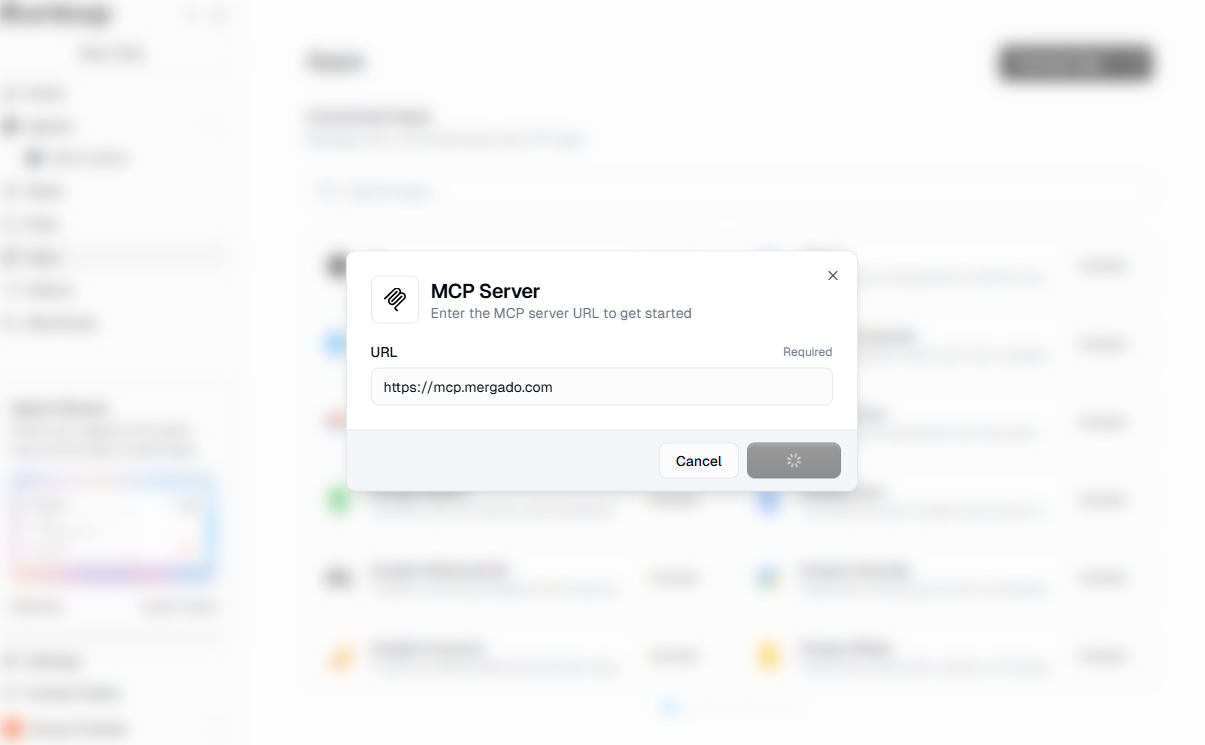
In the “Enter the MCP server URL to get started” window, enter https://mcp.mergado.com in the URL field and click Connect.
3. Authorize the application in Mergado#
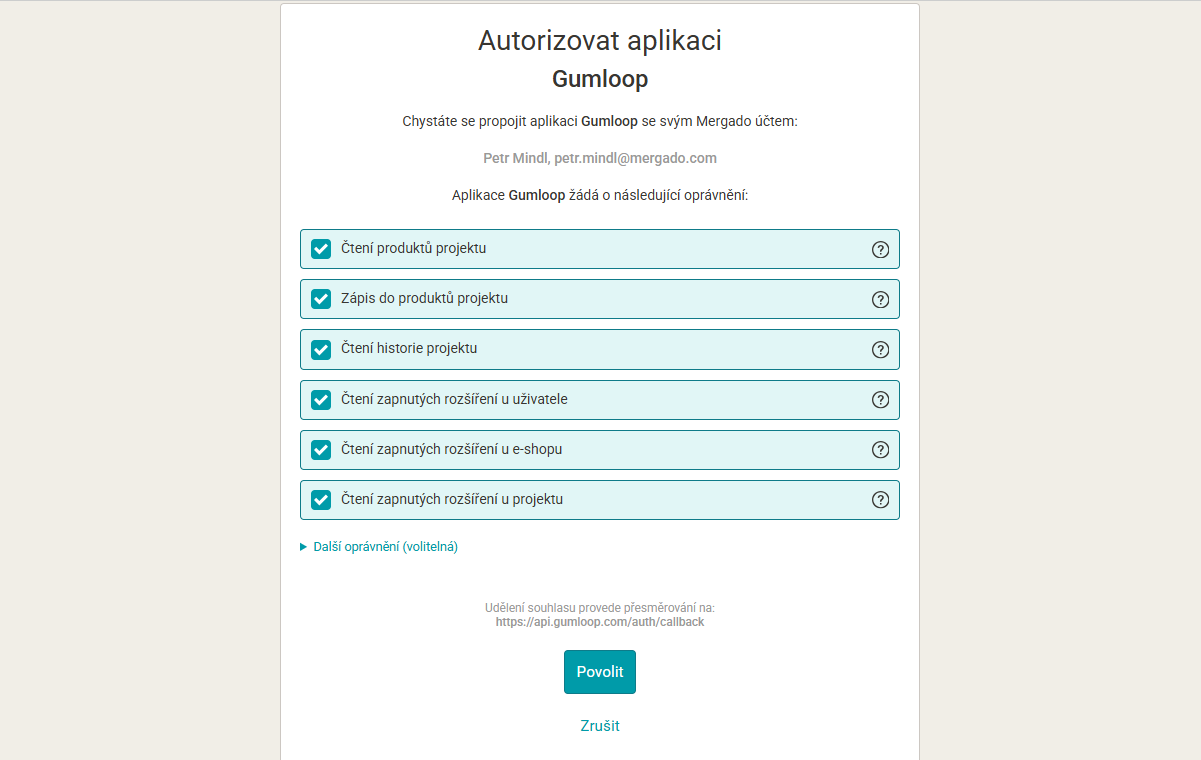
Gumloop automatically detects that the Mergado MCP server supports OAuth and opens the Mergado sign-in page Authorize application Gumloop. Review the requested permissions and click Allow.
Grant only the permissions you actually need (principle of least privilege) – what Gumloop can do in Mergado is determined by the permissions you grant.
4. Done#
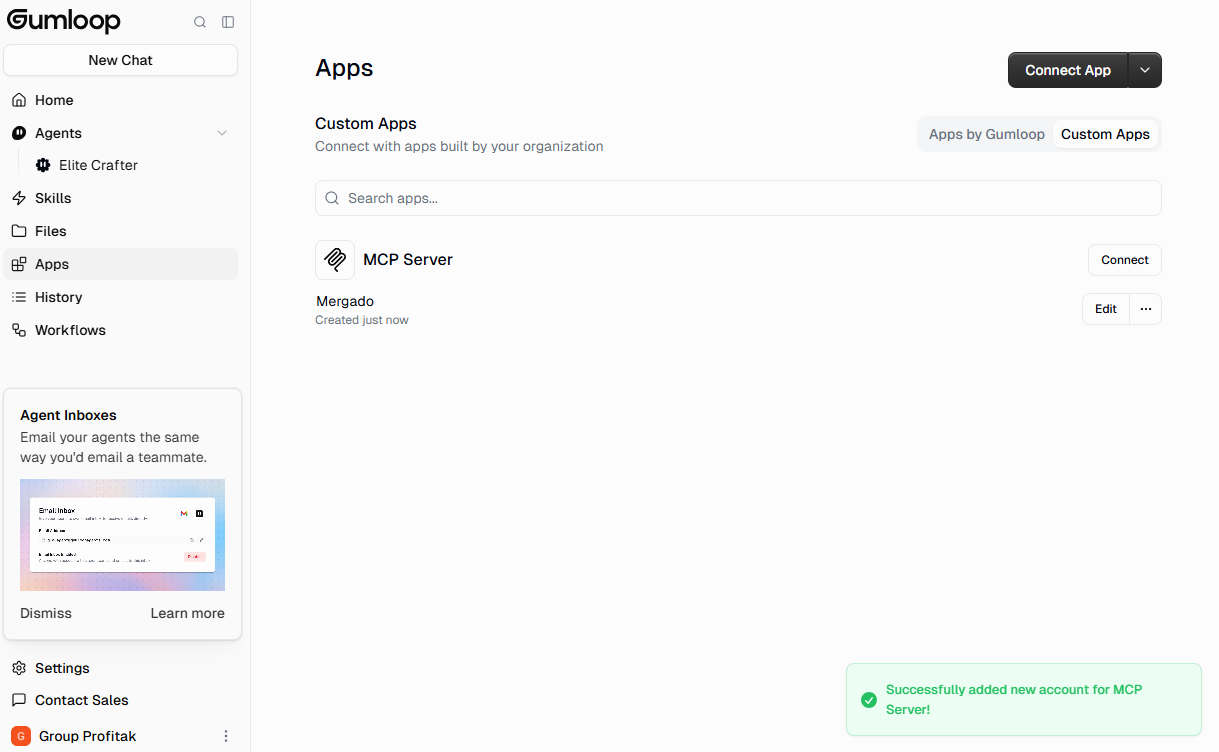
After authorization, Gumloop redirects you back and confirms “Successfully added new account for MCP Server!”. Mergado appears in the Custom Apps list as the connected account Mergado.
5. Add Mergado to an agent or an Ask AI node#
In an agent: open the agent’s settings → Add tools → choose MCP Server → select Mergado in the Custom tab. The agent then automatically recognizes and uses the Mergado MCP tools based on what you ask it in the conversation.
In an Ask AI node: in the node, click Show more options, enable Connect MCP Server?, and select Mergado from the list.
6. Test the connection#
Ask the agent or the Ask AI node something like “list available tools” and confirm that the Mergado tools show up. Then you can make regular requests, e.g. “run a feed audit on project XY and summarize what needs to be fixed.”
Related links#
- Connecting Mergado with AI agents (ChatGPT, Claude, Cursor)
- Connecting Mergado MCP to n8n
- Personal Access Token (PAT) – what it is and how to use it
- Gumloop: gumloop.com – official platform website
- Gumloop documentation: Custom MCP Servers