
Input#
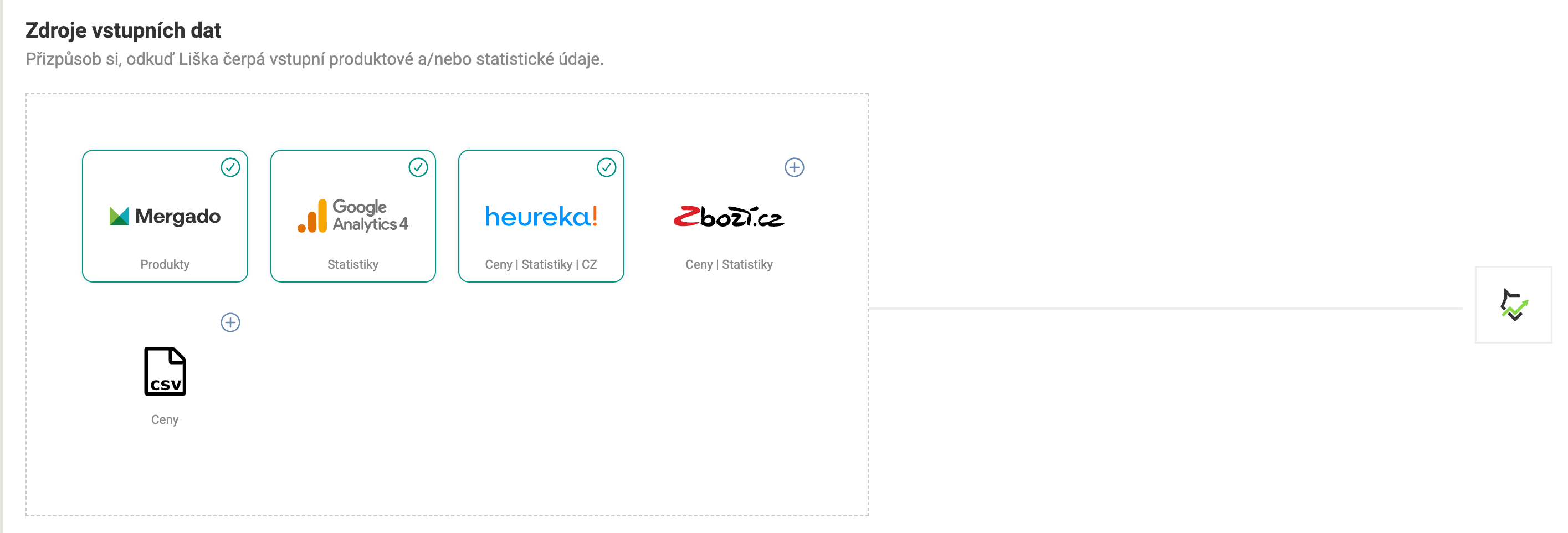
On the Input data sources page, you customize where Pricing Fox draws input product and statistical data from. The status of each source is clearly displayed directly in the tile – a green check indicates an active connection.
Mergado#
Type of data: Products
Mergado serves as the main and always active source of product information – data flows into Pricing Fox automatically, and no special connection setup is needed. The most important thing is to correctly fill in the name of the element with the product ID, so that statistics from other sources can be paired correctly.
Loading data from Mergado#
In the source settings, you fill in the corresponding element name from your feed for each item:
| Item | Description |
|---|---|
| Product ID | The pairing element – it must match the ID by which you recognize the product on price comparison sites (e.g. PAIR_CODE, ITEM_ID) |
| Input price | The element with the product’s sale price (e.g. PRICE_VAT) |
| Purchase price | The element with the purchase price – needed to calculate the margin (e.g. PURCHASE_PRICE) |
| Custom elements | Optional additional elements from the feed that you want to use in Pricing Fox |
You then set whether all prices are including VAT or excluding VAT, and optionally add data mapping to assign values from the feed to internal fields.
Heureka#
Type of data: Products | Statistics | .cz
Heureka is ending support for the old XML conversion measurement – from now on, only a connection via Mergado Keychain is supported. You’ll find more information in the guide on the blog.
You manage the Heureka connection in Mergado Keychain. After linking, Pricing Fox displays the connection status (store + Heureka.cz) and the Manage the connection in Mergado Keychain button to go to the management.
You’ll find detailed information about the connection and available data on the Heureka.cz/.sk page.
Zboží.cz Sklik#
Type of data: Products | Statistics
Due to the transition of the Zboží.cz administration to Sklik, you need to have an active connection to Sklik in Mergado Keychain. If you don’t have the connection set up yet, set it up as soon as possible to avoid an outage of data and features dependent on Zboží.cz.
You manage the connection in Mergado Keychain. After linking, the connection status (OK) and the Business ID are displayed.
You’ll find detailed information about the connection and available data on the Zboží.cz page.
Google Merchant Center#
Type of data: Reference prices
Google Merchant Center serves to manage the product data that Google uses to display products in ads and unpaid listings (the so-called “free listings”). After connecting, Pricing Fox can use the available data from Merchant Center to evaluate and work with products.
You manage the connection in Mergado Keychain. After linking, the connection status and the Account ID are visible.
Settings#
| Parameter | Description |
|---|---|
| Recalculate prices into | Optional recalculation of prices into another currency according to the current ECB exchange rate (e.g. PLN, EUR). If you don’t fill it in, prices aren’t converted. |
After connecting, a diagnostic window also appears showing the synchronization status — how many products were successfully downloaded and matched, and when the last data load occurred.
Google Analytics 4#
Type of data: Statistics
We download statistics from GA4 both for the entire online store (limited by the set medium and source) and pair them with individual products.
The connection to GA4 is activated with the Active toggle directly in the source settings. After a successful link, the status and the name of the link from Mergado Keychain are displayed.
Settings#
| Parameter | Description |
|---|---|
| Source | A traffic source filter (default .* = all) |
| Medium | A medium filter (default empty = all) |
| Pair products by | The method of pairing products – Landing pages (URL) or Item ID |
| Pairing element (SKU) | The element by which products are paired – typically id |
Shoptet#
Type of data: Statistics
As a source of order and turnover statistics, you can use the orders export directly from your Shoptet store. You’ll find more information about where and how to create the export in the Shoptet Help.
Settings#
| Parameter | Description |
|---|---|
| Orders export URL | The address of the XML orders export from your Shoptet |
| Pairing element on Shoptet (optional) | The element by which orders are paired with products (e.g. CODE) |
Custom CSV#
Type of data: Reference prices
Here you can upload a CSV file with your own reference prices. You can then use the data from it in rules as an additional source of prices – suitable, for example, for internal price lists or supplier prices.
An overview of the uploaded CSV files is shown in a table with these columns:
| Column | Description |
|---|---|
| Name | The name of the import (click to open the detail) |
| Created | The date and time of the first creation |
| Regenerated | The date and time of the last data update |
| Repeat interval | How often the file is automatically regenerated |
| Number of items | The total number of rows in the file |
| Written items | The number of successfully processed items |
| Status | The processing status (Done / Processing / Error) |
| Actions | A context menu for editing or deleting |
You add a new import with the + Add button in the bottom right corner.
MCP#
Type of data: AI integration
Connect Pricing Fox with your favorite AI assistant and harness the power of an LLM when managing your project using natural language.
This app fully supports the Model Context Protocol (MCP), which lets AI assistants (such as Claude Desktop, Cursor, etc.) securely access project data directly from your environment. The MCP server runs at https://app-pf.bdfx.cz/mcp.
How to obtain an access token (PAT)#
Authentication is done using a Personal Access Token (PAT) directly from Mergado:
- Log in to your account on Mergado.
- Go to your profile settings, to the API and access section.
- In the Personal access tokens section, click Add, fill in the required items – Validity (we recommend the maximum) and Permissions: All.
- Click Create token and copy it to the clipboard. The generated token can no longer be displayed again – if lost, you’ll have to create a new one.
Connecting to AI clients#
You paste the token into the configuration of your AI client (VSCode, Claude Desktop, Cursor, and others).
Directory#
Heureka.cz/.sk
Connecting to the Heureka basket, offer comparison, and bidding.
Zboží.cz
Connecting to the Zboží.cz comparison site and working with competitor offers.
MCP: connecting Pricing Fox with an AI assistant
Connect Pricing Fox to an AI assistant and manage your project in natural language.