
Organization – Webhooks#
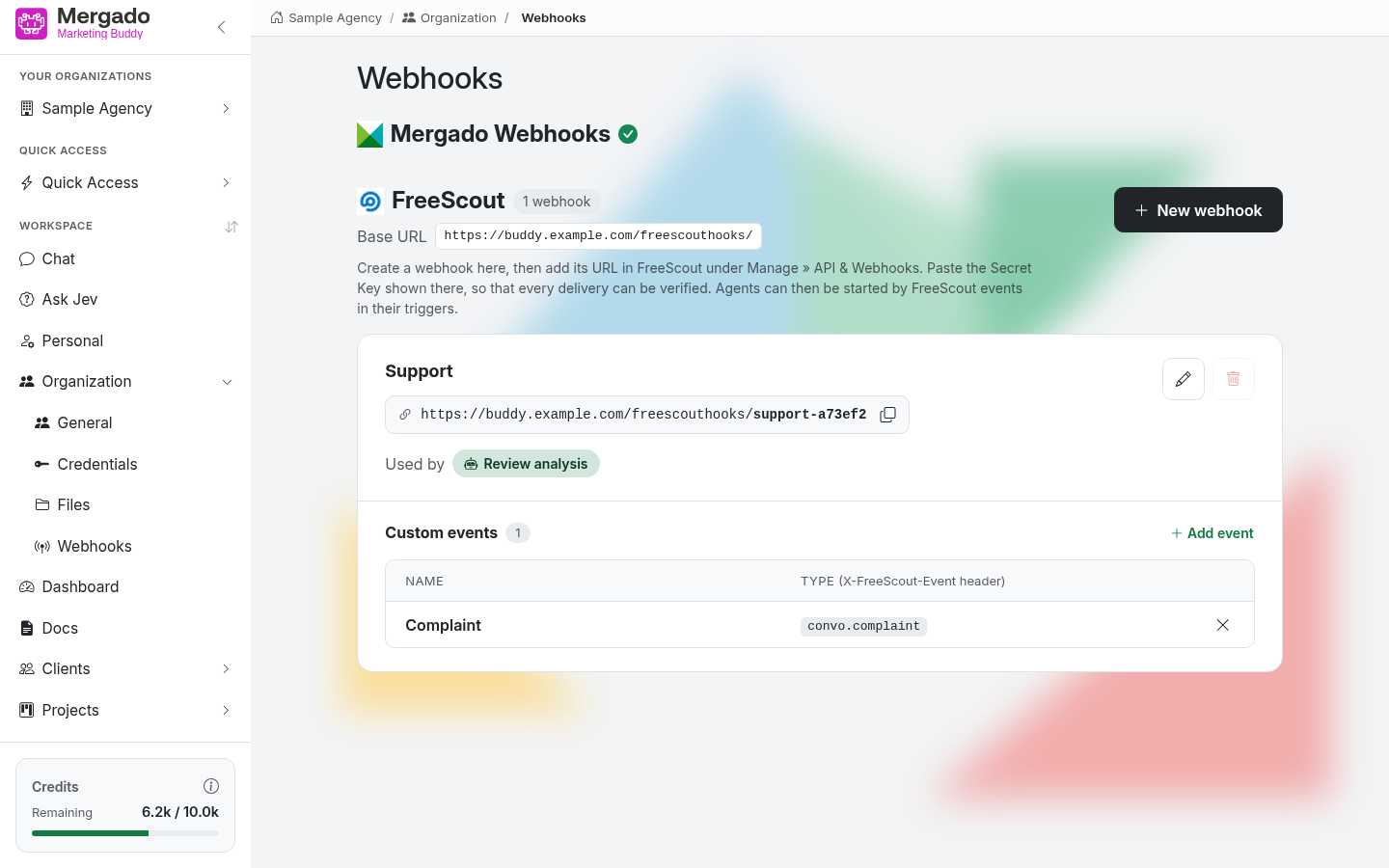
The Webhooks page relates to running agents in response to events from other services. Thanks to webhooks, agents can react to what happens in Mergado or FreeScout – for example, a completed feed export or a new customer reply.
Page layout#
Mergado webhooks#
Mergado webhooks are available to the organization automatically – there is nothing to set up here. You select which Mergado events an agent should react to directly in the agent.
FreeScout#
The FreeScout section is used to connect the FreeScout helpdesk. It contains:
- the Base URL at which the application receives events from FreeScout,
- the New webhook button,
- a list of created webhooks with their count.
The Owner and Admin roles create, edit, and delete webhooks; other members can only see the list and copy the URL.
New FreeScout webhook#
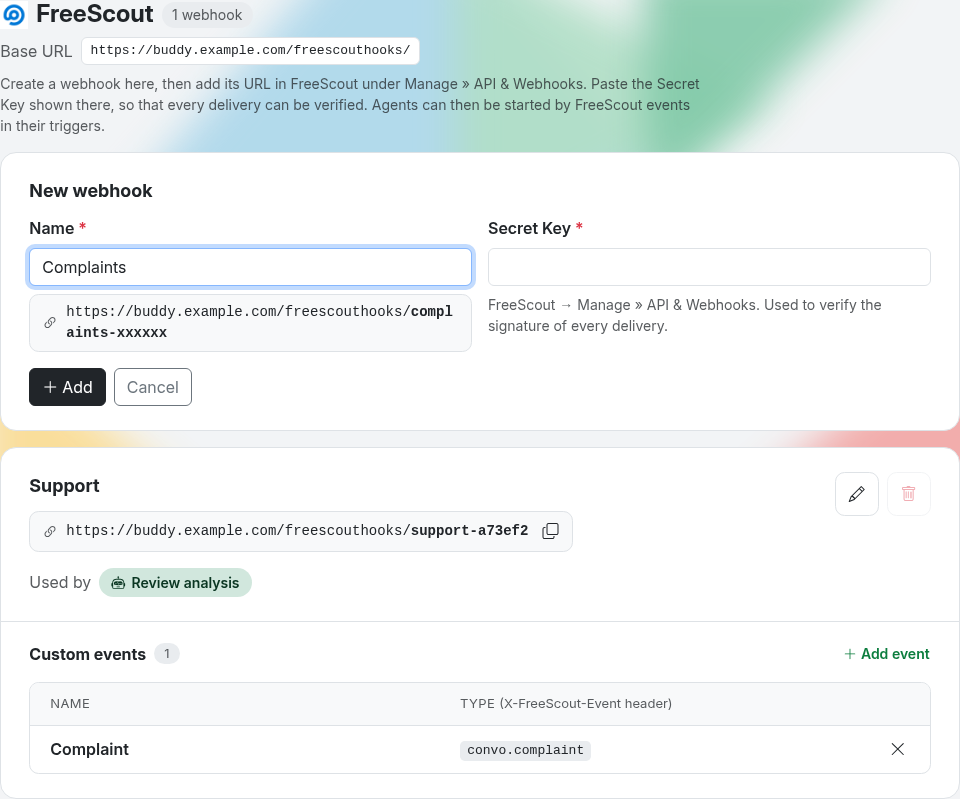
- Click New webhook and enter a Name (e.g. “Support”). Below the field, you can see what the webhook URL will look like.
- In the Secret Key field, paste the secret key that FreeScout displays in Manage » API & Webhooks. It is used to verify the signature of each delivery.
- Click Add to save the webhook. The URL gets a random suffix to make it unique.
- Copy the webhook URL (with the icon next to it) and enter it in FreeScout in Manage » API & Webhooks.
The webhook card contains:
- the URL with a copy button,
- Used by – the agents this webhook runs,
- a pencil for editing – change the name or Secret Key; the Change webhook URL as well option generates a new address (the old one then stops working and you need to replace it in FreeScout; agents stay connected),
- a trash icon for deleting – it cannot be used while any agent is using the webhook.
Custom events#
FreeScout sends the event type in the X-FreeScout-Event header. In addition to the standard events (new conversation, assignment, status change, customer reply, agent reply, note, new or updated customer…), you can also enter your own via Add event on the webhook card – a Name and Type (the header value). Custom events are then offered when you set up an agent trigger.
How webhooks are used#
You set up the actual reactions to events in agents in the Triggers section with the Webhook option:
- Select the service (Mergado, or a specific FreeScout webhook).
- Select the specific event.
- For Mergado, add the online store and optionally the project the trigger should apply to.
When the event occurs, the agent runs and the result appears as a new conversation with the [Hook] prefix and in the history on the Dashboard page.
What you can do here#
- Create a FreeScout webhook and get its URL.
- Add custom event types from FreeScout.
- Check which agents use a webhook.
FAQ#
The trigger does not run – where should I look for the error? Check the trigger settings in the agent (the correct event, online store, and project). For FreeScout, verify that the correct URL is entered in FreeScout and that the Secret Key matches. You can find received webhooks in the history on the Dashboard page.
Can I turn off webhooks? Mergado webhooks are managed on Mergado’s side. In the application, you can only remove webhook triggers from agents. You can delete a FreeScout webhook on this page once no agent is using it.
Which events are available? For Mergado, for example, events related to import, export, and rule application, and changes to projects, elements, queries, rules, and the keychain. For FreeScout, events related to conversations, replies, and customers, plus your own custom events.
Can webhooks run automations? No, automations run manually or on a schedule. Only agents react to events.