
Pohoda#
Do you use Pohoda for your store? Thanks to Pricing Fox, you can have repriced (or all) products transferred automatically straight into your inventory management. Whether manually via a URL or fully automated via mServer, you always get current prices without the need for exports, imports, or scripting.
What is Pohoda?#
Pohoda is a comprehensive economic and accounting system from Stormware, one of the most widespread tools of its kind in the Czech Republic and Slovakia. It offers a wide range of options for keeping accounts, invoicing, managing warehouses, business agendas, and other processes connected with running a business. Within inventory management, it’s key to have current product prices – and this is exactly where the connection with Pricing Fox comes in handy.

Exporting prices to Pohoda using the XML connector in Pricing Fox#
In Pricing Fox you can easily link repriced products with the Pohoda economic system from Stormware. A special XML output is available that’s fully compatible with Pohoda and lets you regularly update prices straight into your inventory management. The output is available at a fixed URL that can be downloaded manually or sent automatically to the Pohoda mServer system, which means no manual intervention is needed.
How to connect Pricing Fox to Pohoda?#
You set up the connection to Pohoda using the XML output in Pricing Fox simply, in a few steps. Proceed as follows:
-
Open the Connections page
In the Pricing Fox interface, go to the Connections section and, among the output connectors, choose the Pohoda XML option.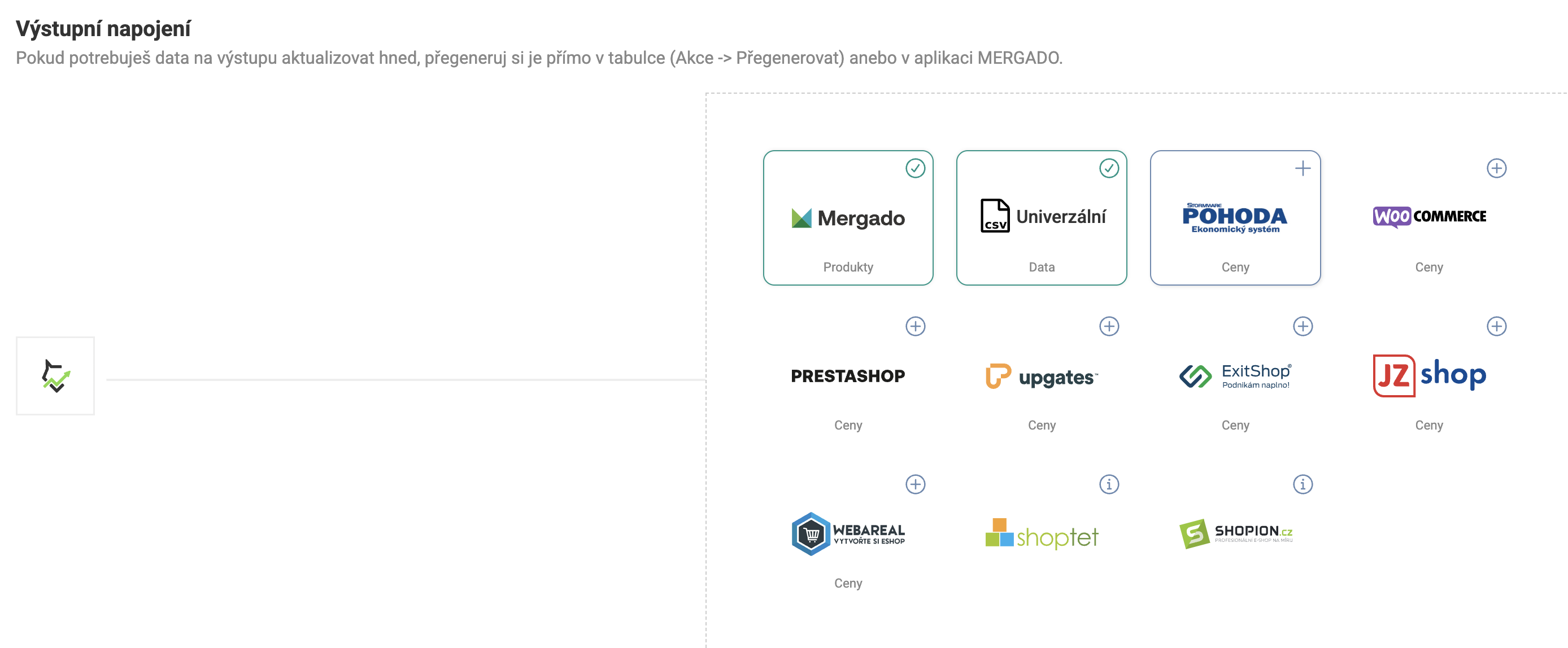
-
Fill in the necessary details
After you open the connector settings, a configuration form is displayed. Here you enter:-
Range of products in the XML
Choose whether the output should include all products or only products that have been repriced. -
Company registration number (IČO) (required)
Enter the IČO exactly as stated in Pohoda. If it doesn’t match, Pohoda won’t update the data – but it also won’t return any error, so we recommend a careful check. -
mServer URL and port (optional)
If you want Pricing Fox to automatically send the XML to Pohoda, here you can enter the public URL and port on which the Pohoda mServer listens. This tool lets it process incoming XML without manual intervention. (see the screenshots with the settings) -
STW-Authorization header (optional)
If you use the mServer, you can also add an authorization header. You set the value directly in Pohoda.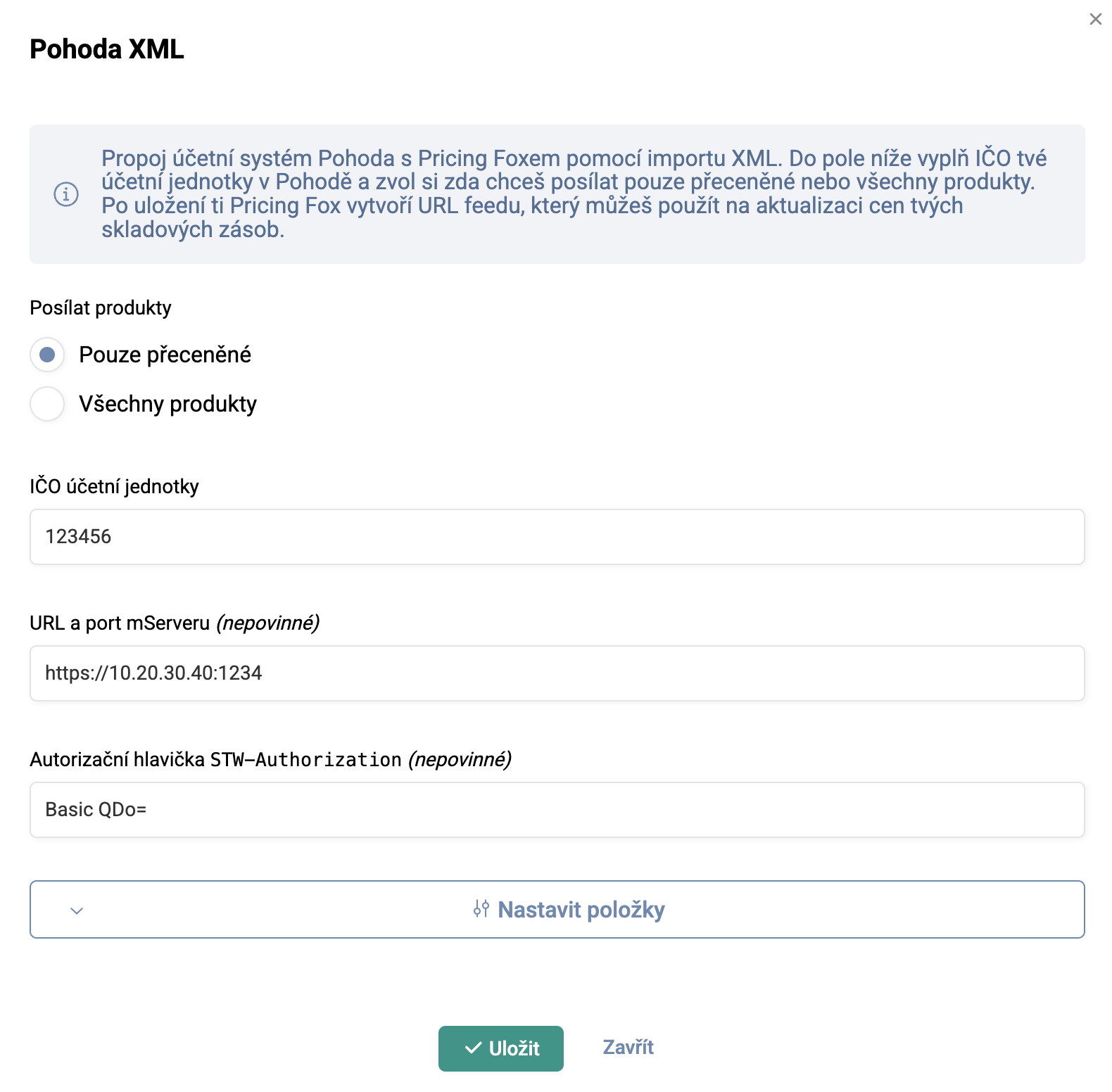
-
-
Item settings
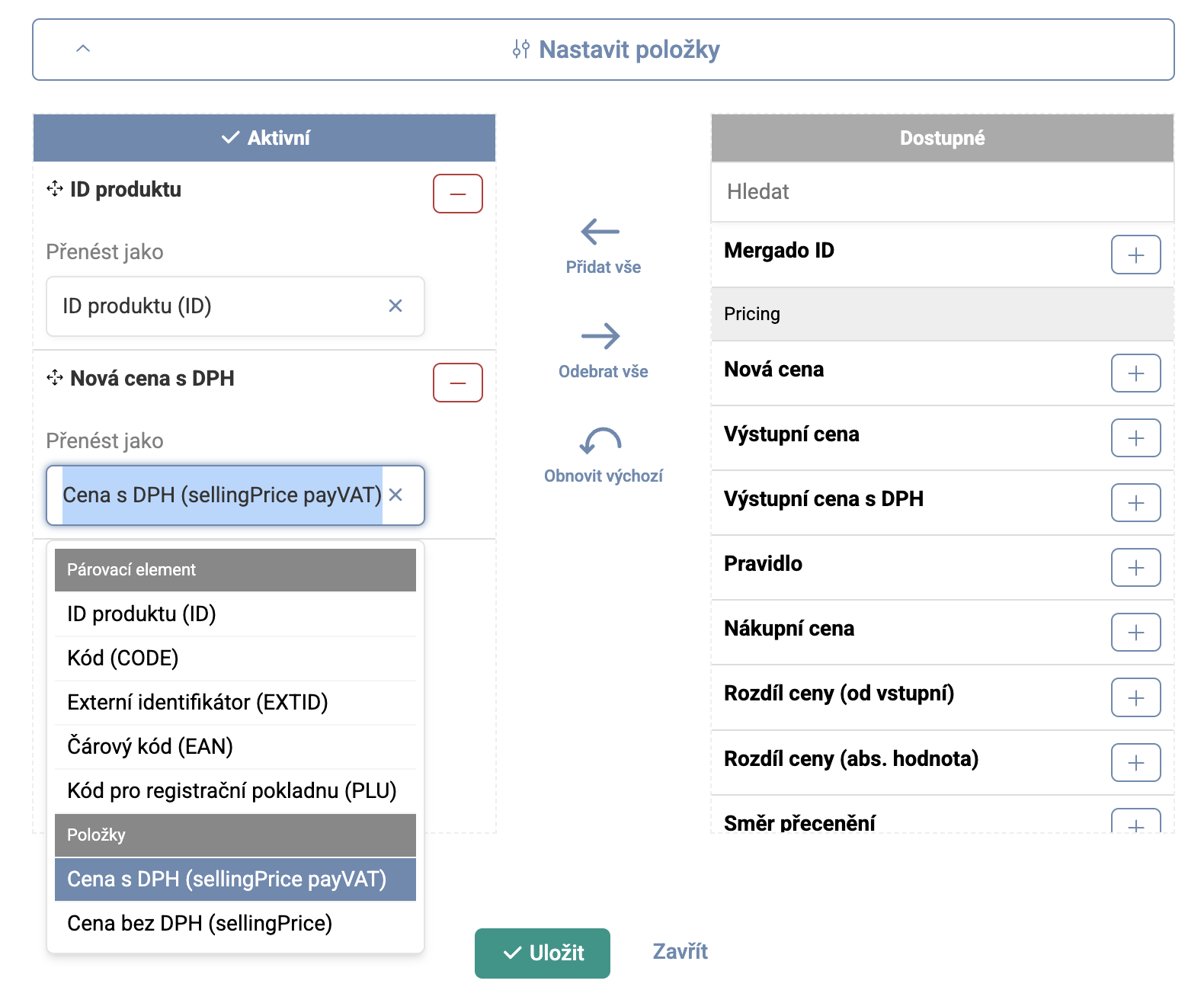
Choose which elements from Pricing Fox you want to use as pairing elements. There are these options to choose from:
-
ID,CODE,EXTID,EAN,PLU– and also the option of their combinations.
-
Then choose whether the price excluding VAT or the price including VAT should be exported.
-
-
Save the settings
After filling in all the fields, click the Save button. This automatically creates the connection, generates the XML file, and displays its URL. If you entered the mServer URL, the XML is sent to it immediately.
Manual regeneration and possible sending to the mServer can be done manually in the table of created Connections. After that it’s done automatically every 4 hours. If you’d like to adjust the frequency or time of regeneration, write to us at podpora@pricingfox.cz

Why connecting to Pohoda pays off#
Connecting Pricing Fox to Pohoda brings you several benefits at once:
-
✅ Time savings – prices are transferred to Pohoda automatically, without the need for exports or manual imports.
-
✅ Data accuracy – thanks to regular updates directly from Pricing Fox, you have the certainty that the prices in the warehouse match those you set in your strategies.
-
✅ Flexibility of settings – you customize the output according to which prices you use in Pricing Fox (including or excluding tax) and you can also choose the value of the pairing element.
-
✅ mServer support – if you use Pohoda with the mServer, the transfer is fully automated, including authentication and without the need for manual intervention.
In the following two chapters we provide answers and solutions to the most common problems you may run into.
Frequently asked questions#
What is the mServer and how do I start it?#
-
The mServer is an application integrated directly in Pohoda. For detailed information, we recommend visiting the POHODA mServer website directly.
-
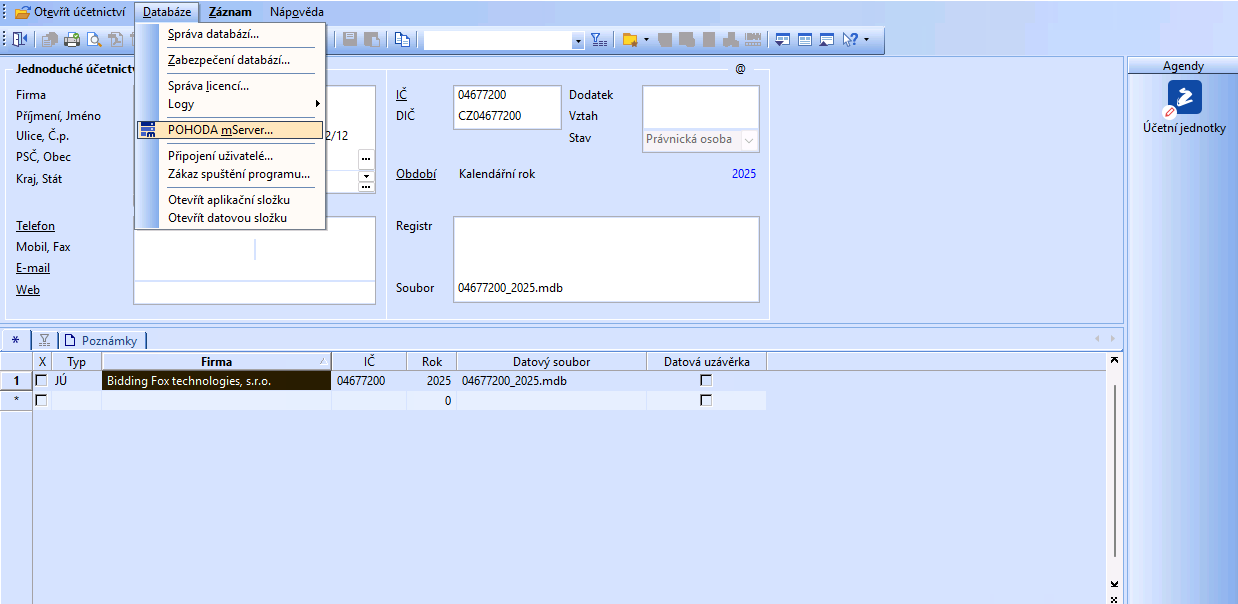
You’ll find how to start the mServer in the menu on Pohoda’s home screen, before opening the accounting unit.
-
In the table of created mServer instances, you’ll also find buttons for creating a New instance, Editing, or Starting one of the existing ones.
-
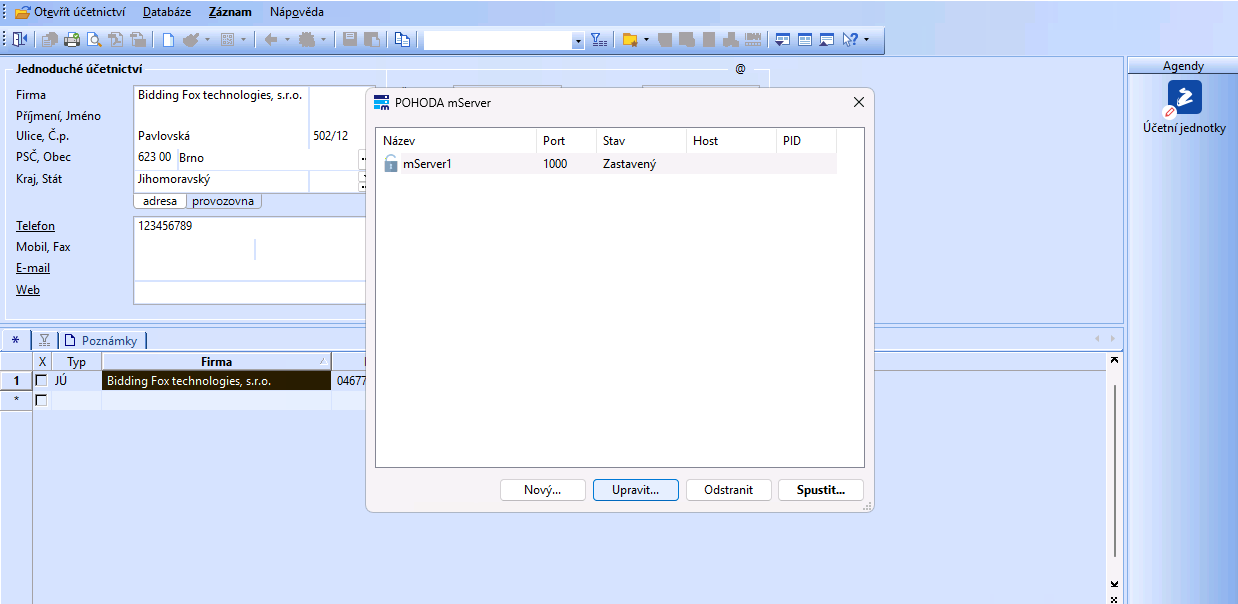
-
In the mServer settings, pay attention especially to selecting the correct Accounting unit and filling in the Port on which the server will listen. If you’re not sure of the correct value, we recommend consulting your network administrator.
-
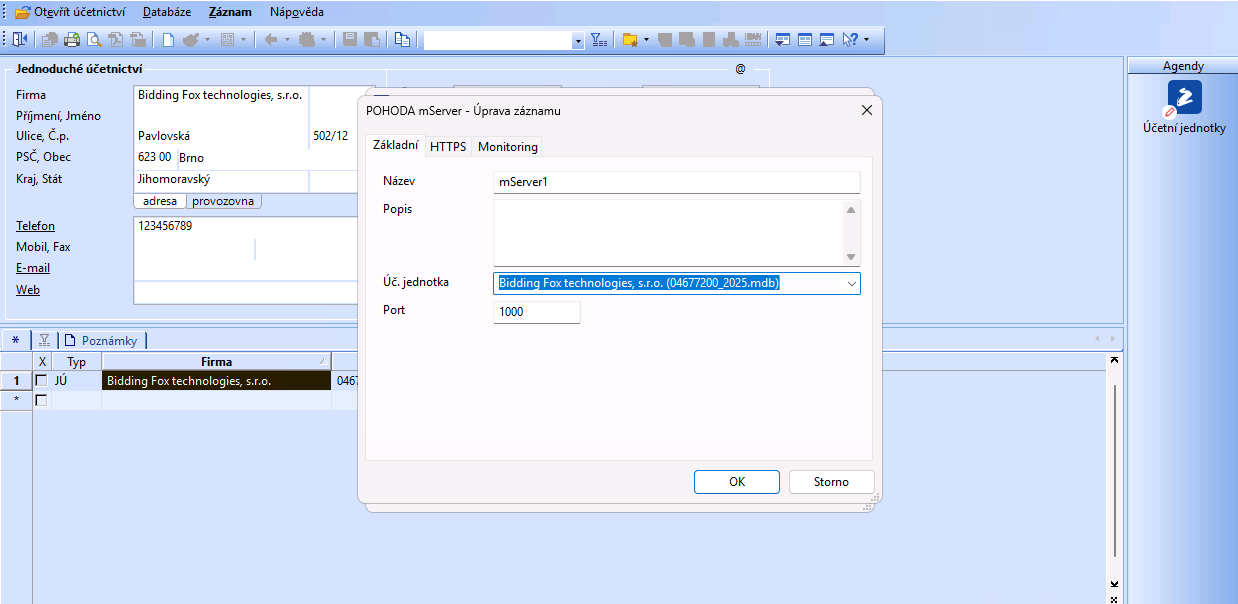
Where do I find the communication logs?#
To correctly diagnose whether the transfer between the two systems works correctly, we recommend watching the communication logs recorded by Pohoda, or the mServer, directly.
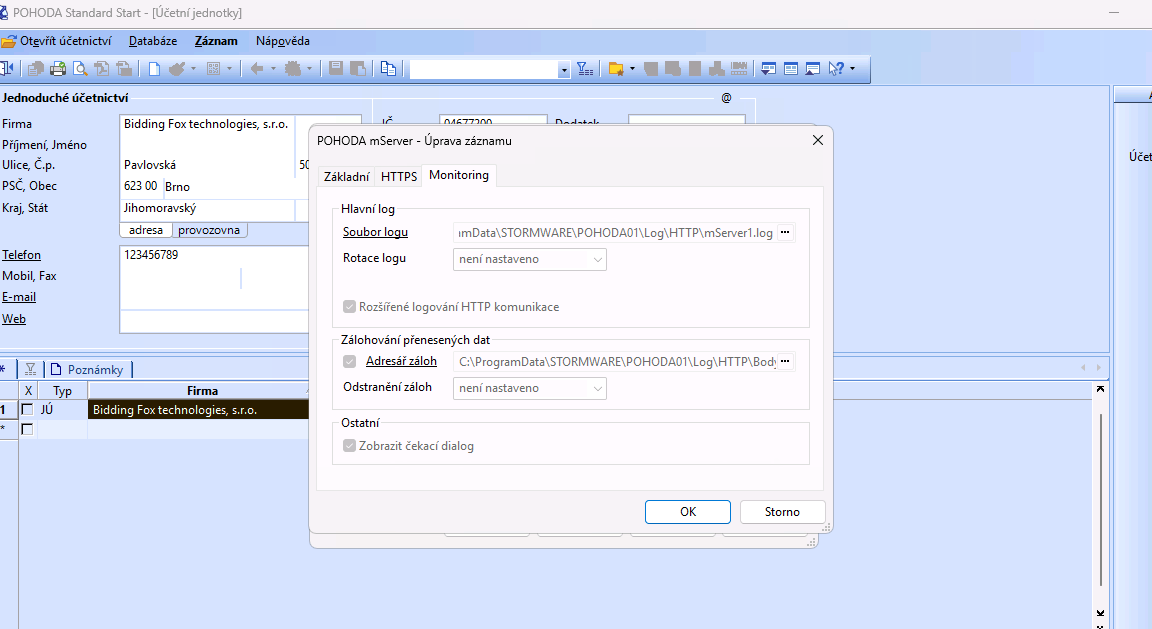
In the mServer editing window (see the previous question) you’ll find the Monitoring tab, where you can turn on logging of communication and data transfer. We recommend activating this especially during the initial transfer diagnostics, or if you run into any discrepancies. You open the log by clicking the underlined labels Log file and Backup directory. We discuss some of the most common problems you can reveal from the log in the next paragraph, Troubleshooting, below.
How do I set up a secure transfer?#
The mServer supports data transfer over the HTTPS protocol. Warning: after activating the secured protocol, the mServer URL changes, specifically the initial part http:// changes to https://, so you also need to make this change in the connector address settings in Pricing Fox.
-
In the mServer settings (see the previous two questions) you’ll find the HTTPS tab, which lets you turn on encrypted transfer between Pricing Fox and Pohoda. If you don’t know what values to enter in the individual fields, we recommend consulting your network administrator.
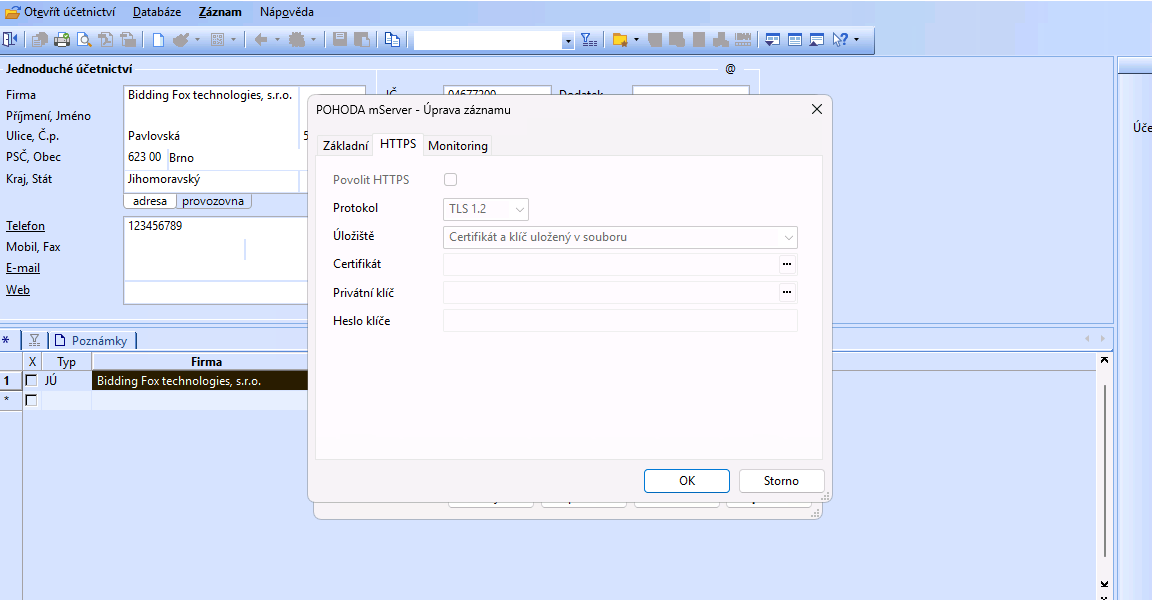
-
In the Connection settings in Pricing Fox, verify that you have the protocol in the address filled in correctly - https:// for a secure transfer, http:// for an insecure one

How do I tell that my transfer works?#
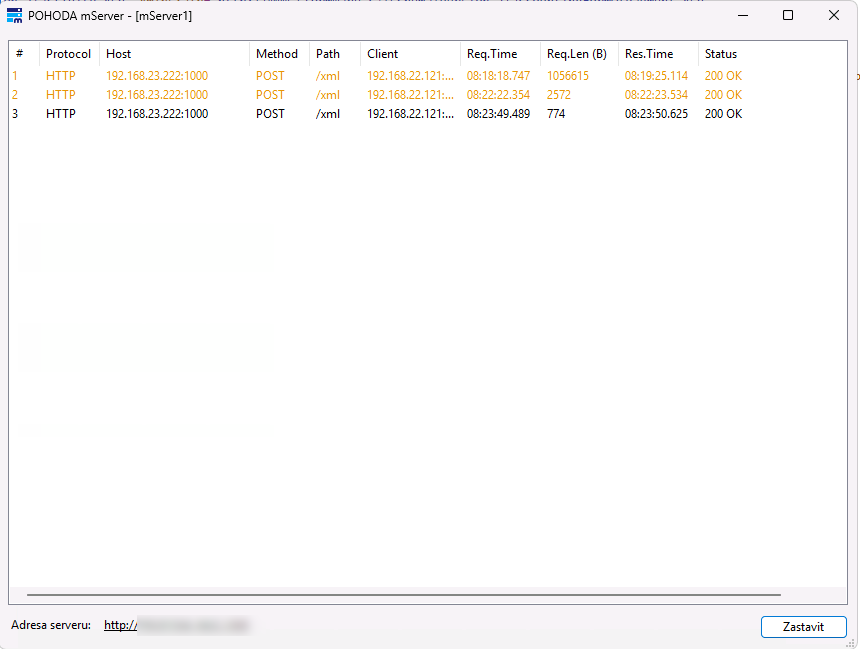
Data transfer to the mServer is performed on every regeneration of the connection in Pricing Fox. You can run it manually, after which it’s done automatically every 4 hours. In a running mServer, all communication is logged. If you don’t see any rows in the communication log window (see the screenshots below), check that you have the mServer accessible from the public network and that you have the correct address and port filled in in Pricing Fox.
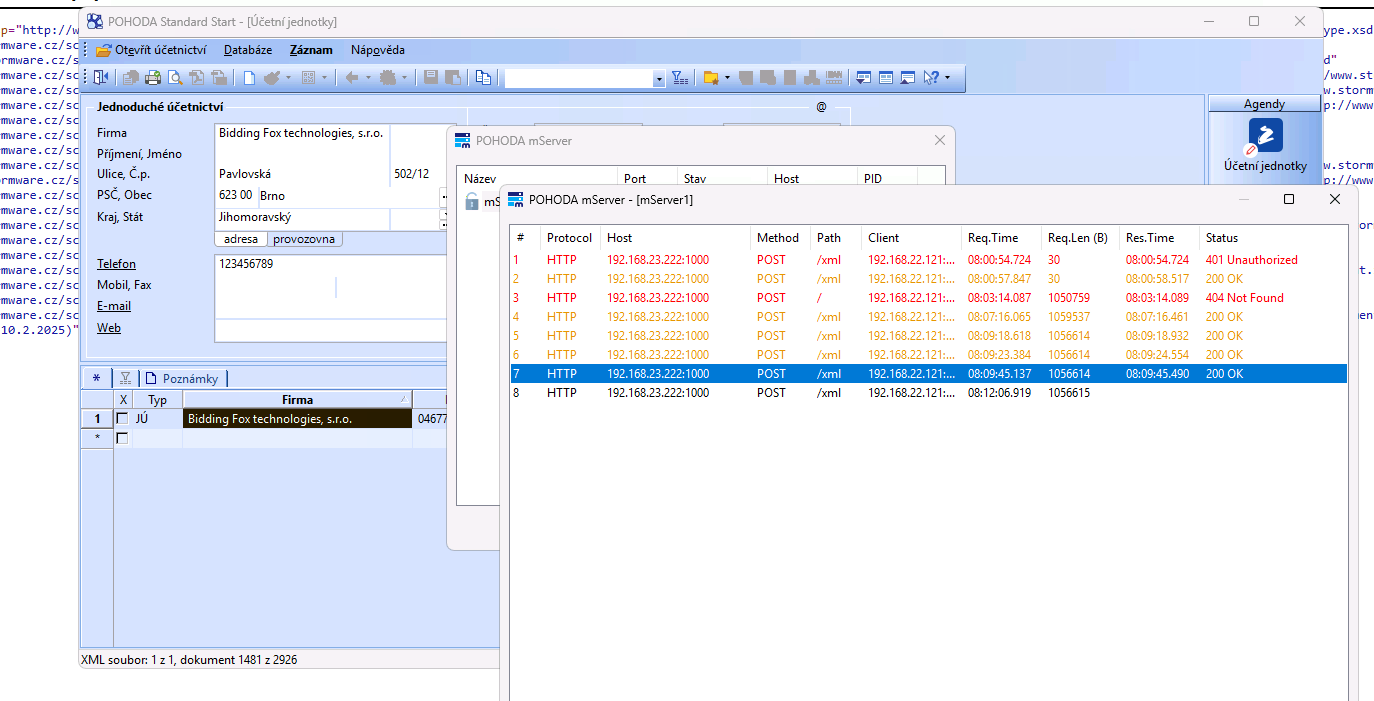
- After starting the mServer, a window pops up in which records of the communication between Pricing Fox and Pohoda should accumulate. We recommend paying attention especially to the last column, Status, or the color of the row. Orange and red rows signal some problem in the transfer - we discuss the individual states in more detail in the following section of this article, Troubleshooting. If the window is empty, you probably don’t have the mServer accessible from the public network, or you have the wrong address or port filled in in Pricing Fox.
-
A black-highlighted row together with Status: 200 OK means the import went fine and all items in the export were successfully updated. If any of the sent items weren’t found, the row will be lit orange, even though all the other items are written and the status is 200 OK.
-
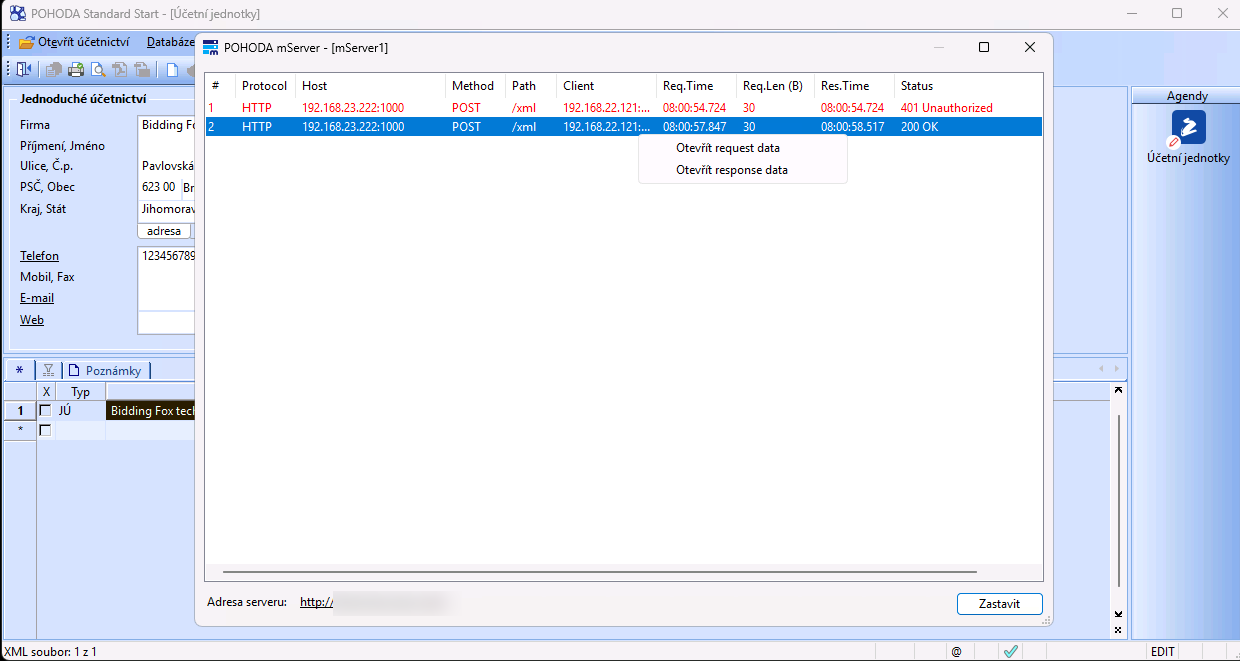
You can display more detailed information about the communication that took place by right-clicking the corresponding row. You can display both the sent XML (Open request data) and the server’s response (Open response data). We discuss some errors you’ll find in the server’s response in the next part of the article, Troubleshooting.
-
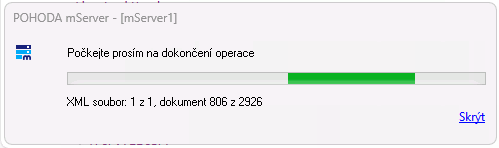
If you have the mServer running as a standalone process, a window showing the progress of the current data transfer always pops up when importing data.
-
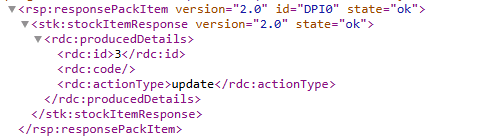
This is what a record in the response data about a successful data update can look like.
Not all my data is being transferred. Why?#
-
This can usually happen in two cases:
-
You have only Repriced products selected in the Connection settings in Pricing Fox. In that case, records of products that weren’t repriced during the last run of Mergado rules will be completely missing from the output XML. Such products will be ignored and no change will be made to them in Pohoda.
-
You have the New price element selected in the Connection settings in Pricing Fox. If you use this element and set up sending all products, then these products will be in the resulting XML file only with the pairing element, but without a price. These products will be ignored and no change will be made to them.
-
-
If you want to be sure that all products from Pricing Fox will always be transferred, we recommend setting up sending All products in the Connection settings and, in the transferred items, choosing the element Output price, or Output price including VAT.
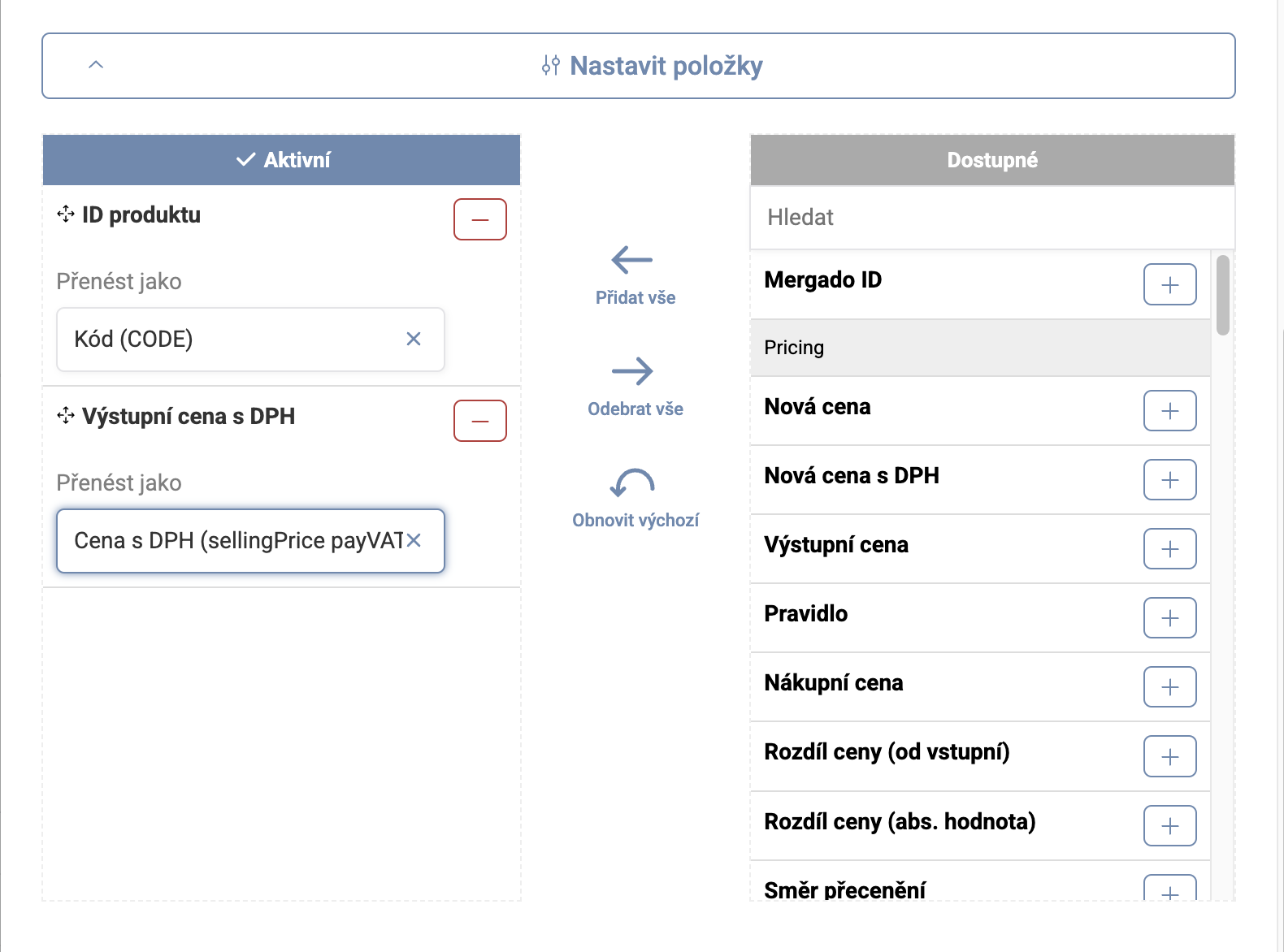
The Output price element is always in the output. Conversely, the New price element will have values only for products that are repriced in Pricing Fox.
Troubleshooting#
“This package isn’t intended for this unit”#
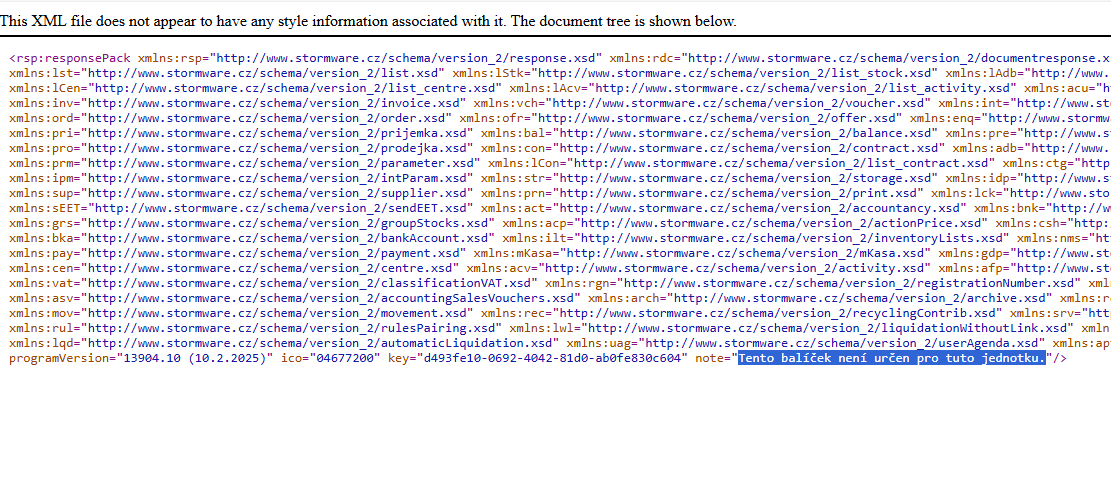
If you see this in the Response listing (see the previous section), it’s an incorrectly filled-in unit IČO in Pricing Fox. Verify that the value of the ico parameter in the log matches the identification number filled in in Pricing Fox in the Pohoda connection settings.
401 Unauthorized#
-
You may encounter this status if you have the authorization header filled in incorrectly in the Pohoda connection settings.
-
Pohoda’s official documentation says the following about this:
The HTTP request header must contain the STW-Authorization parameter, which serves for access (authentication) to the POHODA program. The POHODA mServer receives the HTTP request and starts XML communication in the POHODA program to process the XML data. For the POHODA mServer to start XML data processing in the POHODA program, it needs valid access credentials (username and password) for the POHODA program. The name and password are sent as a single text string. A colon is appended after the name, followed by the password. The resulting string is then encoded using the Base64 method and sent as part of the HTTP request.
If your access credentials to Pohoda are empty, fill in the value: Basic QDo=
404 Not Found#
The 404 error code means the correct path couldn’t be found within your mServer system. Verify that the Path column has the path in the exact form /xml. If it doesn’t, verify the mServer URL entered in the Connection settings in Pricing Fox, or write to us at podpora@pricingfox.cz and we’ll try to reveal the problem with you.
200 OK – but orange#
This state means the transfer went correctly, but with some warnings. You find out the specific error by right-clicking the row and choosing “Open response data”. In the opened XML file you then learn what warning occurred during the transfer.
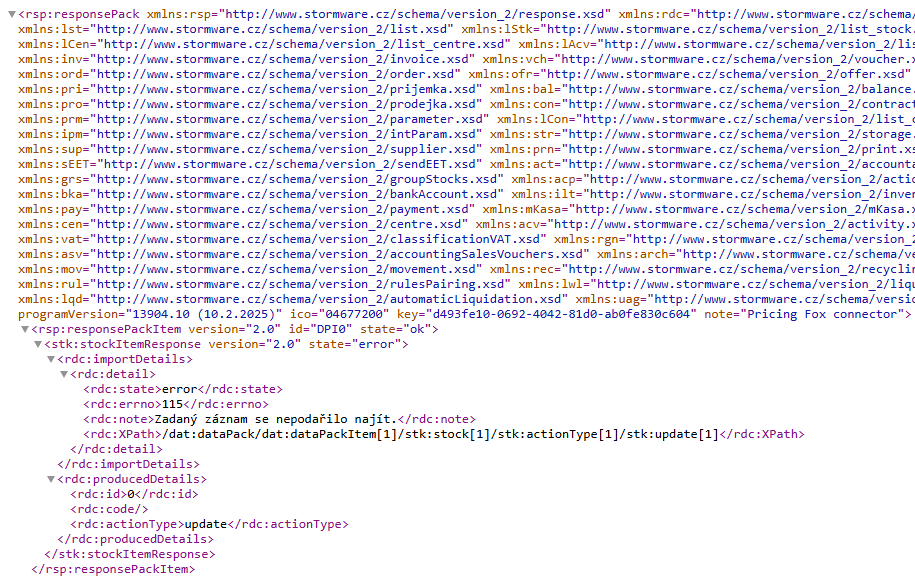
The error message The specified record couldn’t be found means you either have the pairing element set incorrectly in the connector Connection in PF, or the sent product doesn’t exist in Pohoda. These products will be ignored (no new ones will be created), but the other records without this error will be updated.
Need help with the setup?#
Whether you’ve been using Pohoda for a long time or are just starting out with it, we’ll be happy to help you with the connection. If you’re not sure how to correctly fill in the individual fields, or you need to verify the mServer settings, get in touch with us – our specialists will be happy to advise you on the configuration.