
Collage#
Collage is a Feed Image Editor feature that combines a product’s main image and its alternative images into a single image. This lets a customer see the product from several angles at once in a single advertising image, without having to browse through a gallery.
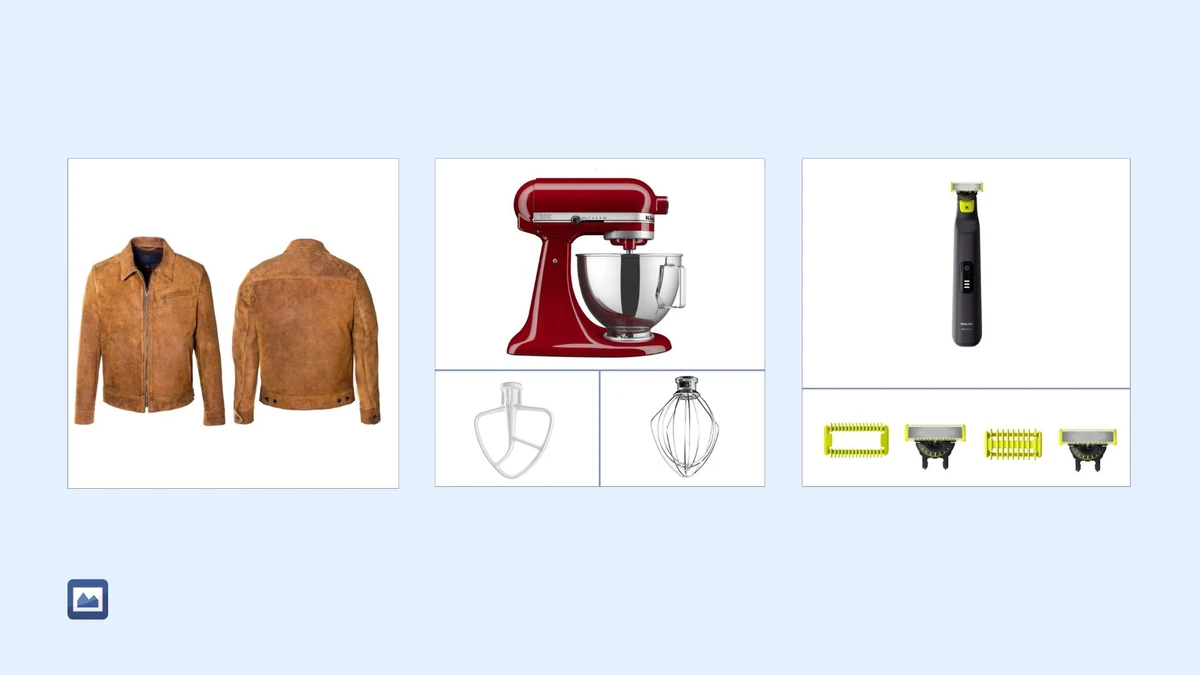
How it works#
The extension arranges the available product images into a preset or custom layout. The resulting image is used as the template’s output and is exported to the feed just like any other edited image.
What you need#
To create a collage, products in the feed need not only a main image but also alternative images. The number of alternative images required depends on the chosen layout – the more cells the layout has, the more images are needed.
Setting it up in the extension#
-
Create a new template in Feed Image Editor.
-
Select a product query and the output format.
-
In the right panel, click tab 3 – image layout.
-
Select the Collage option.
-
Choose a preset layout or build a custom one.
-
Name and save the template.
If you are not sure whether all products in the product query have enough alternative images, check the Only if all alternative images are available option. The collage will then only be created for products that have the required number of images, while others will keep just the main image. You can also manage collage layouts on the Settings page, in the Collages section.
When a collage comes in handy#
A collage is useful anywhere a single image is not enough to fully present a product. Typical use cases:
-
Components – package contents or accessories in a single image.
-
Details – close-ups of specific parts of the product (seams, surface, mechanism).
-
Different viewing angles – front, side, and back of the product at once.
-
Variants – showing available colors or designs side by side.
Check whether you have enough alternative images#
Feed Image Editor includes the Diagnostics tool, which lists products with an insufficient number of alternative images among its recommendations – specifically the Option to add alternative images filter. It shows products for which alternative images can be added up to the limit allowed by the target advertising system.
FAQ#
What happens if a product does not have enough alternative images for the chosen layout?#
If the Only if all alternative images are available option is checked, the template will not create a collage, and the original main image will remain in the output. Without this option checked, the extension will try to assemble a collage from the available images, and missing positions may remain empty or be filled by repeating available images, depending on the layout settings.
Can I combine a collage with other graphic edits in the template?#
Yes. A collage is part of the graphic template and can be complemented with graphic layers such as a logo, price tags, or other elements, just like standard templates.
Can the collage layout be customized, or am I limited to preset variants?#
The extension offers both preset layouts and the option to build a custom one. A custom layout lets you choose the number and arrangement of cells to match your specific needs. You can configure it directly in the editor or on the Settings page, in the Collages section.
Which advertising platforms is a collage suitable for?#
A collage can be used for any output format supported by Feed Image Editor. It is most useful on platforms that display a single product image, such as Facebook, Google Shopping, or price comparison sites, where you want to give the customer more visual context within a single image.
I don’t have alternative images. Can I still create a collage?#
If alternative images are missing from the feed, you can use the main image multiple times instead – repeating the same image in several layout cells, optionally with different graphic layers over each cell. This approach works as a temporary solution but does not reach the informational value of a collage built from genuinely different images of the product.