
📤 Exports#
Exports let you get selected data out of Fox Data+, whether to check it, share it with a colleague, or connect it to other systems.
List of exports#
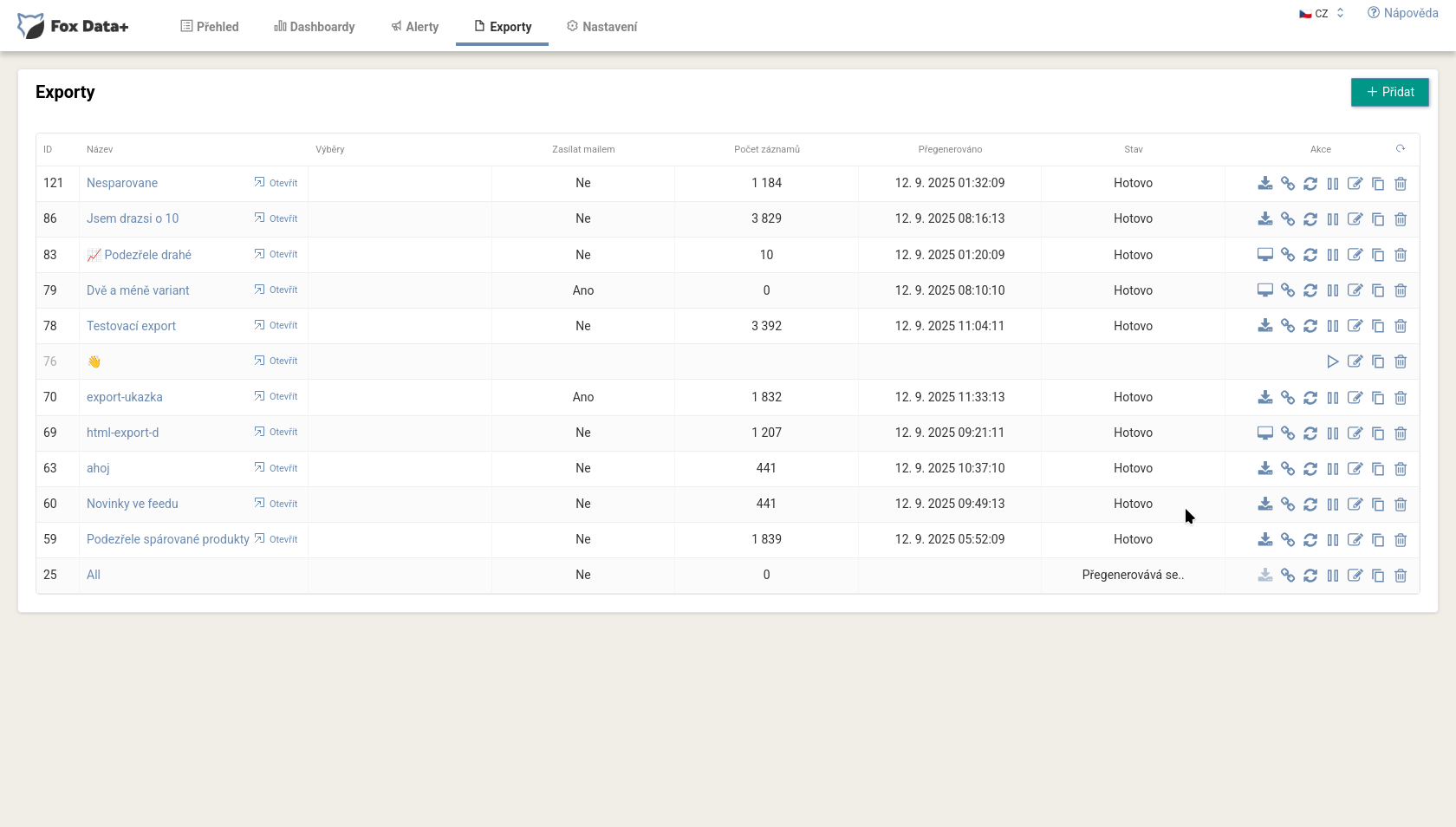
The table shows each export’s name, an Open link, whether it is sent by email, the number of records, when it was last regenerated, and its status (for example Done or Regenerating). Each has actions: download, show link, regenerate, pause, edit, duplicate, and delete. Create a new one with the Add button.
Creating an export#
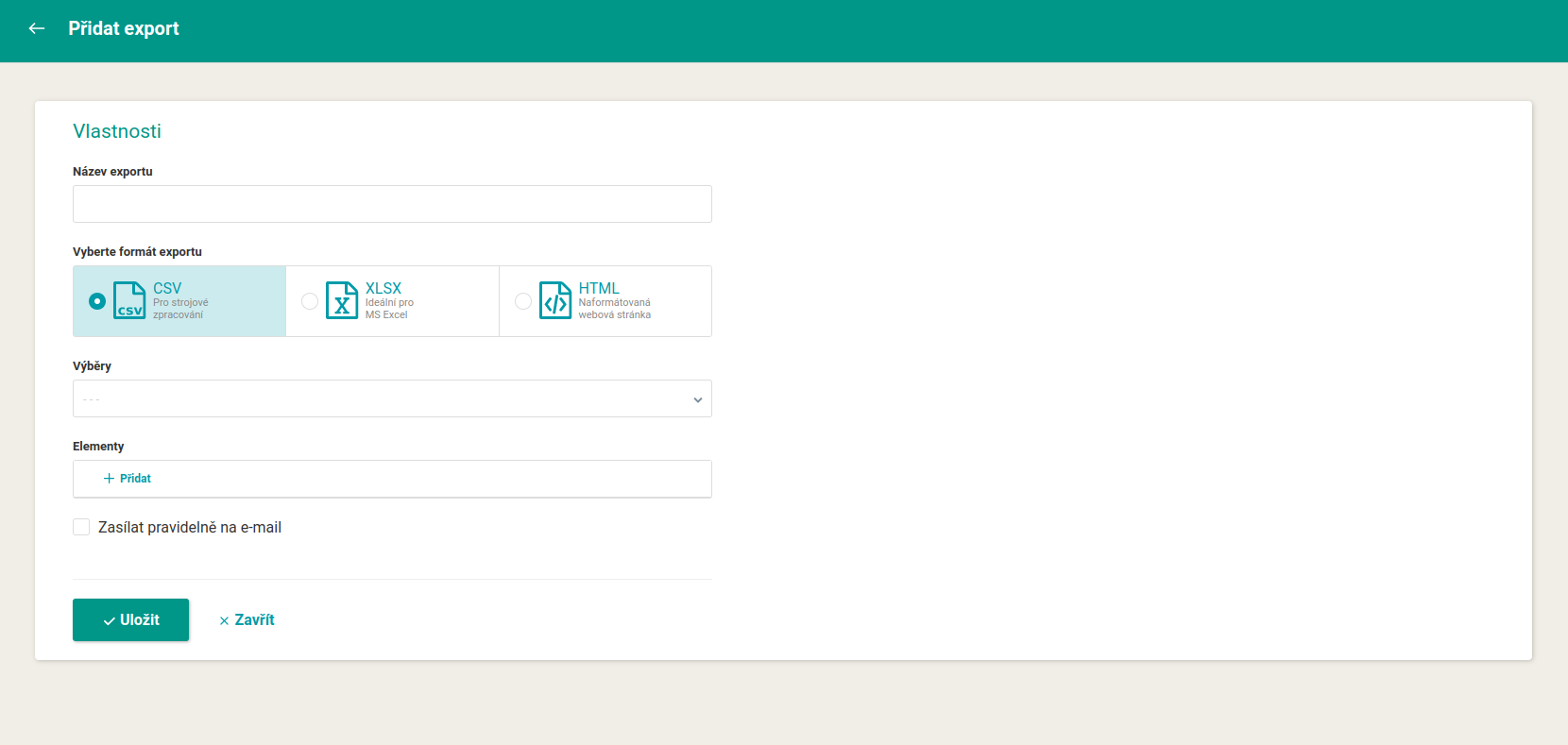
When creating one, you enter a name and choose a format:
- CSV: for machine processing,
- XLSX: ideal for MS Excel,
- HTML: a formatted web page.
You choose a product query from Mergado and, through Elements, decide which columns (information) the export contains, for example the product name, price, number of stores, position, or a link to the product. The Send regularly by email option has the export sent automatically.
Sharing and connecting#
Every export is available at a public URL whose content refreshes twice a day. Send the link to a colleague (they save it to their bookmarks), embed it in your own report, or connect it to Power BI or Data Studio (Looker Studio). That way you don’t have to spam anyone with emails.
💡 Put only what the recipient needs into the export (for example product, price, competitor price, link to the comparison site). A shorter overview is easier to check than the whole feed.
FAQ#
-
What formats can I export to? CSV, XLSX, or HTML.
-
How often does an export refresh? The content at the public URL refreshes twice a day, and you can regenerate it manually anytime.
-
How do I connect an export to Power BI or Data Studio (Looker Studio)? Use the export’s public URL as the data source.
-
Do I have to send the export by email? No. You can leave it only at the public URL, and the recipient opens it when they need it.