
How to Merge Multiple Feeds into One Output Feed#
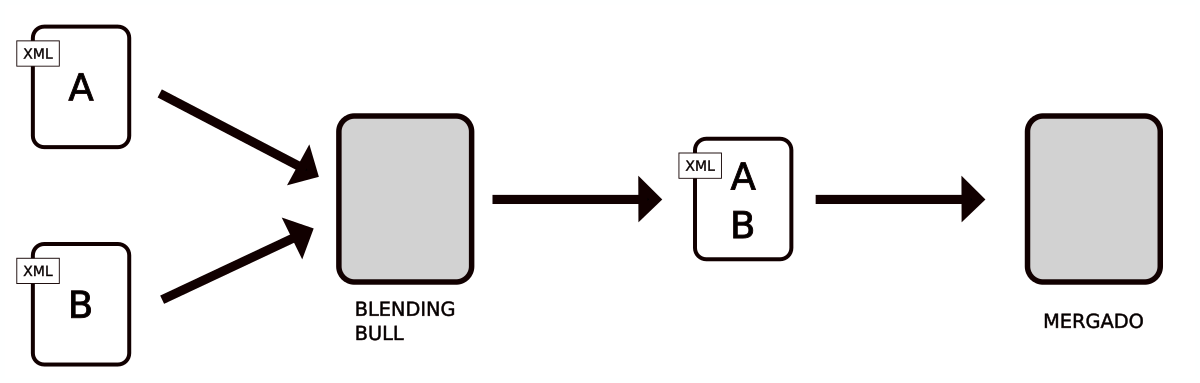
Working with multiple suppliers, each sending their own data feed, but your online store, accounting system, or a tool like Mergado can only accept one single file? This is exactly what the feed merging feature in the Blending Bull extension is for. Instead of manually consolidating data or finding workarounds for your system’s technical limitations, simply define which feeds to merge, and Blending Bull will create a single unified output file from them.
Merging feeds of the same format (e.g. XML with XML) is the recommended approach. Merging CSV files is also technically possible, but all sources must have the same column order.
Use cases#
Feed merging is useful in many practical situations — especially when your downstream system is not set up to process data from multiple different sources.
-
Online store system limitations — Many online store systems can only import data from a single feed. If you have multiple suppliers, for example, Blending Bull merges their supplier feeds into one file that your online store can then work with.
-
Preparing data for Mergado Editor — Mergado Editor accepts only one complete feed as input. It cannot natively merge multiple different source feeds one after another the way Blending Bull does. Blending Bull is therefore an ideal data preparation tool that unifies multiple inputs into one consistent output file.
-
Inventory and accounting software — These systems often have specific requirements and expect a single unified input file.
How it works#
Think of Blending Bull as scissors and tape. At the join, Blending Bull “cuts” the footer of one file and the header of the next, then “tapes” them together. The result is one seamless file that looks as if all the data came from a single source from the start. The extension concatenates feeds one after another — it does not match supplementary data from one file to a product in another based on ID (that is how the Data file import rule works in Mergado Editor).
Step-by-step guide (for XML format)#
Merging multiple feeds into one#
-
On the Files page, click New file.
-
Enter a File name.
-
The File address field shows the future URL of the new file. (Blending Bull generates the address.)
-
Choose the format of the new file (XML, CSV, JSON, TXT, or TSV).
-
Set the Processing interval. The default is 30 minutes; it can be changed to 10 or 60 minutes.
-
Click Continue to data sources.
-
To add a data source (feed), click New file data source.
-
Enter a Name for the data source.
-
In the Data source field, enter the URL of the data source.
-
Add the new data source by clicking + Create new data source.
-
Or select from previously saved data sources that appear when you click the field.
-
-
Remove the header
- You will see a Preview of the beginning of the data source. Copy the header text and paste it into the Remove text from the beginning of the data source field.
-
Remove the footer
- You will see a Preview of the end of the data source. Copy the footer text and paste it into the Remove text from the end of the data source field.
-
Click Save.
-
In the same way, add the other data sources (feeds) you want to merge. (Again via the New file data source button, and again remove the header and footer.)
-
After adding all data sources (feeds) to be merged, you can adjust the order in which the feeds appear in the resulting file. Simply drag and drop the data sources using the appropriate icon in the data source list.
-
Click Finish and then proceed to further editing of the resulting file by clicking Continue.
Adding a new header/footer to the resulting file#
-
Within the file, on the Edit file tab, click Create new rule.
-
Enter a Name for the rule.
-
As the Rule type, select Insert text at the beginning of the file / Insert text at the end of the file.
-
Enter the text you want to insert at the beginning/end of the resulting file as the header/footer.
-
Click Save.
Unifying elements and further edits#
If suppliers use different element names (e.g. one uses <SHOPITEM> and another uses <ITEM> to identify an item), use the Find and replace rule in Blending Bull to unify them.
If you need to delete certain elements (Delete XML tag with content rule), delete other content (e.g. the Delete text, Delete line containing text, or Delete empty lines rules), or otherwise modify values, use the relevant rules from the Blending Bull menu. More advanced edits can then be done in Mergado Editor.
FAQ#
What is feed merging in Blending Bull and what is it used for?#
It is a feature that allows you to merge multiple input data feeds into a single output file. It is useful wherever your online store, accounting system, or a tool like Mergado accepts only one file.
What feed formats can be merged?#
The recommended approach is to merge feeds in the same format, for example XML with XML. Merging CSV files is also possible, but all sources must have the same column order.
Can I merge feeds from different suppliers who use different element names?#
Yes. If one supplier uses <SHOPITEM> and another uses <ITEM>, you can unify them using the Find and replace rule in Blending Bull.
How does Blending Bull merge feeds? Does it match products by ID?#
No. Blending Bull concatenates feeds one after another, as if it “taped” them together. It does not match data from different sources based on product ID — that is a feature of Mergado Editor (the Data file import rule).
What happens to the headers and footers of individual feeds during merging?#
When adding each data source, you need to manually remove the header and footer using the Remove text from the beginning/end of the data source fields. A new shared header and footer can then be added to the resulting file using the Insert text at the beginning/end of the file rules.
Can I control the order of feeds in the resulting file?#
Yes. After adding all data sources, you can adjust their order by dragging and dropping using the appropriate icon in the data source list.
Why is Blending Bull a good data preparation tool before processing in Mergado Editor?#
Mergado Editor accepts only one complete feed as input and cannot natively merge multiple different sources one after another. Blending Bull can serve as a pre-processing step — it unifies multiple feeds into one, which Mergado Editor can then process without any issues.
Can Blending Bull be used for online stores with multiple suppliers?#
Yes, that is one of its main use cases. If your online store system can only import data from a single feed, Blending Bull merges the supplier feeds into one file that your system can work with.
Can I make further edits after merging feeds?#
Yes. In Blending Bull, you can use rules to delete elements, remove unwanted content, or modify values. More advanced edits can then be done in Mergado Editor.
How do I set the interval at which the resulting file is updated?#
The processing interval is set when creating the file. The default value is 30 minutes; it can be changed to 10 or 60 minutes.