
Connecting Mergado MCP to Claude#
You can connect Claude to Mergado using a custom connector. Claude then gets access to the Mergado MCP tools and can help you analyze product data or manage your projects.
The connection process is the same in the desktop and web versions of Claude. The screenshots in this guide come from the desktop app.
Connection details#
| Detail | Value |
|---|---|
| Connector name | Mergado |
| MCP Server URL | https://mcp.mergado.com/ |
| Authentication | OAuth |
Steps#
1. Open the app settings#
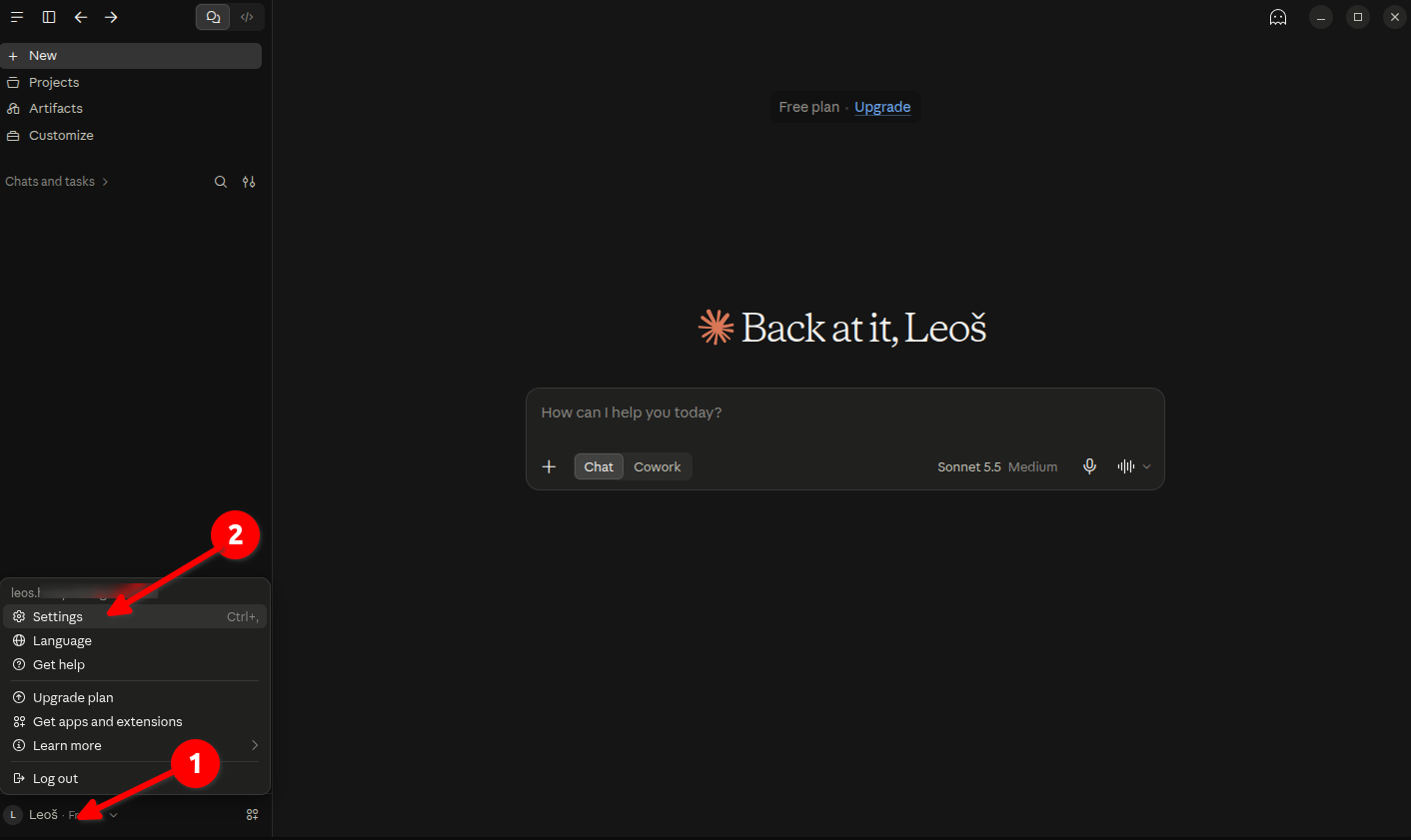
Click your profile in the bottom-left corner and select Settings.
2. Add a custom connector#
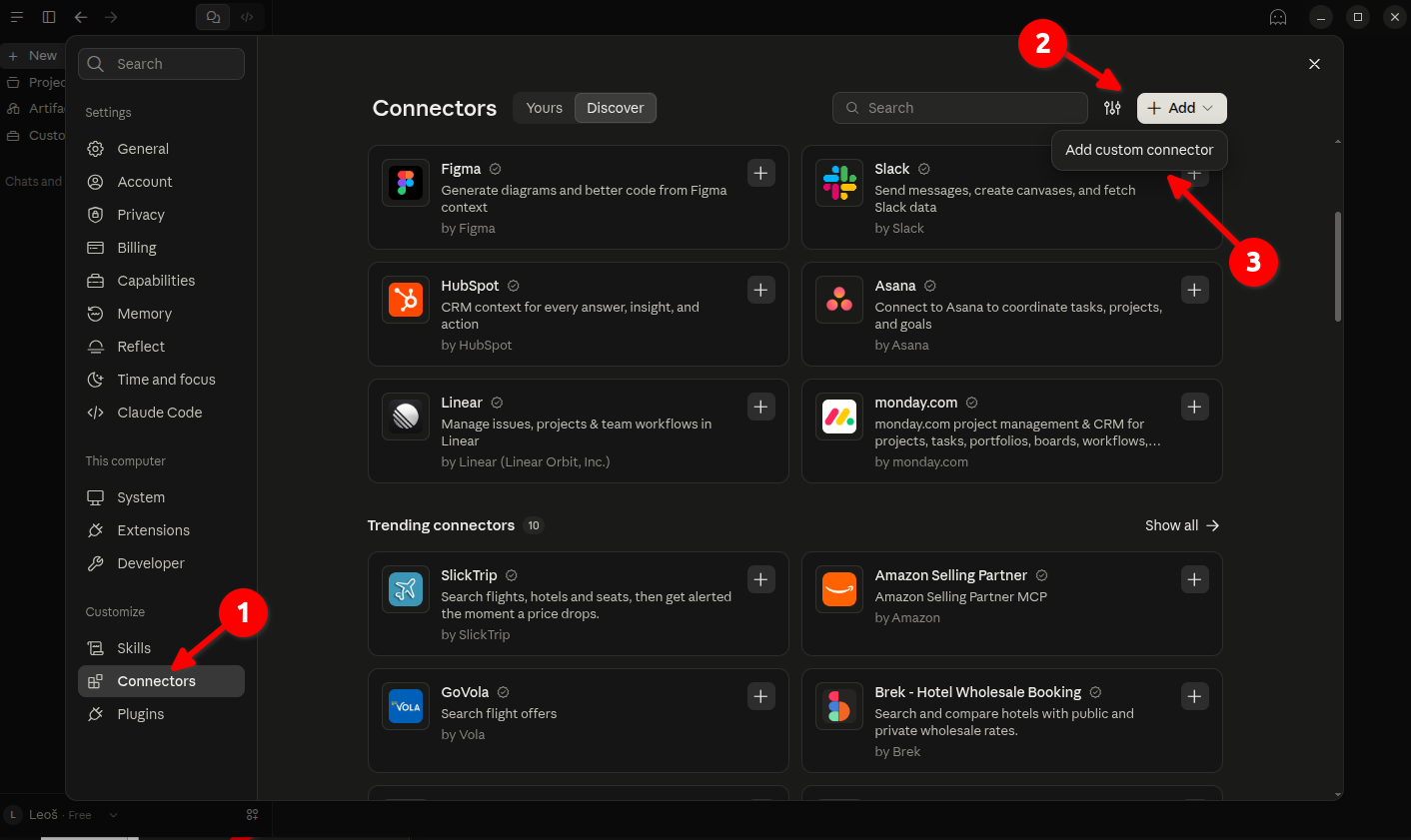
In the settings, open the Connectors section.
Click + Add and select Add custom connector.
3. Fill in the connector details#
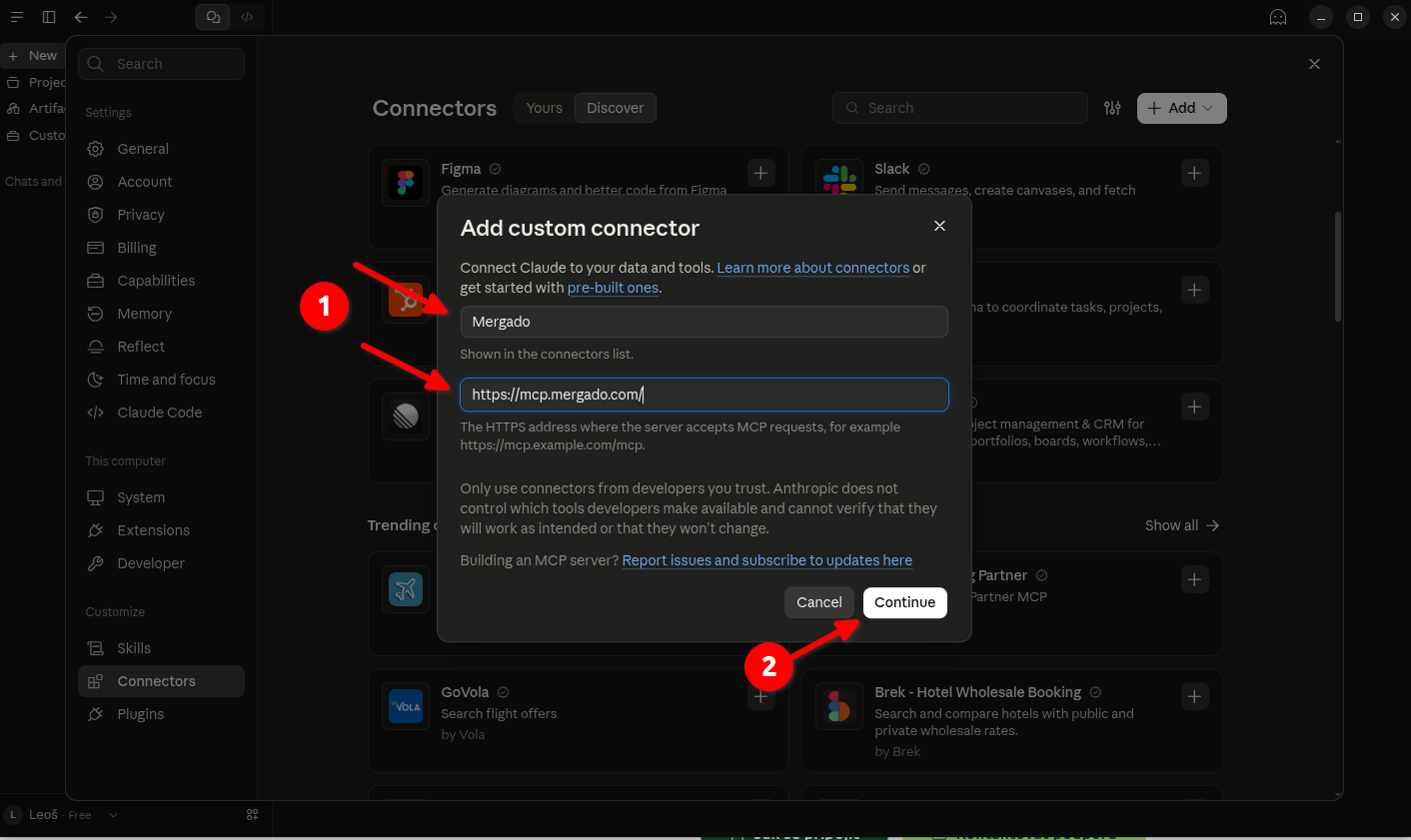
Enter the following in the form:
| Field | Value |
|---|---|
| Name | Mergado |
| URL | https://mcp.mergado.com/ |
Click Continue.
4. Check the sign-in settings#
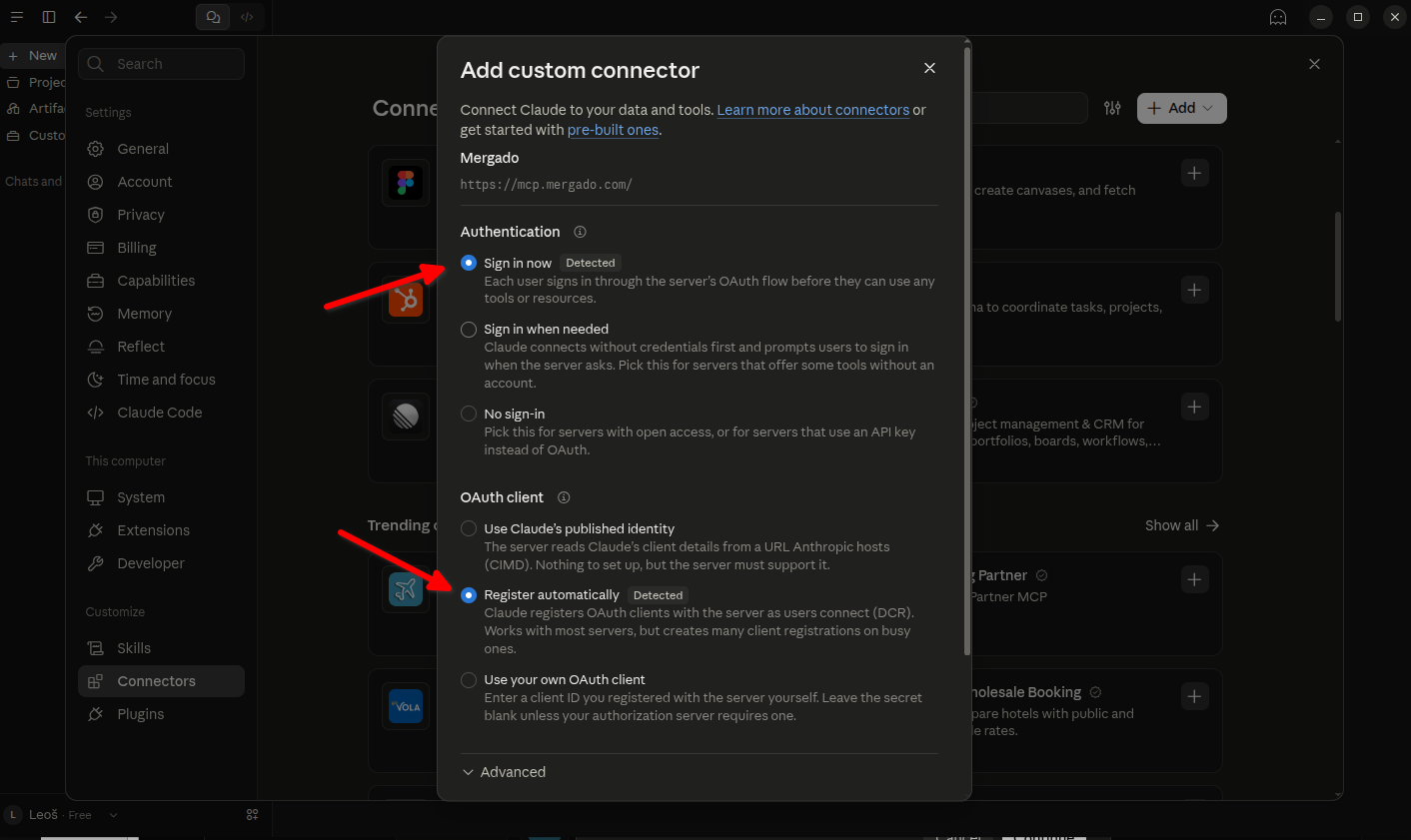
Claude detects the authentication method. Keep the settings shown in the screenshot:
- Under Authentication, select Sign in now.
- Under OAuth client, select Register automatically.
Finish adding the connector with the Add button at the bottom of the form. If you cannot see it, scroll down.
5. Connect your Mergado account#
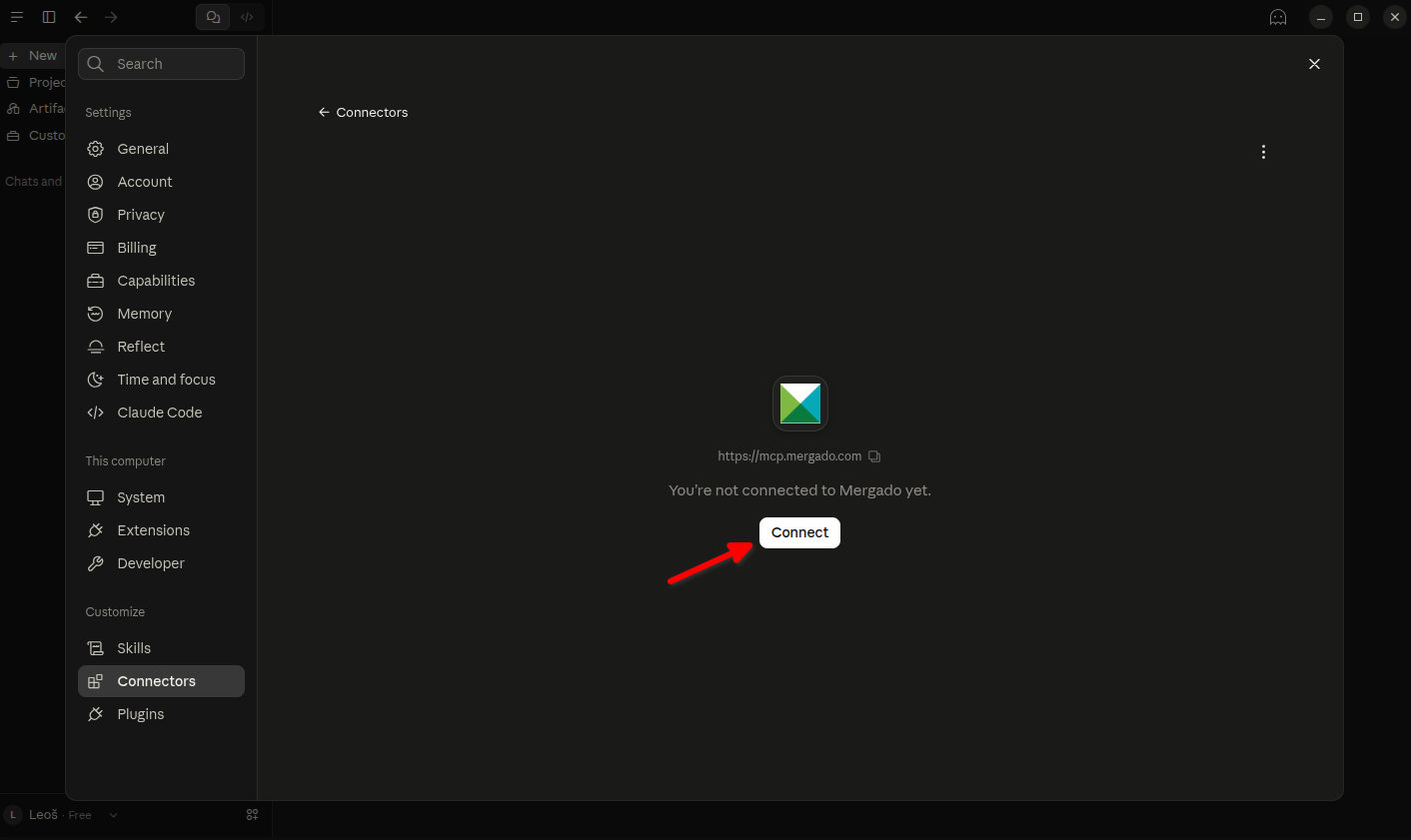
If the connector is not connected yet, click Connect.
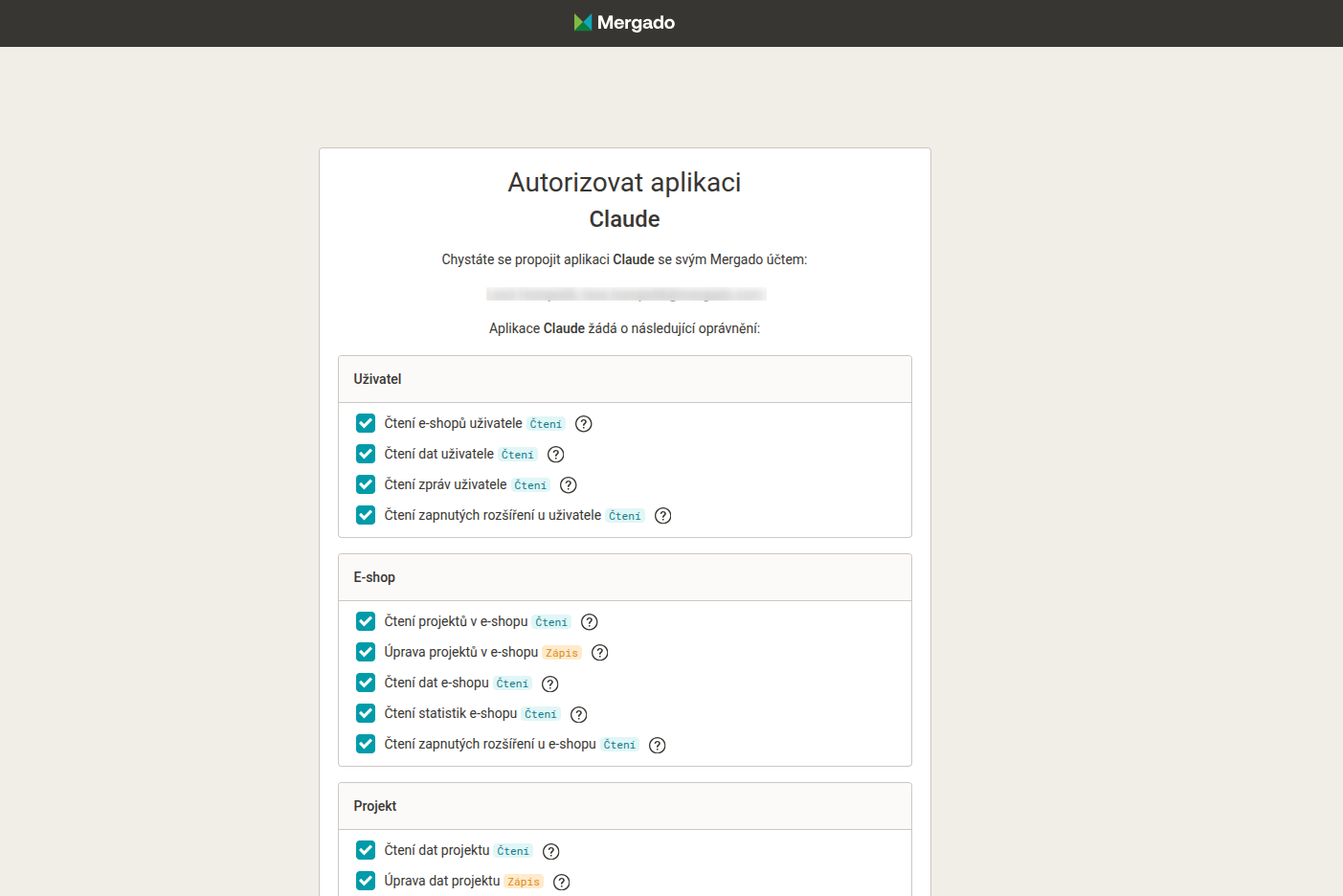
On the Mergado authorization page:
- Sign in to your account if you are not signed in yet.
- Review the requested permissions.
- Confirm the connection with the Allow button.
6. Set tool permissions#
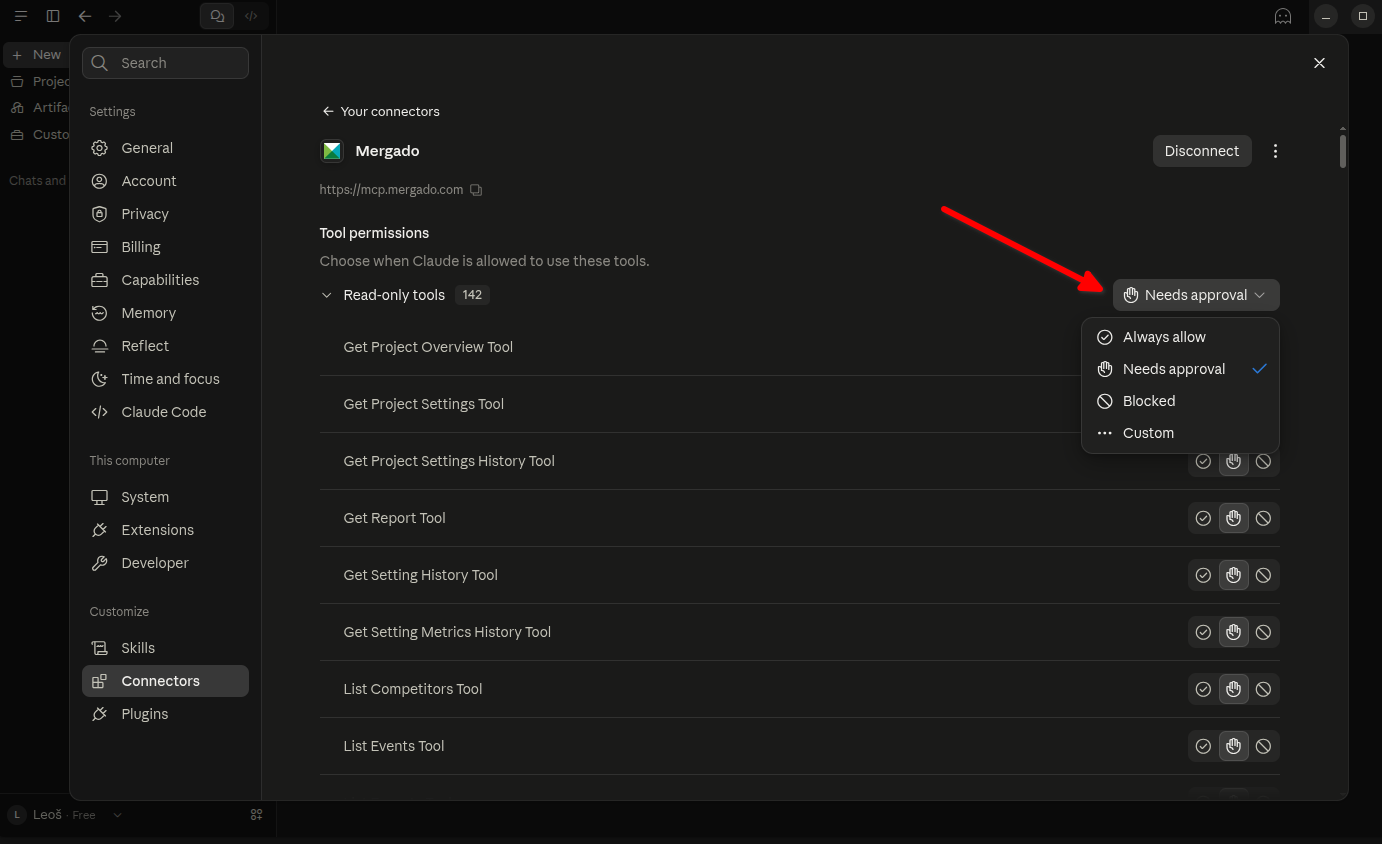
Once connected, the connector detail shows the available tools and the Tool permissions section. Here you set when Claude can use them.
The screenshot shows the options for the Read-only tools group, which contains tools for reading data:
| Option | Meaning |
|---|---|
| Always allow | Tools are used without further confirmation. |
| Needs approval | Each use of a tool requires your approval. |
| Blocked | Tool use is blocked. |
| Custom | Individual settings for each tool. |
To start, you can keep Needs approval and confirm tool use as needed.
7. Test the connection#
Open a new chat. In the + → Connectors menu, check that the Mergado connector is turned on for the conversation.
Then enter, for example:
Using Mergado MCP, list the online stores I have access to.
If Claude asks for permission to use a tool, review the request and confirm it.
If Claude loads data from your account, the connection works and you can start giving it more tasks.