
Exports#
Learn how to set up exports of data about products, competition, and repricing in Pricing Fox. We support CSV, XLS, HTML, and XML. Suitable for both manual work and automation.
What are data exports in Pricing Fox and what are they for?#
Data exports in Pricing Fox serve to obtain overviews of the current state of products, competitor offers, and repricing results. They let you export selected information in a machine-readable format (CSV, XLS, HTML, or XML), which can be further analyzed, archived, or connected to external tools. They’re suitable both for manual processing (e.g. checking products in a spreadsheet editor) and for automated systems (e.g. reporting or BI tools). An export in HTML format can be used as a static web page – for example, to present results to clients or as a quick overview without having to open a spreadsheet application.
What types of exports does Pricing Fox offer?#
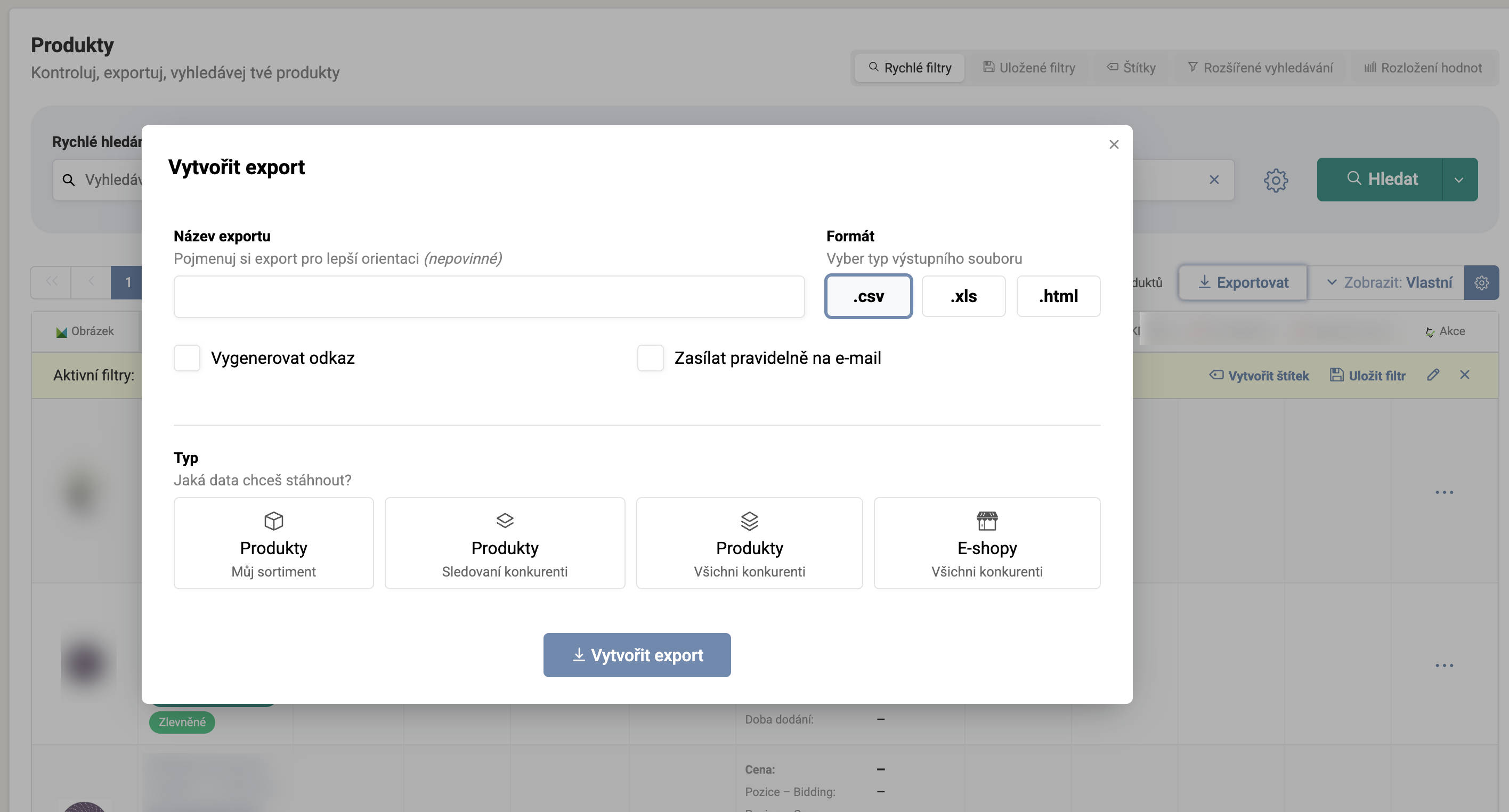
In Pricing Fox you can create various types of exports depending on which data you’re interested in:
-
product data – e.g. purchase price, competitor offers, resulting price, or the applied repricing strategy,
-
statistics – position development, price changes, strategy performance, or an overview from analytics,
-
comparison with the competition – price, delivery time, delivery price, and the positions of competitor stores’ products on shared product cards,
-
information about competitor stores – including statistics comparing their assortment with yours,
-
custom selections – based on filters, labels, diagnostic messages, inclusion in strategies, and other parameters.
You can create an export as a one-off output, a regularly updated feed, or have it automatically sent to your email.
What data can I export?#
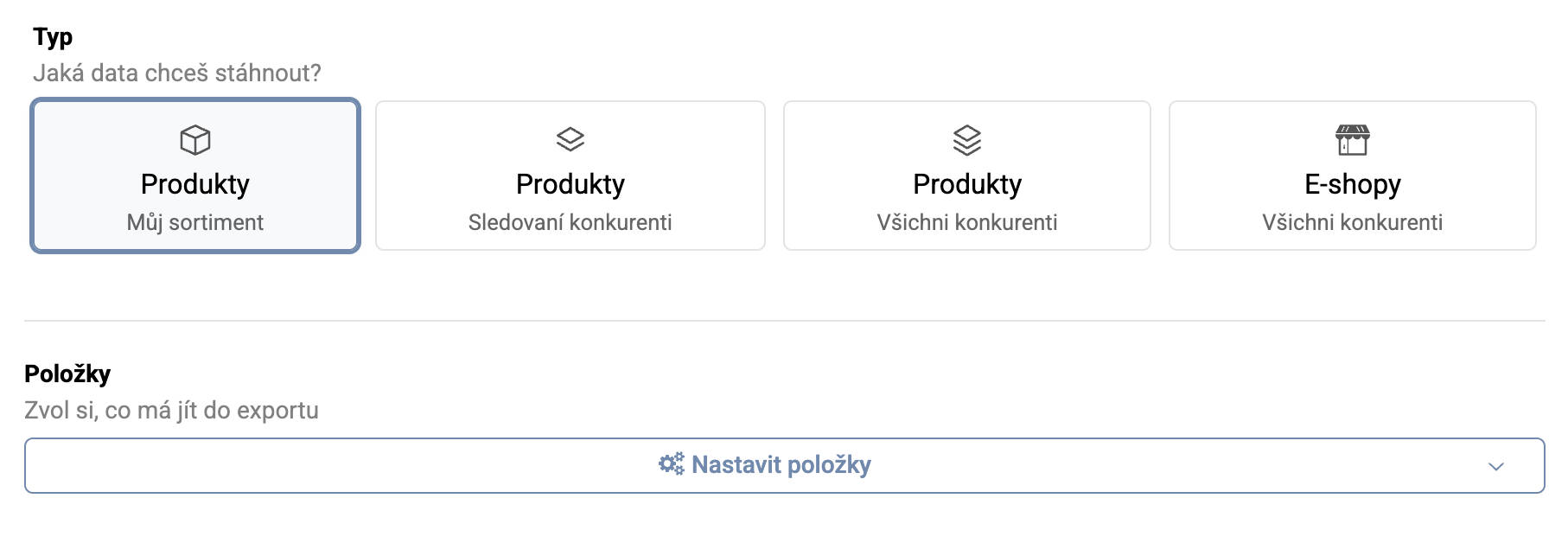
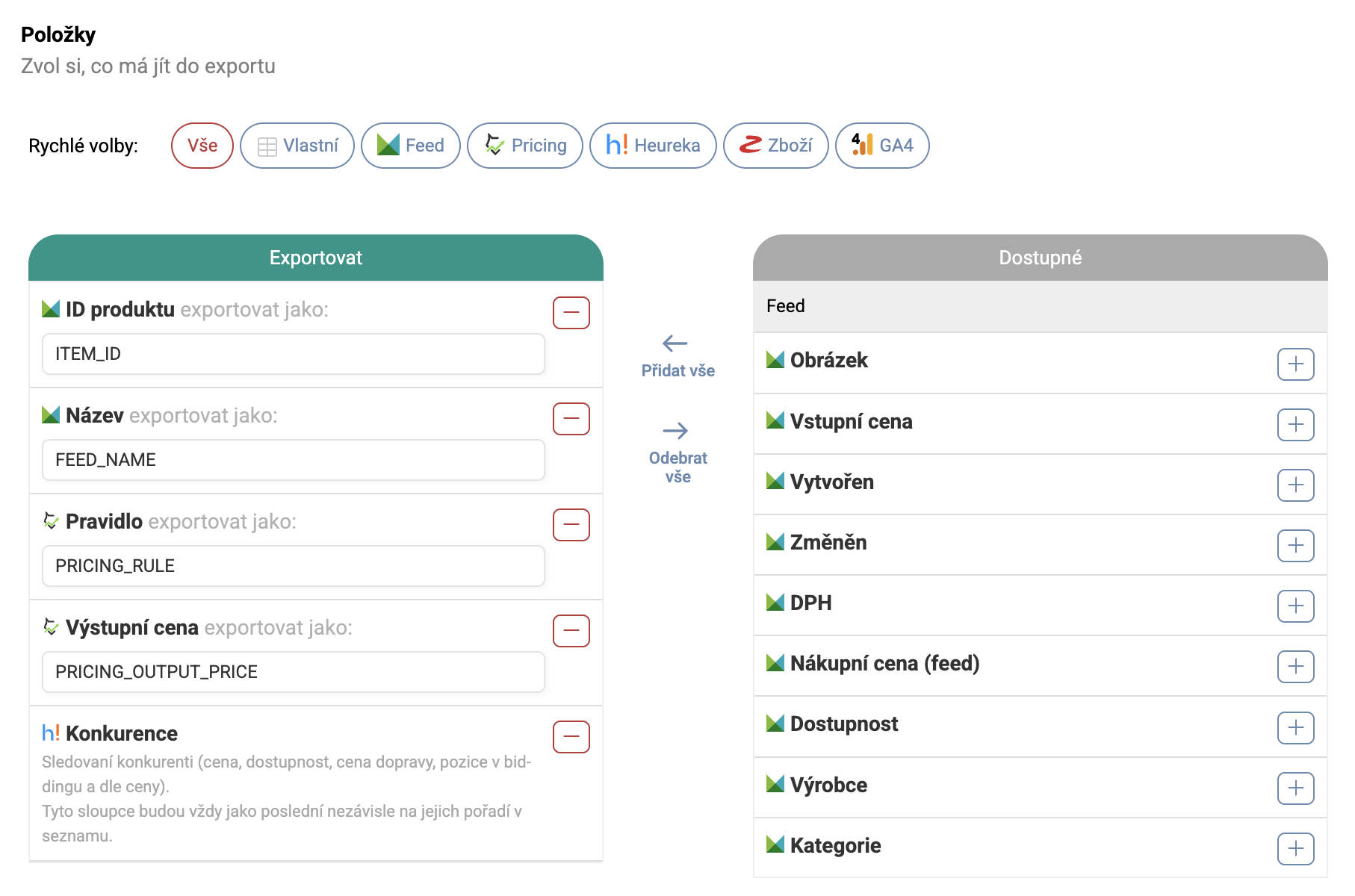
For product exports, you can choose from dozens of columns with information about your products, the competition, and repricing results. Among the most frequently used are:
-
product name, ID, code, or URL,
-
current price, minimum and maximum price on the price comparison site, purchase price,
-
the calculated ideal price according to the strategy,
-
the active repricing strategy,
-
the product’s position on the price comparison site (e.g. Heureka or Zboží.cz),
-
competitors on product cards, their prices, delivery, and delivery time,
-
performance statistics – clicks, orders, advertising costs, and turnover,
-
labels, inclusion in queries, and other metadata.

For an export of competitor stores from a price comparison site (Heureka or Zboží), you can choose from items such as:
-
the store’s name, ID, or slug
-
its rating, and possibly the number of reviews and the Verified by Customers certificate
-
statistics over shared products concerning price, delivery time, delivery price, and positions on the price comparison site
You can configure the columns however you like when creating the export, and for most of them you can also change their order or naming.
What’s the difference between a product export and a competition export?#
In Pricing Fox you work with two main types of exports – the product export and the competition export. In the first case, each row of the output contains one of your products and all the available information about it (e.g. prices, strategy, position, performance, diagnostics). In the case of a competition export, each row is devoted to one competitor store, with the export including information about the store itself (e.g. rating, reviews, certification) and also aggregated statistics comparing the assortment.
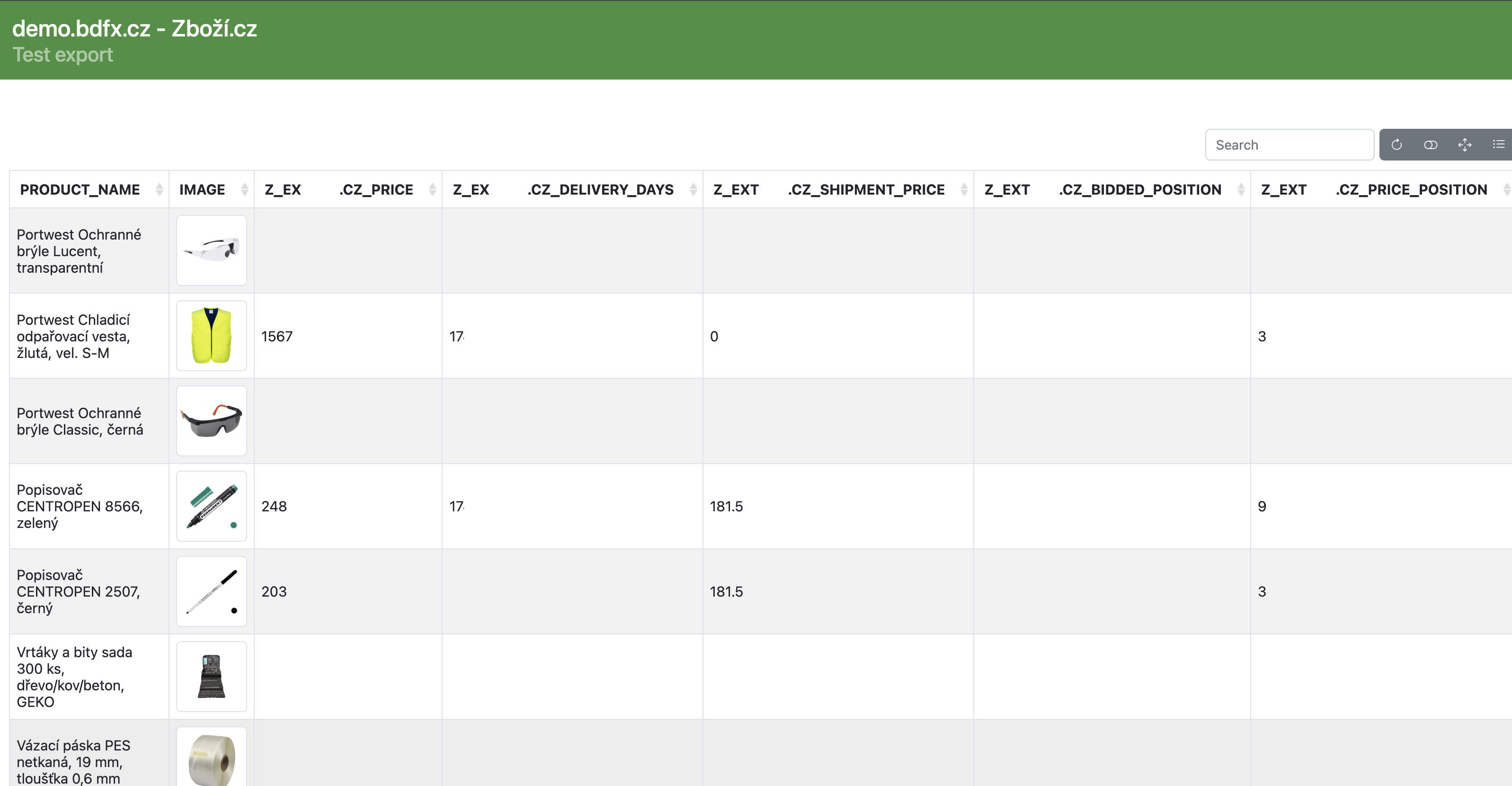
For product exports, besides the standard columns you can also use the special “Competition” column, which adds information about up to five tracked competitors from the product card on Heureka or Zboží.cz – including their prices, delivery, and shipping. You can also choose one of two special product export types:
– Competition – lets you export an extended overview of all the competitors you meet on the price comparison site, including the option to choose which specific information should be written into the output;
– Competitor prices – generates an export in which the first column is the pairing element ITEM_ID, followed by the prices of all found competitors (including those you don’t actively track) for the given product.
For machine processing, it’s more suitable to use the CSV, or possibly XLS, format.
How can I create an export?#
You create a custom product export in Pricing Fox in the Products section, where you enter the export name, choose the desired format (CSV, XLS, or HTML), and select the source data. Then you set the specific columns you want to include in the output – most of them can be freely renamed, moved, or hidden.
An export can take three forms:
-
one-off – generated immediately and downloaded manually,
-
regular – updated at a defined interval as a data feed,
-
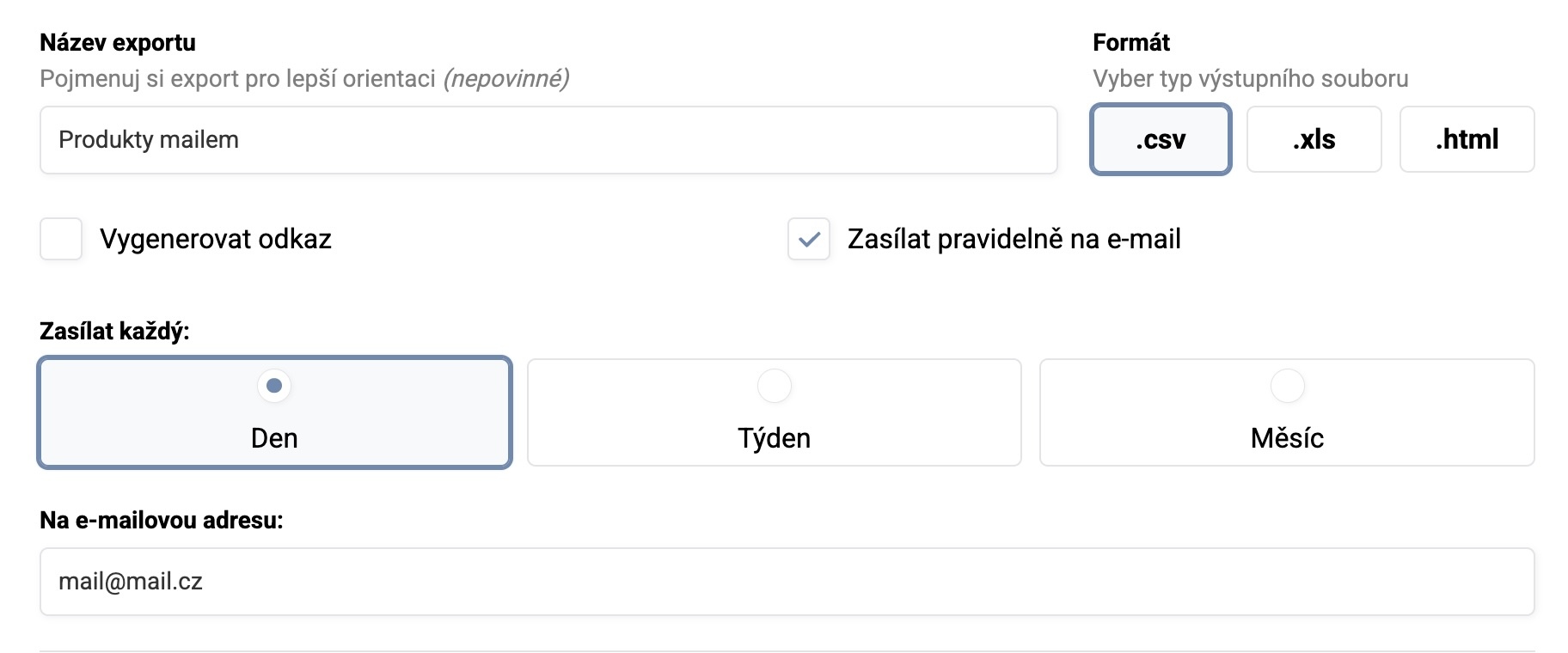
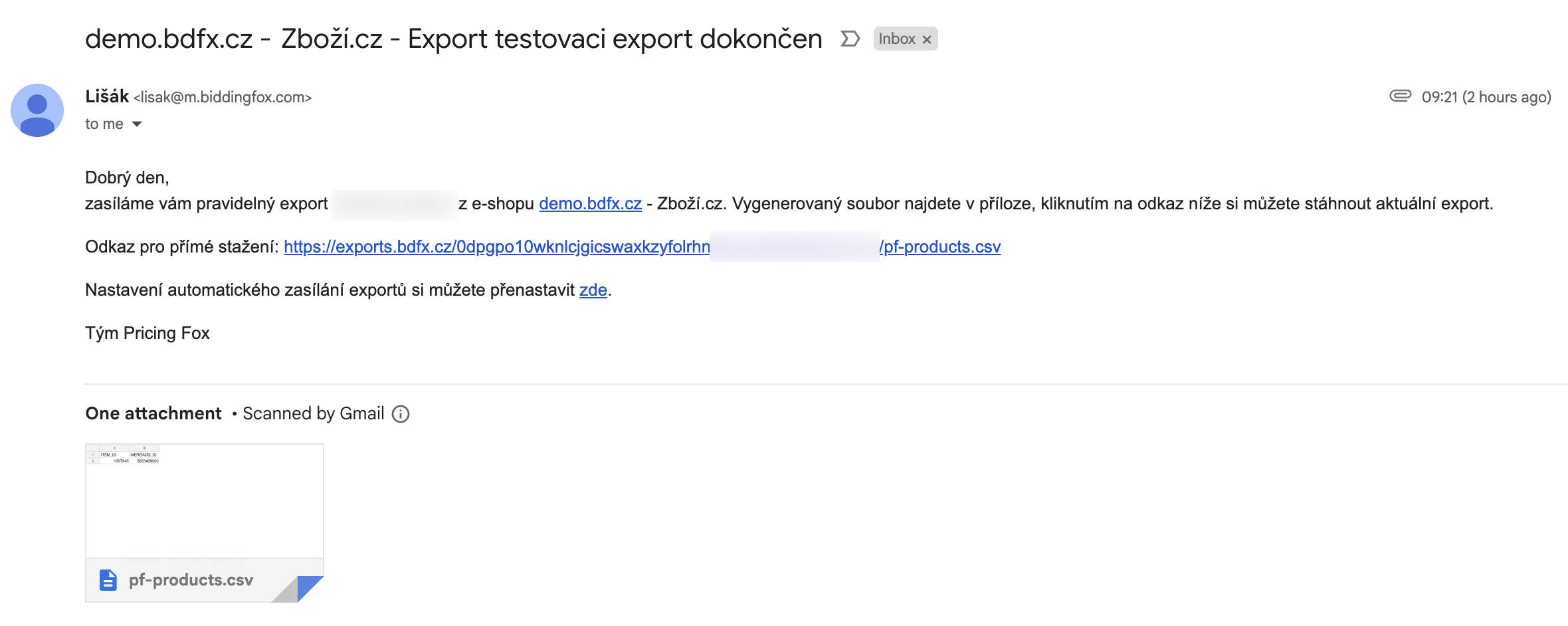
automatic email export – sent to a chosen address at a set frequency.
A product export always follows the current filter in the products table. So you can use all the advanced selection options by strategy, diagnostics, labels, queries, or custom conditions. You can also export individual products using the Export button directly in their row.
You export competitor stores in the Reports –> Competition section (for Heureka or Zboží.cz), where you choose the range of information and the output format.
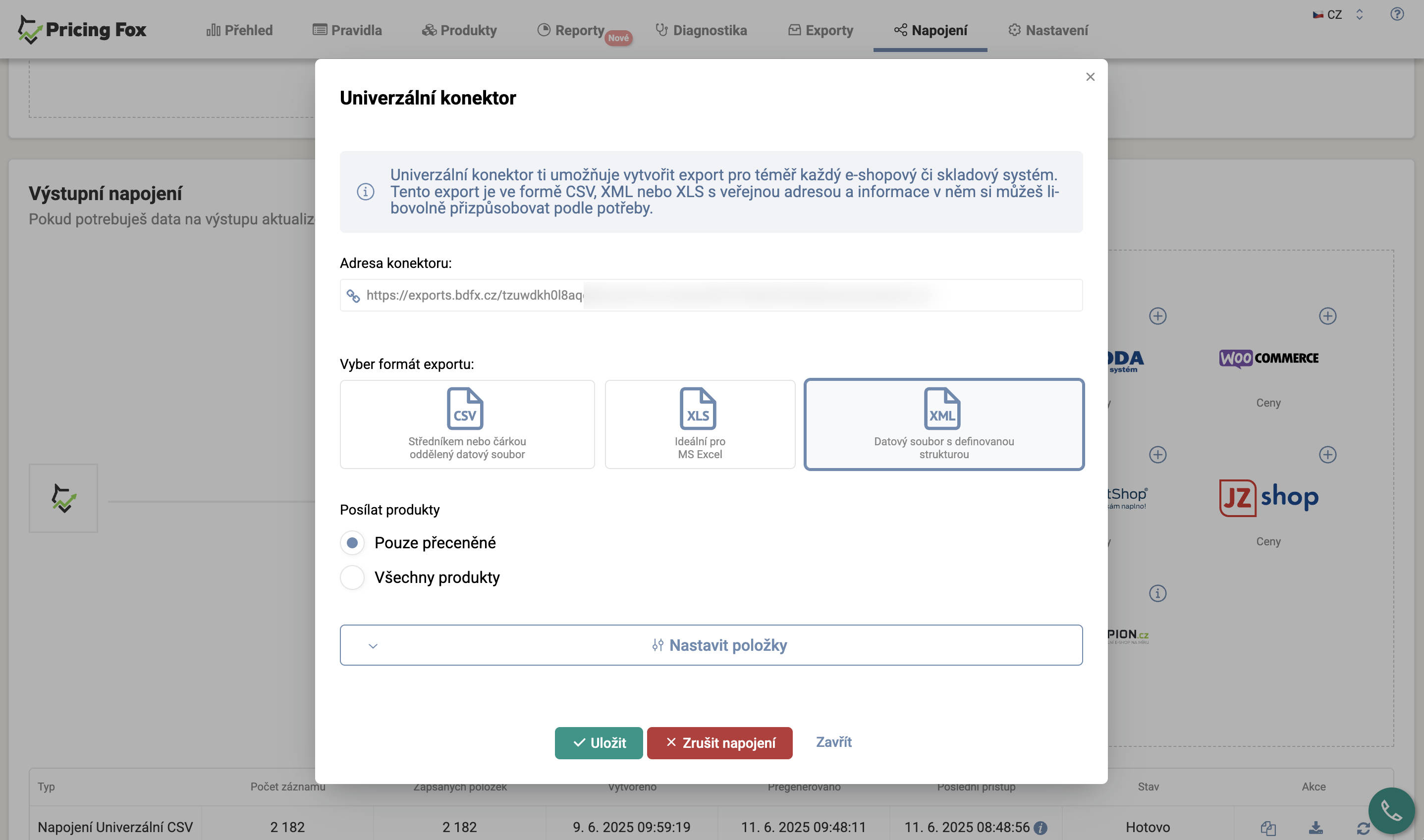
In Pricing Fox you can also create one XML export in the Connections -> Universal XML section. This export is suitable for connecting to external systems and is regenerated every 4 hours.
How long will an export be available for download?#
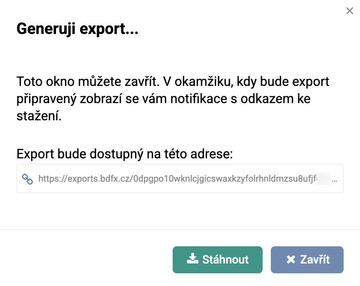
One-off exports (that is, those that don’t have a public address and/or email sending set up) are deleted after a week. Regular exports will be automatically regenerated until you delete them manually.
What export formats are available and how often are they updated?#
In Pricing Fox you can export data in the following formats:
-
CSV – a universal machine-readable format suitable for further processing in Excel, Google Sheets, scripts, or BI tools,
-
XLS – a format native to Microsoft Excel, suitable for manual analysis and presentation,
-
HTML – an export in the form of a clear static table that can be easily displayed in a browser or shared as a static page,
-
XML (only within the Connections section) – intended especially for automated connection to other systems.
For regular exports (i.e. those with a public URL or email sending set up), regeneration occurs at a 12-hour interval. The universal XML export is regenerated every 4 hours.
How can exports be used in practice?#
You’ll use data exports in Pricing Fox in a whole range of scenarios – from an operational overview to connecting to automated processes. Among the most common use cases are:
-
manual checking of selected products – e.g. analysis of prices, positions, strategy, and competition in Excel or Google Sheets,
-
reporting for a client or management – clear exports in XLS or HTML format serve as a basis for regular internal or external reports,
-
development analysis – using regular exports, you track changes in positions, prices, click-through rate, or competitor development over time,
-
connecting to BI tools – data feeds (CSV/XML) can be linked with Power BI, Google Looker Studio, Keboola, or your own data warehouse,
-
competitor monitoring – a regular export of tracked competitors allows quick identification of changes in prices or stock,
-
audit of repricing strategies – a retrospective check of how Pricing Fox applied strategies to specific products, and what the alternative price variants would be.
Exports can be combined with queries, labels, and filters, giving you precisely targeted data outputs as needed – from a product category to specific outages.
What to watch out for when working with exports?#
When working with exports in Pricing Fox, it’s advisable to consider several technical and operational aspects:
-
The current filter of the products table – a product export is always based on the currently set filter. If you forget to include some products, they won’t appear in the output. In that case, create a new export.
-
The maximum number of competitors in the “Competition” column – this column lets you display details of at most five tracked competitors on a product card. For a complete overview, use the special export types (e.g. Competition or Competitor prices).
-
The frequency of data updates – exports are based on the data currently available in Pricing Fox. For example, prices and positions from price comparison sites are updated at a certain interval, so they may not always reflect changes in real time.
-
The volume of exported data – when exporting a large number of products or detailed columns, the output can be data-heavy. This can slow down processing in external tools (e.g. Excel) or lead to timeouts when loading the feed.
-
Output format and encoding – when importing CSV into some tools, you may need to choose the correct encoding (UTF-8) and delimiter (comma vs. semicolon) so the data displays correctly.
Where to find exports in the app and how to get started with them?#
You’ll find exports in several places in the Pricing Fox app:
-
Products – the main section for creating exports of product data. Use the Export button above the table or in a specific product’s detail to start generating the output.
-
Reports –> Competition – here you create an export of competitor stores from the Heureka or Zboží.cz price comparison sites.
-
Settings –> Exports – an overview of all created exports, their formats, types, and set updates. From here you can edit, delete, or re-download them.
You can start simply:
-
Go to the Products section, set the desired filter (e.g. a specific query or strategy).
-
Click the Export button, enter a name, and choose the format.
-
Choose the desired columns and specify whether you want a one-off or a regular export.
-
Download the export or set up automatic sending to your email.
Exports help you obtain accurate and structured data about prices, competition, and repricing results. They’re thus an ideal tool for analysis, reporting, and integration with other tools.
FAQ#
Why do I have only 5 stores in the Competition column, even though there are more on the card? The special “Competition” column displays at most 5 tracked competitors from the product card. For a complete overview of all competitors, use the special export type Competition or Competitor prices, where the number isn’t limited.
How do I set an export to be automatically sent by email? When creating or editing an export, tick the email sending option and fill in the address and frequency. The export is then sent automatically at the set interval – daily, weekly, or monthly.
What’s the difference between an export in CSV and XLS format? The content is the same; the file format differs. CSV is suitable for machine processing (BI tools, scripts), XLS directly for working in Microsoft Excel. An HTML export is a clear table for displaying in a browser or sharing with a colleague.
Can I export only some products, not all of them? Yes. An export is always based on the current filter on the Products page. Set the filter (category, rule, label, diagnostics, etc.) and only then click Export – only the filtered products get into the export.
Where do I find all created exports together? On the Exports page in the Pricing Fox main menu, where there’s an overview of all exports with the option to manage, regenerate, or delete them.