
Connecting Mergado MCP to Google Antigravity#
If you use Gemini models in your work, you can connect them to Mergado MCP using the Google Antigravity app.
You can download Google Antigravity here: https://antigravity.google/download
Connection details#
| Setting | Value |
|---|---|
| MCP Server URL | https://mcp.mergado.com |
| Authentication | OAuth |
Steps#
1. Find the MCP servers configuration file#
After installing the app, you first need to find the configuration file mcp_config.json, where Google Antigravity stores the MCP server settings.
macOS#
- Open Finder.
- Press ⌘ + Shift + G.
- Paste the path:
~/.gemini/config/mcp_config.json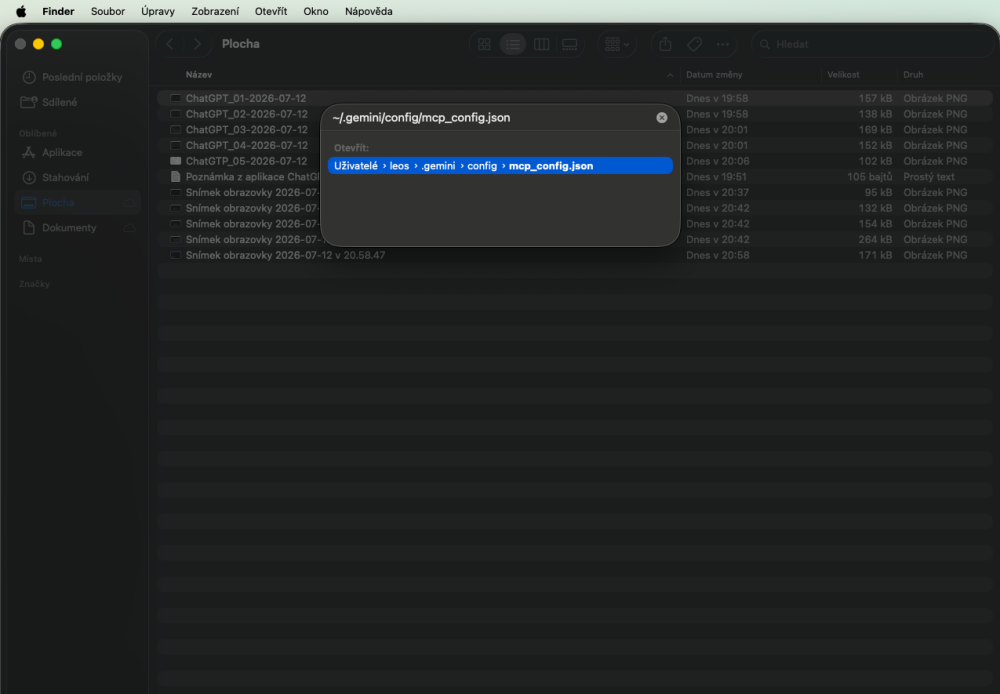
Windows#
- Open File Explorer.
- Paste this into the address bar:
%USERPROFILE%\.gemini\config\mcp_config.json- Confirm with Enter.
Note: The
.geminifolder is hidden by default. Using this path means you don’t need to unhide it first.
2. Open the configuration file in a text editor#
macOS#
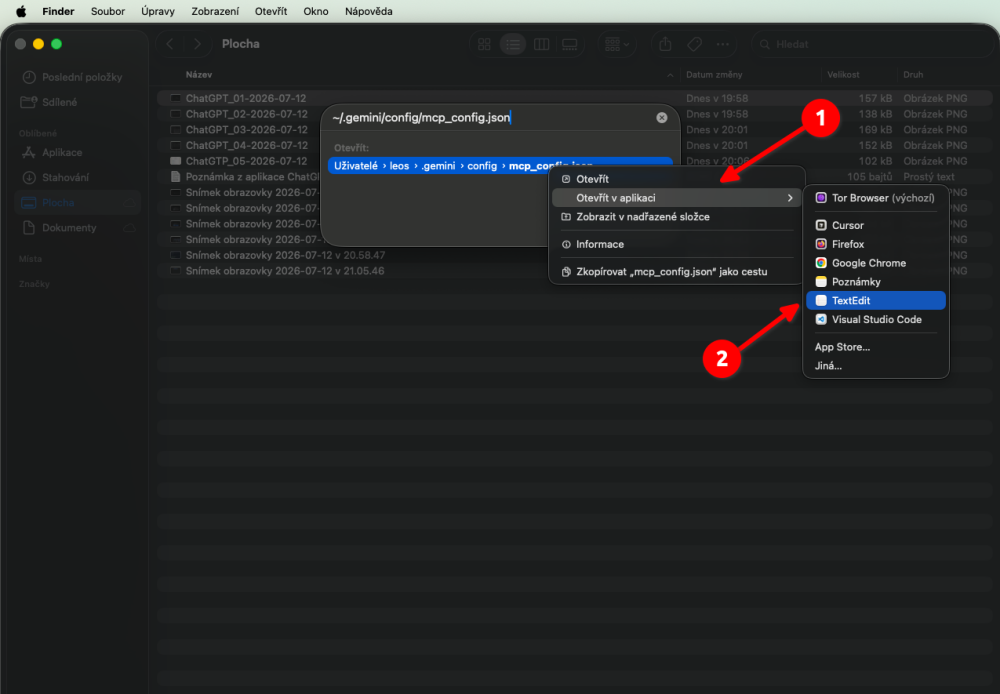
- Right-click the file and select Open With → TextEdit
Windows#
- Open the file in, for example, Notepad or Visual Studio Code.
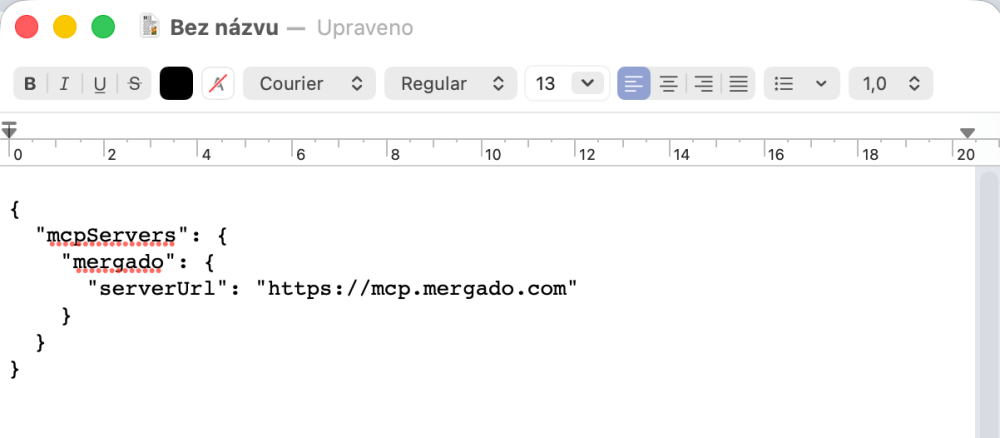
Paste this into the file:
{
  "mcpServers": {
    "mergado": {
      "serverUrl": "https://mcp.mergado.com"
    }
  }
}
Note: If the file already contains configuration for other MCP servers, just add the
mergadoentry.
3. Open the MCP settings#
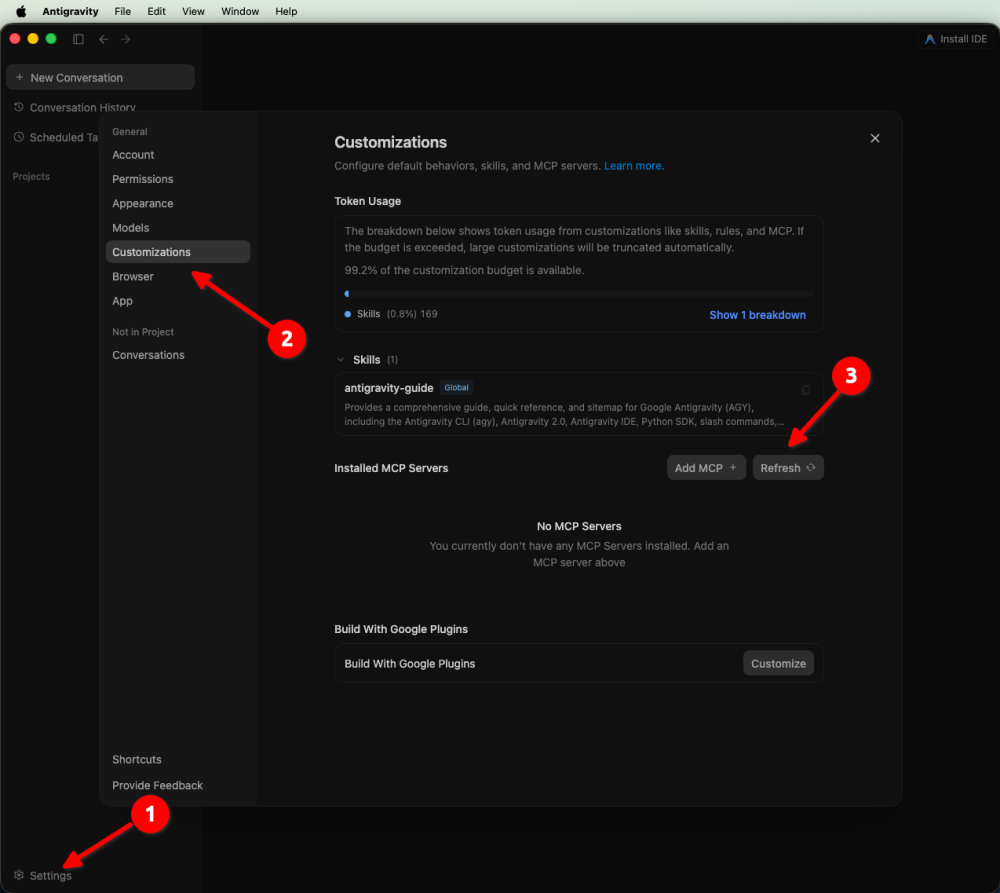
Open the app settings (Settings → Customizations → Installed MCP Servers) and click Refresh.
4. Authorize the new MCP#
Once the new MCP server loads, click Authenticate to start the app’s authorization.
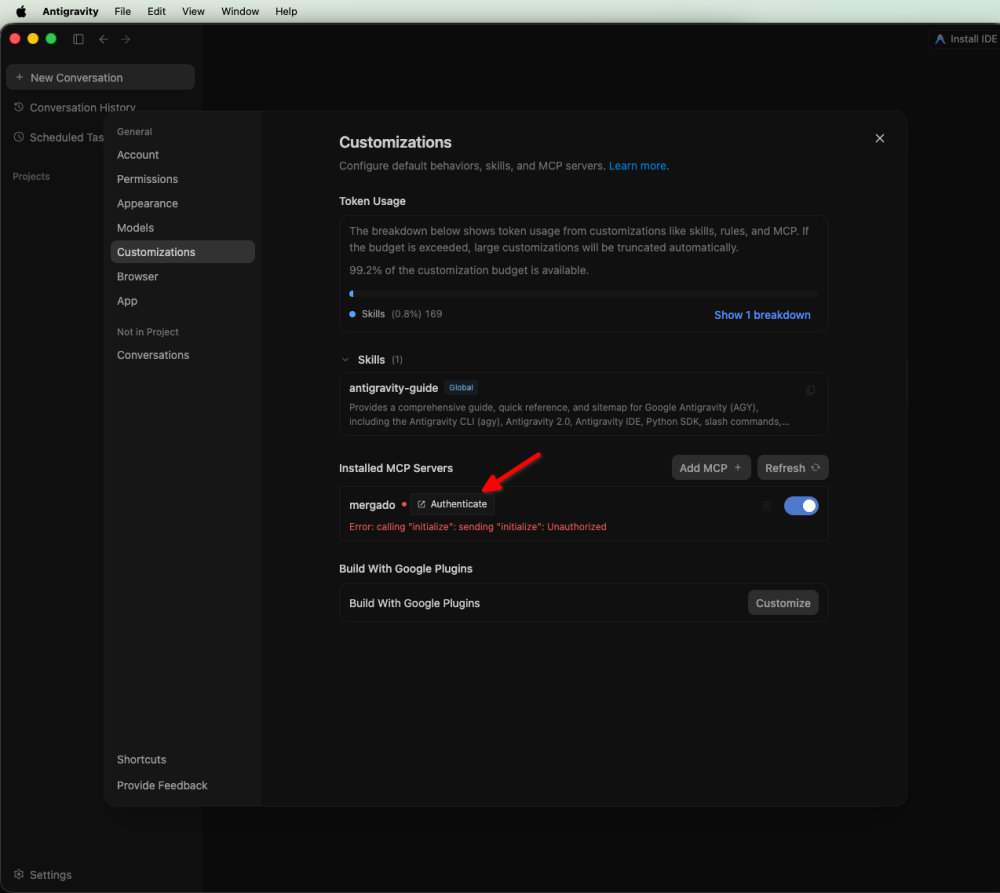
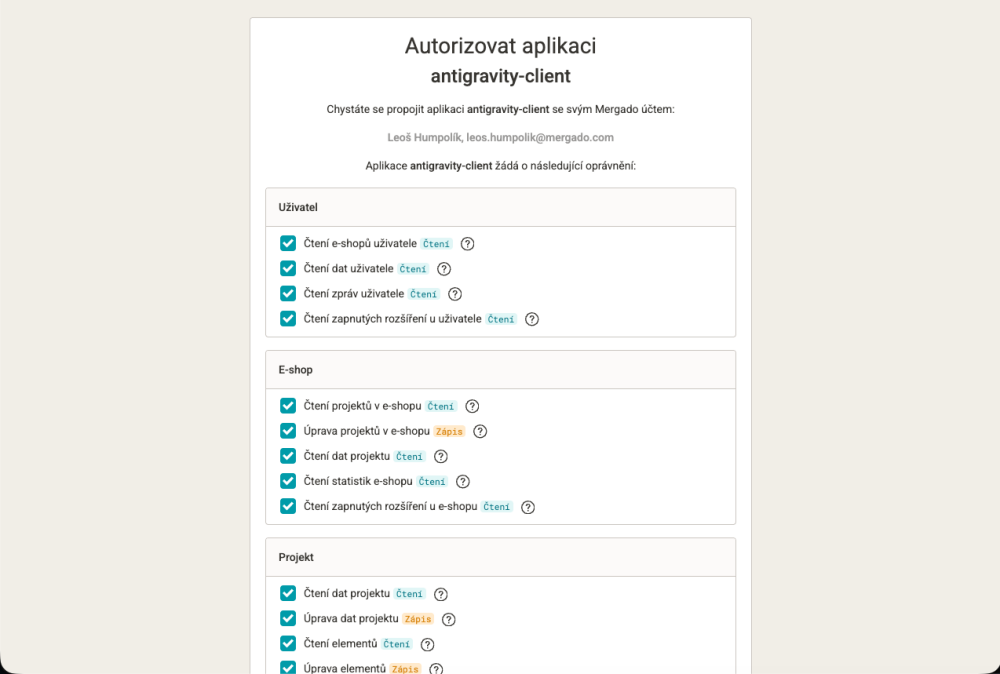
5. Authorize the app in Mergado.#
- Sign in.
- Review the permissions.
- Click Allow.
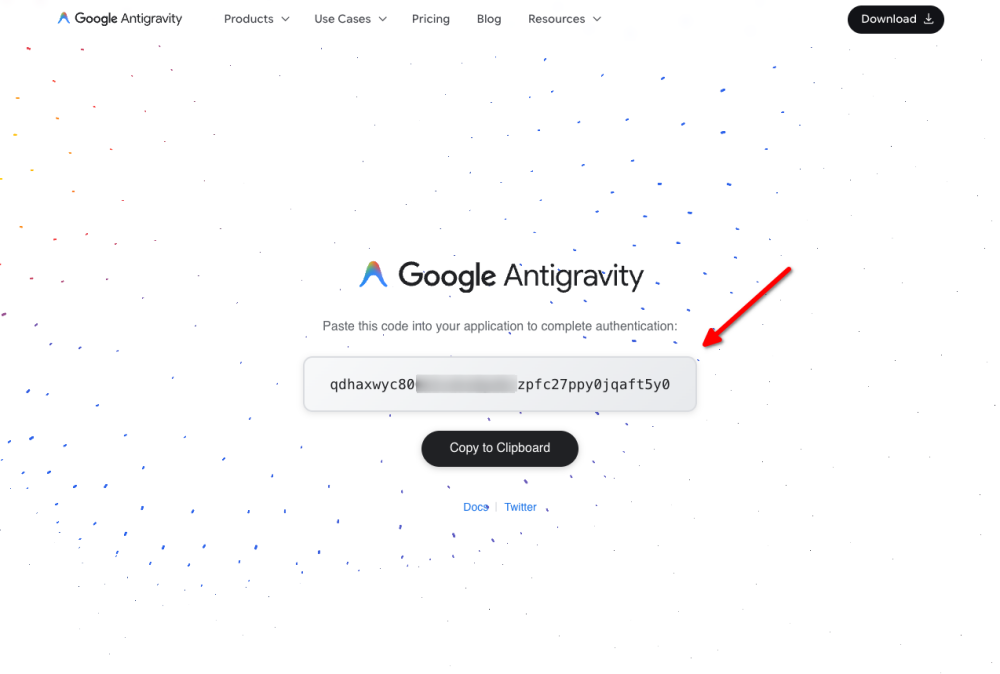
6. Copy the authorization code.#
Once authorization is complete, Google Antigravity displays a one-time authorization code. Copy it to your clipboard.
7. Paste it into the app and click Submit.#
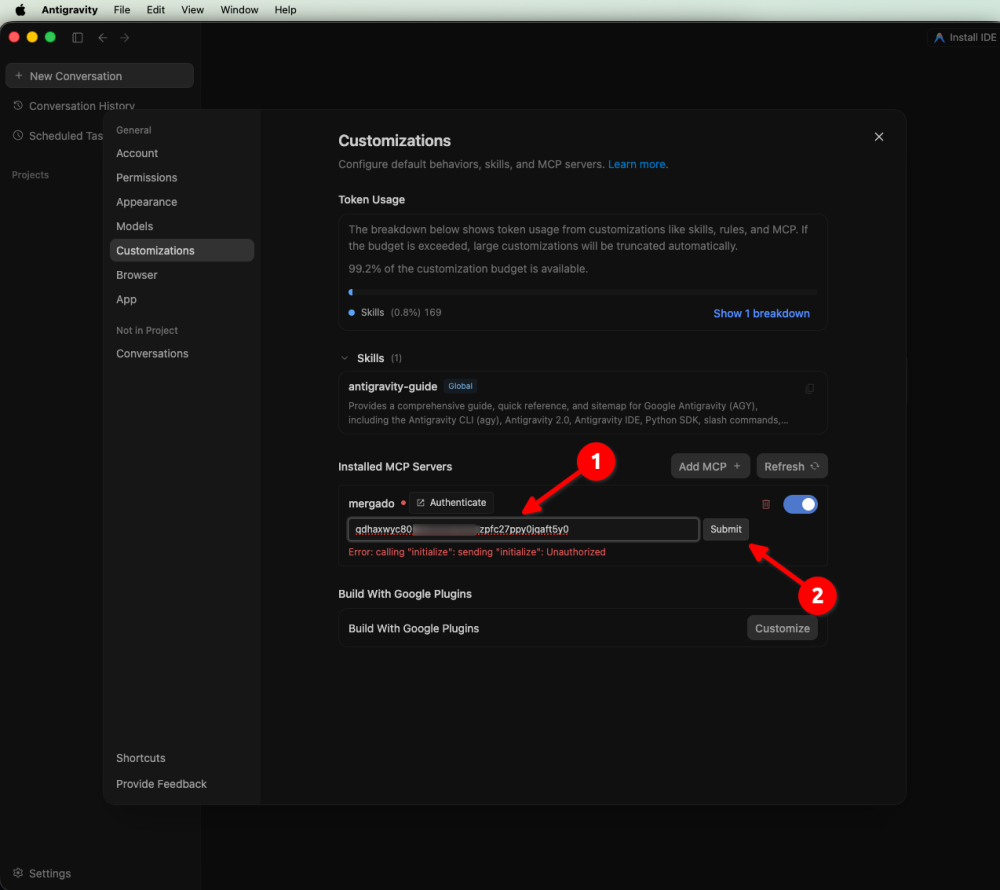
If it still shows Unauthorized, that’s normal.

8. Restart the app.#
Now quit the app completely.
Important: Also quit the app from the menu bar, since it may keep running in the background.
9. Check that the connection is working.#
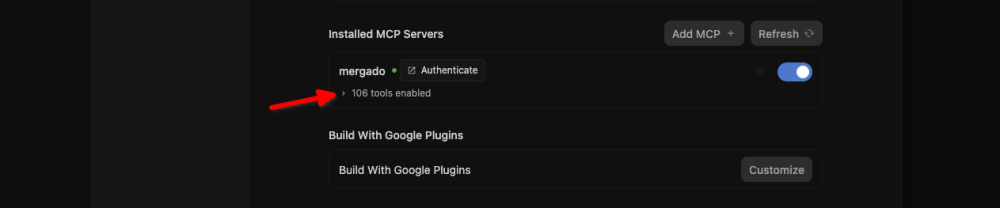
Open Settings → Customizations → Installed MCP Servers again. If the MCP server shows a green icon and displays the number of available tools, the connection was successful.
10. Test the connection.#
Open a new chat and try, for example:
List the available Mergado MCP tools.
or
What Mergado MCP tools do you have available?
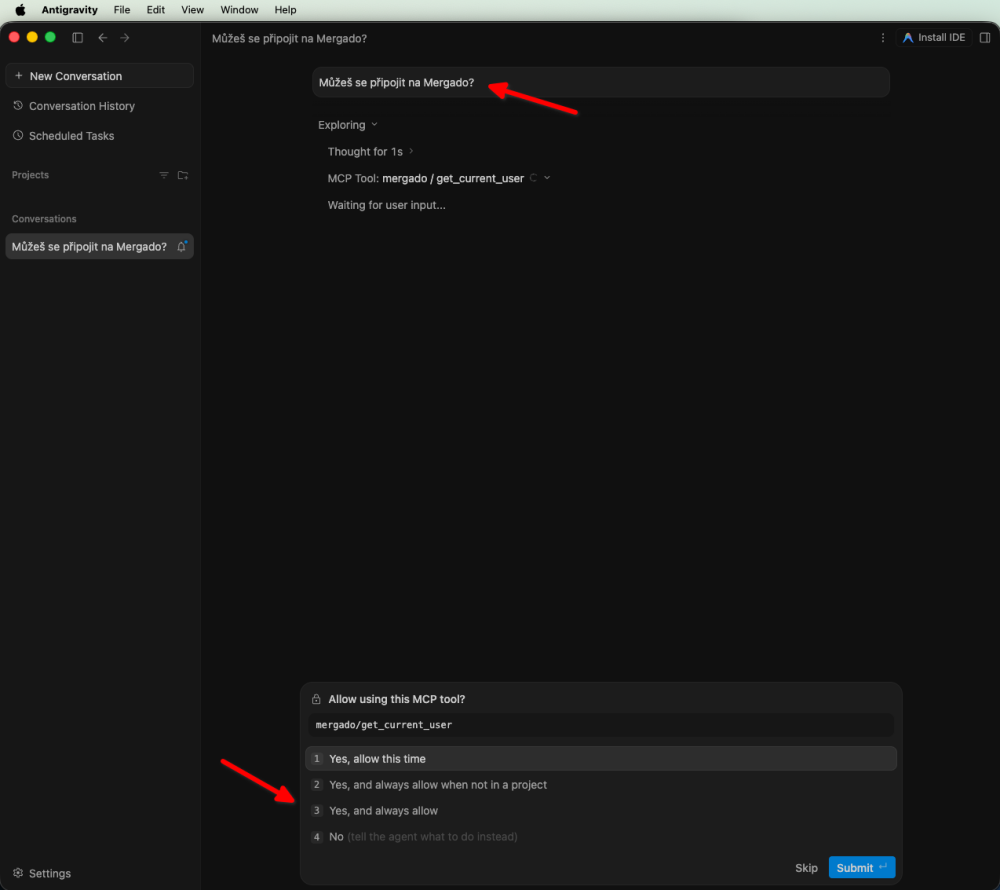
Note: The first time you use each MCP tool, Google Antigravity will ask whether it can use it. We recommend choosing Yes, and always allow if you trust the MCP server.