
Dashboard#
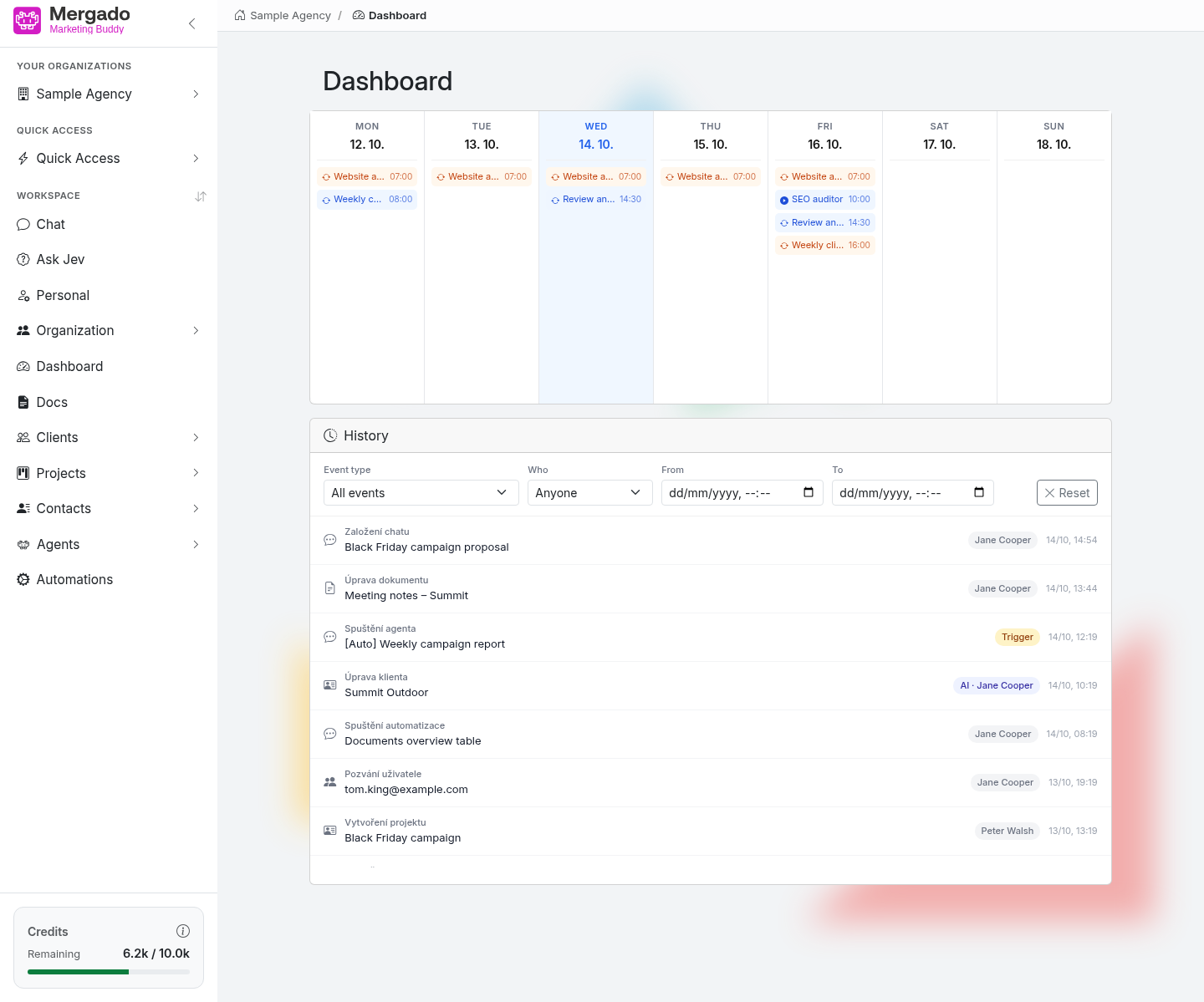
The Dashboard page shows what runs in the organization without you being present and what has happened in it recently. At the top is a weekly calendar of scheduled agent and automation runs, with the event history below it.
Page layout#
Weekly calendar#
Seven columns for the current week from Monday to Sunday, with today highlighted. The calendar shows the active time triggers of your organization’s agents and automations:
- recurring triggers (two-arrows icon) appear on all selected days,
- one-time triggers (play icon) appear only on the day they are due to run.
Each item shows the name of the agent or automation and the run time; hover over it to see the trigger name. Click an agent to open its settings.
Webhook triggers are not shown in the calendar, because they do not run at a set time but in response to an event in the connected service.
History#
Below the calendar is the History – a record of what has happened in the organization: chats started and agent and automation runs, changes to connections, members, and the organization name, credit purchases, work with documents, clients, projects, contacts, and custom fields, received webhooks, and run errors.
You can filter the history:
- Event type – all events, a whole category (e.g. CRM), or one specific type,
- Who – Anyone, User, AI, Trigger, or System,
- From and To – the time range.
The Reset button clears the filters. Each row shows the event type, its name, who performed it (the member’s name, “AI · name” when the model acted on behalf of a person, “Trigger” for a scheduled run, or “System”), and the date and time. You can click rows with a chat or an agent run to open them. Run errors are highlighted in red. Load older records with the Load more button.
Personal events – your chats, runs of your agents and automations, and your documents – are visible only to you. Organization events (connections, members, credits, CRM) are visible to all members.
For received webhooks, the Owner and Admin roles can expand the row and view the data the webhook delivered.
What you can do here#
- Check what will run automatically in the organization this week and when.
- Find out who changed a client, document, or connection and when.
- Open the result of an agent or automation run.
- Find the error of a background run that did not finish.
FAQ#
Why is the calendar empty? No agent or automation has a time trigger. You can set one in the agent detail (Agents) or automation detail (Automations) in the Triggers section.
Where can I see exactly what an agent did? Click the Agent run row in the history, or the conversation with the robot icon in the chat list – the conversation opens with the full run.
Why can’t I see my colleagues’ chats in the history? Chats and runs are personal, so everyone sees only their own in the history. Organization events, such as changes in the CRM or connections, are shared.
Do background runs consume credits? Yes, just like a regular conversation. You can see their consumption in the Usage section on the Organization – General page.