
Chat#
The chat is the main workspace of Mergado Marketing Buddy. You write your request here, the AI responds and, depending on the tools you have enabled, reaches into the web, your documents, Mergado, or other connected services on its own.
Page layout#
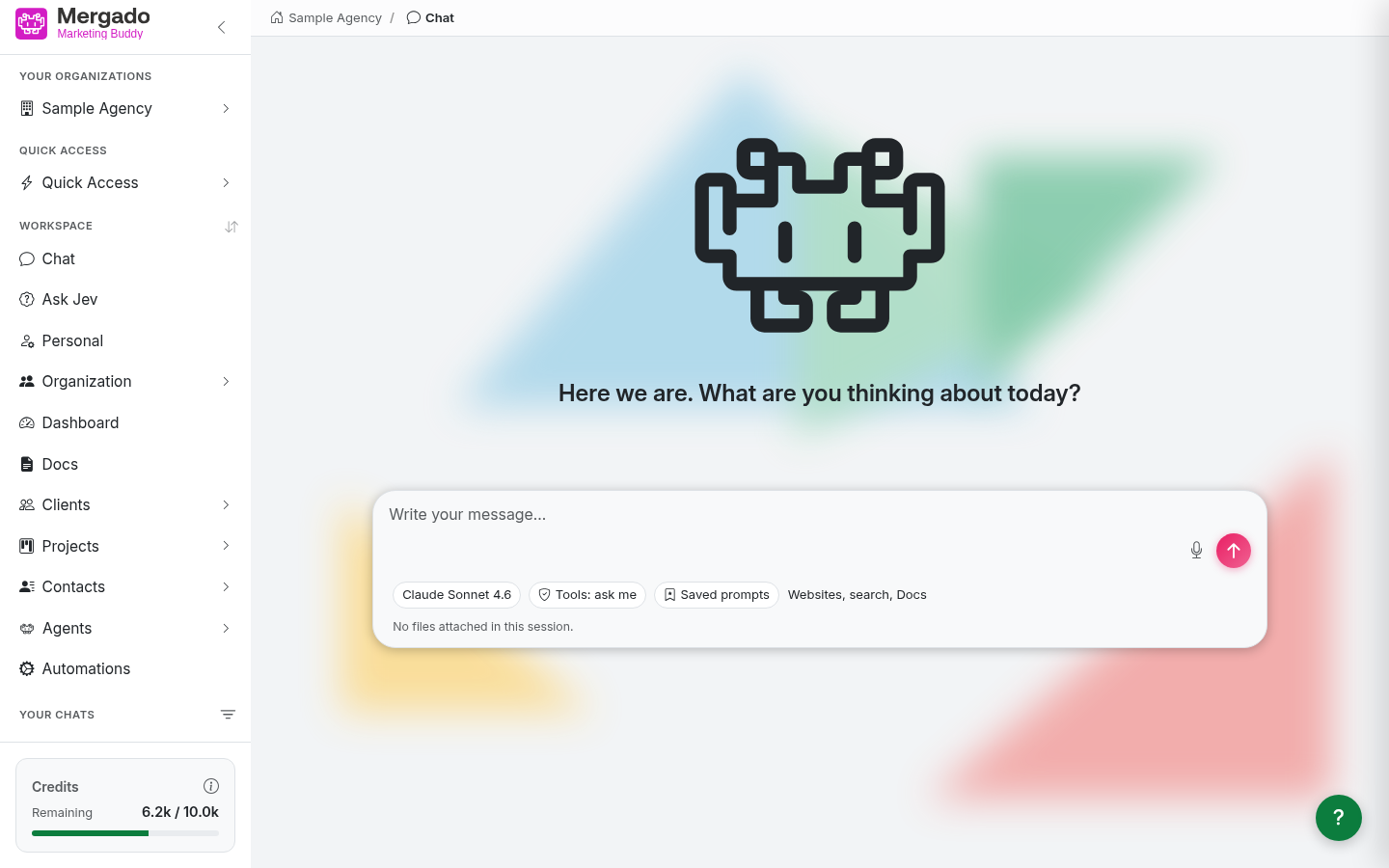
- Welcome area – until you send your first message, the logo and a welcome sentence appear in the middle. The sentence changes each time – it is just a greeting.
- Input field – the “Write a message…” text field with a send button (arrow) and a microphone icon for dictation.
- Settings bar below the field – items showing the current conversation settings: model, tool approval mode, Saved prompts, and enabled extensions. Click any of them to open the Chat settings panel at the corresponding section.
- Files row – files attached to this conversation.
You can start a new chat from anywhere with Ctrl+E (Cmd+E on Mac) or with the Chat item in the menu.
Input field and sending#
- Send a message with the arrow button or with Ctrl+Enter. If you prefer sending with Enter, switch it on the Personal page. Shift+Enter always inserts a new line.
- While the response is being generated, the button changes to a square Stop generating button; you can also stop the response with Esc.
- The microphone converts a spoken message to text and inserts it into the field – you have to send it yourself. Dictation currently recognizes Czech only.
- A message can be up to 10,000 characters long.
- Type @ to open suggestions, where you can mention a specific agent, automation, document, file from the organization storage, online store from Mergado, client, project, or contact. Its name and ID are inserted into the message, so the AI knows exactly what you mean.
- When you start typing text that matches the beginning of a saved prompt, the rest appears in gray after the cursor – press Tab to complete it.
Chat settings panel#
The panel slides out from the right. It has five sections, and only one is open at a time.
Saved prompts#
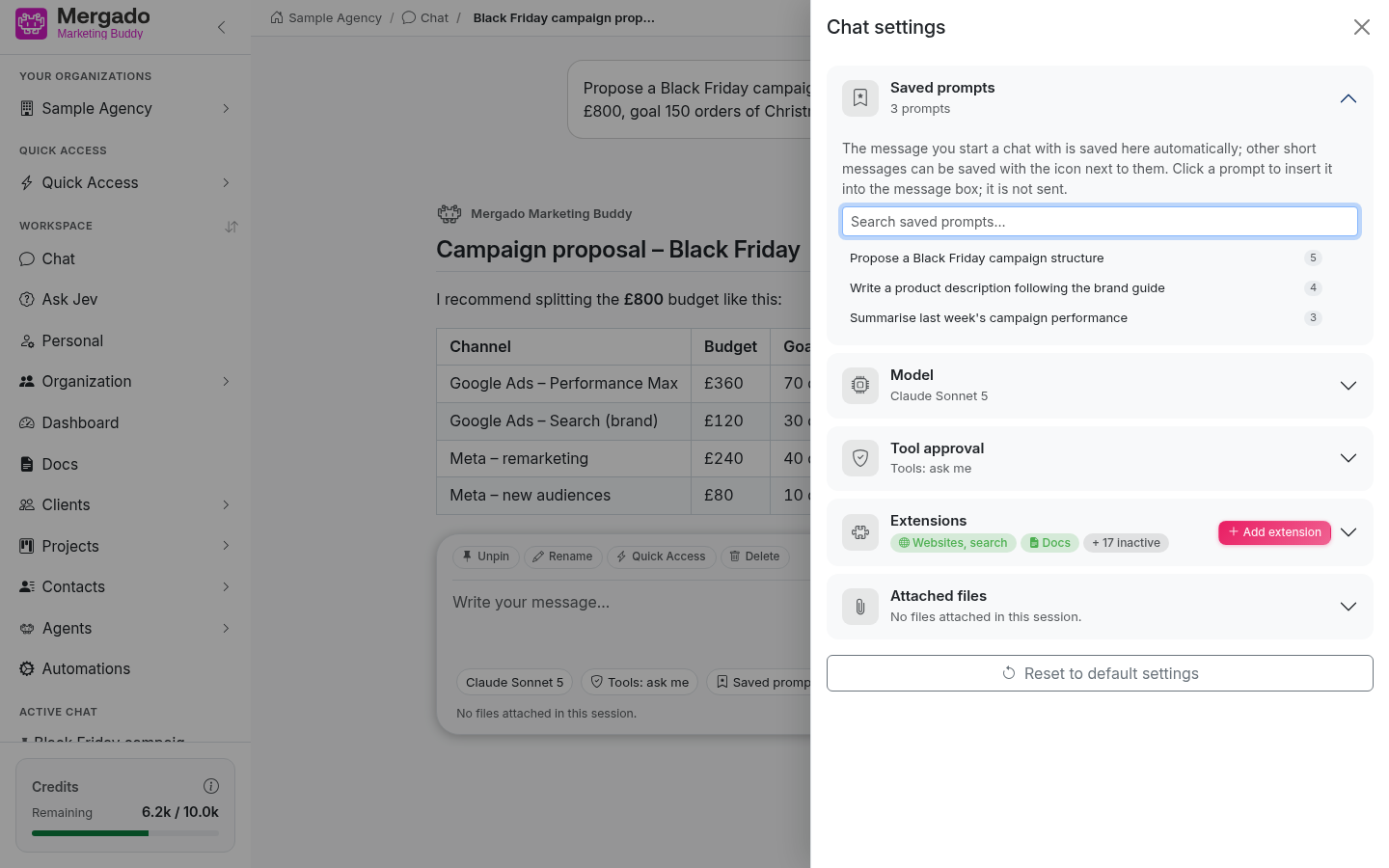
The message you start a chat with is saved here automatically (if it has no more than 220 characters). You can save other short messages with the bookmark icon below your message in the conversation. Prompts are sorted by how often you use them and you can search them. Clicking a prompt only inserts it into the message field – it is not sent, so you can edit it first. Click the cross to delete a prompt from the list.
Saved prompts are personal – you only see your own.
Model#
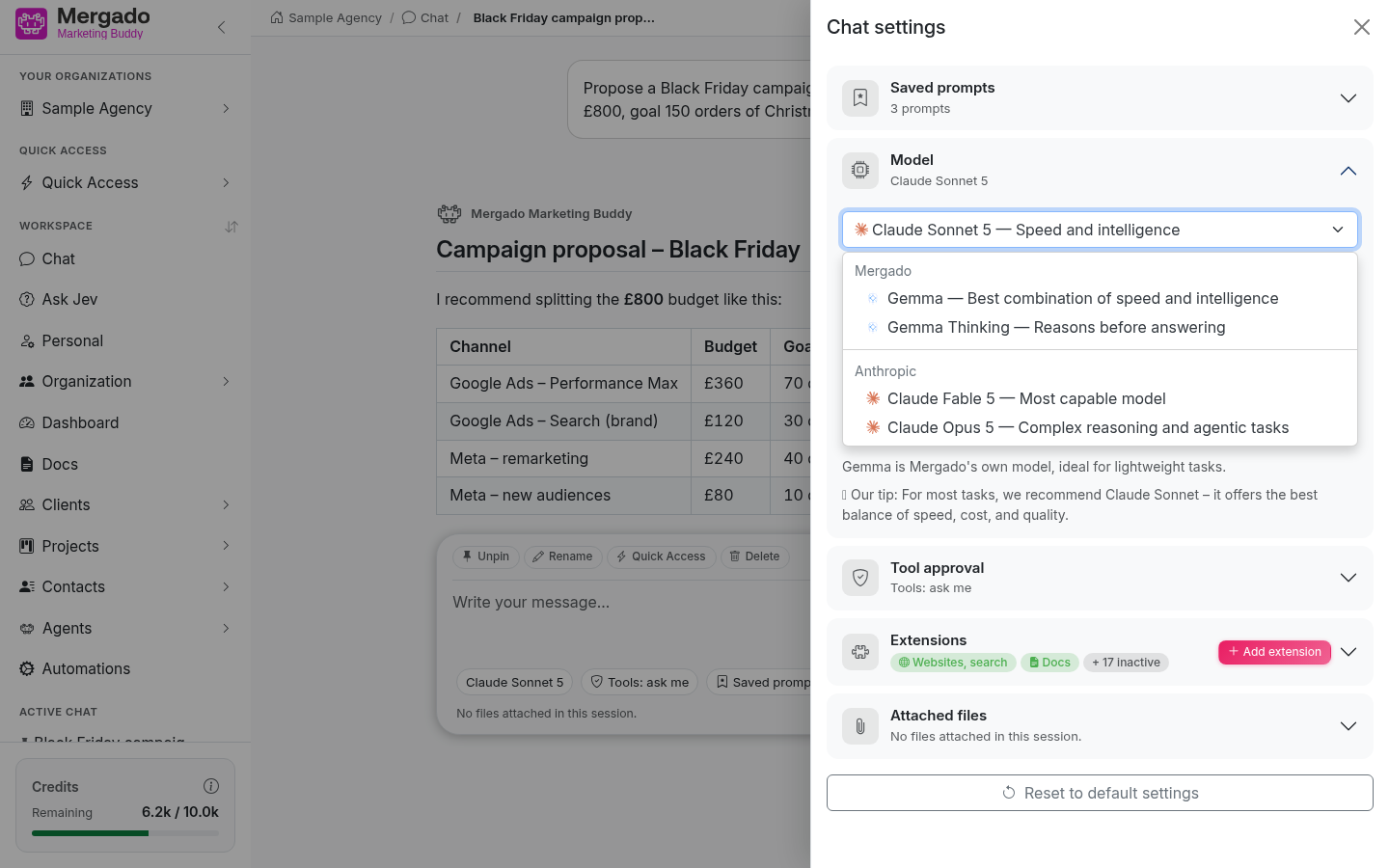
Models are divided into two groups:
| Group | Model | Best for |
|---|---|---|
| Mergado | Gemma | Mergado’s own model running on its servers; ideal for simpler tasks |
| Mergado | Gemma Thinking | Gemma that reasons before responding |
| Anthropic | Claude Fable 5 | The most capable model |
| Anthropic | Claude Opus 5, Opus 4.8, Opus 4.6 | Complex reasoning and agentic tasks; slower and more expensive |
| Anthropic | Claude Sonnet 5, Sonnet 4.6 | Speed and intelligence – the recommended choice for most tasks |
| Anthropic | Claude Haiku 4.5 | The fastest; for everyday questions and light work with tools |
Choose according to how demanding the task is. For most work, we recommend Claude Sonnet, which offers the best balance of speed, price, and quality. For everyday questions where you do not need tools, Claude Haiku is enough. Opus pays off where weaker models have not managed.
Tool approval#
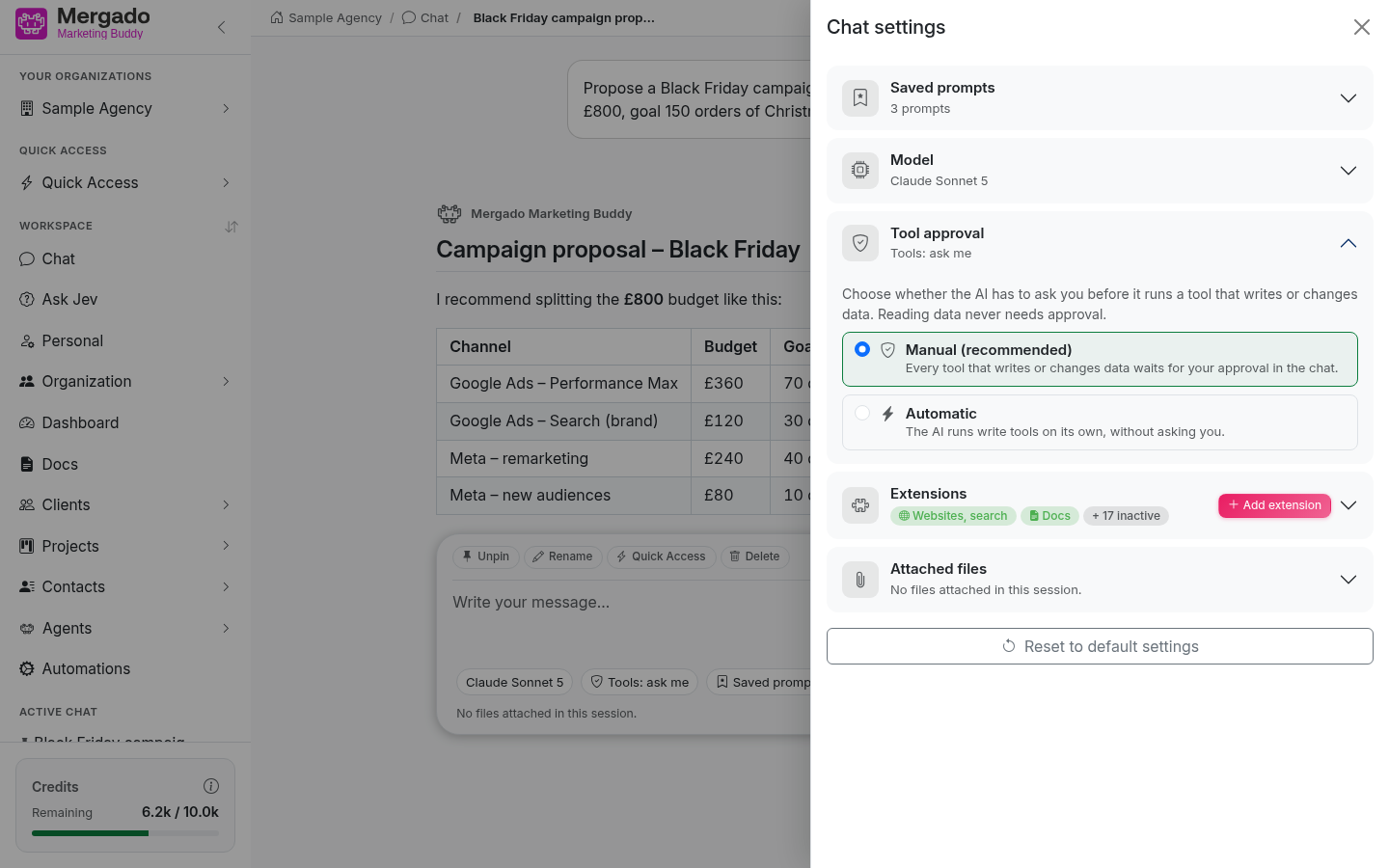
This determines whether the AI asks you before running a tool that writes or changes data. Reading data never requires approval.
- Manual (recommended) – every write tool waits for your approval directly in the chat.
- Automatic – the AI runs write tools on its own. In this mode, it can create, change, and delete data without asking first.
You can see the current mode directly below the input field: Tools: ask / Tools: automatic.
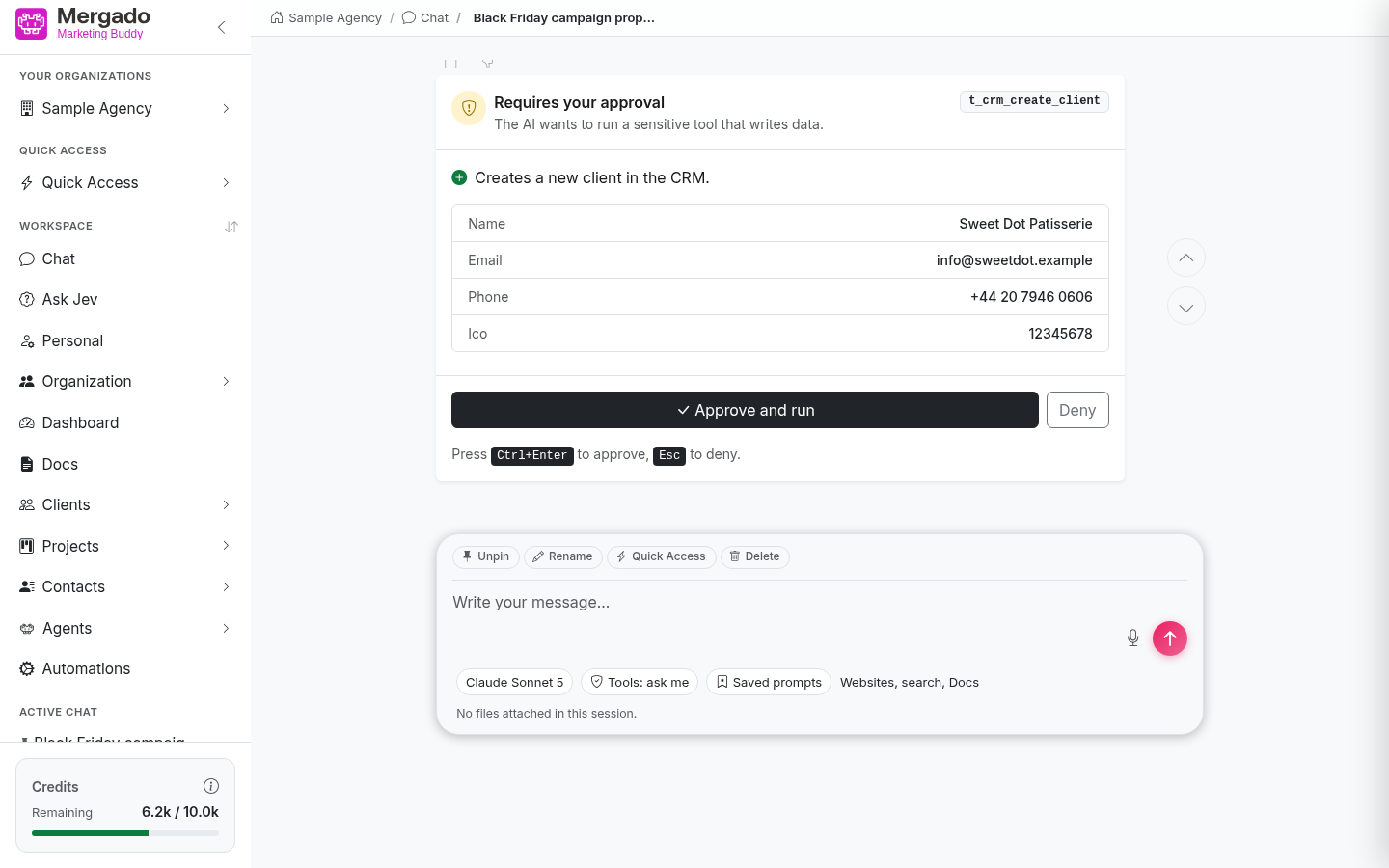
When the AI needs approval in manual mode, a Requires your approval card appears in the chat with the name of the tool and the parameters it wants to use. Click Approve and run to allow the action or Deny to reject it. You can also approve with the same keyboard shortcut you use to send messages and reject with Esc. If you do not respond to the card within two minutes, the AI stops waiting and you have to request the action again.
Extensions#
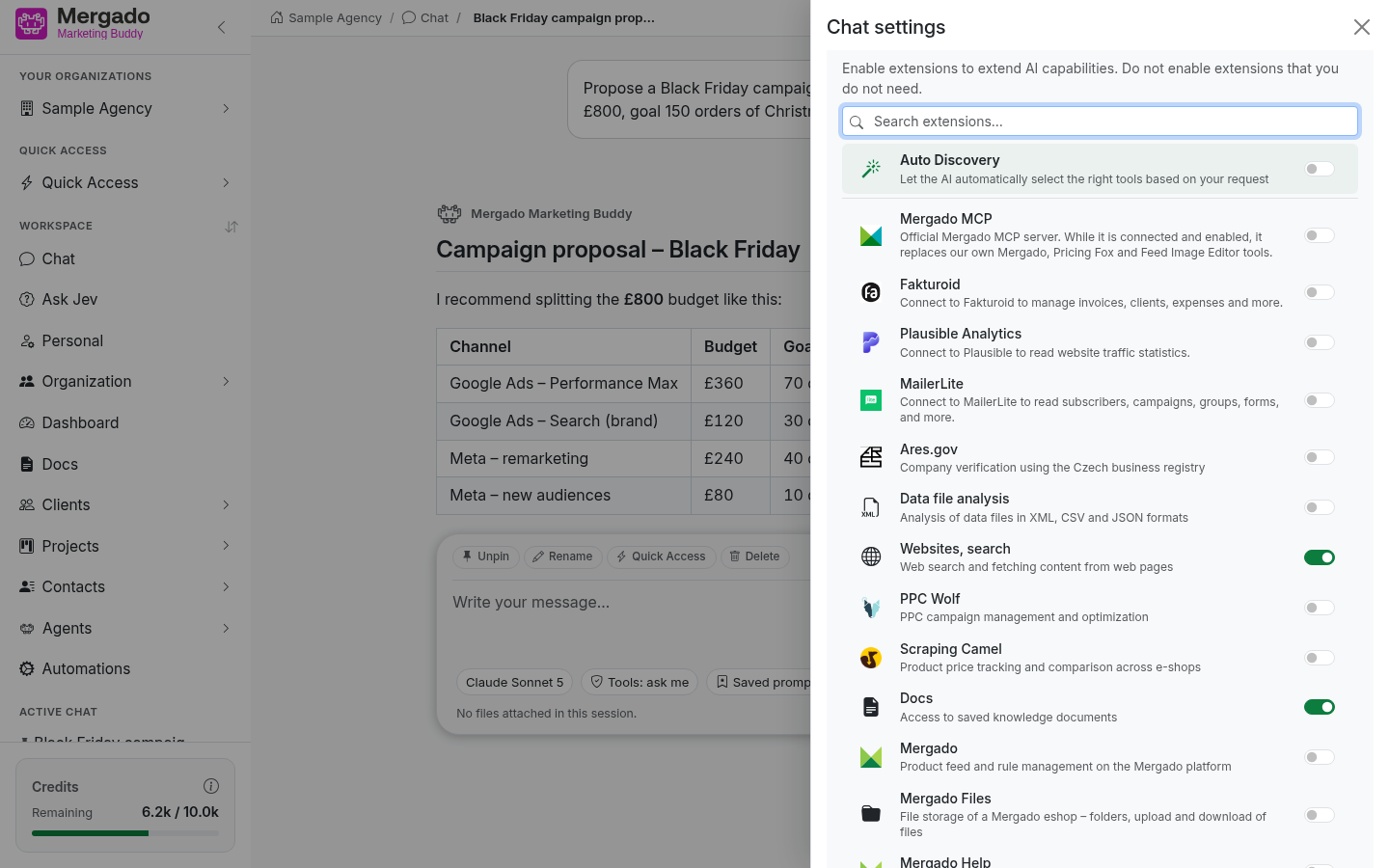
Extensions give the AI access to other systems. You turn them on with a toggle, and you can filter the list by searching. By default, Websites, search and Docs are enabled. A new chat then remembers your last settings in this browser.
| Extension | What it does |
|---|---|
| Auto Discovery | The AI chooses suitable tools on its own based on your request |
| Ares.gov | Verifies a company in the Czech business register |
| Data file analysis | Analyzes XML, CSV, and JSON files (including large ones, which are processed directly in the browser) |
| Websites, search | Searches the web and downloads page content |
| PPC Wolf | Works with PPC campaign data from the PPC Wolf extension |
| Scraping Camel | Monitors and compares product prices across online stores |
| Docs | Works with saved documents (the knowledge base) |
| Mergado | Manages product feeds and rules in Mergado |
| Mergado Files | The online store’s file storage in Mergado |
| Mergado Help | Searches the Mergado documentation and knowledge base |
| Google Search Console, Google Analytics 4, Google Ads, Google Merchant, Google Sheets | Queries the API of an online store that has the given service connected in Mergado |
| CRM | Reads and manages clients, projects, and contacts |
Above these extensions are the services the organization has connected in Credentials – for example Mergado MCP, Fakturoid, Pricing Fox, MailerLite, or Plausible. Disabled connections do not appear in the list. Click Add extension to go straight to connecting a new service.
- Auto Discovery – when it is enabled, the other toggles are grayed out and the AI chooses from all tools available to the organization. When you turn it off, your original selection is restored.
- Mergado MCP – when you turn it on, it replaces the Mergado, Pricing Fox, and Google extensions. These are turned off, grayed out, and labeled Replaced by Mergado MCP. Mergado Files remains available.
Only enable the extensions you really need for your request – unnecessary extensions increase credit consumption.
Attached files#
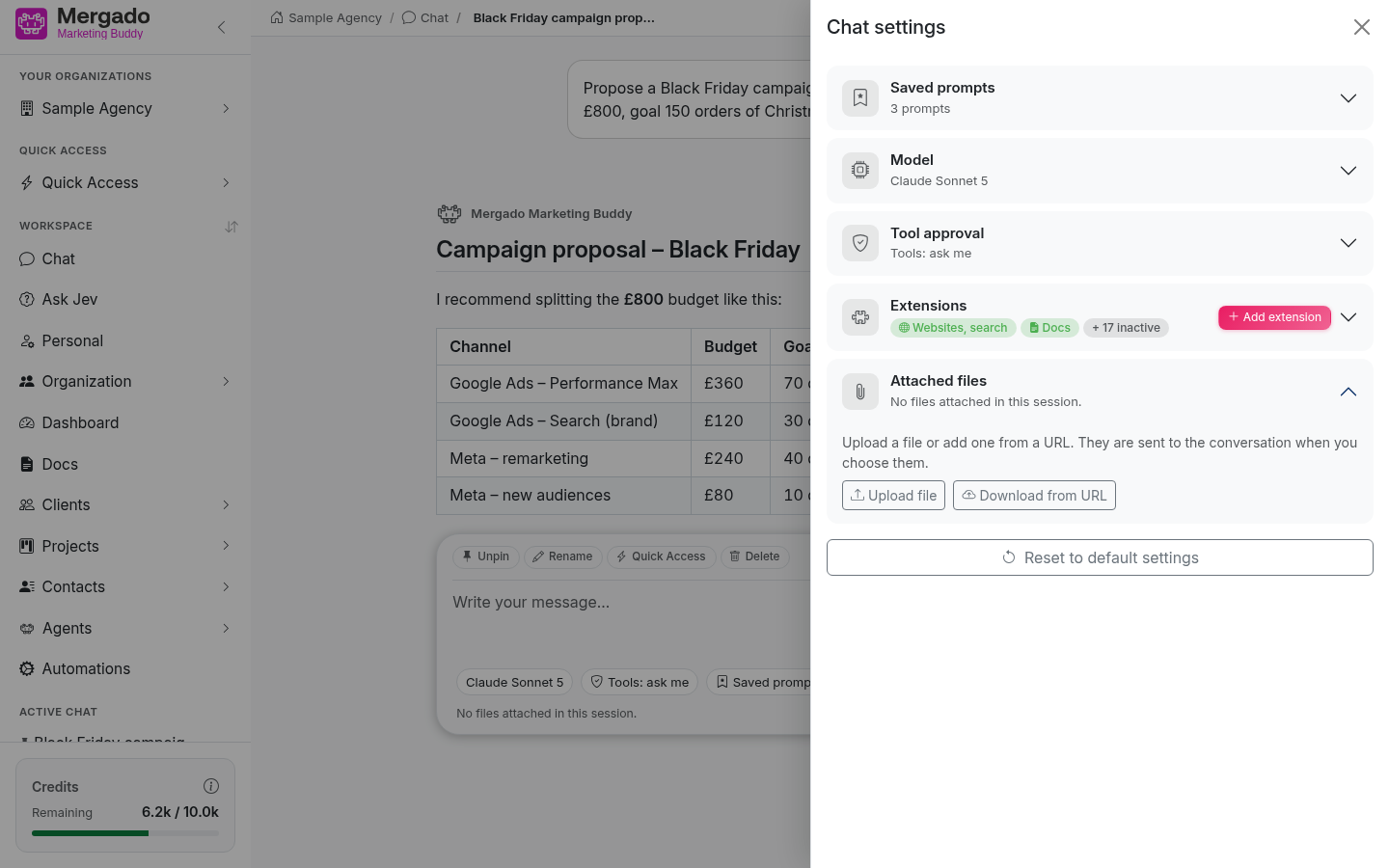
Add a file with the Upload file or Download from URL button:
- Upload file – text files (e.g. TXT, CSV, JSON, XML, HTML, Markdown) and images (e.g. JPG, PNG, GIF, SVG) up to 10 MB.
- Download from URL – an HTTPS address of a text file or image, up to 5 MB.
The file is saved to the organization storage and inserted into the conversation as your message. The AI responds to it once you write something about it.
Reset to default#
The button below the sections sets the default model and manual tool approval, and turns on Auto Discovery (turning off the other extensions). It also clears the settings the chat remembered in the browser.
Conversation flow#
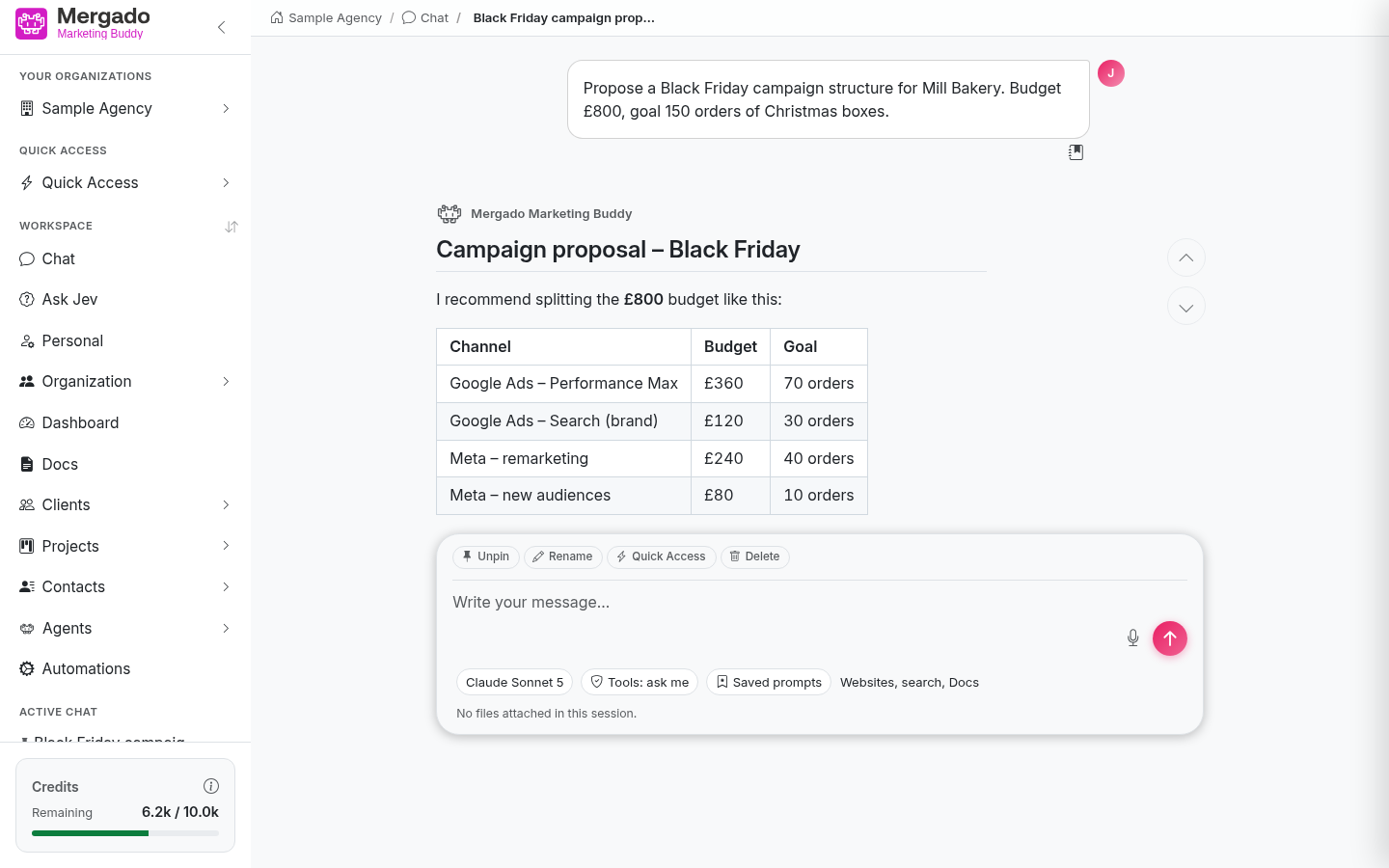
After you send the first message, the area turns into a message thread. Your messages are on the right, AI responses on the left under the Mergado Marketing Buddy header. Responses are formatted (headings, lists, tables, code blocks) and can also contain charts, images, or a download link for a generated file. While working, the AI shows what it is doing at the moment (e.g. searching the web). The arrows at the right edge scroll the thread up and down, and older messages load automatically when you scroll to the beginning.
The conversation name is created automatically after the first response. The AI can also change it – just ask.
There are two icons below each AI response:
- Copy – copies the response (in Markdown format) to the clipboard,
- Report this response – thumbs down. You can describe what went wrong and allow us to receive a recording of the last few minutes on the page, which helps us find the error.
Quick actions appear above the input field in an open conversation:
- Pin / Unpin – pins the conversation to the top of the list
- Rename – renames it
- Quick Access – adds it to Quick Access
- Delete – deletes it
You can find the same actions (plus Copy to organization for the Owner and Admin roles) in the menu under the “…” icon next to the conversation in the left panel.
In long conversations, an indicator of used context appears next to the send button. When the model’s limit is approaching, you can click it to compact the conversation – older messages are then sent to the model as a summary. Once a threshold is exceeded, the conversation is compacted automatically.
If a response cannot be generated (for example, because the model is overloaded), a red message appears in the chat and, for most errors, a Try again button as well.
Finding older conversations#
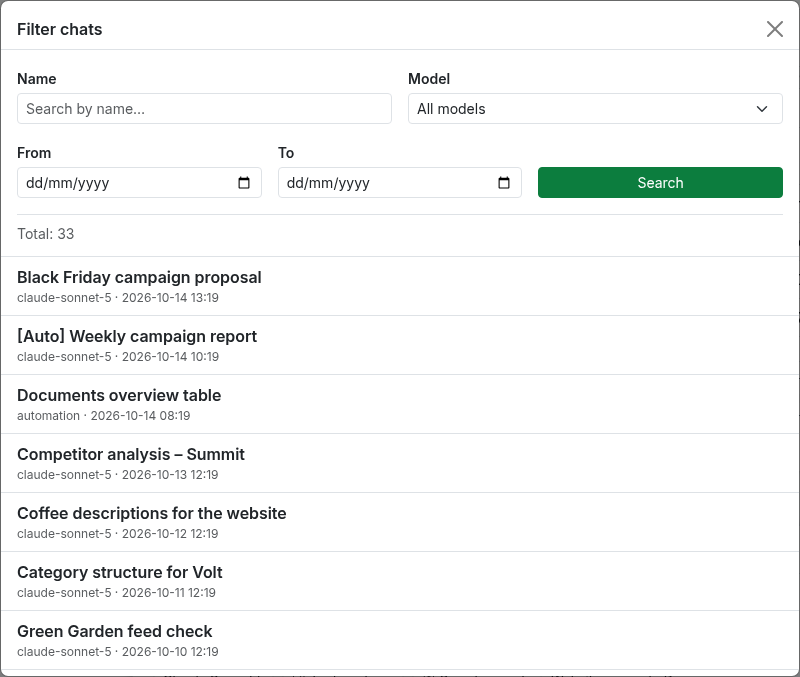
Click the filter icon next to the Your chats heading to open the Filter chats dialog. You can search by name, model used, and creation date (from–to). The dialog searches all your conversations in the organization, not just the last 50 in the list.
Conversations started in the background#
The chat list also shows conversations that were not started by a person:
- robot icon – the result of an agent run,
- gears icon – the result of an automation,
- [Auto] prefix in the name – the conversation was started by a scheduled trigger,
- [Hook] prefix – the conversation was started by a webhook,
- [Autofill] prefix – an agent was filling in a custom field in the CRM.
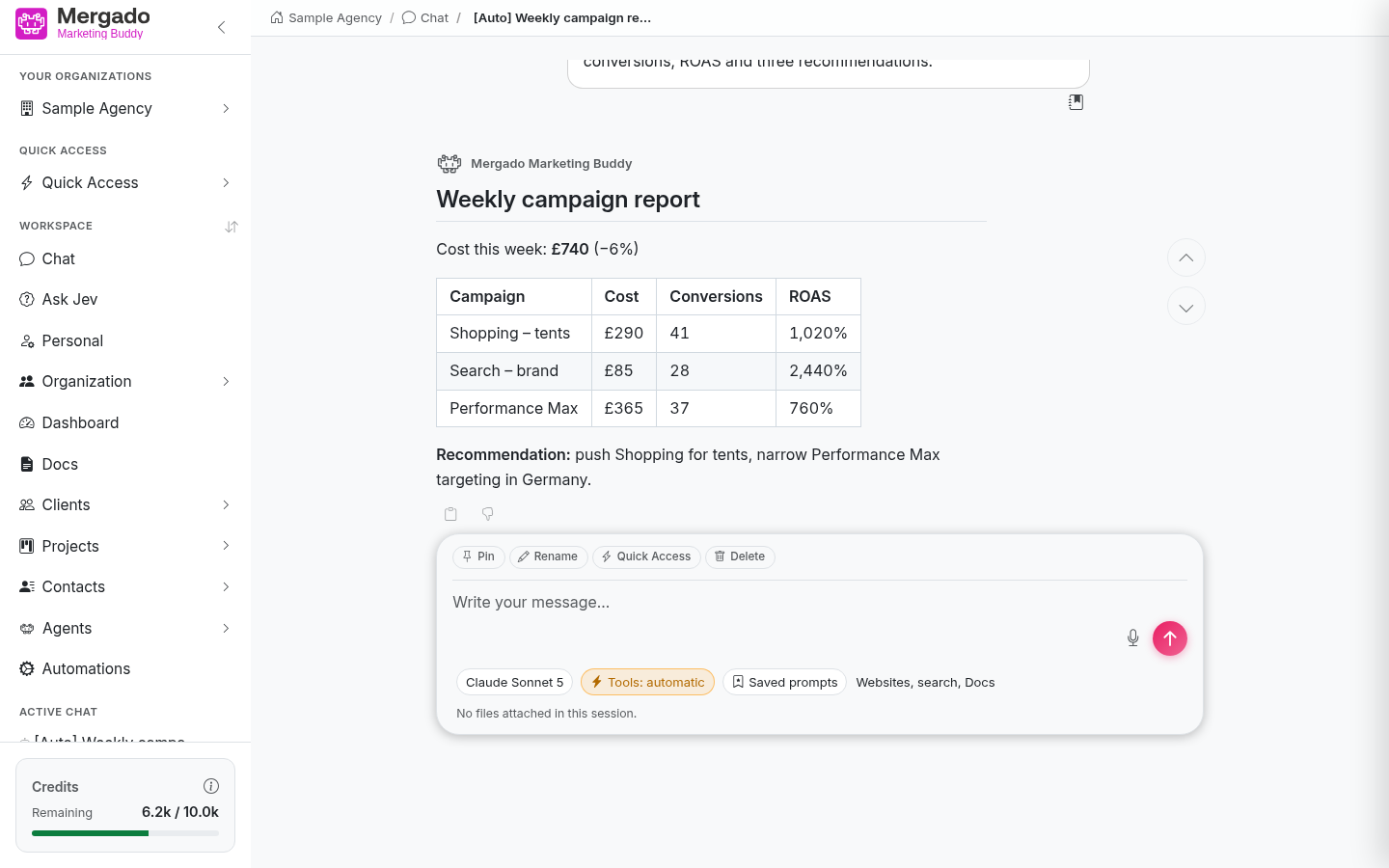
While the agent is working, a spinning wheel appears next to the conversation and the chat shows the text Agent is still running…. These conversations run in Tools: automatic mode, because nobody is there to approve running the tools.
What you can do here#
- Ask anything about your online store, feeds, and marketing, and let the AI work with real data.
- Switch the model according to how demanding the task is, which affects both speed and price.
- Enable only the extensions you need for your request.
- Attach a file or download source material from a URL.
- Reuse a favorite request from your saved prompts.
- Pin, rename, copy to another organization, or delete a conversation.
FAQ#
Why does the AI wait and ask before doing something? Tools: ask mode is enabled. Every tool that changes data waits for your confirmation. You can switch it in Chat settings → Tool approval.
How many credits does a conversation consume? It depends on the model and the amount of work. More powerful models and more enabled extensions consume more. You can see the balance in the left panel and the history in the Usage section on the Organization – General page.
Can my colleagues see my chats? No, the Your chats list is yours. The Copy to organization action creates a copy of the conversation in another organization you are a member of – it is your private conversation there too.
Can I go back to an old conversation? Yes, via the list in the left panel, the Filter chats dialog, or search with Ctrl+K.
Why does a service we connected not appear in the extensions? Check in Credentials that the connection is not disabled. In a chat that is already open, a newly connected service may take a while to appear – in a new chat, it shows up immediately.