
Basic Layout#
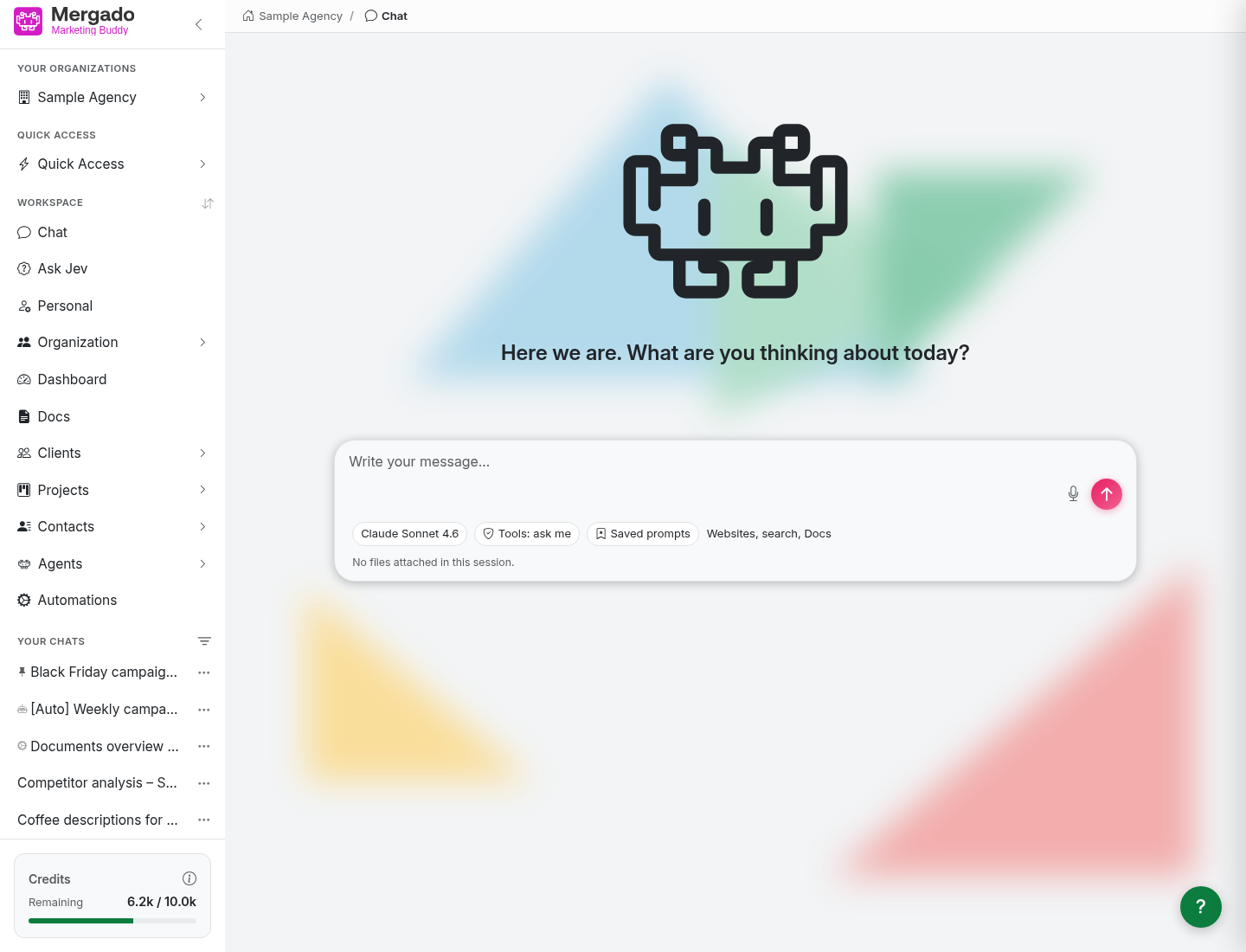
All pages in Mergado Marketing Buddy share the same basic layout: the navigation panel on the left, breadcrumb navigation at the top, and the page content in the middle. The left panel stays in place wherever you are, so you can get to the chat, your agents, or the organization settings from any page with a single click.
Interface layout#
The page has three parts:
- Left panel – navigation between pages, the list of conversations, and your credit balance. Use the arrow in the panel header to collapse it into a narrow strip of icons. Hover over an icon to see its name and, for items with a submenu, its links. The application remembers the collapsed state in this browser.
- Breadcrumb navigation – the top bar shows where you are (e.g.
Sample Agency / Agents / New agent) and links to the parent pages. The first item is always the name of the current organization and opens a new chat. - Page content – the actual workspace. For chats, agents, and automations, a settings panel also slides out from the right.
Some pages (new chat, agents, automations) have a round ? button in the bottom-right corner that starts a short guided tour of the page.
Left panel#
Your organizations – the organization switcher#
Click the organization name to expand a list of all organizations you are a member of. Organizations you own are at the top, the others are sorted alphabetically.
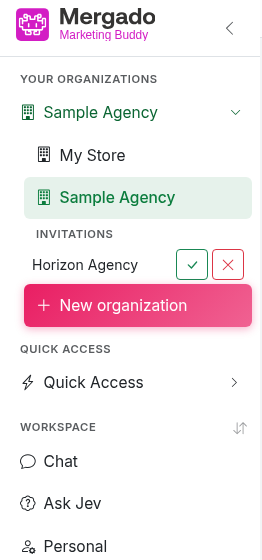
- Invitations – if someone has invited you to their organization, you will see it here. Click the check mark to accept the invitation (you become a member with the Member role) or the cross to decline it. Invitations are not sent by email – you can only find them here.
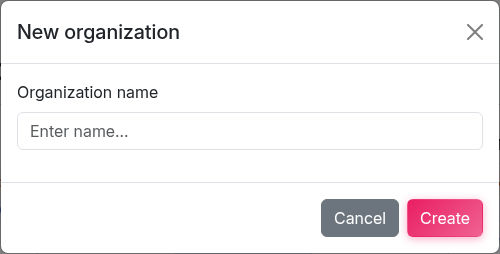
- New organization – opens a dialog for creating an organization. The name must be 3 to 48 characters long. Whoever creates the organization becomes its owner.
Switching the organization changes the entire content of the application – organizations do not share chats, agents, or documents.
Quick Access#
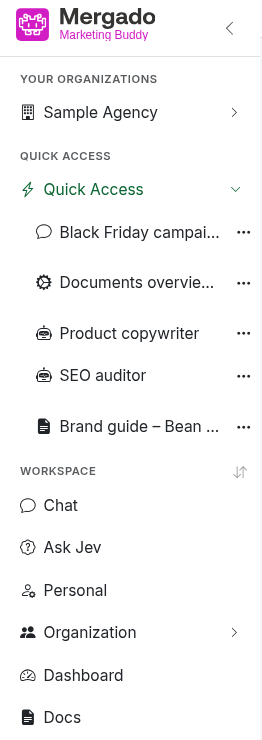
The Quick Access section is your board of favorite items. You can add chats, agents, automations, and documents – click the “…” icon and then Add to Quick Access. Items are grouped by type and open with a single click:
- a chat opens the conversation,
- an agent starts a new chat with that agent,
- an automation opens the page for running it,
- a document opens its preview.
To remove an item from Quick Access, click the “…” icon next to it and select Remove. Quick Access is personal – each member of the organization has their own.
Workspace#
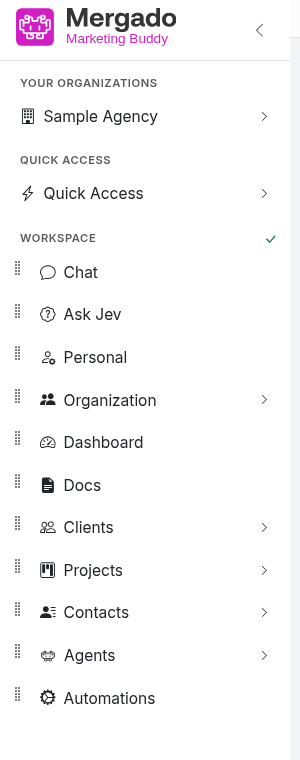
The main navigation in the workspace:
| Item | Description |
|---|---|
| Chat | A new conversation with the AI |
| Ask Jev | A quick assessment of a text using questions with predefined answers |
| Personal | Interface language and the shortcut for sending messages |
| Organization | General, Credentials, Files, Webhooks (only for the Owner and Admin roles) |
| Dashboard | A calendar of scheduled runs and a history of activity in the organization |
| Docs | The knowledge base |
| Clients | Clients and their custom fields |
| Projects | Projects and their custom fields |
| Contacts | Contact persons and their custom fields |
| Agents | Organization agents and public agents |
| Automations | Organization automations |
You can change the order of the items. Click the arrows icon next to the Workspace heading and drag handles appear next to the items – drag the items by them (or select a handle and move the item with the arrow keys). Confirm with the check mark icon. The order is saved only in this browser.
Your chats#
On chat pages, the list of your conversations appears below the navigation – the last 50, with pinned ones at the top and the rest sorted by latest activity. The open conversation is also shown at the top in the Active chat section.
Each conversation has a “…” icon. Click it to display a menu of actions:
- Pin / Unpin – pins the chat to the top of the list,
- Rename – edit the name directly in the list; Enter saves, Esc cancels,
- Add to Quick Access,
- Copy to organization – copies the conversation to another of your organizations (Owner and Admin roles only),
- Delete.
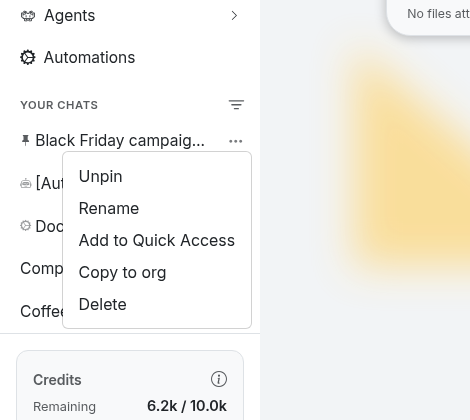
A pin icon marks a pinned chat, a robot icon marks an agent result, and a gears icon marks an automation result. A spinning wheel means an agent is still working in the background.
Click the icon next to the Your chats heading to open the Filter chats dialog, where you can also find older conversations by name, model, and creation date (see Chat for details).
Credits#
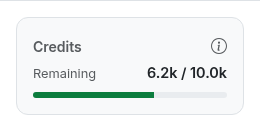
At the bottom of the panel, the Credits indicator shows how many credits the organization has left out of the total amount topped up (higher numbers are shown as “6.2k”, i.e. 6,200). The bar changes color depending on the balance: green → yellow below 40 % → red below 15 %. Credits are consumed by the work of the AI. The value updates with a short delay (up to half a minute).
Global search#
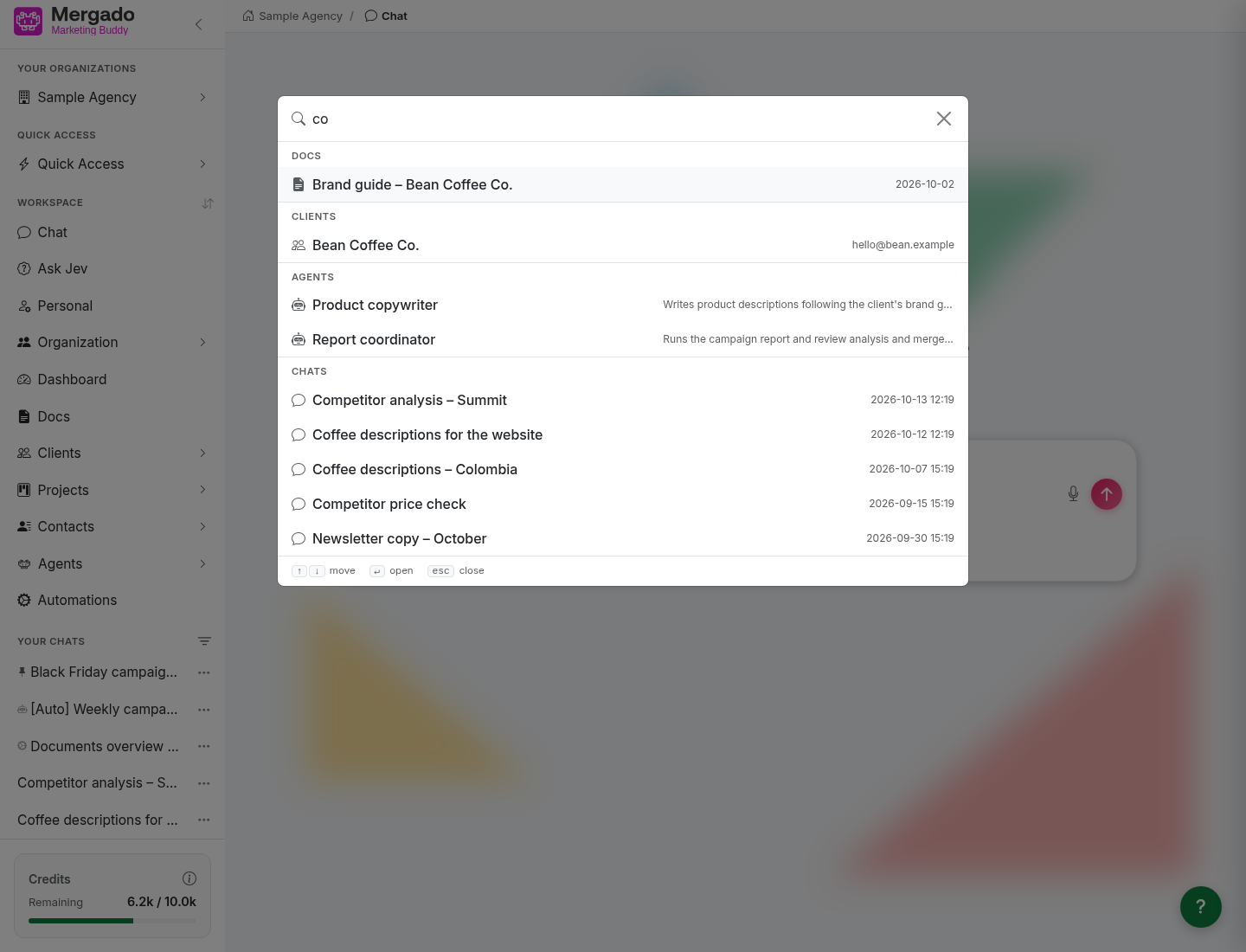
Press Ctrl+K (Cmd+K on Mac) to open the search palette. Before you start typing, it shows your Quick Access items. From two characters onwards, it searches across:
- documents,
- clients (by name and company ID),
- projects,
- contacts,
- agents (including public ones),
- automations,
- your chats.
Results are grouped by type (up to five of each). Move between items with the arrow keys, press Enter to open and Esc to close.
Keyboard shortcuts#
| Shortcut | What it does |
|---|---|
| Ctrl+K / Cmd+K | Opens global search |
| Ctrl+E / Cmd+E | Starts a new chat wherever you are |
| Ctrl+Enter | Sends a message (you can switch to Enter on the Personal page) |
| Shift+Enter | Inserts a new line in the message field |
| Esc | Closes a dialog or search; in a chat, stops generating the response |
What you can do here#
- Switch to another organization, accept an invitation, or create a new organization.
- Pin frequently used items to Quick Access.
- Change the order of items in the menu.
- Quickly find a document, client, agent, or older conversation with Ctrl+K.
- Keep an eye on your credit balance.
FAQ#
Can I hide the left panel? Yes, with the arrow in its header. The panel collapses and only the icons remain; their names appear when you hover over them.
What does the pin icon next to a conversation mean? The chat is pinned, so it stays at the top of the list regardless of its age.
Why can’t I see some menu items? Some items and actions depend on your role in the organization – for example, only the Owner and Admin roles can see the Organization item or copy a chat to another organization.
Why can’t I see the Your chats list? The list of conversations is only displayed on chat pages. On other pages, click Chat in the menu to open it.
Where can I find a conversation that is no longer in the list? The list contains your last 50 conversations. You can find older ones via the filter icon next to the Your chats heading or with Ctrl+K.