
Rule setting options#
This page is a detailed reference overview of all the options available when creating or editing a rule in advanced settings. If you’re looking for more of an introduction to how a rule works, check out the Rules page.
You can create a rule either with a quick three-step wizard, or in advanced settings — covered here. Advanced settings also has a panel of ready-made templates (“I want to be the cheapest on Heureka”, “I don’t want to raise prices”, “Generate charm prices”…) that pre-fill the most common combinations from this page for you.
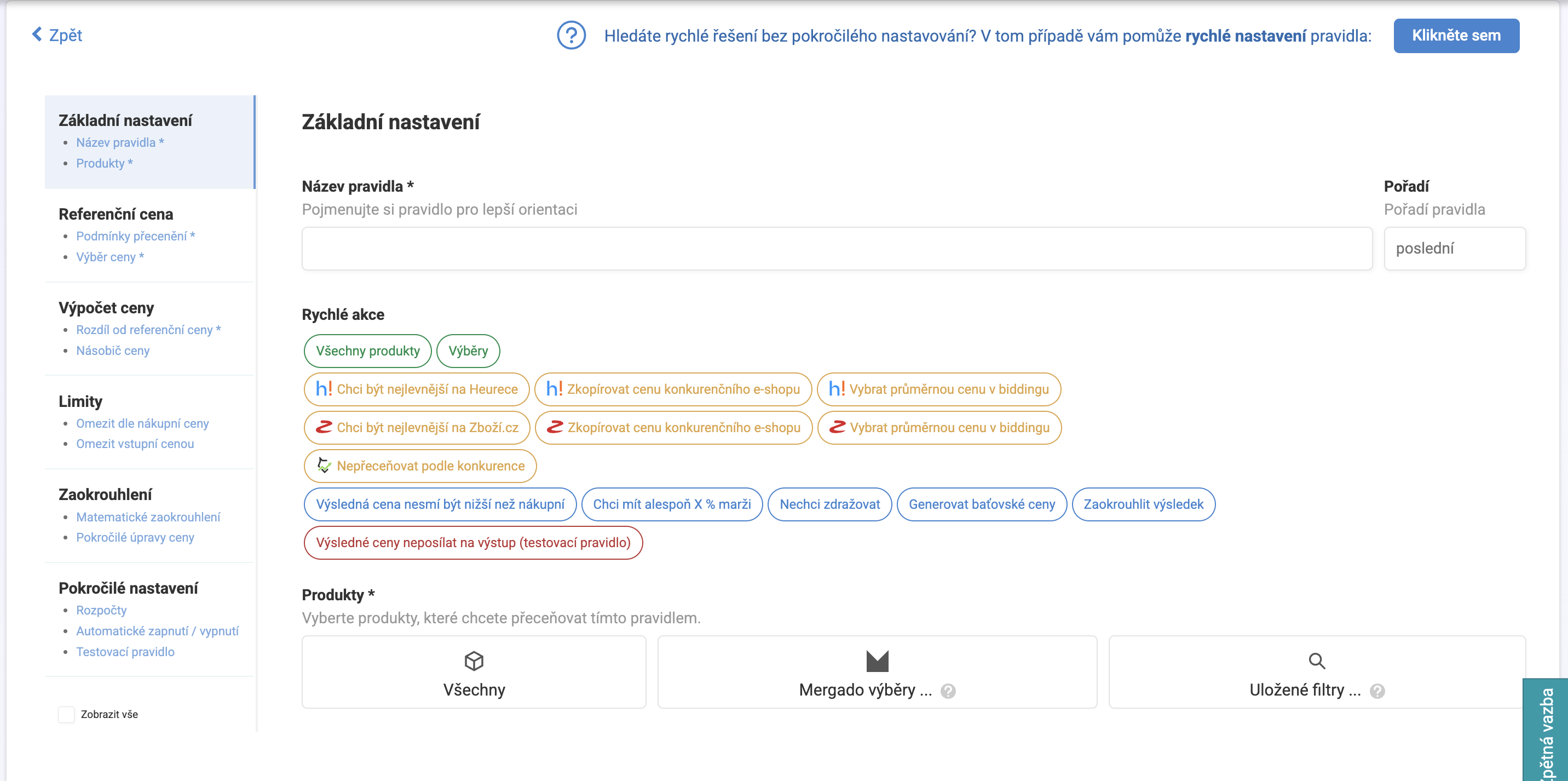
Product selection#
| Option | Description |
|---|---|
| All | The rule applies to the project’s entire product range |
| Mergado selections | The rule only applies to products from the chosen Mergado selection |
| Saved filters | The rule applies to products matching a filter saved on the Products page |
Reference price source#
You build the condition Pricing Fox uses to look for a reference price on one of these sources:
- Heureka.cz and Zboží.cz — work the same way: you choose the condition type (see below), the comparison method, and the value. For both you can also enable “Include shipping cost” so shipping is factored into the comparison, not just the product price. For Heureka there’s also a “Limit by delivery time” option.
- Google Merchant Center — works differently from the other sources: instead of custom conditions, you choose whether you want the Suggested price (the price Google optimizes for Google Shopping auction performance — clicks, conversions, impressions, not margin), or the Benchmark price (a statistical market benchmark derived from other merchants selling the same product).
- Mergado — takes the reference price directly from any element in your feed. You enter its name and Pricing Fox treats it as a number from there. It will warn you to only pick elements that actually contain price values.
- Input price — Pricing Fox uses your current price directly as the reference, with no further setup. Useful combined with limits and rounding, when you don’t want to react to the competition, just, say, unify rounding across the catalog.
- Custom CSV — the reference price is read from your own, periodically downloaded price list (see Connections).
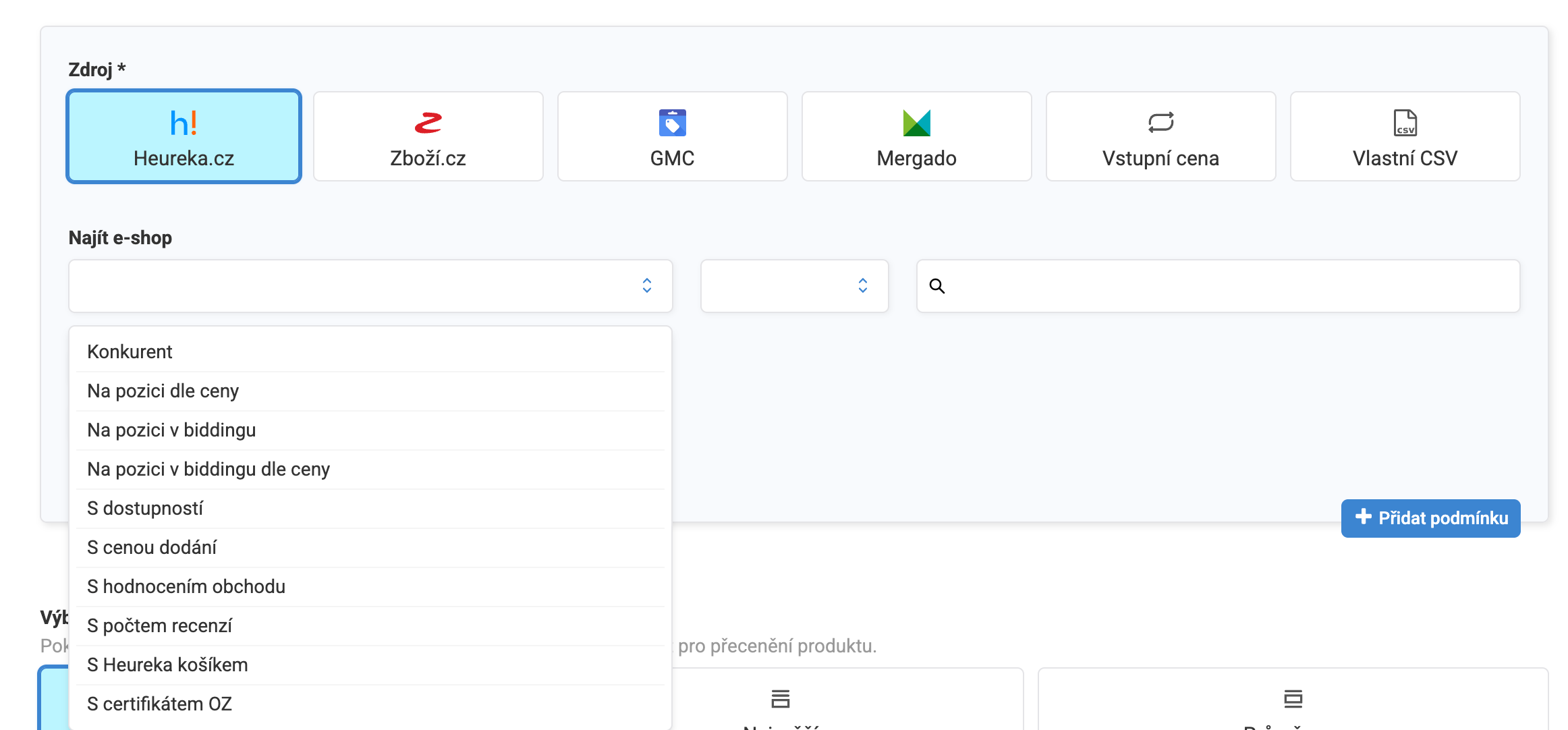
Condition types (for Heureka and Zboží.cz)#
- Competitor — a specific store or group of stores, chosen by name.
- By price position — the product’s position in the price ranking (e.g. 1st–2nd place).
- By bidding position — the current position in bidding on the comparison site.
- By bidding position by price — a position derived from price, not the current bid.
- With availability — offer availability (in stock, within how many days).
- With delivery price — the shipping cost on the competing offer.
- With pickup price — the cost of personal pickup on the competing offer (Zboží.cz only).
- With store rating — the given store’s rating/reviews.
- Whole card — takes all offers on the product card into account at once.
- Price percentile — only picks offers within a certain price band (e.g. the cheapest quarter) before calculating the final reference price from them.
Heureka additionally has three conditions that Zboží.cz doesn’t offer: with review count, with Heureka Basket (only stores participating in the Heureka Basket program), and with the Verified by Customers certificate. Useful when you only want to take the reference price from vetted, trustworthy competitors, not just anyone on the card.
For positional conditions, you can also enter the value as a list (e.g. “1st or 2nd position”). This pays off especially when targeting the first position: add the second position to the condition too. If you’re alone on the card in first place and Pricing Fox doesn’t use the reference for safety reasons (see Rules, protection against a price spiral), you’ll still match at least the second position instead of being left without a reference price at all.
How Pricing Fox compares values#
For each condition you choose how the value should be compared: any of / none of (for selecting from a list, e.g. specific competitors or positions), or classic mathematical comparison equals, not equals, greater than, greater than or equal to, less than, less than or equal to.
Combining multiple conditions#
You can add multiple conditions to a rule and link them with “and” (all must be true), or “or” (at least one must be true).
Selecting a reference price from multiple offers#
If multiple offers match the conditions, Pricing Fox picks one based on your setting: lowest, highest, or average.
What happens when nothing matches#
When no price matches the conditions, Pricing Fox handles the product in one of three ways, based on your setting:
- Don’t change the price — the product stays as it is.
- At least apply limits and rounding — Pricing Fox still applies this rule’s limits and rounding to the current price.
- Fall through to the next rule — Pricing Fox tries whether the product matches one of the following rules in order.
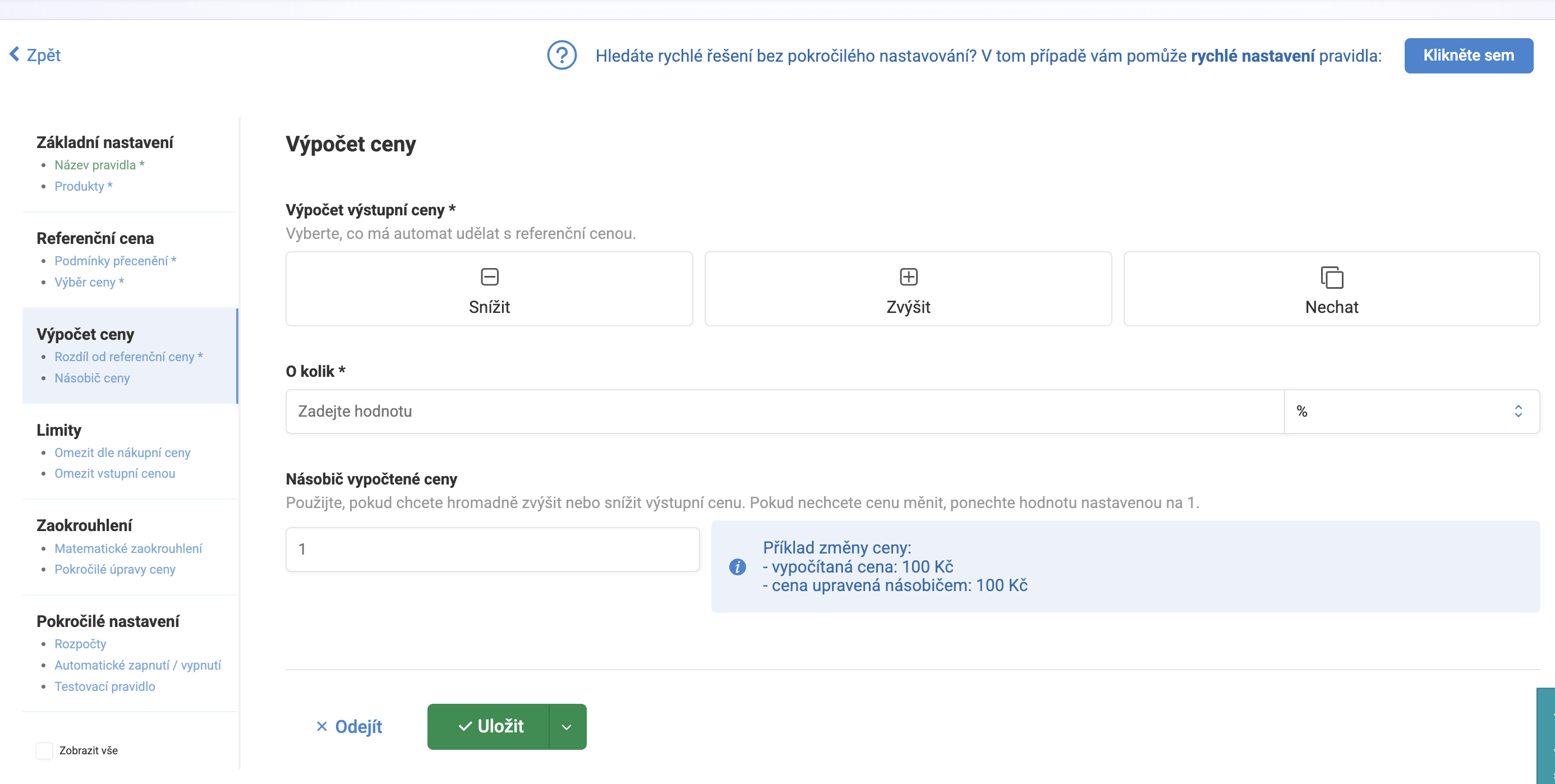
Price adjustment#
From the reference price, Pricing Fox either decreases, increases, or leaves it unchanged — by a set amount in your currency, or by a percentage. On top of that you can set a calculated price multiplier — a coefficient that bulk-raises or lowers the resulting price across the whole rule (default value 1 doesn’t change the price at all).
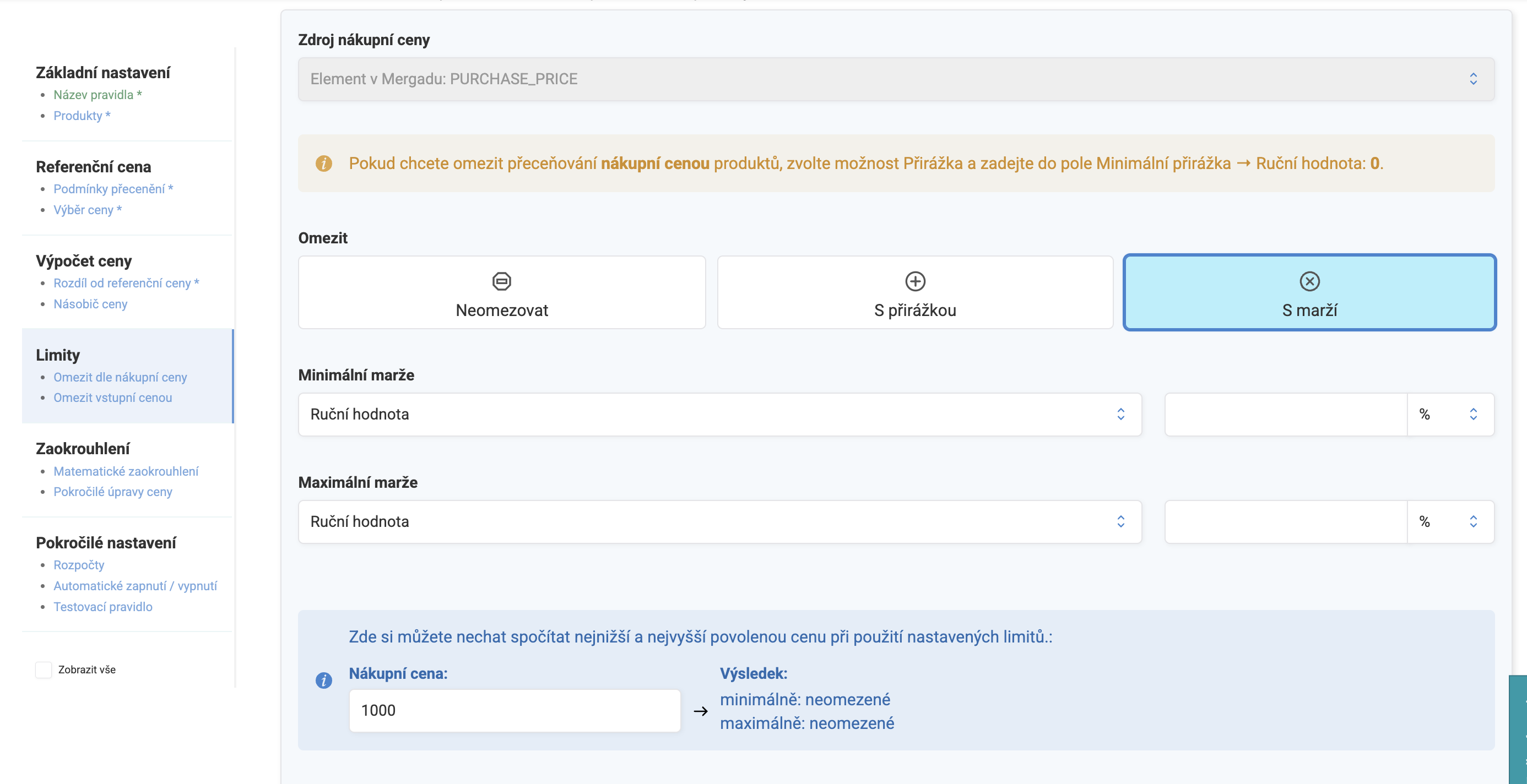
Limits#
Limits protect the calculated price from extremes in three independent areas. Pricing Fox always evaluates them in the same order: input price, then purchase price, markup, margin, and finally output price restriction. This tells you which limit takes precedence in case of a clash.
- By purchase price — set a minimum/maximum markup over the purchase price, or a minimum/maximum margin. You can enter the limit value manually, or let Pricing Fox read it directly from a feed element (useful when each product needs a different limit). Pricing Fox also shows you how the limit plays out for a specific purchase price example.
- Manual output price restriction — fixed lower and upper bounds the price may not cross or fall below, regardless of purchase price.
- By input price — how much the price may decrease/increase at most compared to your current price, in your currency or percent.
If the resulting price exceeds one of the limits, Pricing Fox either trims it to the limit value, or lets the product fall through to the next rule, depending on your setting — this behavior applies to all limits in the rule at once.
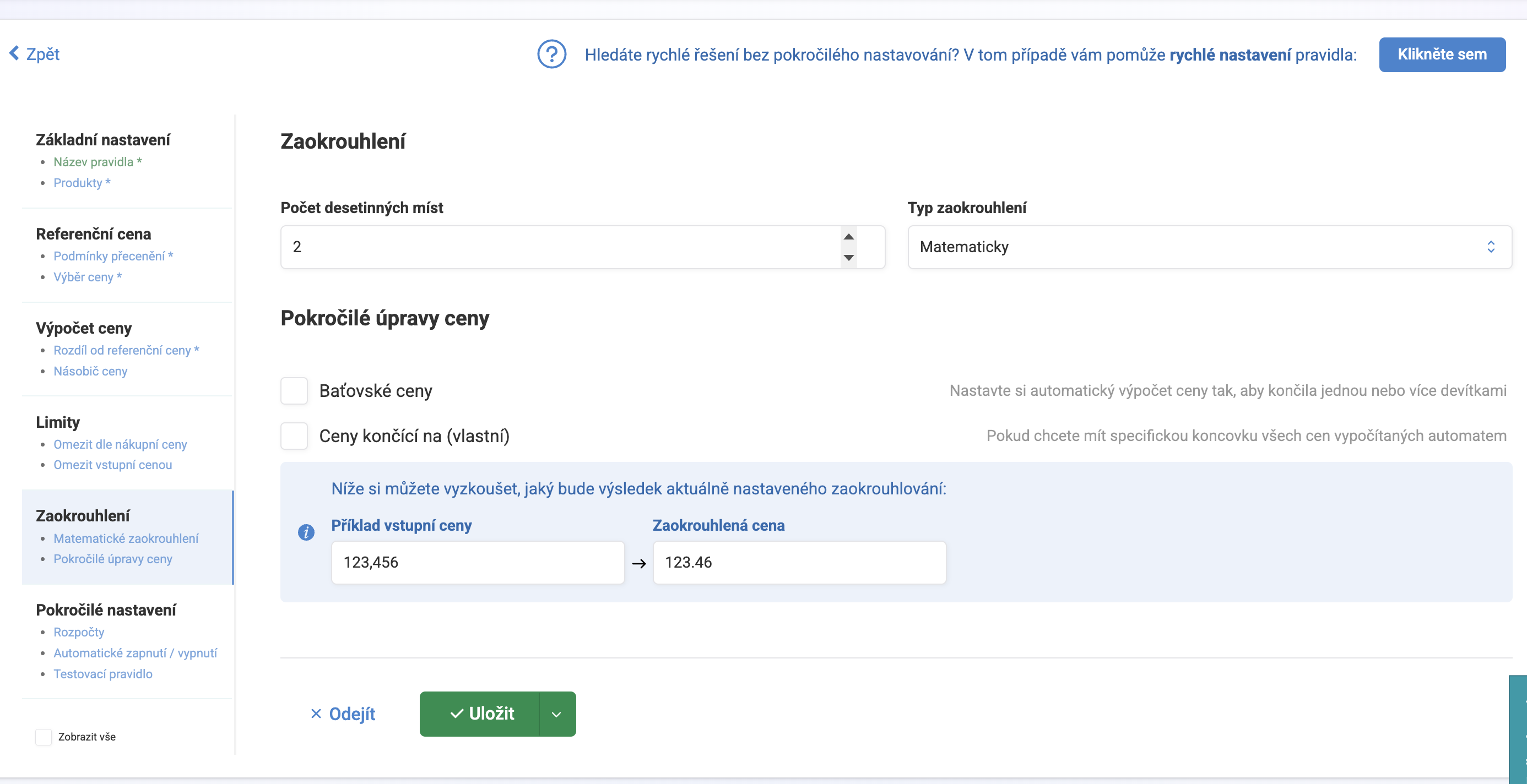
Rounding#
Three steps that can be turned on independently of each other, applied by Pricing Fox in this order:
- Regular rounding — to a chosen number of decimal places, mathematically, up, or down.
- Charm prices — automatically adjusts the end of the price to a chosen number of nines (e.g. 203 CZK → 199 CZK). You choose whether the result should come out more expensive or cheaper than before rounding.
- Custom price ending — forces the price to always end with digits you choose (e.g. “90”), again with the same more expensive/cheaper choice.
Pricing Fox shows you right away how it plays out with an example — you enter an input price and it displays the result after rounding according to the current settings.
Rule budget#
You can add one or more budgets to a rule based on revenue, costs, clicks, or orders over a chosen period. Once the budget reaches its target value, the rule pauses itself and products may fall through to the next rule in order — a useful safeguard against a pricing strategy “running away” unchecked.
Scheduling a rule#
You set a rule’s automatic on/off switching either once (the rule turns on/off once at a specified time), or repeatedly: by hour, day, week, or month — Pricing Fox shows you right away a clear preview of the schedule (e.g. “will turn on every Thursday at 00:00”). For more complex schedules that don’t fit these four options, Pricing Fox also offers entering a custom schedule in cron syntax.
Test mode#
A rule can be switched to test mode — Pricing Fox calculates and displays what price it would set, but doesn’t write it to the output feed. You’ll see test prices directly in Pricing Fox, and if you need to, you can also pull them via a product export. Great for trying out a new strategy alongside production rules, without changing anything for real.
Related#
Rules · Products · Connections · Diagnostics