
Inpainting#
Inpainting is a Feed Image Editor feature for removing recurring elements from product images in bulk, such as logos, labels, or watermarks. You mark the element in the same spot once, the AI removes it on all relevant images and fills in the background as if nothing had ever been there.
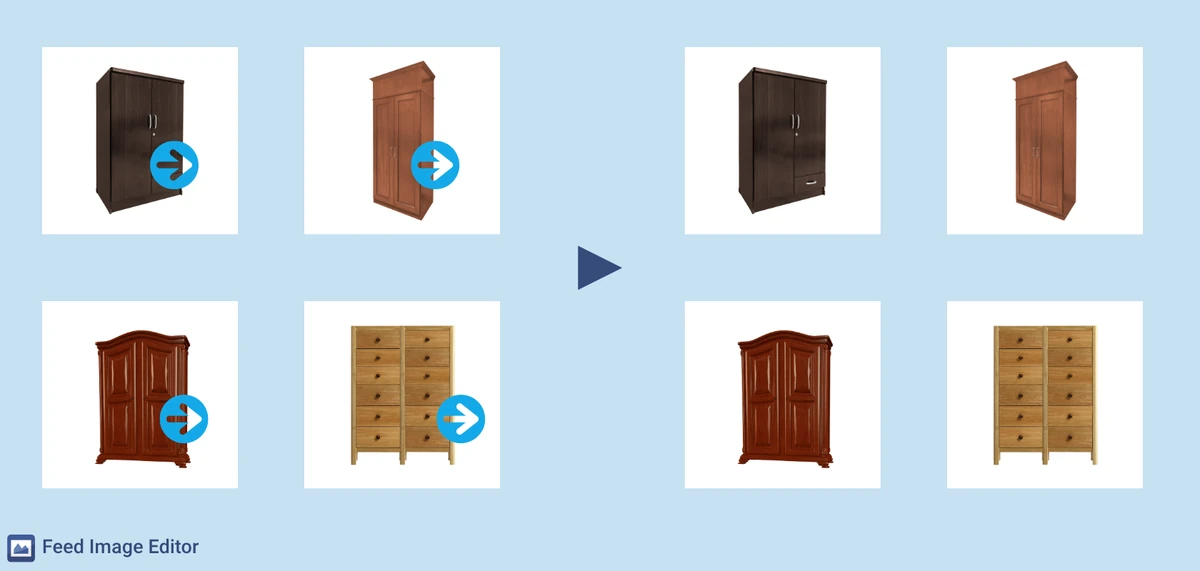
How it works#
After you mark the element, the AI model analyzes that spot in the image and replaces it with a realistically filled-in background. The key condition is that the marked element must appear in the same or a very similar spot on the other images. Only then can the tool work in bulk.
Setting it up in the extension#
You will find Inpainting on tab 4, in the AI tools section. After clicking it, an editor opens where you select an image on the left and mark the element you want to remove with the mouse. The system then automatically removes it from the other images in the feed.
If you launch Feed Image Editor for the first time, the Inpainting prompt appears right when you open the extension.
When Inpainting comes in handy#
The feature is intended for situations where an unwanted element repeats in the same spot across multiple images, typically with product photos coming from the same source (supplier, photographer, imported database).
Typical use cases:
-
a supplier’s logo or name in the corner of the image
-
a price tag in a fixed position
-
a watermark covering part of the product
When Inpainting is not enough#
If the position of the element varies across images, Inpainting will not be reliable, since it always applies the removal to one specific spot. In that case, the Watermark removal feature is more suitable, as it handles a variable position better.
If the element being removed does not touch the product directly (it lies entirely on the background), the simplest solution can also be Background removal, which works in bulk with a single click.
FAQ#
Do I need to mark the element on every image separately?#
No. That is the main advantage of Inpainting. You mark the element only once, on a single reference image. The system then removes it in bulk from all the other images where it appears in the same or a very similar spot.
What if the logo or label is in a slightly different spot on every image?#
In that case, Inpainting will not be reliable. The tool works with one fixed selection. If the element’s position varies, use the Watermark removal feature, which is designed for a variable position.
How good is the resulting background after removal?#
The AI fills in the removed spot based on the surrounding pixels. For images with a plain or natural background (white, gray, blurred studio), the result is generally free of visible artifacts. On more complex backgrounds with detailed texture or gradients, the result may be less accurate, and we recommend checking it on a sample of images, for example on the Previews page.
Can I use Inpainting even if the element overlaps the product directly?#
Yes. Inpainting is specifically designed for these cases. Unlike Background removal, which works with the whole layer behind the product, Inpainting targets only the selected spot, even when a logo or label crosses over the product.
How many images can be processed at once?#
Inpainting works in bulk across the whole feed with no limit on the number of images. Larger batches naturally take longer, and processing runs in the background.
Can Inpainting be repeated if the result is not satisfactory?#
Yes. The selection can be adjusted or redone with different marking, and processing can be run again.