
Organization – Credentials#
On the Credentials page, you connect external services. This is where Marketing Buddy becomes truly useful in practice: the AI can reach into your Fakturoid, GitLab, Rocket.Chat, analytics, or other systems, because it has stored access to them.
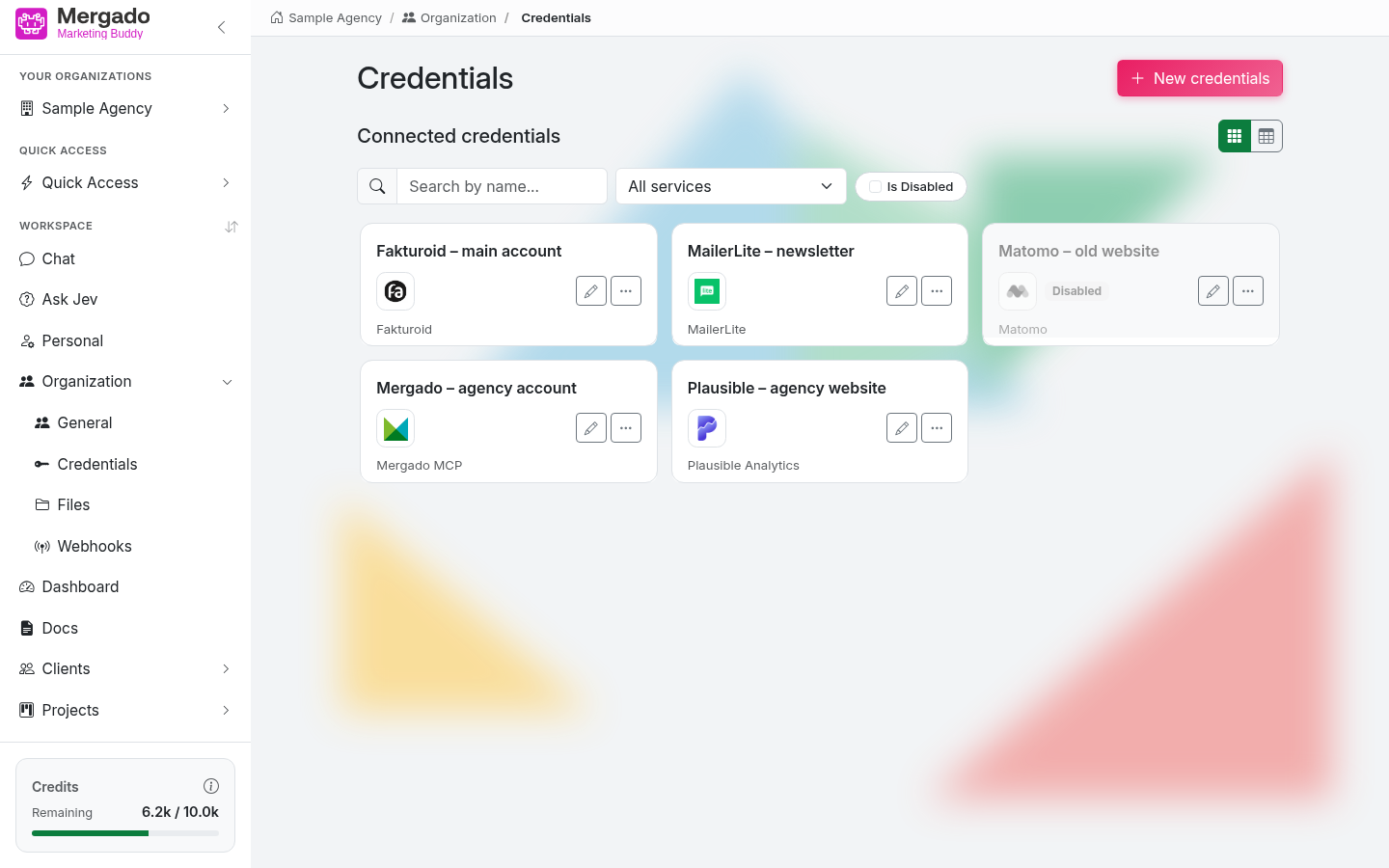
Page layout#
- The Credentials heading and the New connection button.
- The Connected services section with a switch between card view and table view.
- A filter bar: search by name, service selection, and the Is disabled checkbox (shows only disabled connections).
- Connection cards – name, icon, and service name. A disabled connection is grayed out and has a Disabled label.
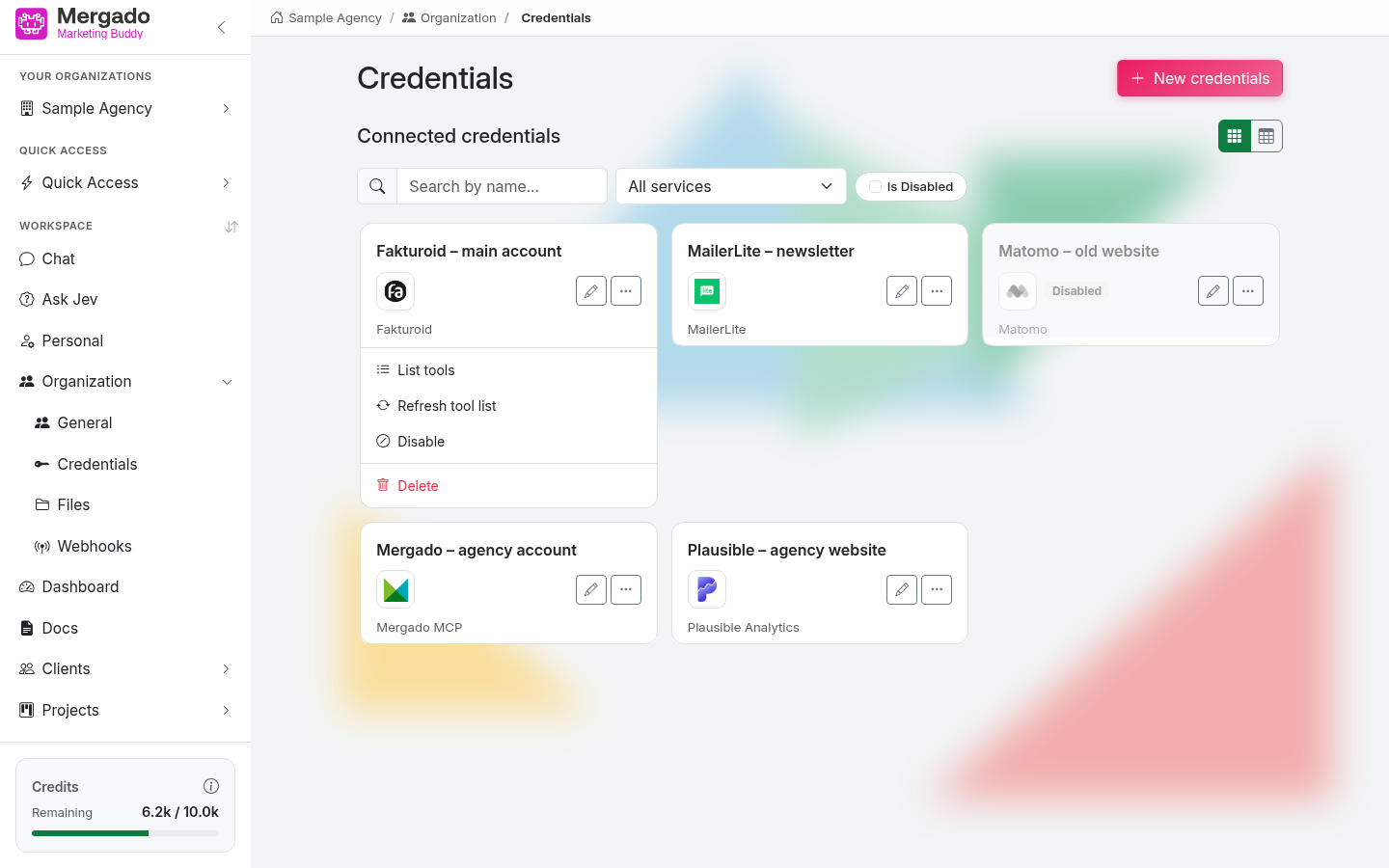
Each card has a pencil (Edit) and a “…” icon with a menu of actions:
- List tools – a list of the tools the connection makes available to the AI, with descriptions
- Refresh tool list – reloads the tools from the service (useful when the service has added new features)
- Enable / Disable – a disabled connection stays saved, but the AI cannot see it or use its tools
- Delete – deletes the connection (Owner and Admin roles only)
New connection#
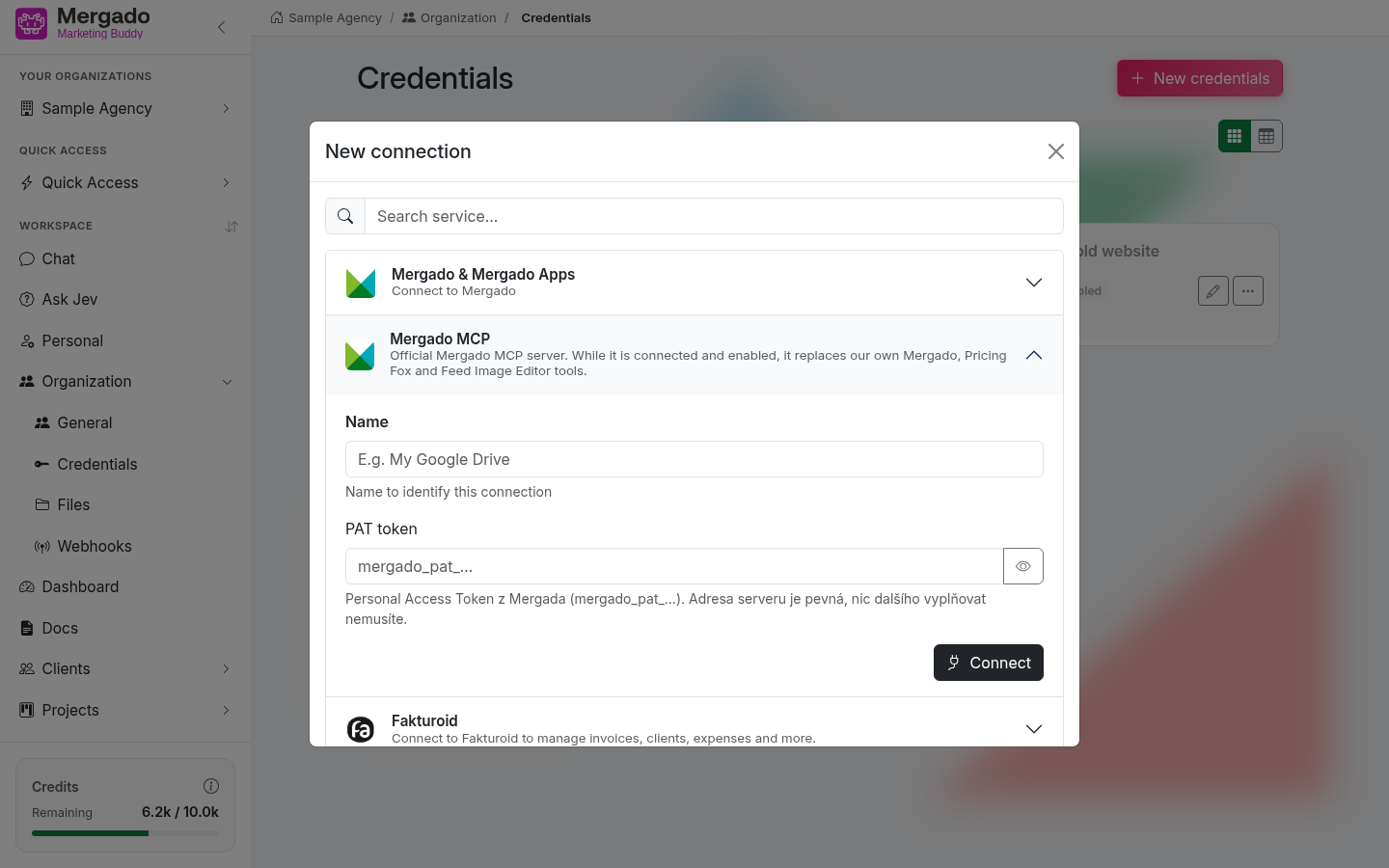
The New connection button opens a dialog of the same name:
- In the Search service… field, find the service you want to connect.
- The form for that service expands – it always contains the Name field (the name by which you will recognize the connection, for example “Fakturoid – main account”), followed by the details of the specific service: API key, token, instance URL, or username and password. You can display passwords with the eye button.
- Click Connect to save the connection. For some services, the application first verifies that it can connect to them.
You can connect services such as:
| Service | What you fill in |
|---|---|
| Mergado MCP | PAT token from Mergado |
| Fakturoid | Client ID and Client Secret |
| Matomo | Matomo URL and API token |
| Plausible Analytics | API key, site ID, and instance address |
| MailerLite | API key |
| Pricing Fox | Server token |
| Rocket.Chat | URL, User ID, and Auth Token |
| Rocket.Chat Bot | URL, the bot’s username and password, and the model the bot will use to respond |
| GitLab, GitHub | Repository address and access token |
| Nextcloud | URL, username, and password |
| ActiveCollab, Freescout, n8n | URL and API token or key |
Connected services then appear in the chat as extensions that you can enable in Chat settings → Extensions, and agents and automations can use them too. Any member of the organization can add a connection; you can also open the dialog with the Add extension button in the chat or in the agent settings.
Editing a connection#
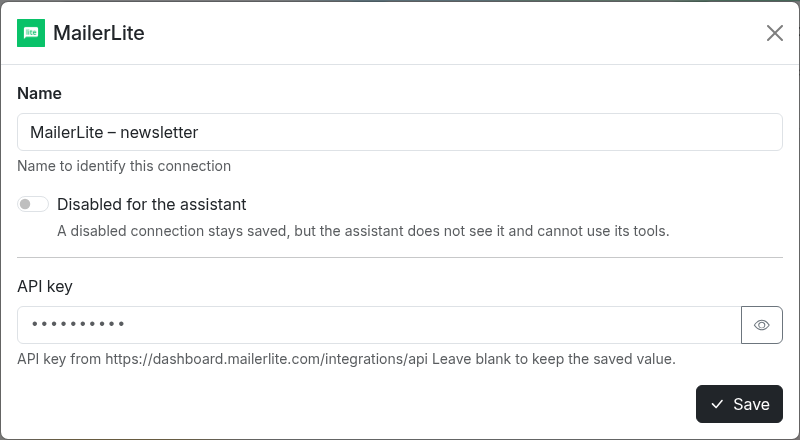
The pencil on the card opens a dialog with the connection settings:
- the connection Name,
- the Disabled for assistant toggle – the same as the Enable / Disable action,
- the service details. Saved passwords and tokens are not displayed; if you leave a field empty, the saved value is kept. The Owner and Admin roles can display the saved value with the eye button.
Save your changes with the Save button.
Deleting a connection#
Before deleting, the application shows where the connection is used – in which agents, automations, and chats from the last 7 days. If you delete it, these items lose its tools. You can connect the service again at any time via New connection.
Mergado MCP#
Mergado MCP is Mergado’s official MCP server. In the form, you only enter the PAT token (mergado_pat_…) – the server address is fixed, and you do not need to fill in anything else.
When this connection is enabled as an extension in the chat (or for an agent), it takes priority over our own tools for the same data: the Mergado, Google Search Console / Analytics 4 / Ads / Merchant / Sheets, and Pricing Fox extensions are not used in that case and stay grayed out in the list of extensions with the label Replaced by Mergado MCP. Mergado Files remains available. In Auto Discovery mode, the replaced extensions are not offered to the AI at all while Mergado MCP is connected.
Rocket.Chat#
- Rocket.Chat – the AI can send messages to channels and work with chats in your Rocket.Chat.
- Rocket.Chat Bot – you can chat with Buddy directly in Rocket.Chat. Each user must authorize themselves first: in the “…” menu of the connection, select Authorize my account and enter your Rocket.Chat username; the bot sends you a direct message with a confirmation link. In the connection settings, you then see the list of Allowed Rocket.Chat users with the status Active or Pending confirmation.
What you can do here#
- Connect a new service and give it a name.
- Check which tools a connection makes available to the AI.
- Temporarily disable, edit, or delete a connection.
- Authorize your account for chatting with the bot in Rocket.Chat.
FAQ#
I connected a service, but the AI does not use it. Why? The corresponding extension must be enabled in the chat – Chat settings → Extensions (or Auto Discovery). For an agent, enable it in the Model and tools section. Also check that the connection is not disabled.
Why can’t I see the service as an extension in the chat? Disabled connections do not appear in the list of extensions. In a newly created chat, a connected service appears immediately; in a chat that is already open, it may take a while.
How can I tell that a connection has stopped working? The AI reports an authorization error for the given tool in the chat. Then simply edit the access details or connect the service again.
Can my colleagues see my access details? The connection belongs to the organization, so all members can use it. Saved passwords and tokens are not displayed in the interface; only the Owner and Admin roles can view them.
What happens when I delete a connection? The AI loses access to the service, and agents or automations that use it lose its tools. The application warns you about them before deleting.
Can I connect one service more than once? Yes – for example, two Fakturoid accounts. Name each connection so that you can tell them apart.