
Rules#
A rule is the basic building block of pricing in Pricing Fox — it turns your business strategy (“I want to be the cheapest on Heureka, but not below a 20% margin”) into automated logic.
If you only want to monitor the market and competition in Pricing Fox, you don’t need to create any rules. The app will automatically process all products from Mergado and run analyses on them.
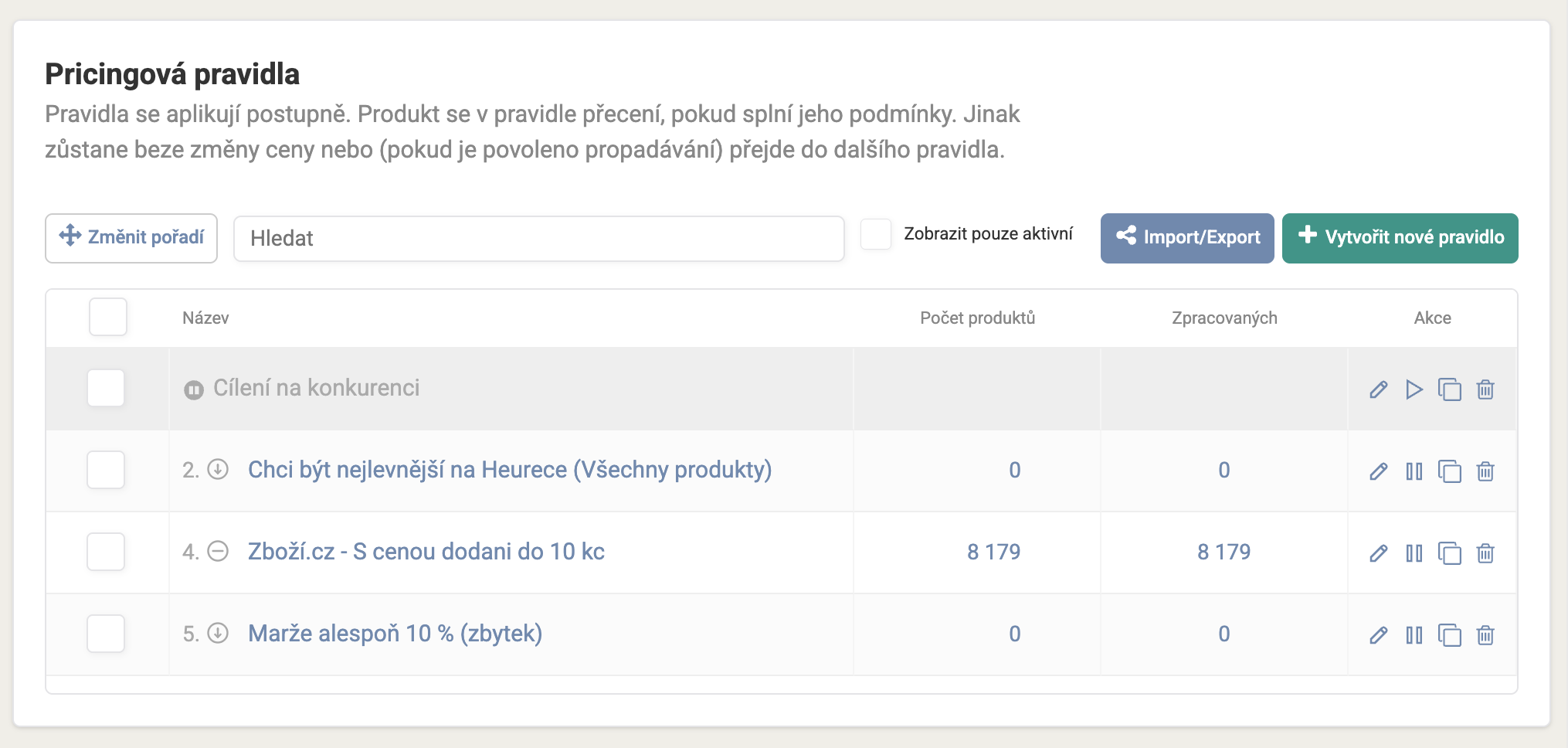
You can create a new rule two ways: with a quick three-step wizard for simple cases, or in advanced settings, where you have access to all the options described on this page, found on the Rule settings options page. Advanced settings also has a panel of ready-made templates (“I want to be the cheapest on Heureka”, “I don’t want to raise prices”, “Generate charm prices”…) that pre-fill the most common combinations for you.
What a rule contains#
-
Input products — selected either via a saved filter, or via a Mergado selection.
-
Reference price — what the new price is calculated from. Typically a competitor’s price or a group of competitors, not your own input price. The reference price can come from Heureka.cz, Zboží.cz, Google Merchant Center, a specific element from your Mergado feed, your own input price, or your own imported price list (see Connections). Common conditions Pricing Fox uses to select reference offers:
- position by price or by bidding on the comparison site,
- a specific competitor or group of competitors,
- availability, shipping cost, or pickup cost,
- store rating,
- price percentile among offers.
For Google Merchant Center, Pricing Fox offers two ready-made strategies instead of custom conditions: the Suggested price (the price Google optimizes for auction performance) or the Benchmark price (a market benchmark from other merchants selling the same product).
You can combine several conditions in one rule and link them with “and” or “or” — for example shipping cost, stock availability, or competitor discounts. From the matching offers, Pricing Fox picks the lowest, highest, or average.
If no price matches the conditions, Pricing Fox gives you a choice: leave the price unchanged, at least apply limits and rounding to it, or let the product fall through to the next rule in order.
-
Adjustment — an amount or percentage is subtracted from or added to the reference price, or a coefficient is applied. The result is the calculated price.
-
Limits — trimming the calculated price into safe bounds (see below).
-
Rounding — regular rounding to a chosen number of decimal places, psychological/“charm” rounding (a price ending in one or more nines), or a custom price ending (for example, making all prices end in “90”). For both charm and custom rounding, you also choose whether the result should come out more expensive or cheaper than before rounding.
The result is the output price that Pricing Fox sends onward.

Copying rules between projects#
If you manage several projects and don’t want to keep recreating similar rules, you can transfer them using the Import/Export button. Export saves all of a project’s rules into a file, which you then simply upload into another project. The product selection doesn’t transfer (it’s tied to a specific project), so imported rules are created paused, and you fill in the selection manually in the new project. The same feature also works as a quick backup of your rules, since deleting a rule is irreversible.

To find out which rule most recently repriced a particular product, check the Rule column on the Products page — the product’s detail then shows the full calculation, including the reference price used.
Rule order#
Rules are an ordered list — a product is tested from the first rule down and stays with the first one it matches. For a rule a product doesn’t match, you can choose whether it stays unchanged or moves on to the next rule in order.
Good practice is to keep one broad catch-all rule at the end of the list, with simple, safe logic (e.g. a fixed margin), to cover products not caught by any more specific rule above it.

Limits — three kinds of protection#
- By purchase price — minimum/maximum margin or markup. The most common option if you have a purchase price in your feed. You can enter the limit value manually, or let Pricing Fox read it directly from a feed element — useful when each product needs a different limit.
- By input price — the maximum/minimum allowed discount or markup compared to your current price.
- Fixed price ceiling/floor — an absolute boundary the price may not cross or fall below.
Limits can be combined. A typical real-world example: a rule set up so the product is as cheap as possible against the competition, but never sold below the purchase price — Pricing Fox lowers the price based on the competition, but stops at the “margin ≥ 0” limit.
If the resulting price would exceed a limit, Pricing Fox either simply trims it to the limit value, or (depending on your settings) lets the product fall through to the next rule in order — the same behavior applies to all limits in a rule at once.
Protection against a price spiral#
If Pricing Fox would have to use your own offer as the reference price (because you’re already in the targeted position), it won’t use it — the product is left without a reference price and follows the rule’s other settings instead. This safeguard prevents uncontrolled, gradual undercutting over time.
When targeting the first position, we recommend adding the second position to the condition as a fallback target. If you’re alone on the card, you’ll still match at least the second competitor instead of being left without a reference price at all.
How often rules are applied#
New prices are calculated either manually or automatically — the first repricing within 24 hours of creating the project, after that prices update every 4 hours. Once done, the new output prices are written and any linked exports are updated too.
Discounts in line with the law#
Pricing Fox automatically keeps a 30-day price history, so for discounted goods you can correctly display the legally required lowest price over that period. The price difference after repricing can also be written into product images via the Feed Image Editor extension.
Scheduling a rule#
A rule can be set to turn itself on/off at a specific day and time — once, or repeatedly by hour, day, week, or month (Pricing Fox shows you right away what the schedule will look like, e.g. “will turn on every Thursday at 00:00”). For more complex schedules that don’t fit these four options, you can also enter a custom schedule in cron syntax.
Rule budget#
You can add one or more budgets to a rule based on revenue, costs, clicks, or orders over a chosen period — once the budget runs out, the rule pauses itself. Useful as a safeguard against an aggressive pricing strategy “running away” unchecked.
Rule test mode#
An individual rule can be switched to test mode — Pricing Fox calculates and displays what price it would set, but doesn’t write it to the output. You’ll see test prices directly in Pricing Fox, and if you need to, you can also pull them via a product export. Great for trying out a new strategy alongside production rules, without changing anything for real.
Manual repricing#
For individual products you can set a manual price that takes precedence over all rules.
FAQ#
What happens when I delete a rule? Products that fell under that rule will be repriced by the next rule in order at the next recalculation — or left without repricing if no other rule matches. Deleting a rule is irreversible, but you can always export it first.
Why didn’t the product selection carry over when I imported rules? The product selection is deliberately not exported — it’s tied to a specific project and its data. After import, rules are created paused, and the selection needs to be set manually.
Can I apply the same rule to multiple product selections? Yes — for each rule you can set any combination of Mergado selections or product filters.
Related pages#
Rule settings options
The individual rule settings sections - from product selection to limits and rounding.
Most common strategies in rules
An overview of the most common repricing strategies and recommendations on when to use them.
Margin, markup, profit
Explaining margin, markup, and profit, and how to work with them in pricing.