
⚙️ Settings#
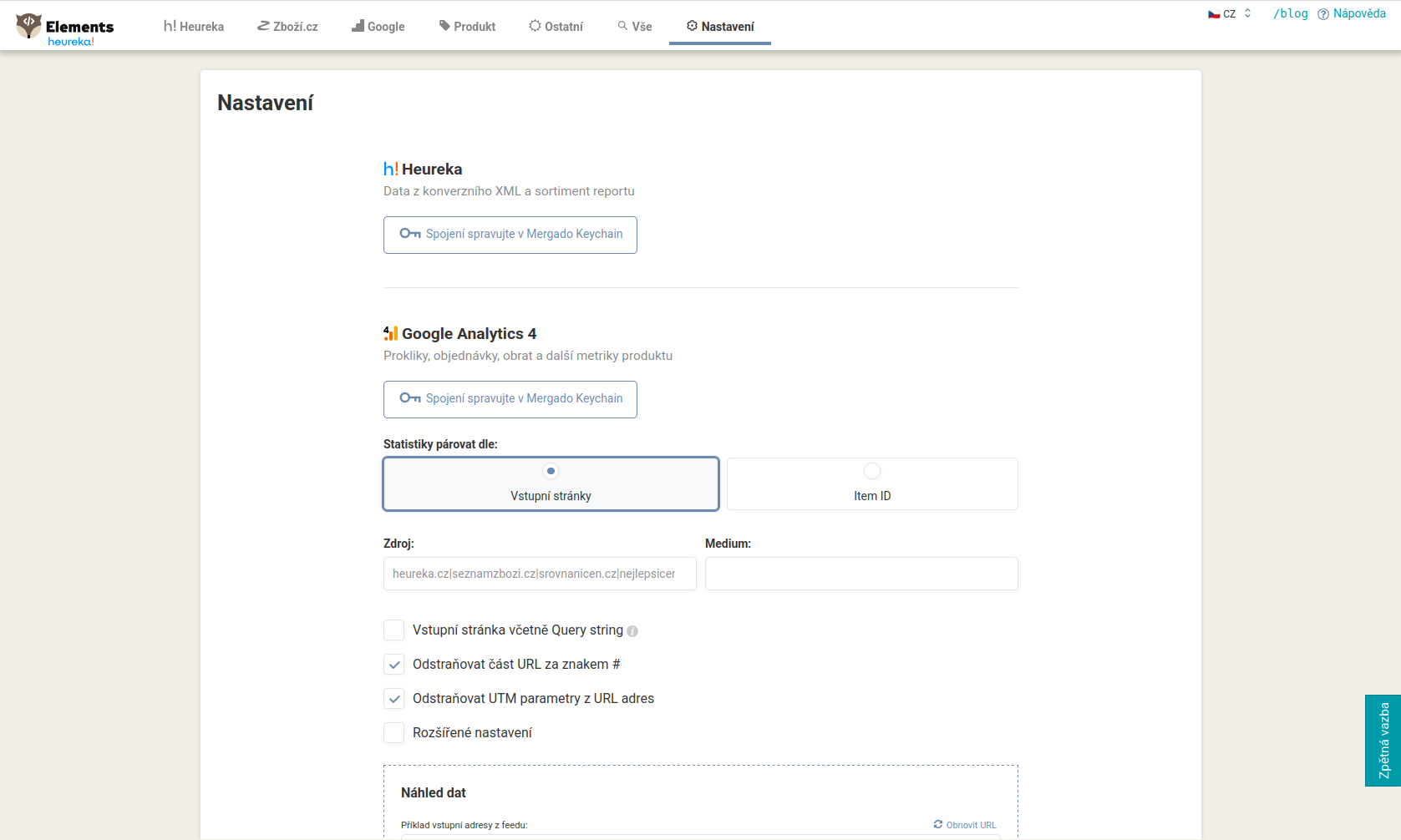
In Settings you manage the connections to data sources and, above all, how data from Google Analytics 4 is paired to your products. Correct pairing is a prerequisite for statistics and revenue to match. You confirm changes with the Save button.
Source connections#
Each source has its own section on the page:
-
Heureka (data from the conversion XML and Sortiment report): you manage the connection in Mergado Keychain.
-
Google Analytics 4 (clicks, orders, revenue and other product metrics): you manage the connection in Mergado Keychain.
-
Heureka.cz/.sk, new conversion measurement: requires an entered API token. Once entered, you can verify the connection with the Test connection button.
-
Zboží.cz (product statistics from the online store API): you manage the connection in Mergado Keychain.
-
Zboží.cz, SEM conversion measurement: if you work with multiple conversion types in Sklik, you choose which one should count as a purchase in Bidding Fox Elements. This keeps other types of events from mixing into your statistics and calculations.
Pairing GA4 data#
With the Pair statistics by switch you choose one of two methods:
-
Landing page (URL): the address from the feed (without the domain, including the leading slash) must match the landing page in GA4. In the Data preview section you see an example address from the feed, the pairing URL you have set and an example of the last recorded URLs from Analytics, so you can easily spot the difference.
-
Item ID: the product identifiers match.
For relevant data to be compared, you filter the Source and Medium fields. The fields support regular expressions; use .* for all sources. When the extension is turned on, the source is usually pre-filled by project type (for example Heureka), but you can overwrite it. The source and medium can also be set globally in Mergado; the value in Bidding Fox Elements applies only here.
💡 The
.*expression in the source takes data from GA4 across all channels (Heureka, Zboží.cz, Google, Facebook and others). It is useful when you have little data on a specific source (typically with niche price-comparison sites such as Favi, Glami or Biano) and want to support products that generally perform well.
Editing URLs#
Below pairing by landing page are options for editing addresses:
-
Landing page including the query string,
-
Remove the part of the URL after the # character,
-
Remove UTM parameters from URLs,
-
Advanced settings with regular expressions (the Find part of the URL and Replace with fields).
The most common pairing error is a trailing slash at the end of the address. GA4 stores the address without a trailing slash, but the feed often includes it. You remove the difference between /produkt/ and /produkt in the advanced settings with the expression (.+)/ and the replacement $1, or you switch pairing to Item ID.
Advanced settings#
For experienced users. In the Pairing element field you specify which element contains the correct product ID if it is not in the standard fields (ITEM_ID, g:id, id). This is useful, for example, for variants on Shoptet, where the ID does not match and you then pair by the CODE element.
⚠️ When filling in the pairing element name, watch out for the exact name, including capitalization. If it is wrong, the application will not find any products.
FAQ#
-
Should I pair by landing page or by Item ID? Both are correct; it depends on your purpose and habit. When the URLs differ, try Item ID; when the IDs differ, try the URL.
-
GA4 data does not pair. Check the trailing slash at the end of the URL (the most common cause) and that the source and medium match between the feed and the settings. The address preview in the Data preview section helps.
-
Where do I enter the Heureka API token and connect Zboží.cz? You enter the API token for Heureka’s new conversion measurement in the Heureka.cz/.sk section. You manage the Zboží.cz connection in Mergado Keychain.
-
The correct product ID is in a different element. In Advanced settings, fill in its exact name in the Pairing element field (for example
g:id,PRODUCTNOorCODE), watching out for capitalization. -
Elements reports that rule application is not running. Check the status on the History page in Mergado. If the rules are not applied at least every 24 hours, the data is not refreshed.