
🔔 Events#
The Events page is a timeline of what happened in the project. When you come across a change in advertising performance, it is the first place to look.
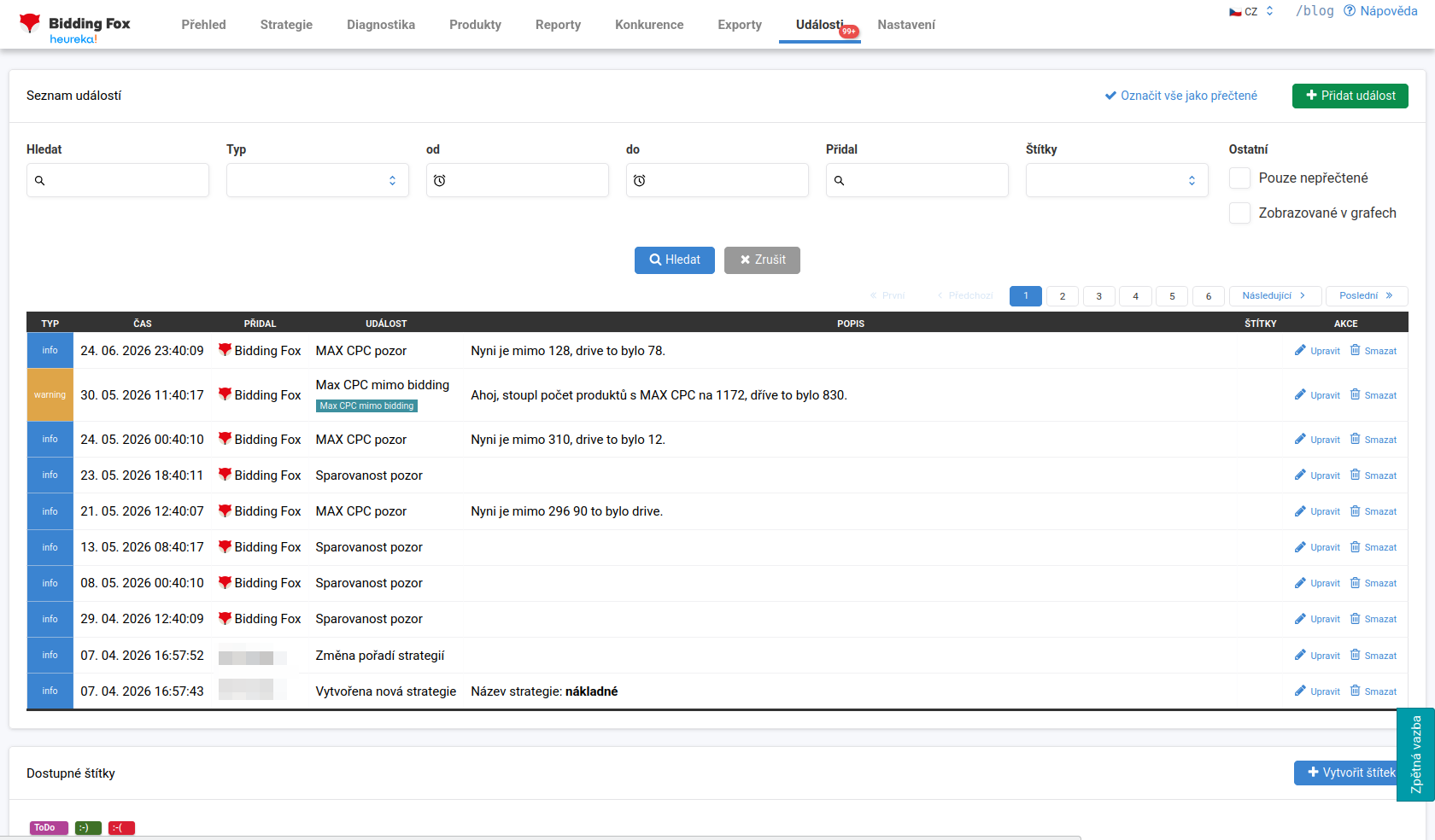
List of events#
In the table you see for each event its type (info or warning), the time, who added it (typically the Bidding Fox system), the name and description of the event, the assigned labels and actions to edit and delete. The list can be paginated.
Typical events include:
-
Change in the order of strategies (a common explanation for a change in performance, when a strategy that “eats up” products is moved to the top),
-
A new strategy created,
-
Alerts from custom diagnostics (for example that the number of products for a watched metric rose),
-
Maximum CPC watching (how many products reached their ceiling, or are outside bidding),
-
Product matching and information from Mergado (when rule application last took place or a planned outage).
Filtering and labels#
You filter events by text, type, date (from / to), who added them, and labels. By checking a box you display unread only or only events shown in charts. The Mark all as read button clears the list.
You can add a custom event manually (the Add event button) and mark it with a label. You manage labels at the bottom of the page (for example ToDo or your own tags), and you create a new one via Create label.
💡 The alerts written here are turned on at individual diagnostics and in Settings. The same events can also be written as vertical flags into the charts in the application, so you can return to them historically.
FAQ#
-
What is the Events page for? It is a timeline of changes in the project. When advertising performance changes, it is the first place to look.
-
My performance dropped after I changed the order of strategies. Why? Most likely a strategy that “took” products from the other strategies moved to the top. The event about the order change will confirm it.
-
Can I add my own note? Yes, via the “Add event” button, and you can mark it with a label.
-
How do I get alerts by email? You turn them on at individual diagnostics and enter the email addresses in Settings.