
Kaufland#
Customers compare prices on Kaufland too. When they find the same product there for much less, they often buy it there instead of from you. That’s why Pricing Fox downloads competitor offers from Kaufland Marketplace and uses them to help you set prices in your own online store. You see who holds the BuyBox and at what price, and your rules keep matching your price continuously, but never below the minimum price or margin you set.
Kaufland is included in the Pricing Fox plan at no extra charge.
What Kaufland in Pricing Fox can do, and what it can’t do yet#
- Can do: use offers from Kaufland as the reference price for your own online store. New prices go to Mergado, or through an output connection straight to your online store (see Connections).
- Can’t do yet: change prices directly on Kaufland.
Writing prices directly to Kaufland is planned for the next phase.
How to turn on Kaufland#
You don’t enter any API keys. Pricing Fox uses the Kaufland connection you already have in Mergado.
- Add a Kaufland connection to your project in Mergado for your storefront (for example kaufland.cz, kaufland.de or kaufland.pl). If you already sell on Kaufland through Mergado, you’re all set.
- Pricing Fox takes over the connection on its own when the project syncs. In the Connections section you then see “Kaufland connection is active” for Kaufland. The storefront follows the settings in Mergado. When you remove the connection in Mergado, Pricing Fox turns it off automatically.
- Optionally, set the currency in the “Convert prices to (currency)” field. If the prices on Kaufland are in a different currency than the prices in your online store, Pricing Fox converts them at the current ECB exchange rate. You can choose CZK, EUR, PLN, HUF, USD, GBP and RON. By default, prices aren’t converted.
- Optionally, choose a pairing element. Products are paired by EAN. If you have the EAN in a different feed element, select it here.
- Wait for the first data. The first download can take about 24 hours. After that, the data refreshes every 4 hours.
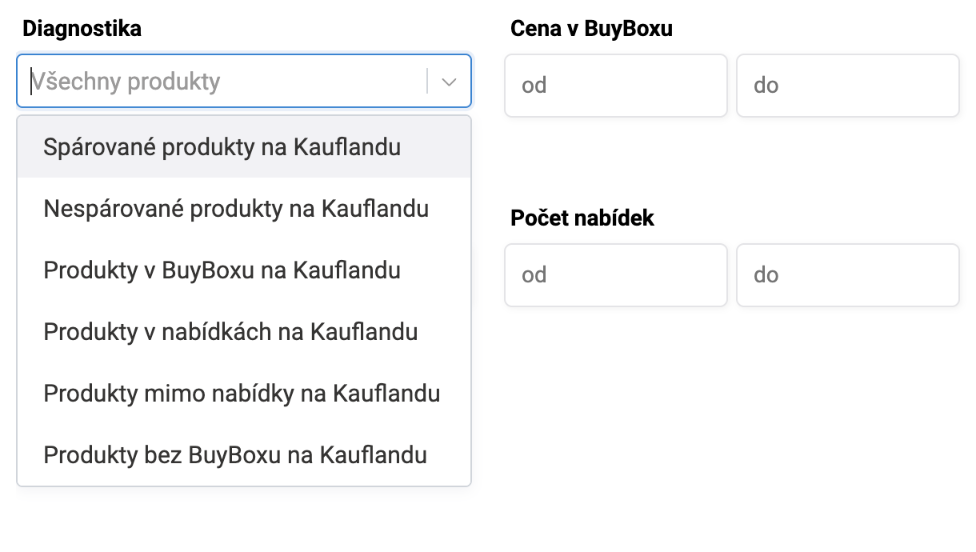
- Check the pairing on the Products page with the Kaufland, Diagnostics filter (paired / unpaired products).
- Create a rule with the Kaufland source (see below). You can try the new rule in test mode first.
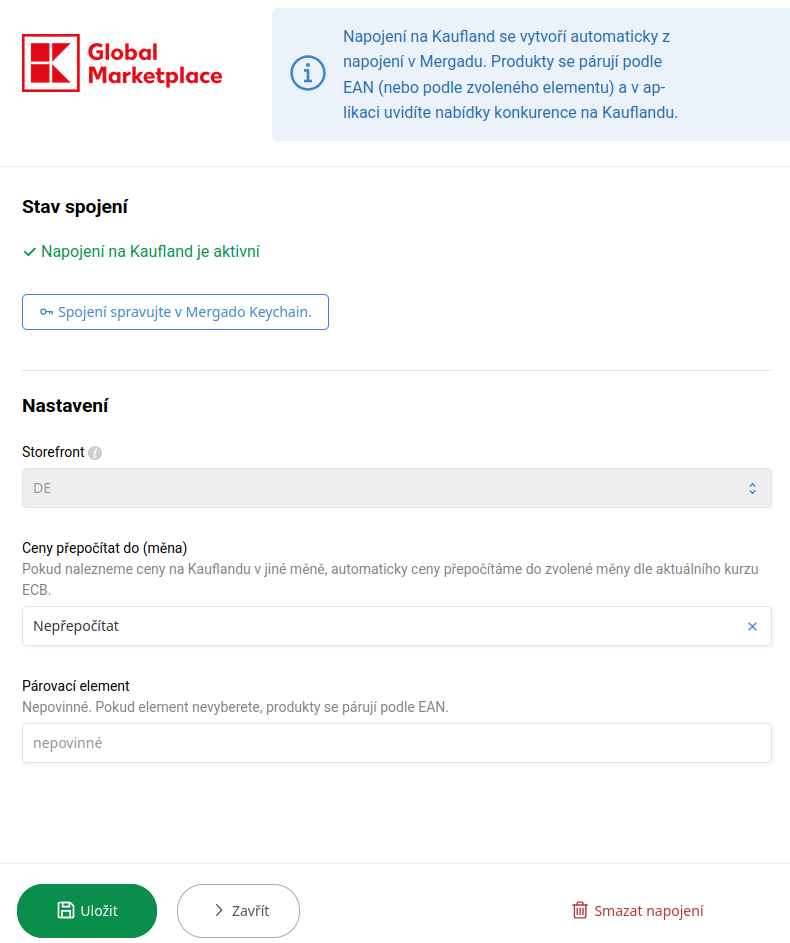
The connection takes over the storefront from Mergado. You can only set the conversion currency and the pairing element.
Supported storefronts: Kaufland.cz (CZK), Kaufland.pl (PLN) and Kaufland.sk, .de, .at, .fr, .it, .es and .nl (EUR). One project is connected to one storefront. For more countries, use more projects.
What you see about the competition#
For each paired product, the product detail has a Kaufland tab with:
- The BuyBox price, your position in offers and the difference between your price and the BuyBox.
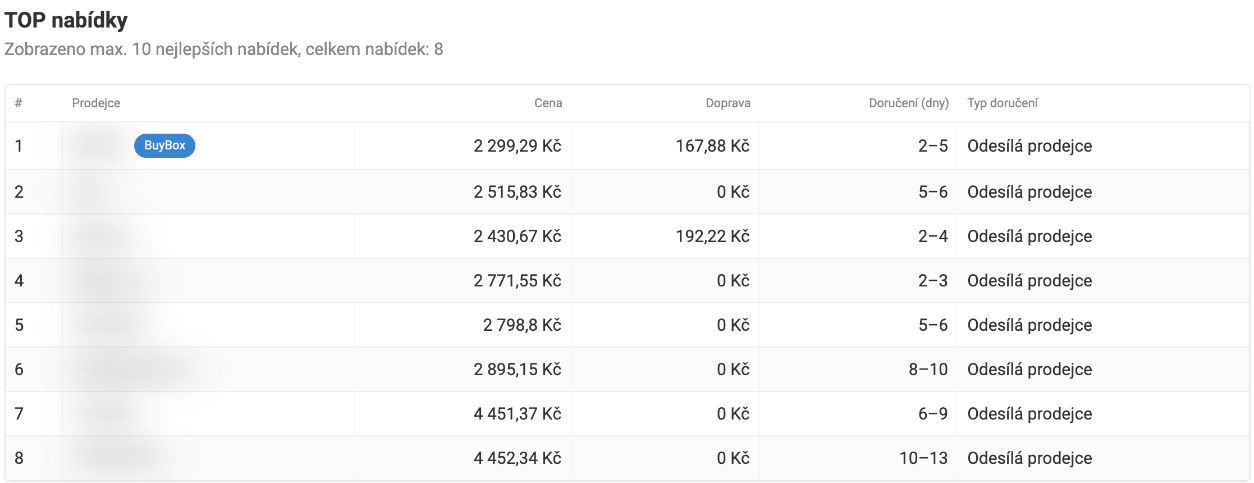
- TOP offers: up to 10 best offers with the seller, price, shipping cost, delivery time and fulfillment type (“Shipped by seller” or “Fulfilled by Kaufland (FBK)”). Your offer is highlighted.
- Shipping and delivery time comparison: how many competitors have lower, the same or higher shipping costs and shorter or longer delivery than you.
- History: the development of the lowest, average and highest price, the number of offers and sellers, and your price over time.
- An “Open on Kaufland” link and the time of the last data download.
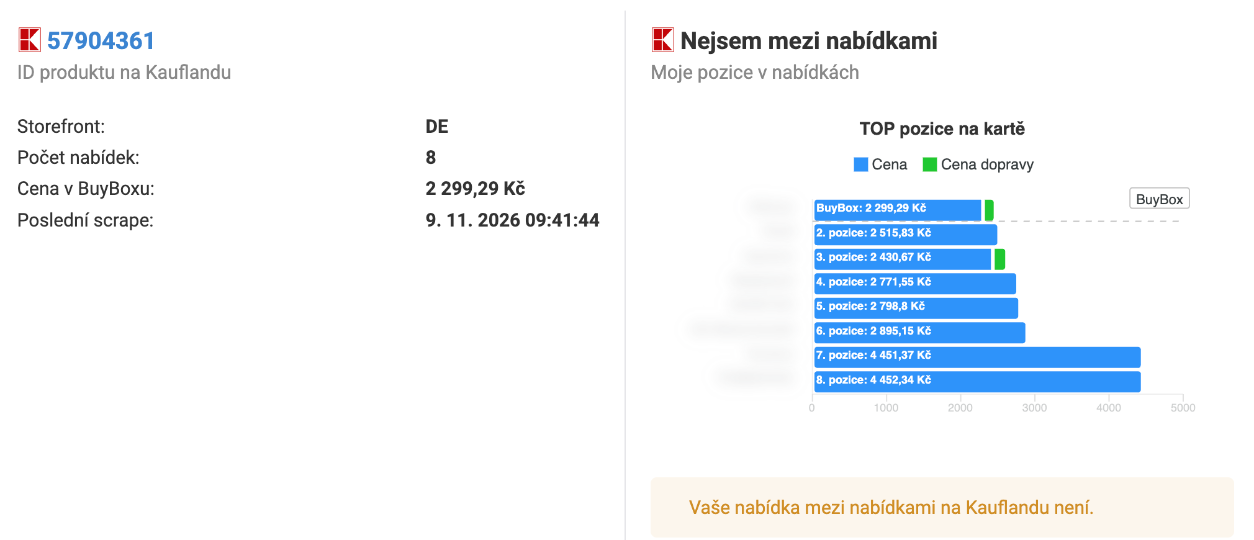
The TOP positions chart shows both the price and the shipping cost of each offer. The ranking on Kaufland uses the price including shipping.
The Products page has a new Kaufland column group that you can sort, filter and export:
| Column / filter | What it shows |
|---|---|
| BuyBox price | The price of the offer currently holding the BuyBox |
| My position in offers | 1 = you’re in the BuyBox; 2, 3… = your rank; “No BuyBox” = there are no offers for the product; “Not among the offers” = the competition sells it, you don’t |
| Number of offers | How many sellers offer the product on Kaufland |
| Diagnostics | Paired / unpaired / in the BuyBox / in offers / outside offers / no BuyBox |
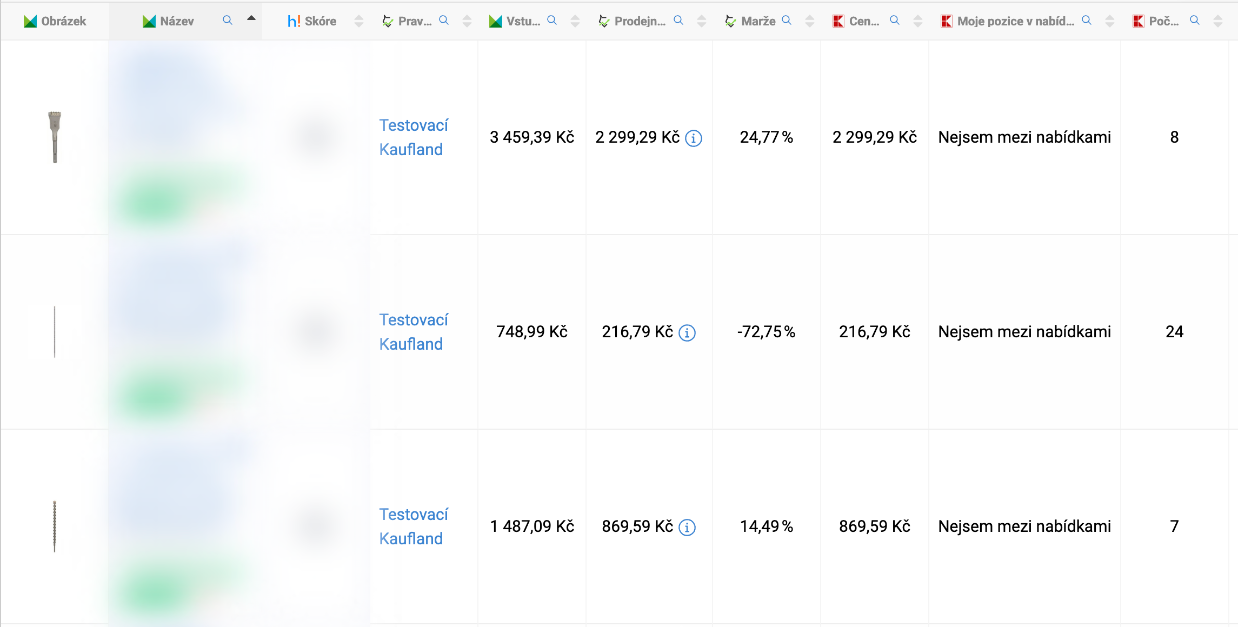
Tip: show the “BuyBox price” next to your own price and sort. You immediately see the products that are much cheaper on Kaufland than in your store. The Diagnostics filter “Products outside the offers on Kaufland” shows you the products the competition sells on Kaufland and you don’t yet.
Rules with the Kaufland source#
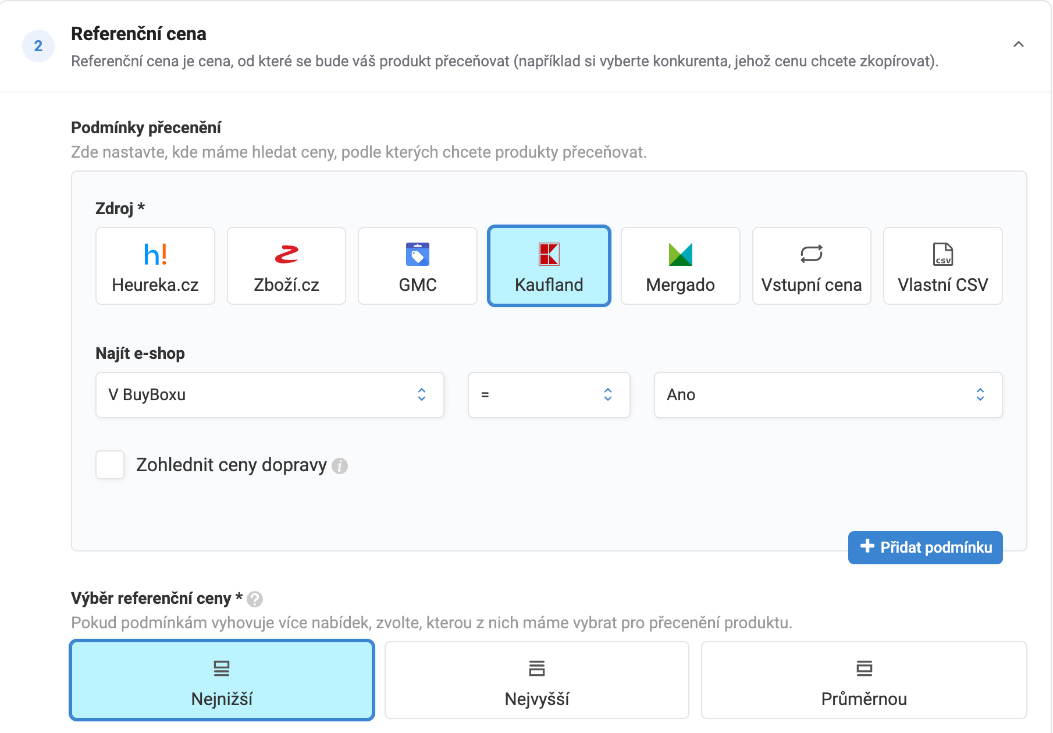
In a rule, choose Kaufland as the reference price source and use conditions to decide which offers you want to compare yourself with. Then pick the lowest, average or highest price among them and how far you deviate from it (in CZK or in %).
| Condition | What it filters | Example use |
|---|---|---|
| In the BuyBox | Only the offer holding the BuyBox | I don’t want to be more expensive in my online store than the BuyBox on Kaufland |
| Position in offers | The offer’s rank as Kaufland orders it | Compare only with the TOP 3 offers |
| Order by price | The rank starting from the cheapest offer | Stick to the third cheapest offer and avoid underpricing |
| Competitor | A specific seller (or everyone except them) | React only to your main competitor |
| With shipping cost | Offers by the amount of shipping | Compare only with offers with free shipping |
| With minimum delivery time | The shortest stated delivery time (days) | Ignore sellers who can’t deliver in less than 5 days |
| With maximum delivery time | The longest stated delivery time (days) | Compare only with those who deliver within 3 days |
- For numeric conditions you compare with =, ≠, >, ≥, <, ≤, “is one of” and “is not one of”. You can combine conditions.
- The Competitor condition needs the exact seller name, including spaces, diacritics and upper and lower case.
- Tick Consider delivery prices to compare the total prices for the customer: the competitor’s price including their shipping with your price including your shipping. If your shipping is cheaper, you don’t have to cut your price unnecessarily. Position in offers always includes shipping.
- Only new goods count in the calculation. Pricing Fox ignores used and second-hand offers.
- Your own offer doesn’t count as competition. If only you match the condition, the price stays unchanged and the rule doesn’t undercut itself.
- Minimum and maximum price, margin and rounding work the same as with the other sources (see Rule setting options).
Quick start: in the rule editor you’ll find the quick action “I want to be the best in the Kaufland BuyBox”. With one click, it presets a price CZK 1 (or 1 unit of another currency) lower than the cheapest of the first two offers on Kaufland. The price calculated this way is used in your online store.
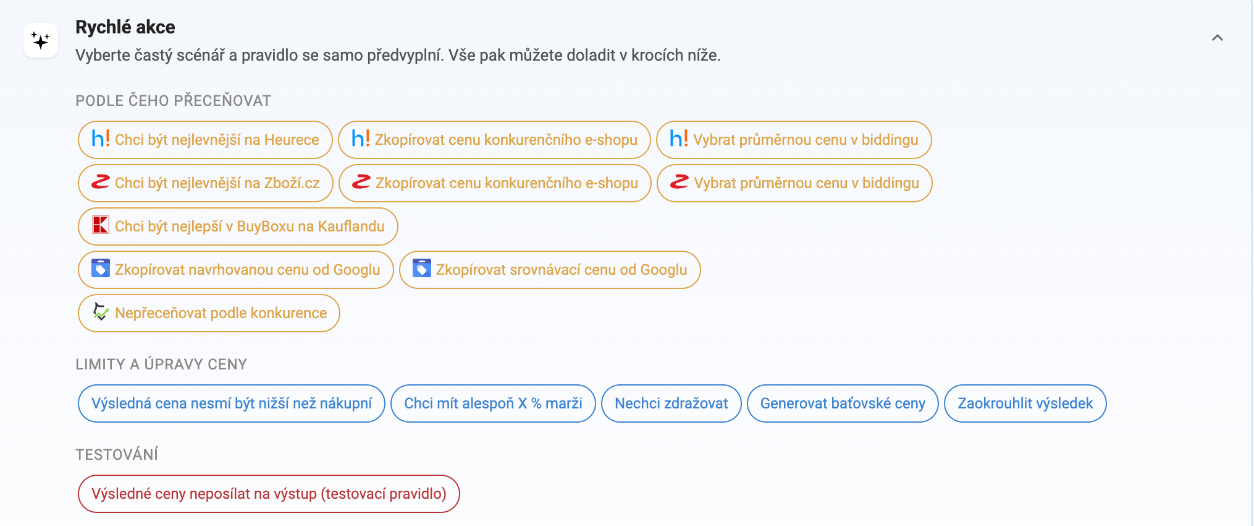
You can also combine Kaufland with Heureka, Zboží.cz or Google Merchant Center in a single rule. An AI assistant connected via MCP can create rules with the Kaufland source too: just describe the rule in words.
When Pricing Fox skips a product#
Pricing Fox doesn’t change prices blindly. When the data isn’t reliable, the rule skips the product and you see the reason in Pricing Fox:
| Situation | What you see |
|---|---|
| The product has no EAN, or Kaufland doesn’t know it | “Unpaired product” |
| There are no offers for the product on Kaufland | “Product without offers” |
| The data from Kaufland is older than 48 hours | “We do not have the latest information downloaded from Kaufland” |
| The data is in a different currency than you set (typically right after changing the target currency) | “Kaufland data are not in the currency set in the connection” (until the next download) |
| The connection in Mergado is missing or not working | “Kaufland connection is not working” |
Frequently asked questions#
Does Pricing Fox change prices directly on Kaufland? Not yet. Prices from Kaufland help you set prices in your online store. Writing prices directly to Kaufland is planned for the next phase.
Do I need API keys from Kaufland? No. Pricing Fox uses the Kaufland connection you have in Mergado.
How often is the data updated? Every 4 hours. The first data arrives within about 24 hours of connecting.
I sell on Kaufland.de in euros, but my online store uses Czech crowns. Does that work? Yes. Set the currency the prices should be converted to in the connection, and competitor prices are converted at the ECB exchange rate.
Can a rule sell below cost? If you set a minimum price or margin, the rule won’t go below that limit.
Why do I see only 10 offers in the detail? The detail shows the TOP 10 offers to keep things clear. You see the total number of offers separately, and rules work with all downloaded offers.
I changed my price on Kaufland. Why didn’t my position change? The position is recalculated only after the next data download from Kaufland, that is, within 4 hours at the latest.