
Output#
On the Output connections page, you set where Pricing Fox sends the recalculated prices and data. If you need to update the output data immediately, regenerate it directly in the connections table (Actions → Regenerate) or in the Mergado app.
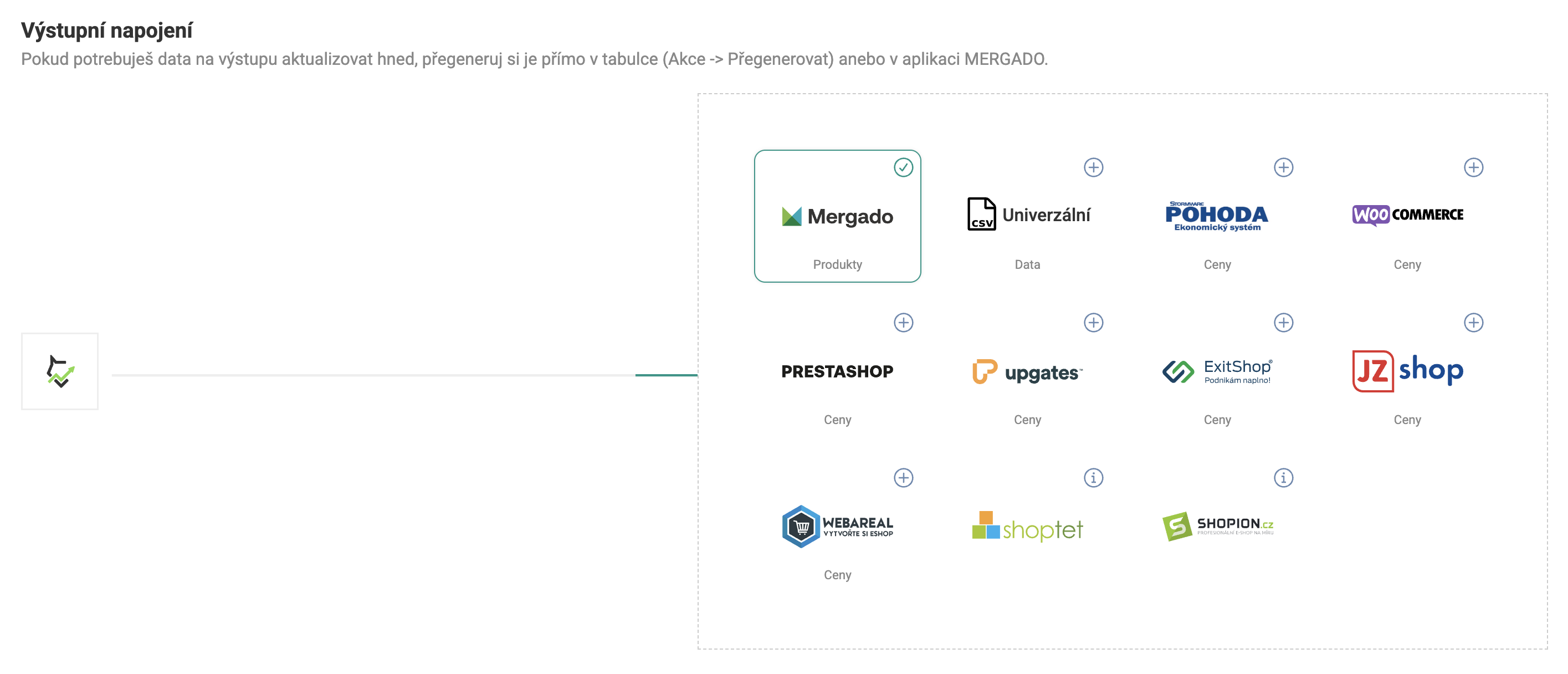
An overview of the active connections is shown in a table with these columns:
| Column | Description |
|---|---|
| Type | The name of the connection |
| Record count | The total number of products in the output |
| Written items | The number of successfully written products |
| Created | The date and time of the first creation |
| Regenerated | The date and time of the last update |
| Last access | When someone last downloaded or read the output |
| Regeneration schedule | The scheduled interval of automatic refresh |
| Status | The processing status (Done / Processing / Error) |
| Actions | Copy address, download, regenerate |
Mergado#
Type of data: Configurable data
Mergado is an always-active output channel – Pricing Fox writes the calculated values as new elements directly into the feed in Mergado. We recommend using new element names to make it easier to distinguish them from the input data.
Setting up output elements#
| Field | Description |
|---|---|
| Generate the resulting price into element (required) | The element into which the recalculated price is written (recommended: PF_PRICE_VAT) |
| Generate the price difference into element | The difference between the input and output price |
| Generate the resulting markup into | The calculated markup in % |
| Generate the resulting margin into | The calculated margin in % |
Other product information#
An optional section for generating supplementary data into the feed:
| Field | Description |
|---|---|
| Lowest input price over the last 30 days | The historical minimum of the input price |
| Lowest output price over the last 30 days | The historical minimum of the output price |
| Difference of the lowest input price against the current one (in %) | The percentage difference against the current input price |
| Difference of the lowest output price against the current one (in %) | The percentage difference against the current output price |
Universal Export#
Type of data: Configurable data
The universal connector lets you create an export for almost every online store or inventory system. The export is available at a fixed public address in CSV, XML, or XLS format, and the content can be customized however you like.
Settings#
| Parameter | Options |
|---|---|
| Connector address | A fixed URL for downloading or connecting an external system |
| Export format | CSV (semicolon- or comma-separated) / XLS (for MS Excel) / XML (structured data) |
| Delimiter | Comma / Semicolon (CSV only) |
| Send products | Only repriced (updated every hour) / All products (every 4 hours) |
| Set items | Selecting and naming the exported columns |
Shoptet#
Type of data: Supplier feed
Sends new prices directly to Shoptet using a supplier feed. Once set up, Shoptet regularly downloads the XML from the connector’s fixed address and updates product prices.
Settings#
| Parameter | Description |
|---|---|
| Connector address | The fixed URL of the XML feed for Shoptet |
| Send products | Only repriced (every hour) / All products (every 4 hours) |
| Export / Available | A two-panel selection of items to export – the left panel contains the exported items with the element name for Shoptet, the right one the available values from Pricing Fox (Sale price, Adjusted price, New price, Rule, Purchase price, Price difference, and more) |
POHODA#
Type of data: Prices
Connects Pricing Fox with the Pohoda accounting system from Stormware using an XML import. After saving, Pricing Fox generates a feed URL that can be used for a manual or automated update of inventory prices via the Pohoda mServer.
Settings#
| Parameter | Description |
|---|---|
| Send products | Only repriced (every hour) / All products (every 4 hours) |
| Company registration number (IČO) | The IČO exactly as entered in Pohoda – needed for correct data assignment |
| Set up MServer (optional) | The URL and port of the Pohoda mServer for automatic transfer without manual intervention |
| Set items | Selecting the pairing elements and the price format |
You’ll find a detailed guide on setup, mServer diagnostics, and troubleshooting on the Pohoda page.
WooCommerce#
Type of data: Prices
Manages pricing automatically via the WooCommerce REST API. Pricing Fox sends only product price information.
Settings#
| Parameter | Description |
|---|---|
| Online store URL | The address of your WooCommerce store |
| Consumer key | The API key from the WooCommerce administration |
| Consumer secret | The API secret from the WooCommerce administration |
| Send products | Only repriced / All products |
You can verify the connection with the Test connection button before going live.
PrestaShop#
Type of data: Prices
Connects Pricing Fox with PrestaShop via the PrestaShop Webservice API. It requires correct configuration of the store.
PrestaShop requires prices excluding VAT. Set this criterion in Project settings before you activate the connection.
Before setting up, you need to#
- Turn on Friendly URL in the PrestaShop administration.
- Enable the PrestaShop Webservice and generate an API key.
Settings#
| Parameter | Description |
|---|---|
| Store address | The URL of your PrestaShop store (e.g. https://my-store.cz) |
| Key | The API key from the PrestaShop Webservice |
| Send products | Only repriced (every hour) / All products (every 4 hours) |
You can verify the connection with the Test connection button.
Upgates#
Type of data: Prices
The connection is made via the official Pricing Fox add-on, which you’ll find directly in the administration of your Upgates store.
Activation procedure#
- Go to the administration of your Upgates store.
- In the left menu, go to the Add-ons section.
- In the search field, enter “Pricing Fox – connection” and activate the add-on.
- In the form, enter the API URL of your store from the Add-ons → API section in the Upgates administration.
- Select the language version, click Test connection, and Save the connector.
Settings#
| Parameter | Description |
|---|---|
| Store API URL | The API URL from the Upgates administration (e.g. https://my-store.com/api/v2) |
| Language | The language version of the store |
| Send prices including VAT | A toggle for choosing the price format |
You’ll find detailed information about the add-on on the Upgates page.
ExitShop#
Type of data: Prices
When connecting to ExitShop, you additionally need to fill in all pairing elements to the store in the input from Mergado. You’ll find a detailed guide on the Pricing Fox blog.
Settings#
| Parameter | Description |
|---|---|
| API key | The key from the ExitShop administration |
| Send products | Only repriced (every hour) / All products (every 4 hours) |
JZ shop#
Type of data: Prices
Connects Pricing Fox with the JZ SHOP online store system via an API key.
Settings#
| Parameter | Description |
|---|---|
| API URL | The URL of the JZ SHOP store |
| API key | The key from the JZ SHOP administration |
| Send products | Only repriced (every hour) / All products (every 4 hours) |
Webareal#
Type of data: Prices
Connects Pricing Fox with the Webareal online store system via an API key and login credentials.
Settings#
| Parameter | Description |
|---|---|
| API server URL | The URL of the Webareal API server |
| API key | The key from the Webareal administration |
| Login | The login name |
| Password | The login password |
| Send products | Only repriced / All products |