
Agents#
An agent is a saved AI assistant with fixed instructions. Instead of writing the same request over and over again, you describe once what the agent should do, which tools it should have, and when it should run – and then you simply call it or let it run automatically.
Page layout#
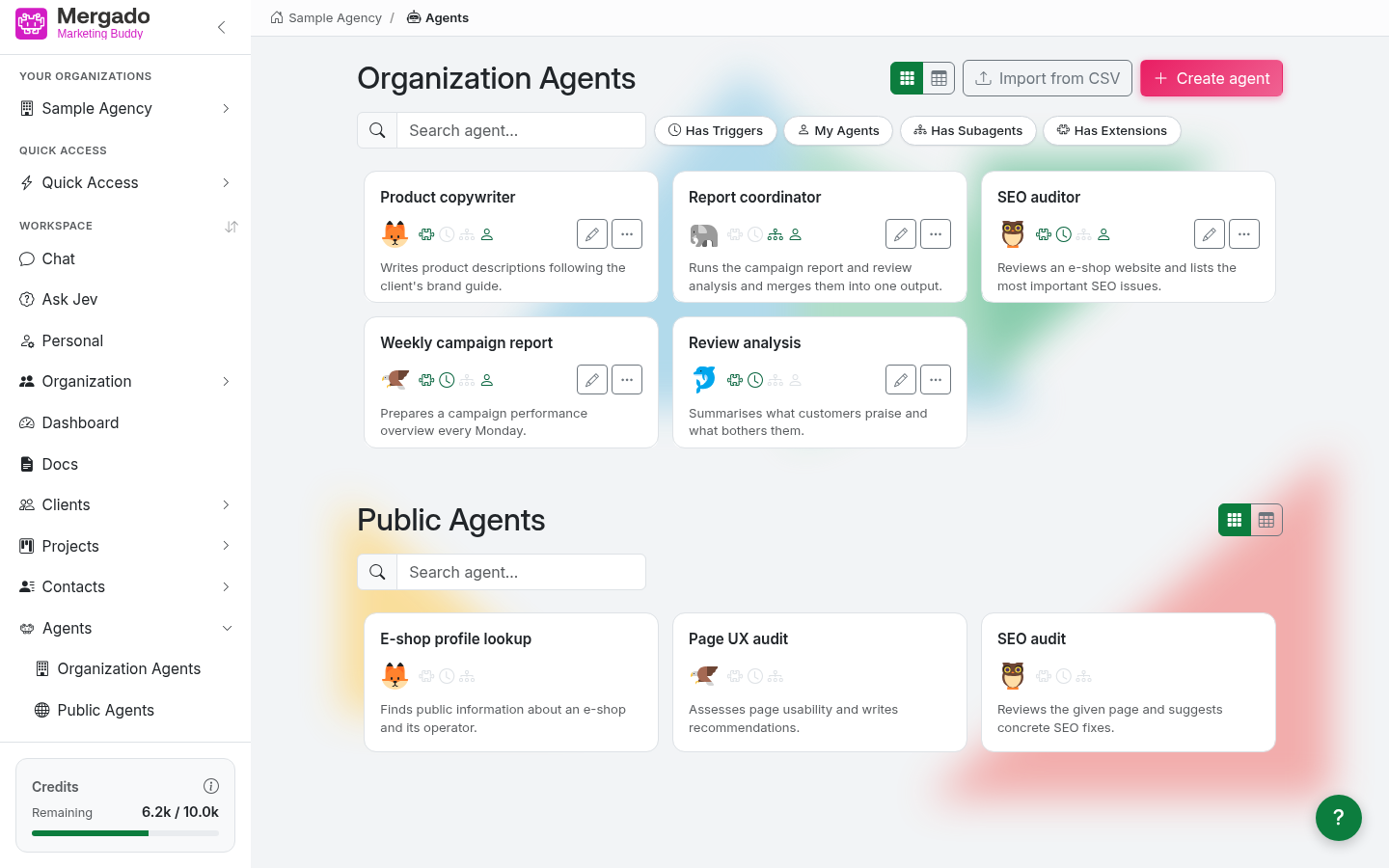
The Agents page has two parts:
- Organization Agents – your organization’s agents; all members can see them.
- Public Agents – ready-made agents prepared by Mergado that you can use but cannot edit.
In the left panel, both parts are also available as separate items under Agents. Click an agent card to start a new chat in which the agent gets straight to work.
In both parts, you can switch between card view and table view; your choice is remembered in this browser.
Search and filters#
Above the cards is the Search agent… field (it searches names) and four filters that you can combine:
| Filter | Shows agents that… |
|---|---|
| Has triggers | have automatic runs set up |
| My agents | you have created |
| Has sub-agents | call other agents |
| Has extensions | have extensions enabled |
Agent card#
Each card contains the name, icon, description, and a row of status icons: enabled extensions, active triggers, sub-agents, and whether the agent is yours or shared. On the right is a pencil (Edit) and a “…” icon with a menu of actions:
- Copy – creates a copy of the agent (“Copy of …”) including its settings, which you can then edit
- Add to Quick Access – pins the agent to the left panel
- Delete – deletes the agent (cannot be undone)
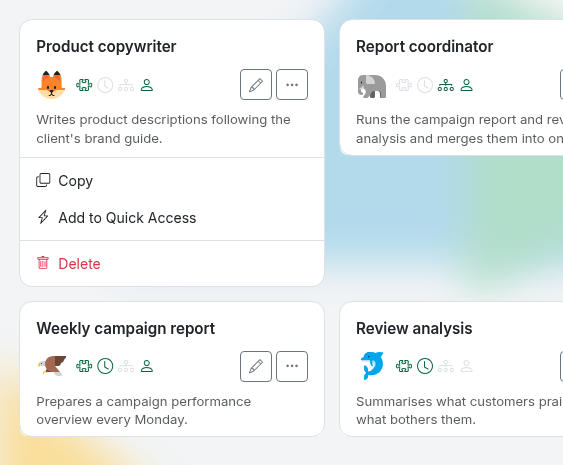
The agent’s author and the Owner and Admin roles can edit and delete an agent. Any member can copy it and add it to Quick Access.
Public agents only offer search and running – they have no pencil or actions menu.
Import from CSV#
Use the Import from CSV button to create several agents at once. The first row of the file must contain the column names: name, description, prompt, llm_model, icon_key, and questions (starter questions separated by the | character). You can download a template in the dialog. Extensions and triggers cannot be set in the CSV – add them afterwards when editing the agent.
Creating and editing an agent#
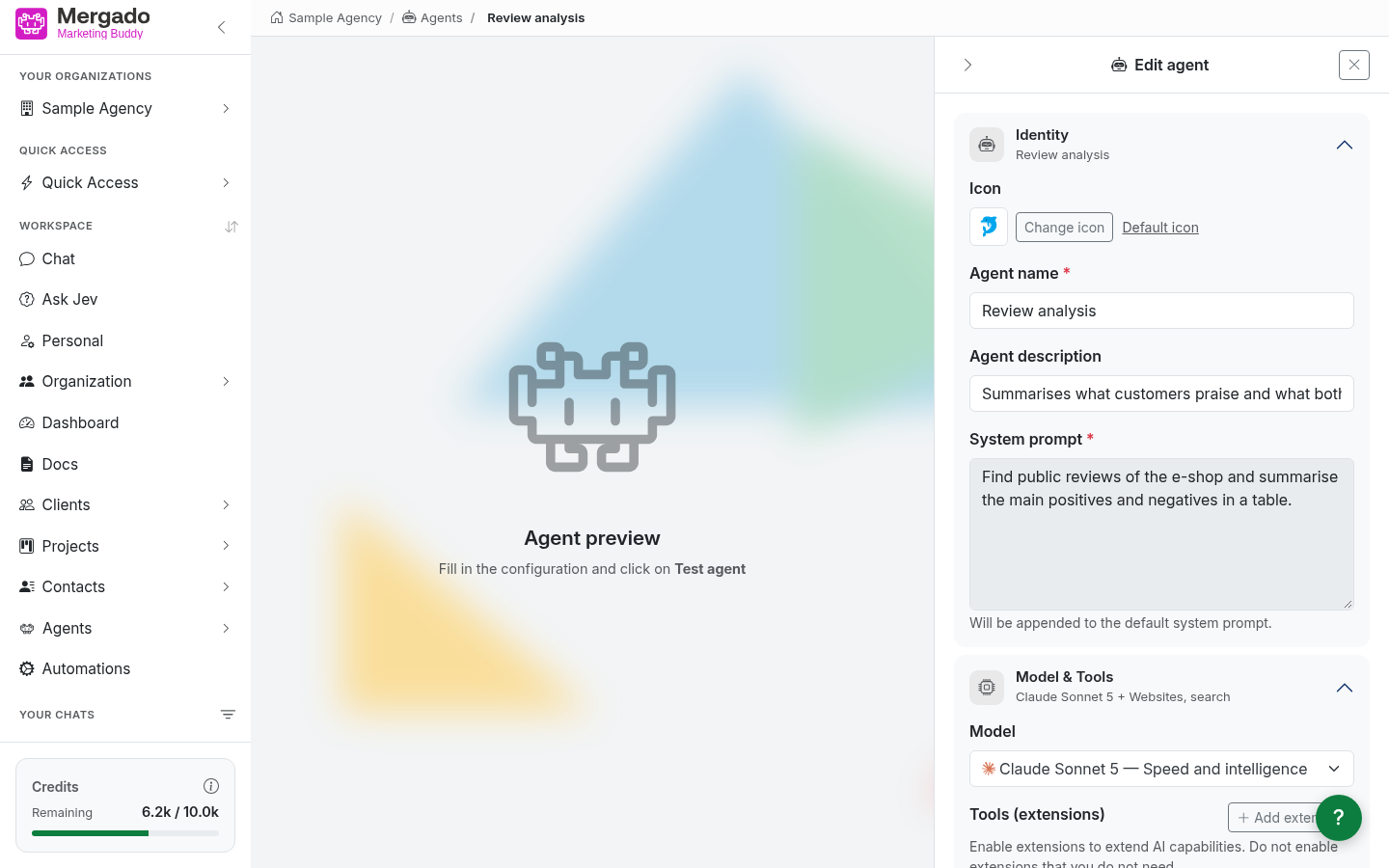
The Create agent button opens a page split into two parts: a preview for testing on the left and a configuration panel on the right. The panel has five sections.
Identity#
- Icon – the agent’s icon, chosen from a catalog with the Change icon button (search by the icon’s English name)
- Agent name (required) – the name under which you will find the agent
- Agent description – a short description of what the agent does
- System prompt (required) – instructions for the agent. Click the field to open a large window for comfortable writing; @ works there too for mentioning a document, client, or another agent. The text is appended to the application’s default system prompt.
Model and tools#
Model selection (the same options as in the chat) and extension toggles. A new agent has the Gemma model preselected and Auto Discovery enabled – the AI then chooses its tools on its own. If you want to specify the agent’s tools precisely, turn off Auto Discovery and enable only what the agent really needs. Click Add extension to go to connecting another service.
Triggers#
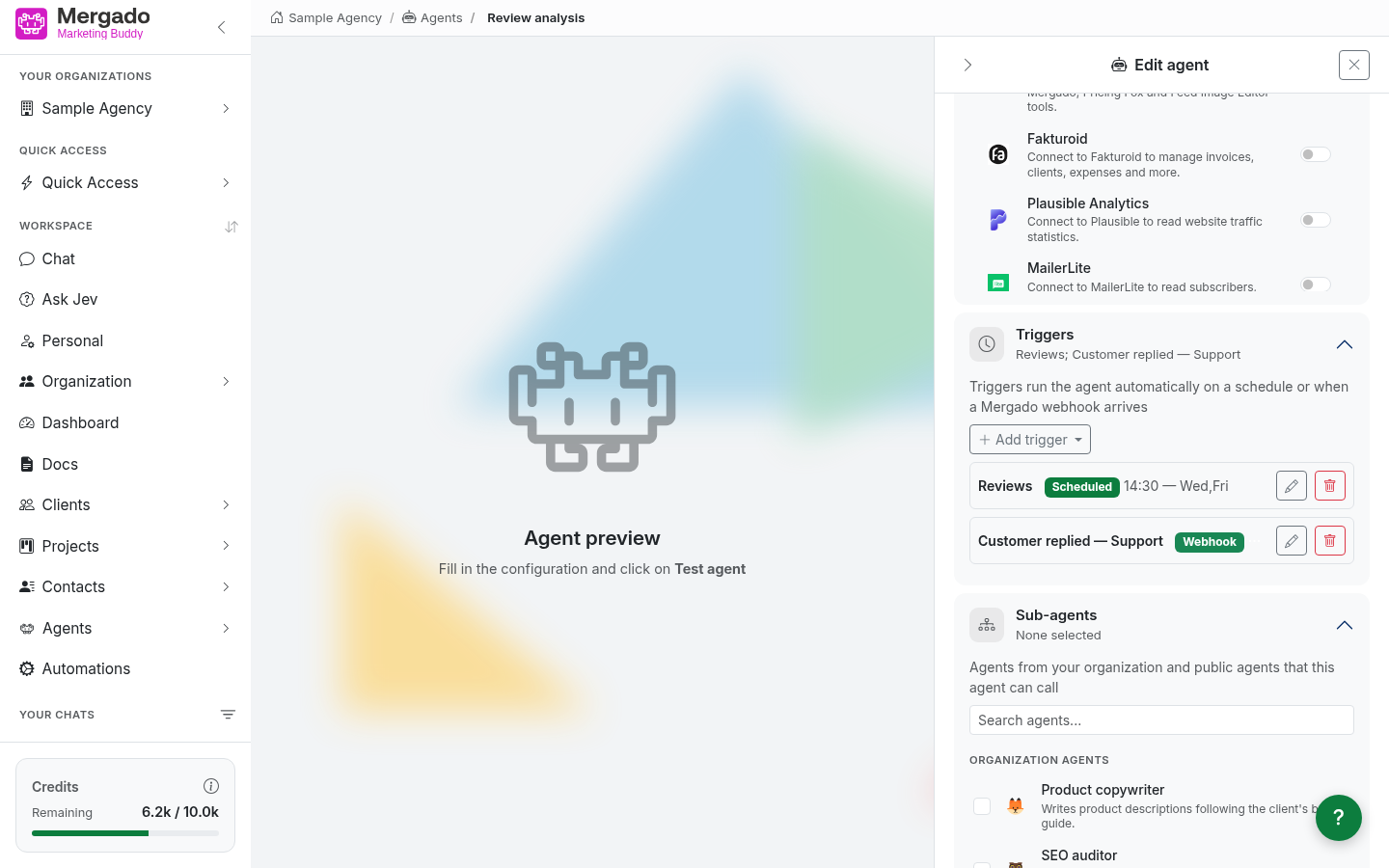
Use the Add trigger button to set up automatic runs:
- One-time trigger – a single run at a specific date and time. It disappears from the list once it has run.
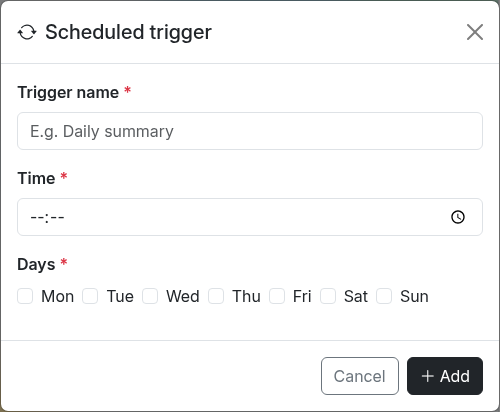
- Scheduled trigger – a recurring run at a set time on selected days of the week. Two scheduled triggers on the same day must be at least 5 minutes apart.
- Webhook – an automatic run as soon as something happens in a connected service (for example, when Mergado finishes importing a feed).
For a webhook, select the Service and the specific Webhook (event):
- Mergado – select an online store (from those you have access to in Mergado) and optionally a project; if you do not select a project, the agent runs for All projects. The available events cover import, rule application, and export, changes to the project, elements, queries, and rules, and changes in the keychain. For element, query, and rule events, selecting a project is required.
- FreeScout – a webhook you created on the Organization – Webhooks page. Select an event (e.g. a new conversation or a customer reply, or a custom event) and the dialog shows the webhook URL. You do not select an online store or project here.
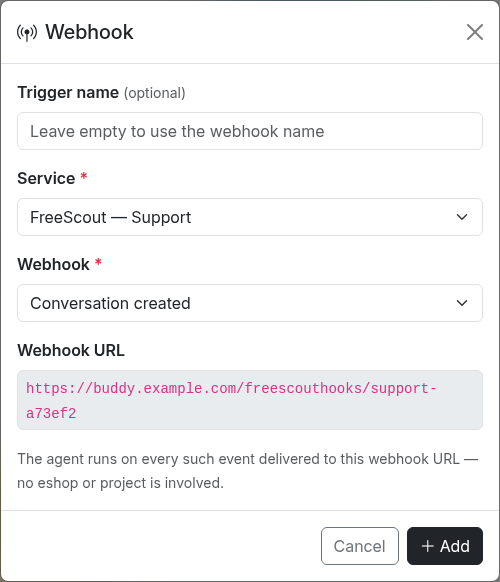
For a webhook, the trigger name is optional – if you leave it empty, the event name is used. Edit an existing trigger with the pencil and remove it with the trash icon. Trigger changes are saved together with the agent.
Results of the runs appear in the conversation list (with a robot icon) and in the history on the Dashboard page.
Sub-agents#
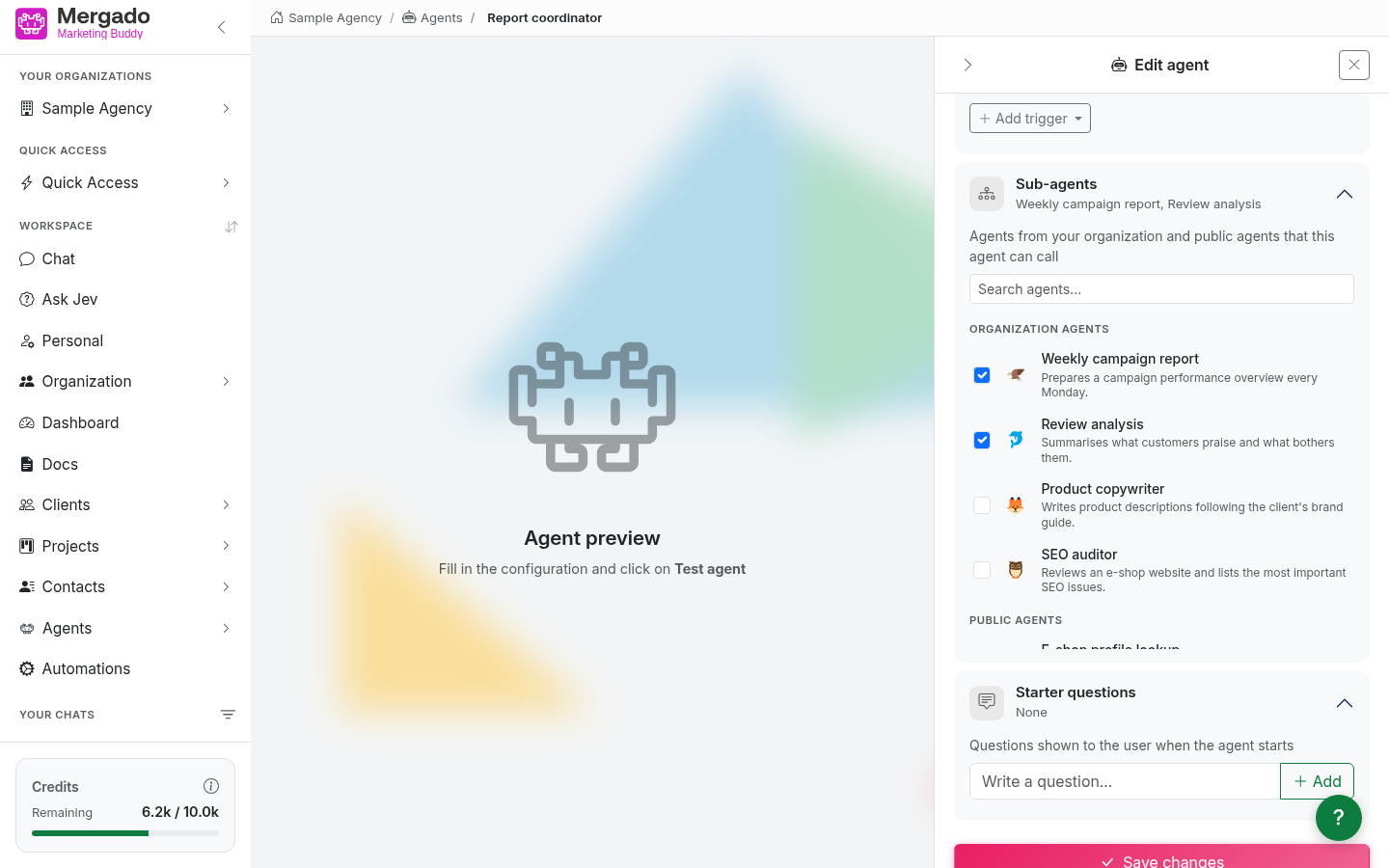
Check the organization agents or public agents that this agent can call. This is useful when you want to split the work: the main agent manages the process and hands sub-tasks over to specialists. Only an agent that has no sub-agents of its own can be a sub-agent.
Starter questions#
Questions the AI asks the user one by one right after the agent starts – before it gets to work. They are useful for information that changes (e.g. the online store address or the reporting period). Add a question with the Add button; you can edit or delete it directly in the list.
Saving and testing#
- Test agent – runs the agent in the preview on the left with the current settings, without you having to save it. Each click starts a new test chat.
- Create agent / Save changes – saves the agent to the organization
- Delete agent – deletes the agent (only when editing)
- Cancel – closes the panel without saving
What you can do here#
- Create an agent for a recurring task (a report, a feed check, an answer to a query).
- Let an agent run automatically on a schedule or on a webhook from Mergado or FreeScout.
- Combine several agents into a main agent + sub-agents setup.
- Copy an existing agent and adapt it for another online store.
- Create several agents at once from a CSV.
FAQ#
What is the difference between an agent and an automation? An agent is a single assistant with instructions – it decides on its own how to complete the task. An automation, on the other hand, is a fixed sequence of steps where the process is defined in advance.
What happens if I delete an agent? The action cannot be undone. However, conversations the agent created in the past remain.
Why can’t I delete an agent? The agent is used elsewhere – it is a sub-agent of another agent, or it fills in a custom field in the CRM. Remove it from there first.
Why can’t I edit a public agent? Public agents are managed by Mergado. If you need a different process, create your own agent and write its instructions yourself.
Where do the results of runs appear? In the conversation list (with a robot icon) and in the history on the Dashboard page.