
Automations#
An automation is a fixed process made up of steps that you can run repeatedly and that always runs the same way. While an agent makes its own decisions, with an automation you know in advance what will happen in the first, second, and third step. The AI programs the process based on your request; subsequent runs only execute this program, so automations save both time and credits.
Page layout#
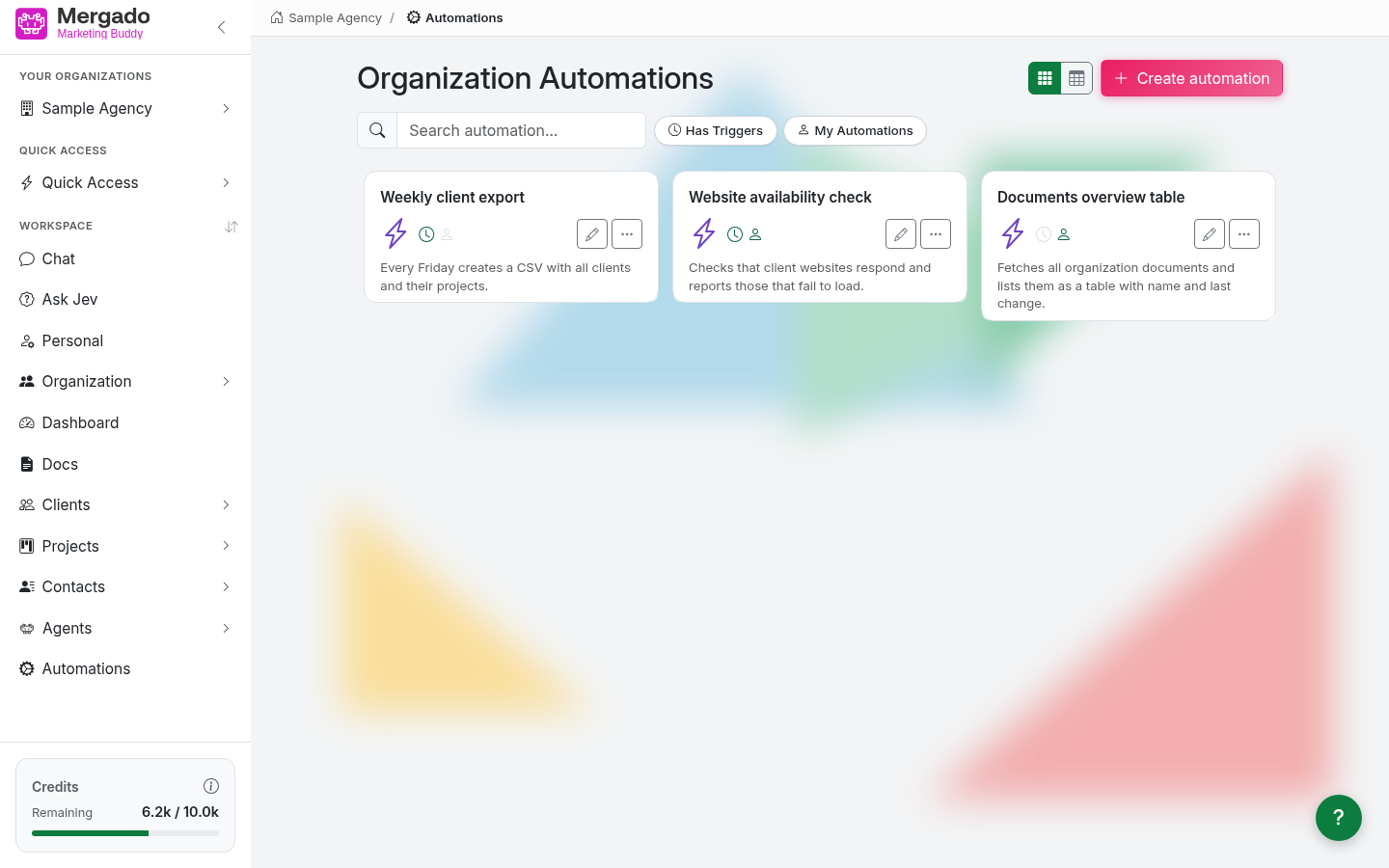
- The Organization Automations heading, a switch between card view and table view, and the Create automation button.
- The Search automation… field (by name) and the Has triggers (have automatic runs) and My automations (yours) filters.
- Automation cards with a name, icon, description, and status icons (triggers, authorship). Click a card to open the page for running the automation.
On the right of each card is a pencil for editing and a “…” icon with a menu of actions:
- Copy – creates a copy of the automation (“Copy of …”) with the same steps; scheduled triggers are copied too, one-time triggers are not
- Add to Quick Access
- Run history – an overview of all runs
- Delete

The Owner and Admin roles can see all automations in the organization. The Member role only sees the ones they created. The automation’s author and the Owner and Admin roles can edit and delete it and view its run history.
Creating an automation#
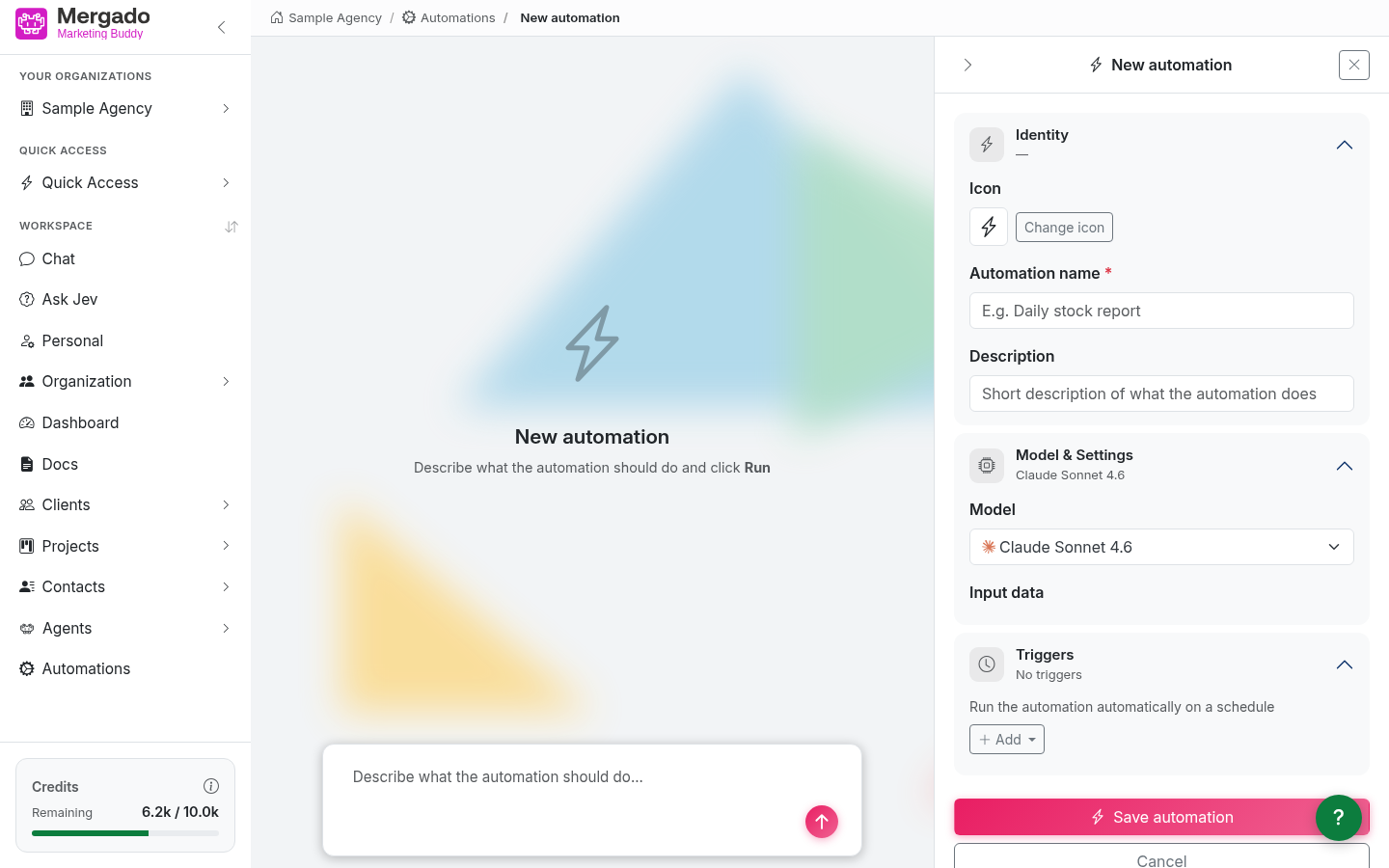
The page is split into two parts: you write your request on the left, and the configuration panel is on the right.
You do not build an automation manually step by step – you describe in your own words what it should do, and the AI creates the individual steps from the description. First, fill in the Automation name in the panel, then write something like “Download all of the organization’s documents and list them in a clear table with the name, type, and date of change.” in the “Describe what the automation should do…” field and send it with the arrow.
The AI proposes the steps, shows them as cards in the Generated steps section, and runs them as a test – for each step, you can see whether it is waiting, running, done, or failed with an error. Fine-tune the automation with further messages.
The configuration panel contains:
- Identity – icon, Automation name (required), and Description
- Model and settings – the model the AI uses to design the automation, and Input data – an overview of the input values the automation’s steps use (you enter the actual values only when you run it)
- Triggers – use the Add button to set up a One-time trigger or a Scheduled trigger (the same as for agents). Automations cannot be run by webhooks.
- Save automation – saves it, Cancel – closes it without saving
Editing an automation#
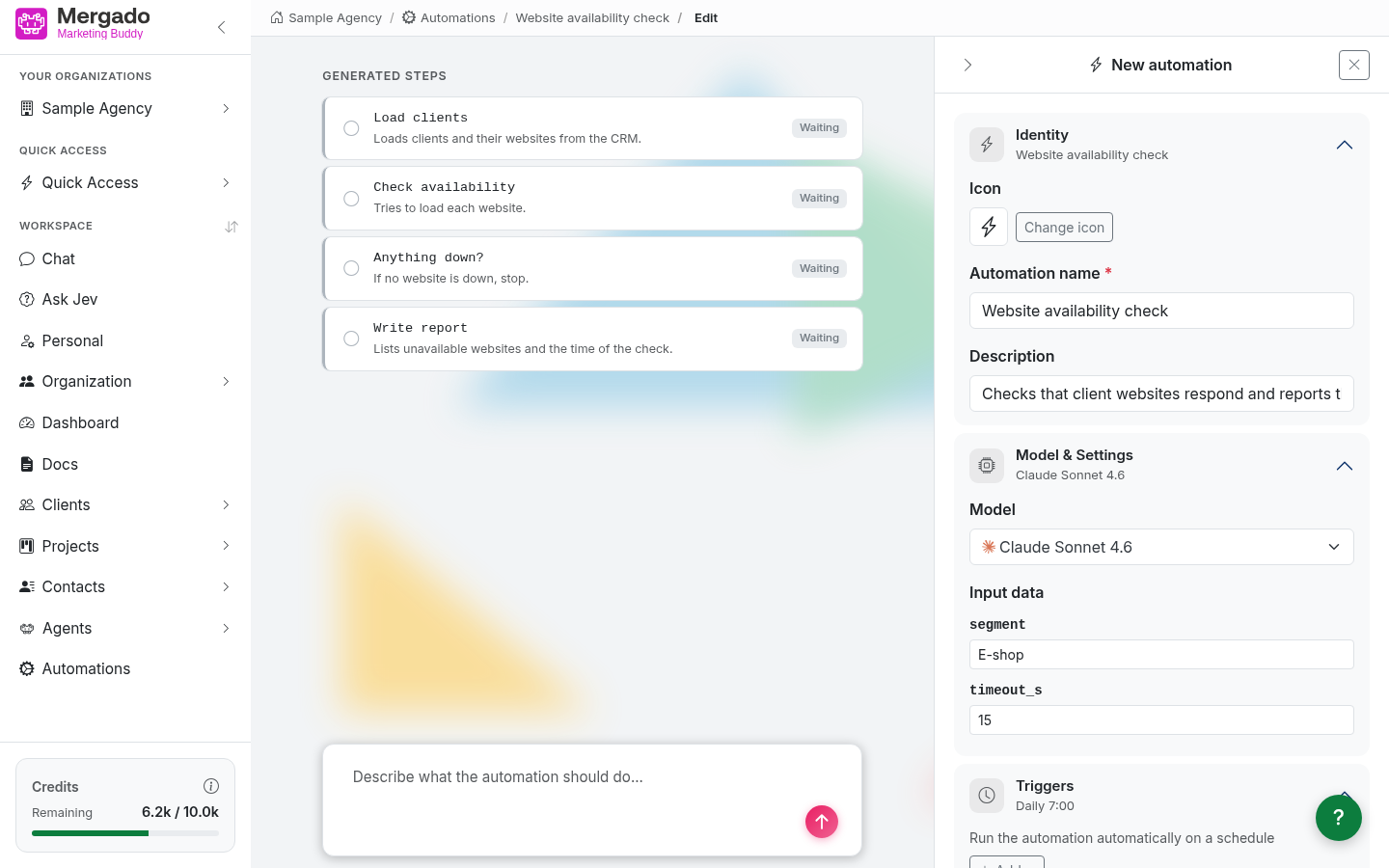
Click the pencil on the card to open the automation for editing. On the left, you will see its current steps. Write in the field what should be different (e.g. “Add a column with the document author to the table.”), and the AI adjusts the steps. In the panel, you can change the name, description, icon, and triggers, and save them with the Save automation button.
Running an automation#
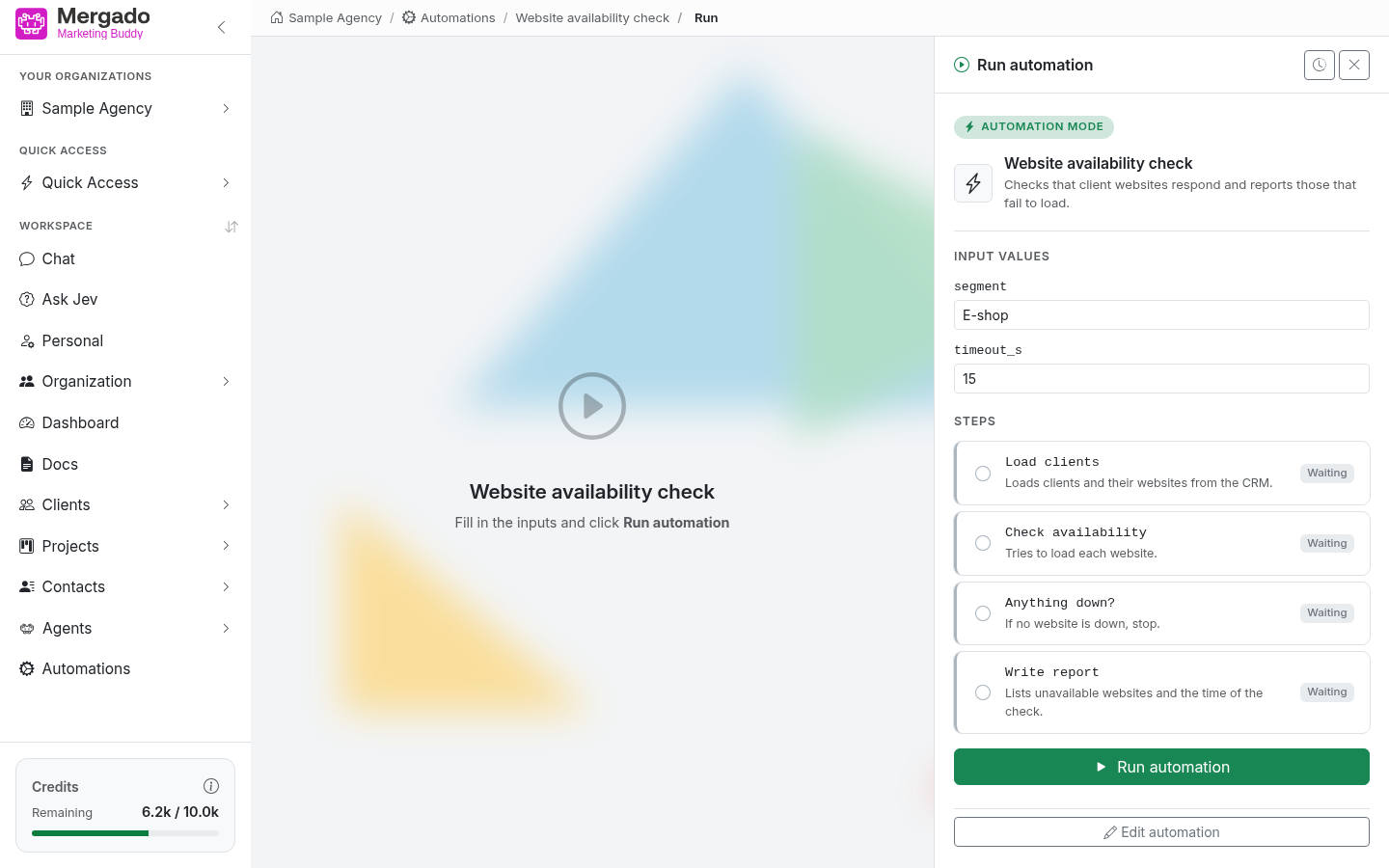
The run page has a results area on the left and a panel on the right:
- Automation mode – indicates that an automation is running, not a regular chat
- Input values – the inputs the automation needs, prefilled with default values. If it has none, the text This automation does not need any inputs. appears here.
- Steps – a list of steps with their status (waiting, running, done, error). During the run, you can see which step the automation is at.
- Run automation – starts the run; once it has finished, you can run the automation again with changed inputs
- Edit automation – switches to editing
- clock icon in the panel header – Run history
Once the run has finished, you can write a follow-up question in the field on the left or ask for the automation to be adjusted.
If the automation needs a tool that changes data during the run, it asks for your approval just like the chat.
Run history#
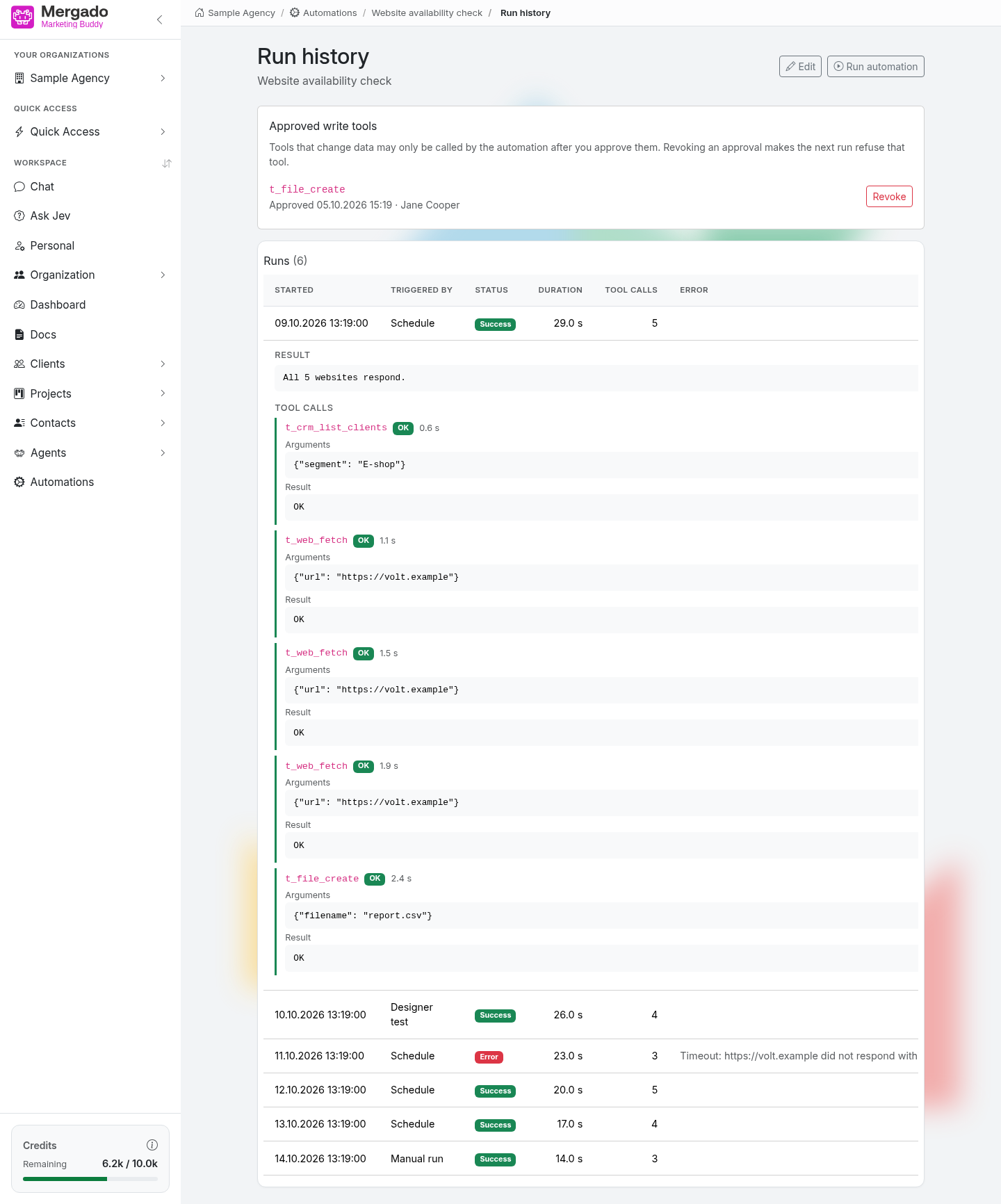
The Run history page shows all runs of a single automation.
- Approved write tools – tools that change data and that you have allowed for the automation. Click Remove to revoke the approval; on the next run, the automation will refuse to use that tool until you approve it again.
- Runs – a table of runs with the columns Started, Started by (e.g. Manual run, Scheduler, Designer test, Chat, API), Status (Success, Error, Running), Duration, Tool calls, and Error.
Click a row to expand the run details: the result, the individual tool calls with their arguments and results, and the program output.
Automations from the chat#
You can also create, edit, and run automations directly from a conversation. In the chat, turn on Auto Discovery and describe what the automation should do – the AI creates it and saves it among the organization’s automations.
What you can do here#
- Describe a process in words and let the AI create an automation from it.
- Run an automation manually with your own inputs, or let it run on a schedule.
- Copy an existing automation and adjust it.
- Check how past runs went and manage approved tools.
FAQ#
When should I use an automation and when an agent? Use an automation when the process is fixed and you want the same result every time. Use an agent when the AI should work out on its own how to reach the goal.
What does “This automation does not need any inputs” mean? The automation does not need any input values – just run it.
Where can I find the results of scheduled runs? In the automation’s Run history, in the history on the Dashboard page, and in the conversation list (gears icon).
Can I edit an individual step? Yes – open the automation for editing and write what should be different; the steps are regenerated.
Why can’t I see my colleagues’ automations? With the Member role, you only see the automations you have created. The Owner and Admin roles can see all of the organization’s automations.