
Template for Alternative Images#
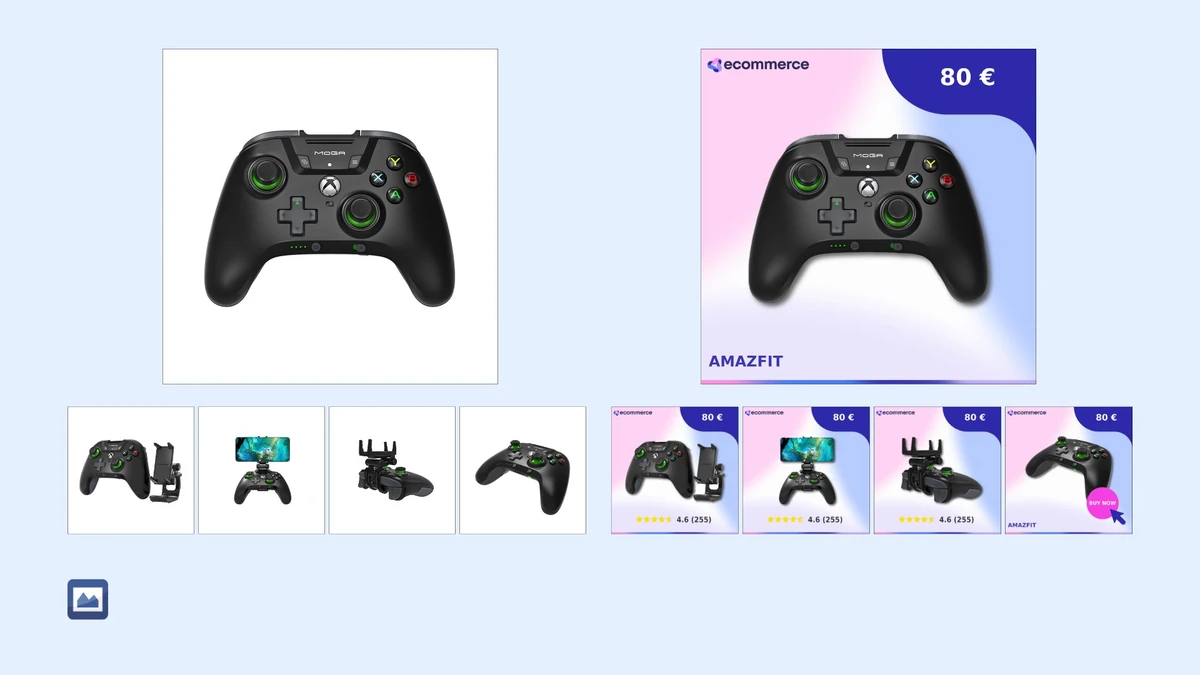
Feed Image Editor lets you edit not only the main product images in bulk, but also alternative product images. For every existing main image template, you can create a separate template that is automatically applied to the alternative images of the same product query.
How it works#
A Template for Alternative Images is tied to a main image template. It shares its product query and output format and is processed in the same run. The settings and available features of alternative image templates are identical to those of main image templates.
Settings in the extension#
-
Choose an existing main image template or create a new one.
-
In the list of templates, click + New alternative image template next to the chosen template.
-
Configure the desired edits – the same features as for main images.
-
Choose which alternative images the template should apply to:
-
all alternative images of the product,
-
or only selected positions (first, last, selected).
-
-
Name the template and click Save.
Available features#
Everything available for main images can also be applied to alternative images.
When it comes in handy#
Unifying visual style across the gallery – many advertising systems require alternative images to meet the same parameters as the main one: the same format, white background, no watermarks. A Template for Alternative Images ensures this consistency in bulk and automatically.
Meta Carousels – carousel ads on Meta work with multiple images at once. The template lets you edit every frame of the carousel consistently, without manual work.
Special elements on selected positions – selecting specific positions lets you, for example, add a CTA label or promo banner only to the last image in the gallery, while the other images remain free of graphic additions.
Amazon, Google, Allegro – platforms with rich requirements for the product image gallery. A Template for Alternative Images ensures their conditions are met in bulk.
FAQ#
Do I need an alternative image template for every main image template?#
No. A Template for Alternative Images is optional. The main template works on its own even without one. You only create a Template for Alternative Images when you have a main template and also want to edit the alternative images.
Can alternative images have different settings than the main image?#
Yes. That’s the whole point of the feature. A Template for Alternative Images is a separate template with its own settings. For example, the main image can have the store’s logo, while the alternative images just have the background removed, with no other graphic elements.
How does selecting specific alternative image positions work?#
In the alternative image template settings, you can choose which sequential numbers of alternative images should be processed. First, last, or selected: for example, if you choose only positions 1 and 2, the template applies only to the first and second alternative image of each product, and the others remain unchanged.
What happens if a product has no alternative images?#
The Template for Alternative Images simply does not apply to that product. Only products that have alternative images in the feed are processed.
Can a Template for Alternative Images also be used to create collages or GIFs?#
Collage and GIF are separate template types that use alternative images differently – they assemble them into a single resulting image. A Template for Alternative Images, on the other hand, edits each alternative image individually. Both can be combined within a project.
Can a Template for Alternative Images be exported and imported the same way as a main image template?#
Yes, it’s just as possible.