
Organization – Files#
The Files page is the organization’s storage. It collects the files you attached to a chat or downloaded from a URL, and those the AI created with the Create data file tool.
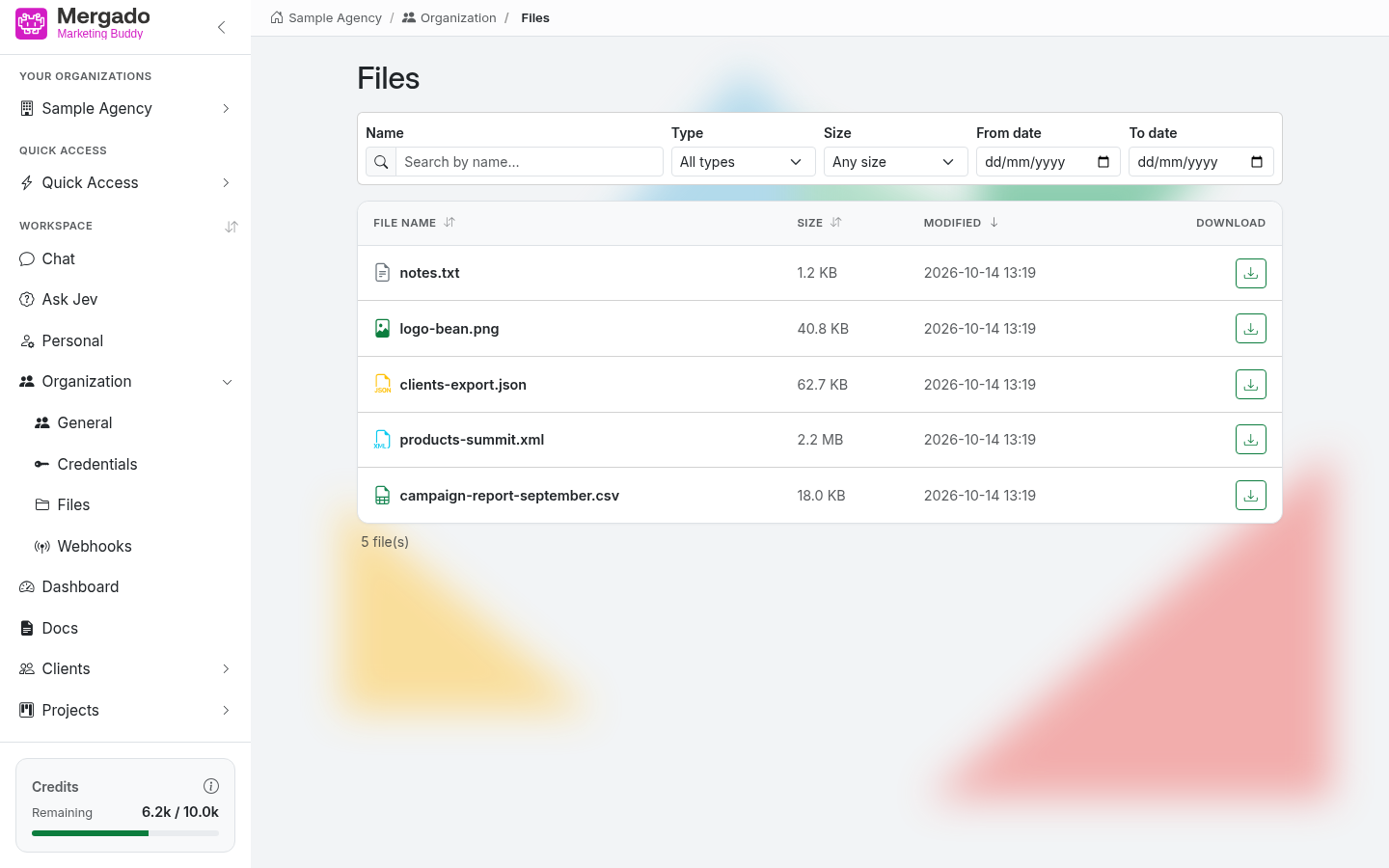
Page layout#
- The Files heading.
- A filter bar: Name (search by name), Type (file types present in the storage), Size (< 10 kB, 10 kB – 1 MB, 1 MB – 50 MB, > 50 MB), From date, and To date.
- A table with the columns File name, Size, Modified, and Download. By default, it is sorted from the newest; click a column header to change the sorting.
- Below the table is the number of files (for example 5 files). The page shows up to 200 files.
An empty storage displays No files yet. Generate files with the “Create data file” tool in the chat.
Where the files come from#
- Upload file in the Chat settings → Attached files panel
- Download from URL in the same place – downloads a text file or image from an HTTPS address
- AI outputs, when it creates a data file in a conversation (CSV, XML, JSON…)
You can upload common text files (e.g. TXT, CSV, JSON, XML, HTML) and images (e.g. JPG, PNG, GIF, SVG).
What you can do here#
- Find a file the AI created in a conversation and download it.
- Filter by name, type, size, or modification date.
- Check everything that is stored in the organization’s storage.
FAQ#
Who has access to the files? Members of the organization. The storage is shared, not personal.
Can I upload a file directly here? No, files are uploaded from the chat. This page is for viewing and downloading.
How do I use a file in the chat? Type @ and the file name in your message – the AI then knows which file from the storage to work with.
Why does it say “Organization storage is not set up”? The organization has no storage set up – please contact Mergado support.