
⚙️ Settings#
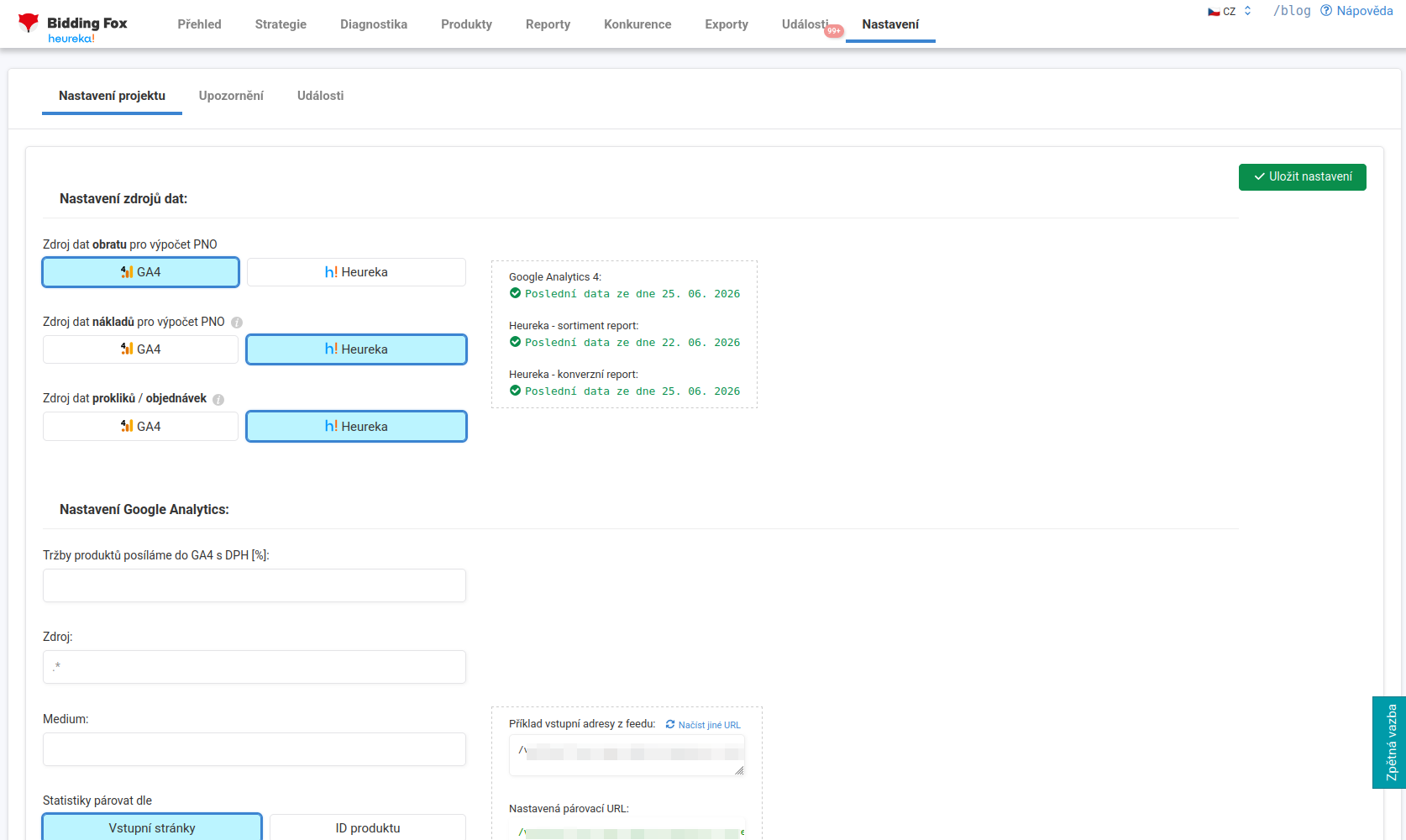
In Settings you determine where Bidding Fox takes its data from, how it matches it to products and when it should alert you. Correct settings are a prerequisite for the figures to add up, especially the PNO (cost/revenue ratio) and revenue. The page has the Project settings, Alerts and Events tabs. You save changes with the Save settings button.
Data sources#
For statistics you choose where revenue, costs and clicks / orders for the PNO calculation should be taken from. By default, revenue is taken from Google Analytics 4, costs and clicks from Heureka or Zboží.cz.
-
We recommend taking costs from the price-comparison site (Heureka or Zboží.cz), because that is what deducts your credit. Costs from GA4 are only approximate (an estimate from the number of clicks and the average CPC).
-
Revenue is a matter of habit, either from GA4 or from the price-comparison site’s conversion measurement.
For individual sources (Google Analytics 4, Heureka assortment report, Heureka conversion measurement) you see for which day Bidding Fox has data downloaded.
💡 To connect Heureka / Zboží.cz it is enough to have Mergado Keychain connected to the given price-comparison site.
Google Analytics settings#
-
Revenue to GA4 with VAT [%]: the VAT rate with which you send revenue to GA4. It is important for the correct PNO calculation, so that 21% does not “float” up or down in the calculation. It can be overridden for individual strategies.
-
Source and Medium: if you use UTM parameters and tag your addresses differently than
heureka.cz/referalorzbozi.cz/referal, fill in the source and medium here so that Bidding Fox queries GA4 for the correct data.
Data matching#
Data from GA4 is matched to products using the Match statistics by switch, either by landing page (URL), or by product ID.
When matching by URL, the address from the feed (without the domain) must match the address from GA4. You have a preview directly on the page (an example landing address from the feed, the configured matching URL and records from Analytics). The following options are available:
-
Landing page including the query string,
-
Remove the part of the URL after the # character,
-
Remove UTM parameters from URL addresses,
-
Advanced settings with regular expressions (the Find part of URL and Replace with fields). The most common problem is a trailing slash in the feed address, which is not written into GA4. The expression
(.+)/with the replacement$1removes the last slash.
If the URL cannot be adjusted, use matching by product ID. In the Project settings section you then choose, in the Matching element in Mergado field, the element that contains the correct ID (for example ITEM_ID).
⚠️ For Shoptet with variants, the slash in the Item ID is replaced by an underscore, so the Item ID in the feed and in GA4 differ. The solution is to get the
codeelement with an unchanged value into the feed and choose it as the matching element. You will find a guide on the Bidding Fox blog.
Report settings#
In the Report settings section you turn on regular report sending and upload a custom logo into the report header (at most 150 × 30 px and 15 kB). Instead of the Bidding Fox logo, the report will then show yours or your client’s logo.
AI / MCP#
In the AI / MCP section, the How to? button opens a panel with instructions for connecting Bidding Fox to an AI assistant through the Model Context Protocol. It holds the MCP server address, the steps for creating an access token and configuration samples for individual AI clients. The MCP and AI assistant article covers the details.
Exporting and importing strategies#
Via Export all created strategies you download a backup of your strategies, via Upload strategies from file you upload them back. It comes in handy before larger changes or when transferring settings.
Alerts#
On the Alerts tab you enter the email addresses (yours, colleagues’, a contact at the online store) that alerts should go to. Typically a credit drop below a chosen amount or a Ověřeno zákazníky (Verified by Customers) outage. Alerts from custom diagnostics are also sent here.
Change history#
At the bottom of the page you see what changed in the settings and when, for example a change in the revenue source (from GA4 to Zboží.cz), an adjustment of the UTM source and medium, or of the regular expression for adjusting URL addresses.
FAQ#
-
Where should I take costs and revenue from? We recommend taking costs from the price-comparison site (which deducts your credit), revenue is a matter of habit, either from GA4 or from the price-comparison site’s conversion measurement.
-
Data from GA4 does not match and revenue is zero. What now? The most common cause is a trailing slash in the feed URL that is missing in GA4. You remove it in the advanced settings with the regular expression
(.+)/and the replacement$1(example in the article), or you switch matching to product ID. -
I have Shoptet and the Item ID in the feed and in GA4 do not match. For variants, Shoptet replaces the slash with an underscore. Get the
codeelement into the feed with an unchanged value and choose it as the matching element. -
Do I have to enter an API token? For Heureka usually not, a connected Mergado Keychain is enough. For Zboží.cz / Sklik Fénix you enter the branch ID and API token in Mergado Keychain.
-
What is the VAT setting in GA4 for? For the correct PNO calculation, so that VAT does not “float” up or down in the calculation.
-
Where do I find the details for connecting an AI assistant? In the AI / MCP section under the How to? button. The MCP and AI assistant article describes the procedure.