
How to add images to a product description on Allegro#
The product description that Mergado Marketplaces sends to Allegro can also include images. For an image to appear as an actual image in the description — not just as a URL text — it must be inserted in the correct format.
Add the HTML image code to the element mapped as the product description for Mergado Marketplaces in your project. You can make the change directly in Mergado Marketplaces (product by product) or in bulk in Mergado Editor. Do not edit the description in the Allegro admin — it is sent to Allegro automatically, exactly as you have it set up in Mergado.
Insert the image in the correct format#
A plain URL is not enough. On Allegro, a bare URL appears as text, not as an image. You need to wrap the image URL in the correct HTML tag <img>.
Example:
<img alt="" src="https://www.your-domain.com/image.jpg" />
- src – the address (URL) of the image to display in the description.
Once the product description is sent, Allegro automatically applies its own formatting.
Watch out for the listing image limit#
An image added to the product description must also appear among the other images of the listing on Allegro — otherwise it will not display in the description. It is therefore automatically counted alongside the other listing images and contributes to the overall limit of 16 images per listing. This behaviour cannot be changed in Mergado Marketplaces.
⚠️ Exceeding the limit changes the main image of the listing
If the images in the product description and in the image element add up to more than 16, Allegro rejects the images above the limit. The listing then shows only the images from the product description and the images from the Allegro product card — your listing images are not uploaded at all.
From the outside this looks like a shuffled image order and a different main image, even though the order is correct in Mergado and in the Mergado Marketplaces interface.
The fix: reduce the number of images so that the product description and the image element together do not exceed 16, then regenerate the campaign.
Check how the description will look on Allegro#
This is how a product description with images can look in the feed in Mergado Marketplaces:

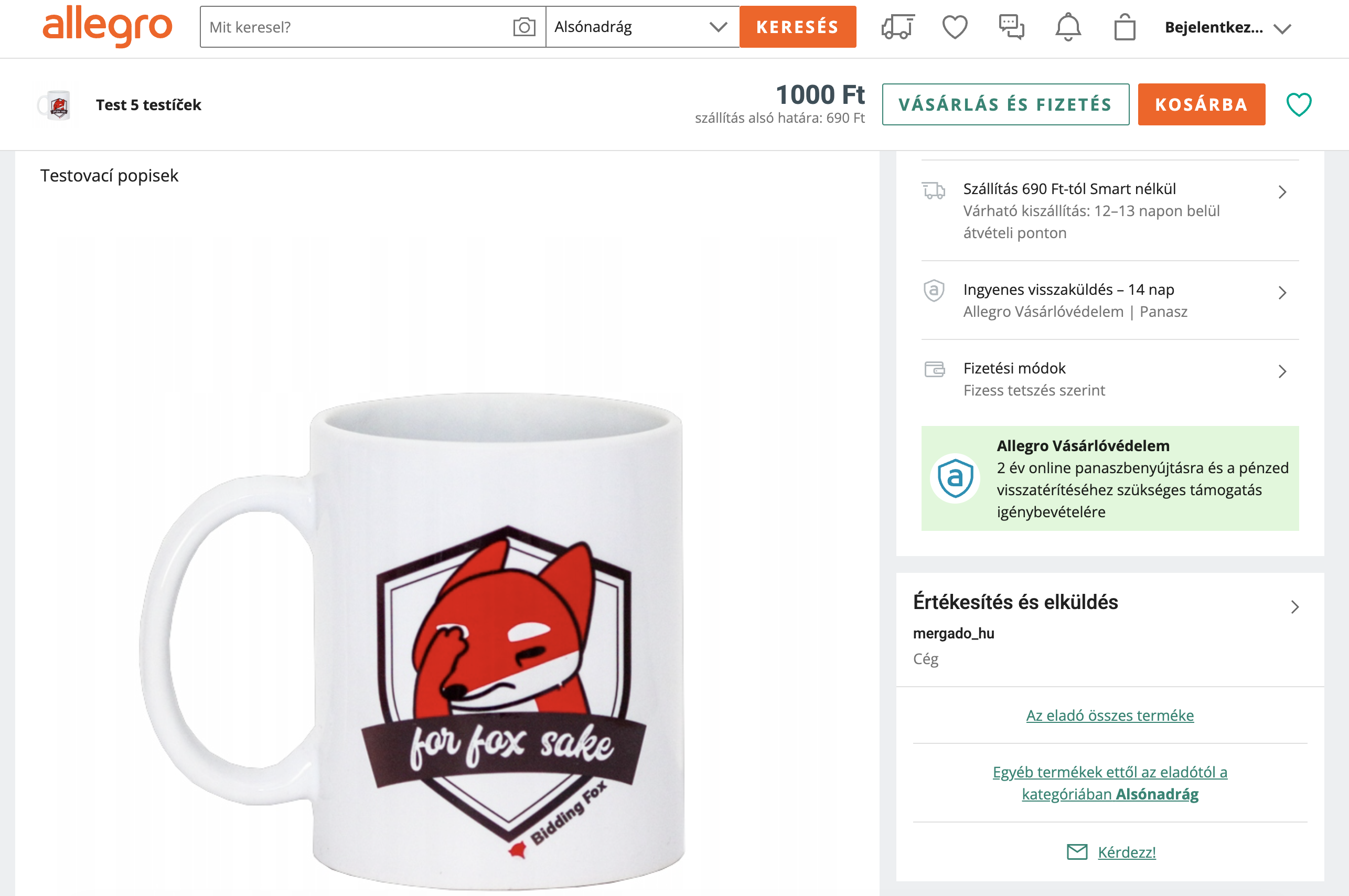
And this is how the same description appears in the listing on Allegro:
FAQ#
Do I need to upload the image somewhere, or is a link to an existing image enough?#
A URL of an image that is already publicly available is all you need. There is no need to upload the image anywhere separately — just add its URL to the <img> HTML tag.
Why is the image not showing in the description even though I added the URL?#
The most common reason is that the URL is not wrapped in an <img> HTML tag. A plain URL will only appear as text. Also check that the image URL is publicly accessible and that there are no typos in the address.
Where exactly should I add the HTML image code — in Mergado Marketplaces or in Mergado Editor?#
It depends on whether you want to update the description for one product or for several at once. You can do it product by product directly in Mergado Marketplaces, or in bulk in Mergado Editor. In both cases, you are editing the same element mapped as the product description.
How many images can I add to the description?#
It depends on how many images the listing already has outside the description. Images from the description are automatically counted alongside the other listing images, and together they must not exceed the limit of 16 images per listing.
Why is the image order on Allegro different from the one in Mergado?#
Mergado Marketplaces sends images to Allegro in exactly the order you have them in Mergado. If the order on Allegro differs and a different image shows up as the main one, the usual cause is exceeding the limit of 16 images per listing. In that case Allegro rejects the listing images and shows only the images from the product description and from the product card. Check that the product description and the image element together do not exceed 16 images, then regenerate the campaign.