
Outpainting#
Outpainting is an AI feature in Feed Image Editor that automatically fills in missing parts of an image so that it fills the whole required format. When changing the aspect ratio, this avoids empty white bars along the edges – the AI generates a naturally continuing background instead.
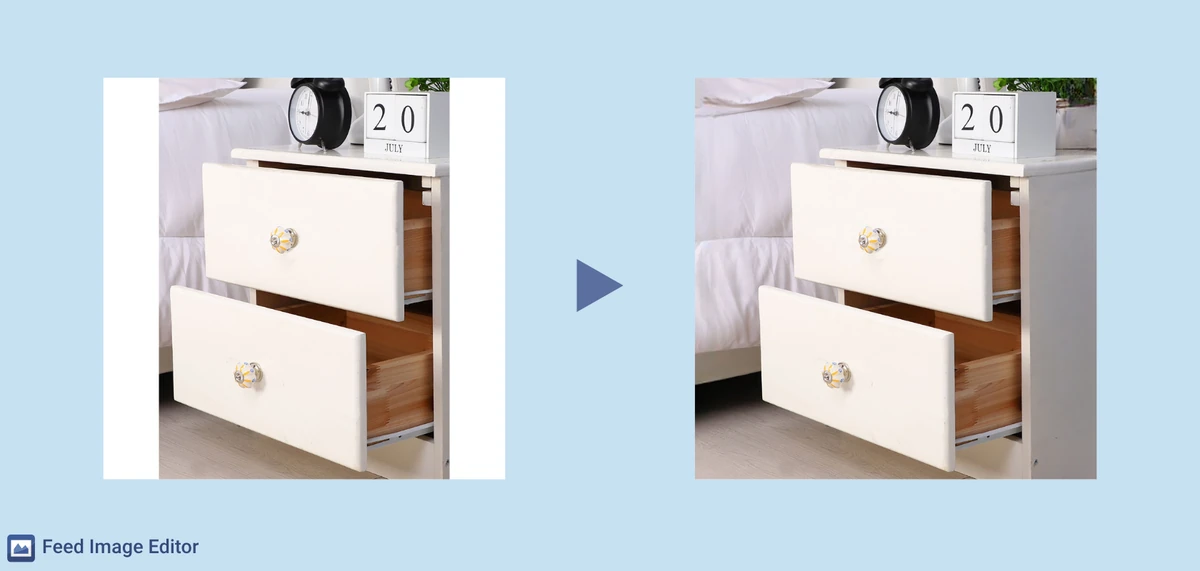
How it works#
When adjusting an image to a different format (for example, from portrait to square), areas appear along the sides for which the original photo has no content. Outpainting fills these areas using generative AI based on the context of the existing background. The result naturally continues the original image and preserves the overall visual impression.
Setting it up in the extension#
You will find Outpainting among the other AI features in the Feed Image Editor extension. It works with a single click and requires no additional settings. Just have a product query and a target format defined in the template, and turn the feature on.
When outpainting comes in handy#
Outpainting brings the biggest benefit for lifestyle images, where the visual integrity of the image matters. Typical situations:
-
Switching from portrait or landscape to square – the most common need arises when adapting product photos for advertising systems or marketplaces that require a square format (Google Shopping, Meta, marketplace platforms).
-
Fashion – lifestyle images with models are most often shot in portrait orientation. When adjusting to square, Outpainting fills in the scene on the sides without having to crop the product.
-
Furniture and interiors – images shot in interiors tend to have specific aspect ratios. Outpainting allows a format change without losing the context of the scene.
-
Any segment in general – with lifestyle or product photos where cropping or a white border would look unprofessional.
What you need#
Products need to have an element with an image URL filled in in the feed.
FAQ#
What is the difference between Outpainting and simply adding a white border?#
A white border just fills the empty area with no content, which looks unprofessional and can bother both advertising systems and customers. Outpainting instead generates a visually continuing extension of the scene (background, floor, interior…) so the resulting image looks as if it were originally shot in that format.
Does Outpainting work for images on a white or neutral background too?#
Yes. These are actually the images where results tend to be the most reliable. The AI fills in a plain or studio background easily and without visible transitions. For more complex lifestyle scenes, the quality of the result can be more variable.
Can Outpainting crop or shift the product?#
No. Outpainting extends the image outward from its edges, and the original content remains unchanged. The product and its position do not change.
Which advertising formats is it most useful for?#
Most often for square formats required by platforms like Google Shopping or Meta Ads, where lifestyle photos shot in portrait or landscape orientation otherwise cannot be displayed without cropping or white borders.
Can Outpainting be combined with other edits in the template?#
Yes. Outpainting is one of the AI features within Feed Image Editor templates and can be used together with other edits.
What if the AI generates a background I’m not happy with?#
Processing can be run again. Generative AI may produce a slightly different result on repeated runs. If repeating it does not help either, that type of image may be better suited to manual editing or a different approach (for example, Background removal and replacing it with a solid color).