Order management in Mergado Marketplaces#
In Mergado Marketplaces, you can activate order downloading, giving you all marketplace orders in one place 🎉 You can also connect orders to:
If you encounter errors or have ideas for expanding this functionality, don’t hesitate to contact us at mergado@mergado.cz.
Activation#
To start downloading orders, you first need to activate this feature in the “Activation” section. Select the desired platforms and save your changes:
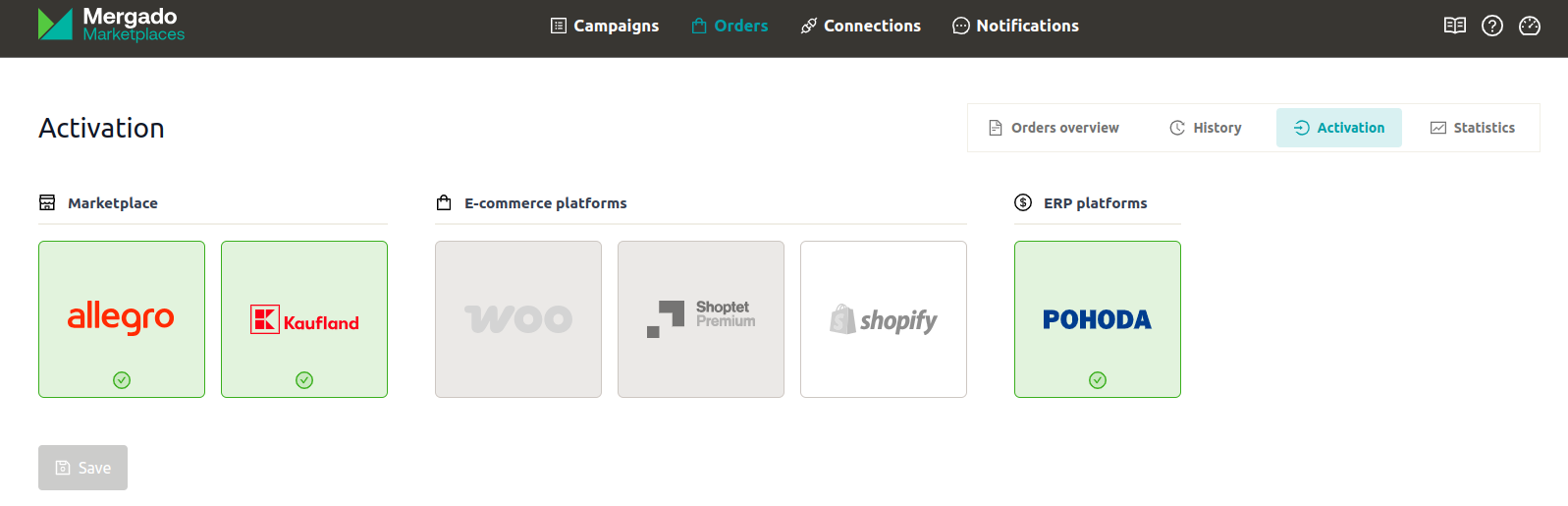
⚠️ To activate orders, you must have an active connection to the desired platform in the ‘Connections’ section.
History#
In the history section, you’ll find information about order activation/deactivation and synchronization progress:
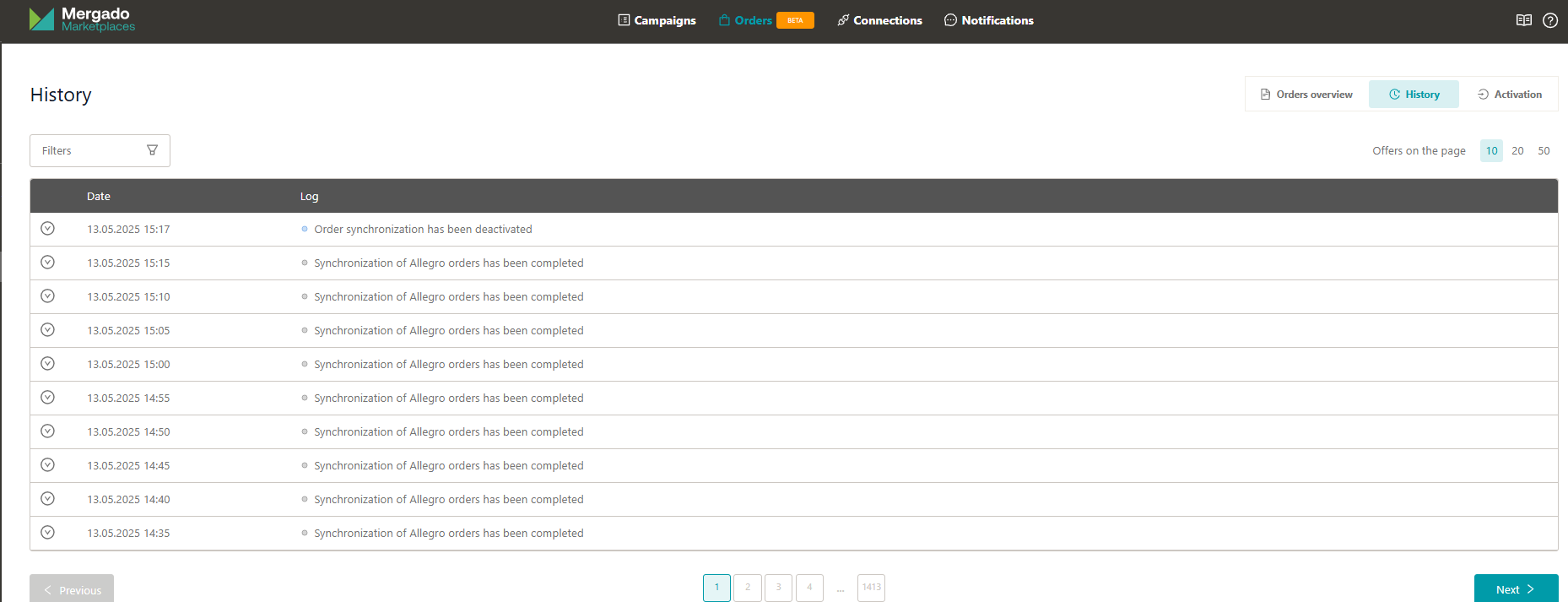
Additional data also contains information about the number of new orders, status changes, and order data changes:

Order overview#
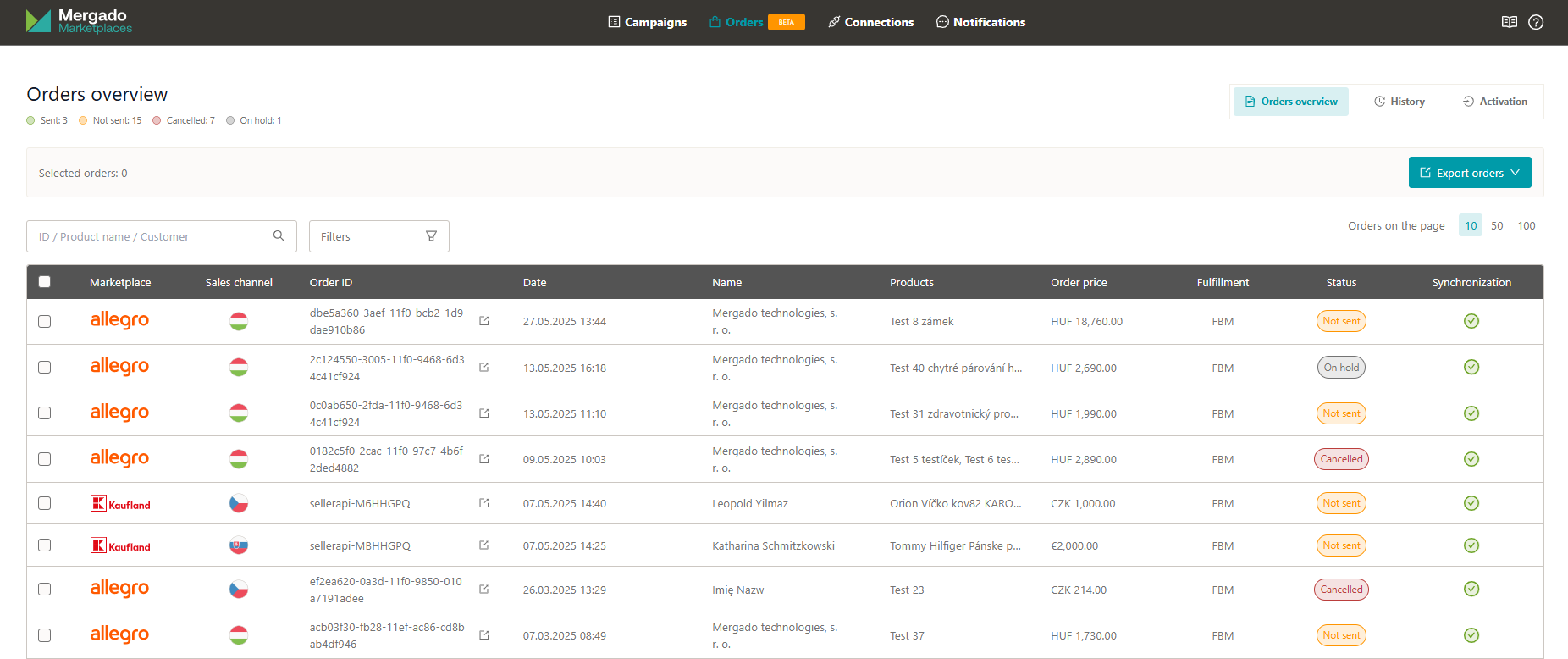
The order overview shows the most important information about your orders:
- Marketplace logo
- Market of purchase
- Order ID + link to order detail on the marketplace via the icon

- Order creation date
- Customer name
- Order items
- Total order price
- Fulfillment
- FBM (Fulfillment by Merchant)
- FBK (Fulfillment by Kaufland)
- One Fulfillment by Allegro
- Order status (open, not shipped, shipped, suspended, returned, cancelled, unknown)
- Synchronization status
Orders are synchronized every 5 minutes.
Clicking on an order opens the order detail:
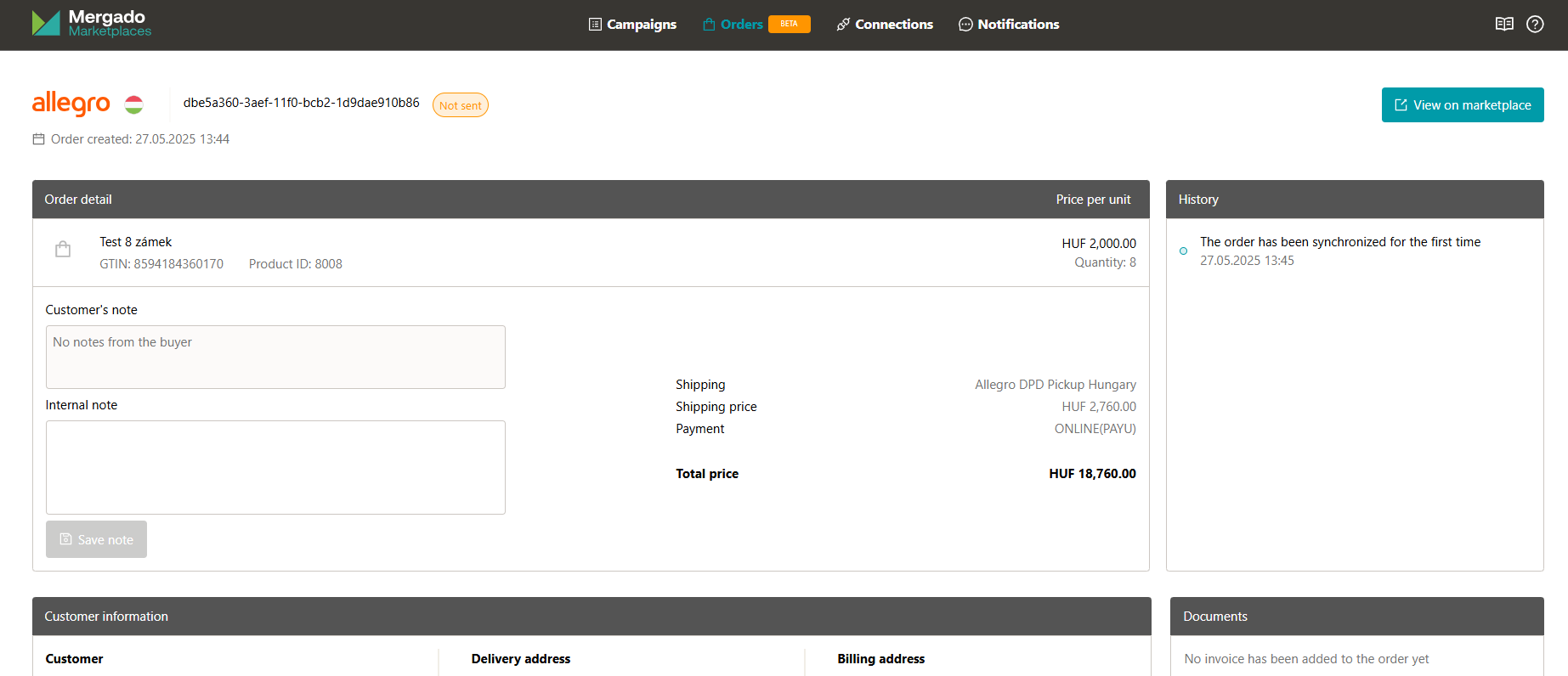
If you’ve added an internal note to an order on Allegro or Kaufland, it will also appear in our extension. However, once you add or edit a note through Mergado Marketplaces, the internal note will stop synchronizing with the marketplace.
Notifications#
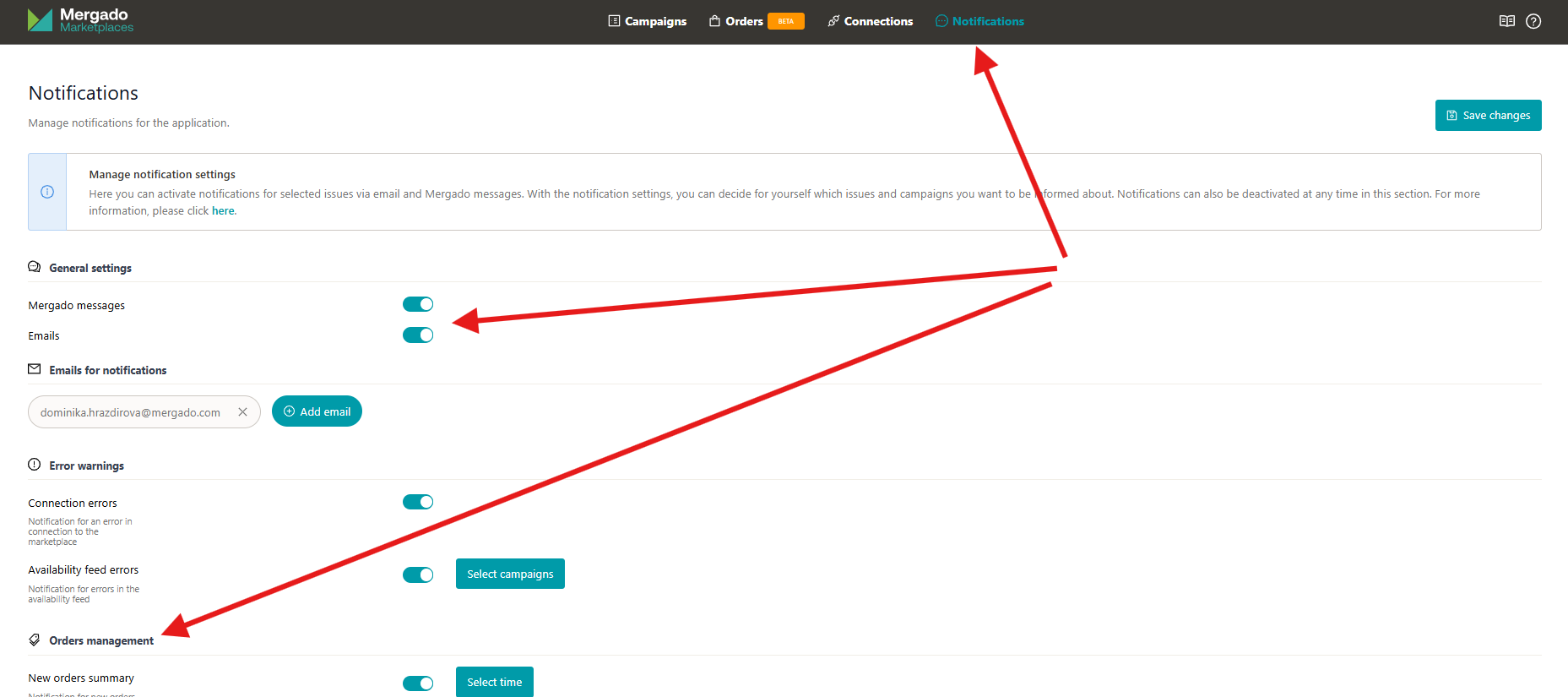
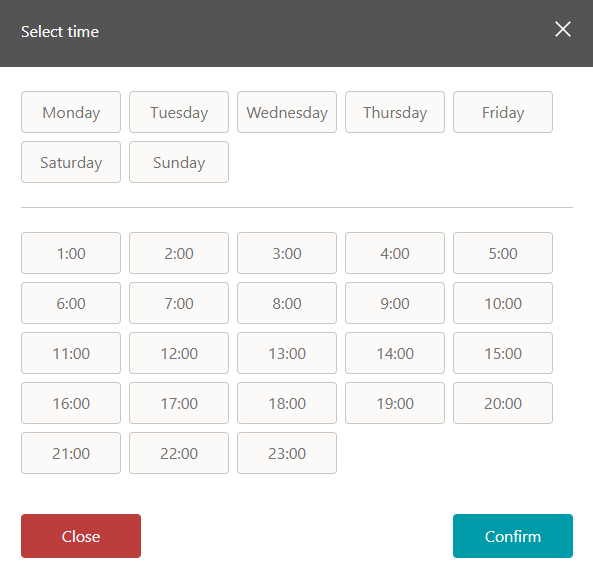
In the notifications section, you can set up alerts for new orders. You can configure which days and times you want to receive notifications and choose whether to be notified via Mergado messages or email:
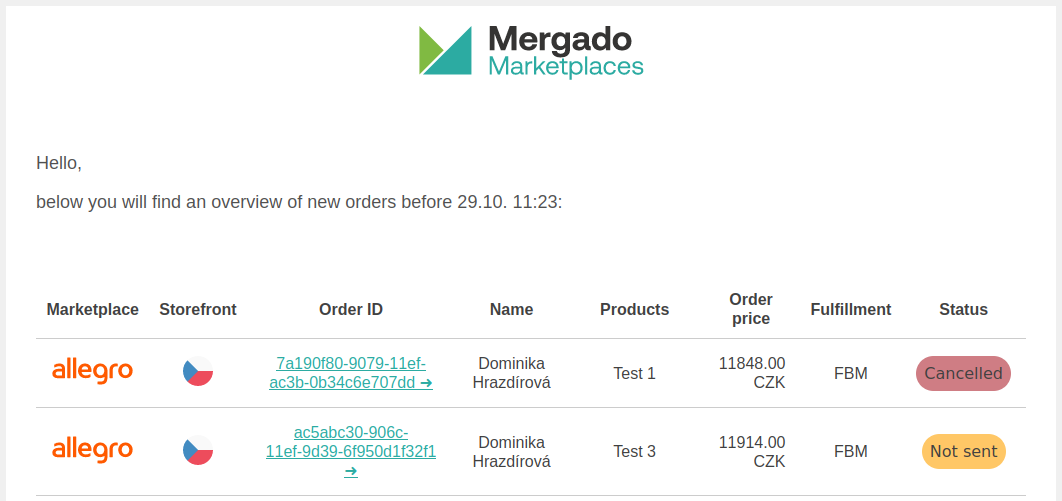
Email notifications redirect you to the order detail on Allegro/Kaufland when you click the order ID, or you can view new orders in Mergado Marketplaces:
Order export#
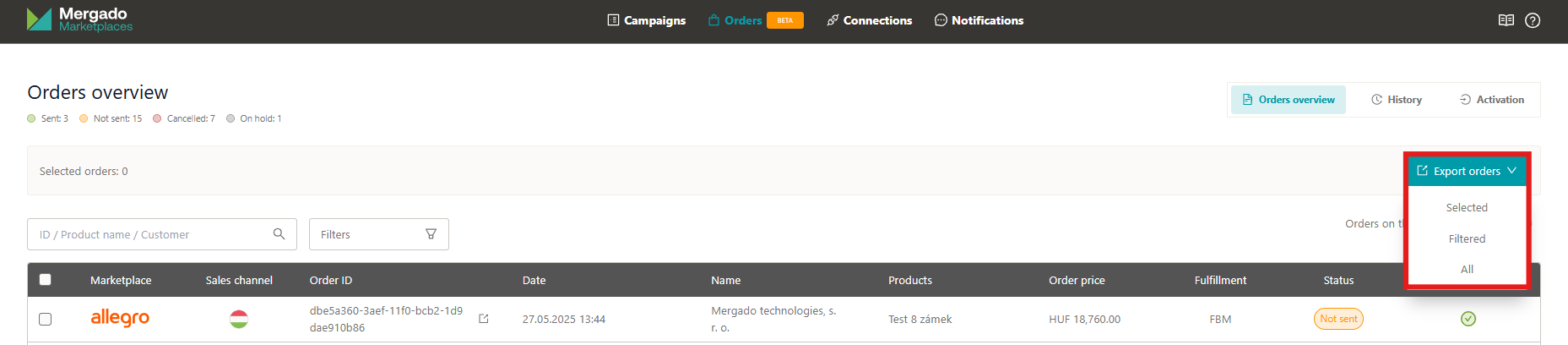
When exporting orders, you can choose which orders to include in the CSV:
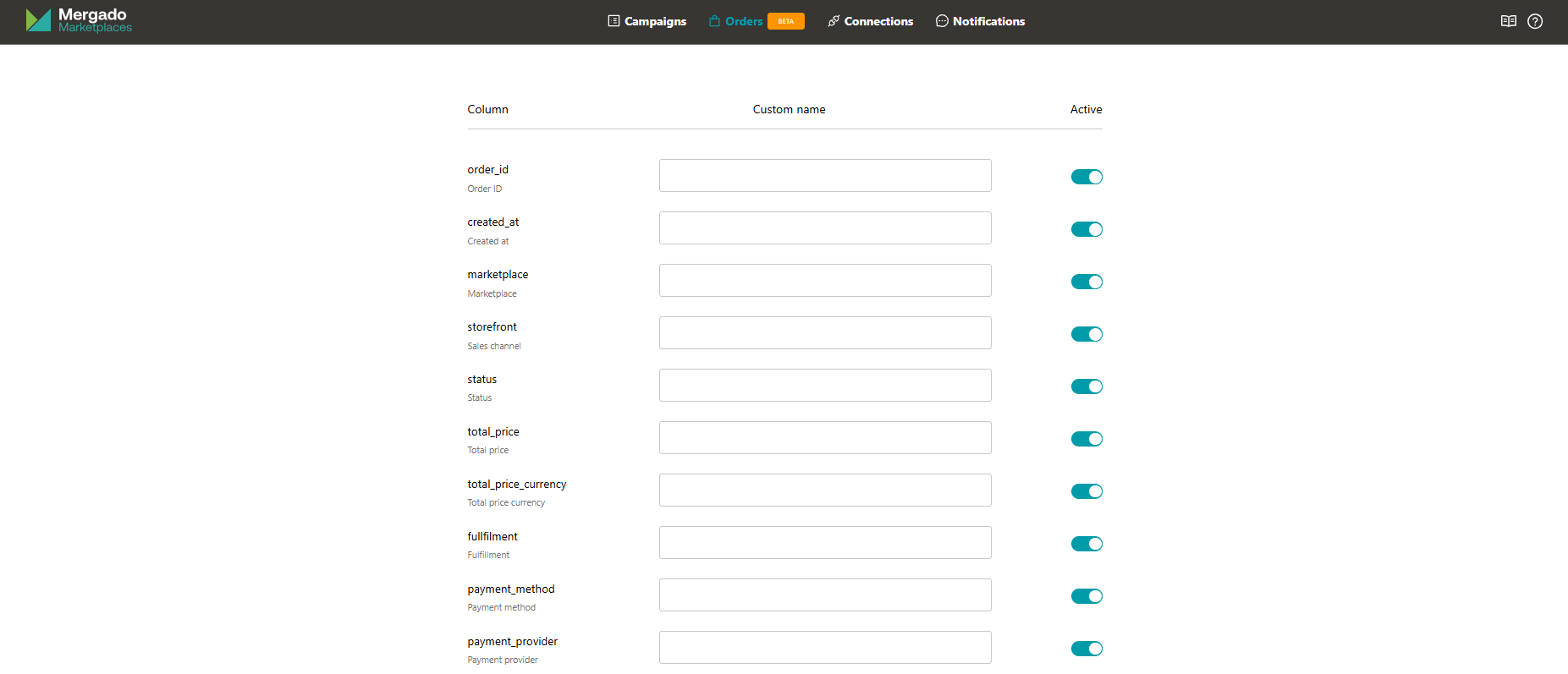
You can also choose which data to include in the CSV and optionally set custom column names: