
Mergado Marketplaces validation messages#
This article explains the most common validation messages:
No product card was found in the Allegro catalog under this product identifier. To create one, go to the ‘Product cards’ section`#
- These products don’t exist in the Allegro product catalog yet, so you need to create a product card for them in the “Product cards” section. A detailed guide can be found here.
No product card was found in the Kaufland catalog under this EAN code. To create one, go to the ‘Product cards’ section#
- These products don’t exist in the Kaufland product catalog yet, so you need to create a product card for them in the “Product cards” section. A detailed guide can be found here.
‘Manufacturer data’ with the name ‘…’ does not exist#
- You don’t have a manufacturer card with this ‘custom name’ prepared on Allegro. You can check manufacturer cards and their custom names here. The custom name must match exactly for the card to be paired with the offer.
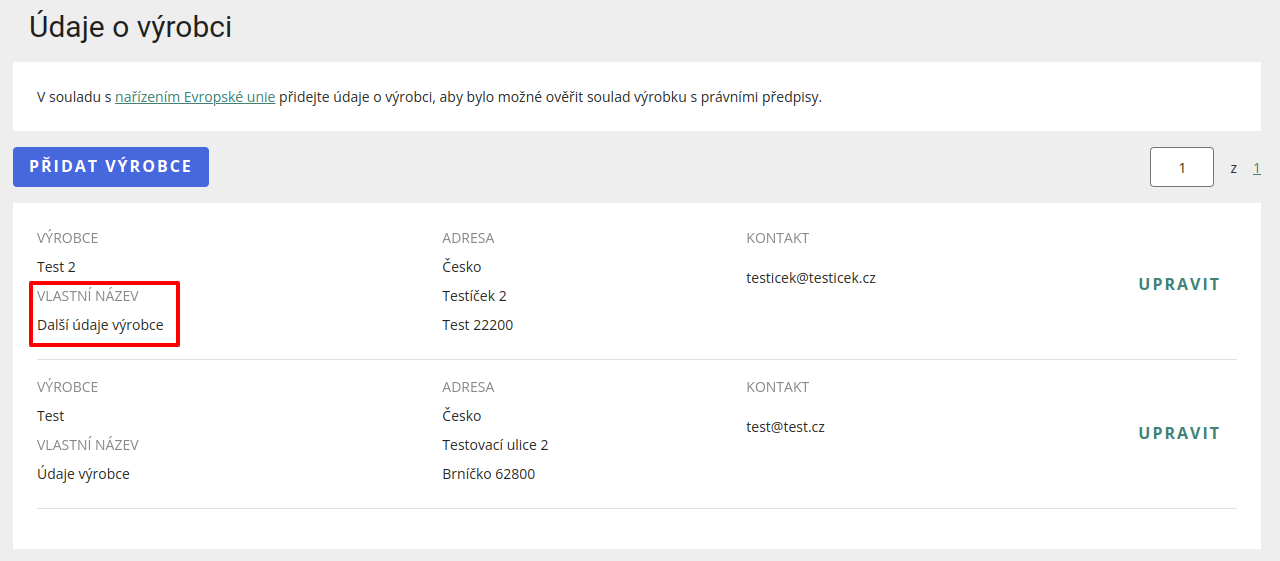
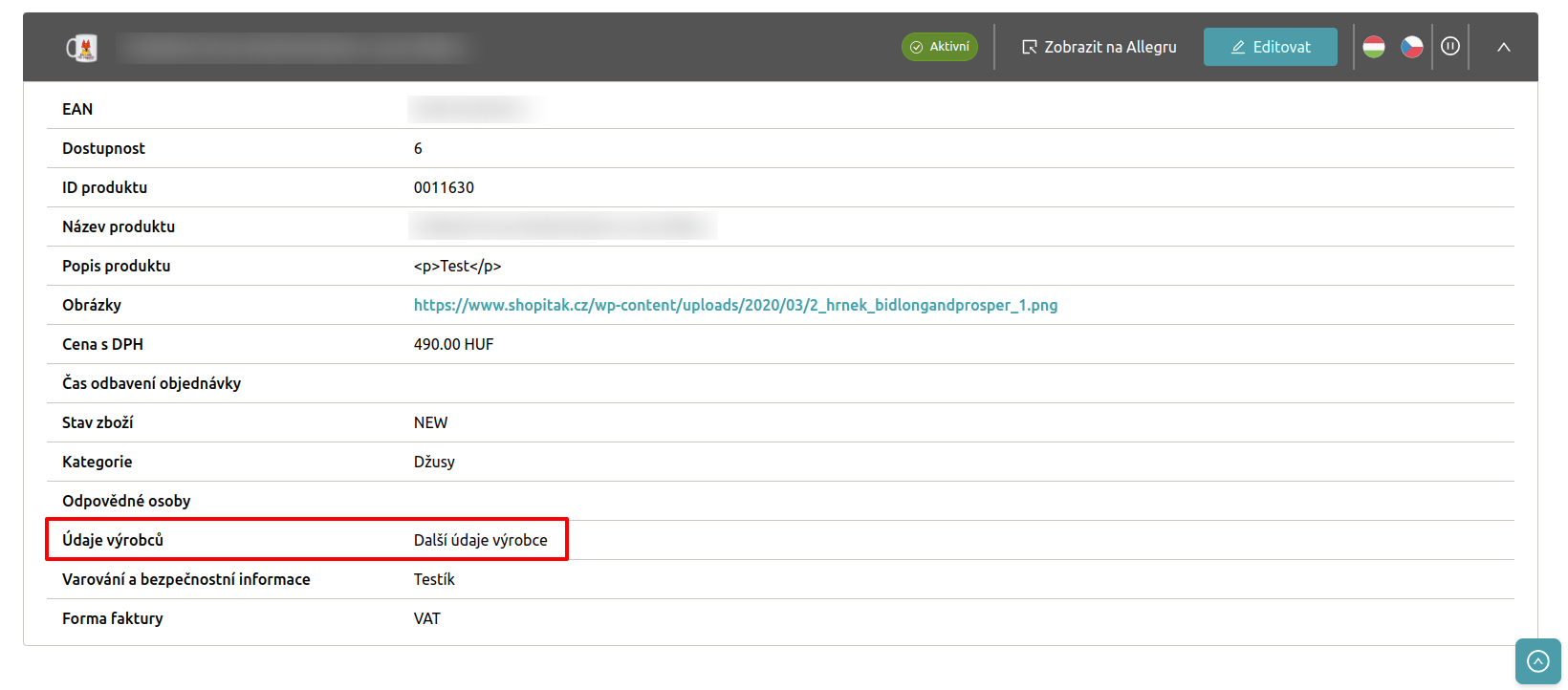
Invalid value “…” was entered for the “Brand” parameter / Invalid value “…” was entered for the “Manufacturer” parameter#
- Allegro recently made a change where you can no longer use the value “other” for the brand/manufacturer parameter and enter your own brand/manufacturer if it’s not in the allowed values list.
You now need to apply on Allegro to add a new value to the list of allowed brands/manufacturers, and only after Allegro approval can the product card be listed. You can apply for adding a new value here.
Allowed values for the brand/manufacturer parameter differ across categories. If you want to list products of a given brand/manufacturer in multiple categories, you need to fill out the Allegro form for all required categories.
You cannot list offers with protected brand products due to missing confirmation of brand protection terms#
- You must first confirm the brand protection terms on Allegro here. Learn more in this article from Allegro.
Offer not found, it was probably deleted from your assortment on Allegro#
- This occurs when a user either deleted the offer from Allegro themselves, or the offer was ended on Allegro for more than 60 days (while remaining in the Mergado Marketplaces campaign the whole time). Once an offer is ended for more than 60 days, Allegro archives it automatically, and our app still has the old Allegro offer ID stored and tries to connect to it.
- 💡 We’ve already improved this process — when we receive this message from Allegro, the offer gets a “not synchronized” tag and a new offer is created on Allegro during the next regeneration.
- If you still see this message in Mergado Marketplaces, just run a manual product feed synchronization in the campaign settings and wait for the next automatic feed synchronization.
The offer is missing availability, check that the availability feed has the correct format and that ‘Product ID’ matches in both the product and availability feeds#
- With this message, it’s possible that the given Product ID has no value in the availability feed, or the product is completely missing from the availability feed. If this message appears for all products, check the availability feed format (Heureka and Mall) and whether ‘Product ID’ matches in both the product and availability feeds. To troubleshoot:
- Go to the validation section and click on this validation message.
- Offers missing availability will be displayed. Copy the ‘Product ID’ of one of the products.
- Go to campaign settings, copy the availability feed link at the bottom, and open it.
- Use CTRL + F to search for the copied ‘Product ID’ and check whether availability exists in the feed.
- Check whether you’ve mapped the correct element from your product feed to ‘Product ID’ in the campaign settings. If you need to change the mapping, open the elements section in the campaign settings, change the mapping, save changes, and click “Synchronize product feed”.
- If availability for the product doesn’t exist in the availability feed, check whether these might be sold-out products. Such products shouldn’t be listed on the marketplace anyway, so this error message is harmless.
The Allegro product card is missing required parameters, add them via ‘Product card completion’ in the ‘Product cards’ section#
- The Allegro product card is missing required parameters. This message is not about your data, but about the data of the user who created the product card on Allegro, to which we’re now trying to link your offer. You can add these parameters in the product cards section under “Product card completion”. More information here.
Allegro could not find an exact matching product#
- You should only encounter this error message in exceptional cases, which appears when multiple product cards with the same identifier exist in the Allegro product catalog. Our app evaluates the state of product cards on Allegro and assigns the offer to the best-filled one. However, if none of the product cards are valid, the offer won’t be assigned to any and this message appears in validation.
An error occurred on Allegro’s side: the product card in Allegro doesn’t contain any image, so the offer couldn’t be paired with the product card#
- Our app now sends product images to Allegro, but only as offer images. If an Allegro product card is incomplete and missing parameters or images, our app can’t add this data to the product card. However, you can try adding images manually directly in Allegro’s listing form. Go to “List using form” on Allegro, search for the product’s EAN, select the found product card, and click “REPORT INCORRECT PRODUCT INFORMATION”. You can then add the missing images and submit the suggestion to Allegro.
The [shipping_group] parameter is not specified or has an incorrect value#
- This error message informs you that your shipping groups are not correctly filled in on the Kaufland Seller Portal. Go to ‘Settings’ > ‘Shipping settings’ in the Seller Portal and check/add a shipping group. The app automatically assigns your default shipping group to offers.
ℹ️ If your validation message wasn’t in the list or you still need help, don’t hesitate to contact us.