
Mergado Marketplaces notification settings#
This article walks you through configuring email and Mergado message notifications in Mergado Marketplaces, covering general settings, error alerts, and order notifications.
How to set up notifications in Mergado Marketplaces? Let’s walk through it step by step.
You can configure notifications in the main menu under the “Notifications” section. Here you can activate alerts for selected issues via email and Mergado messages. With notification settings, you decide what issues and campaigns you want to be informed about.
ℹ️ You can also deactivate notification delivery at any time in this section.
After opening the notification settings section, you’ll notice 3 main sections:
- General settings
- Error alerts
- Order management
1. General settings#
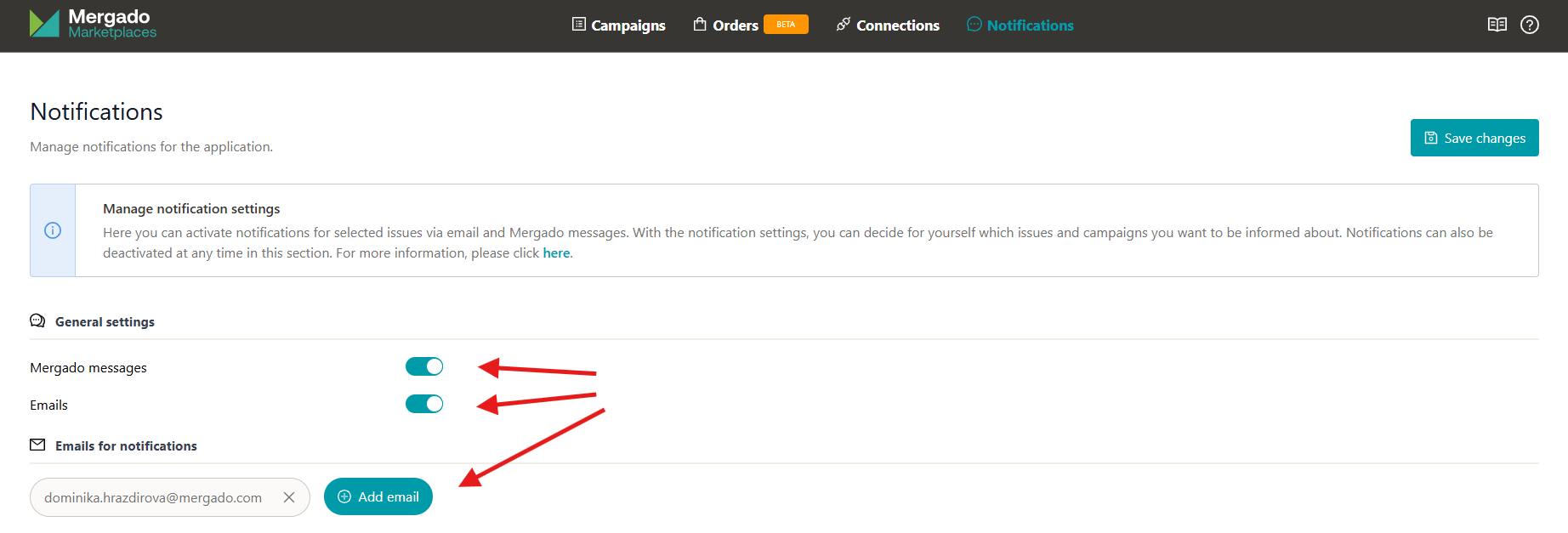
It’s up to you how you want to be informed about potential issues. If you choose Mergado messages, notifications will appear in the top right corner of Mergado:

If you want to receive notifications by email, just activate this option and enter the email address where you want emails sent. Use the “Add email” button to add more email address fields.
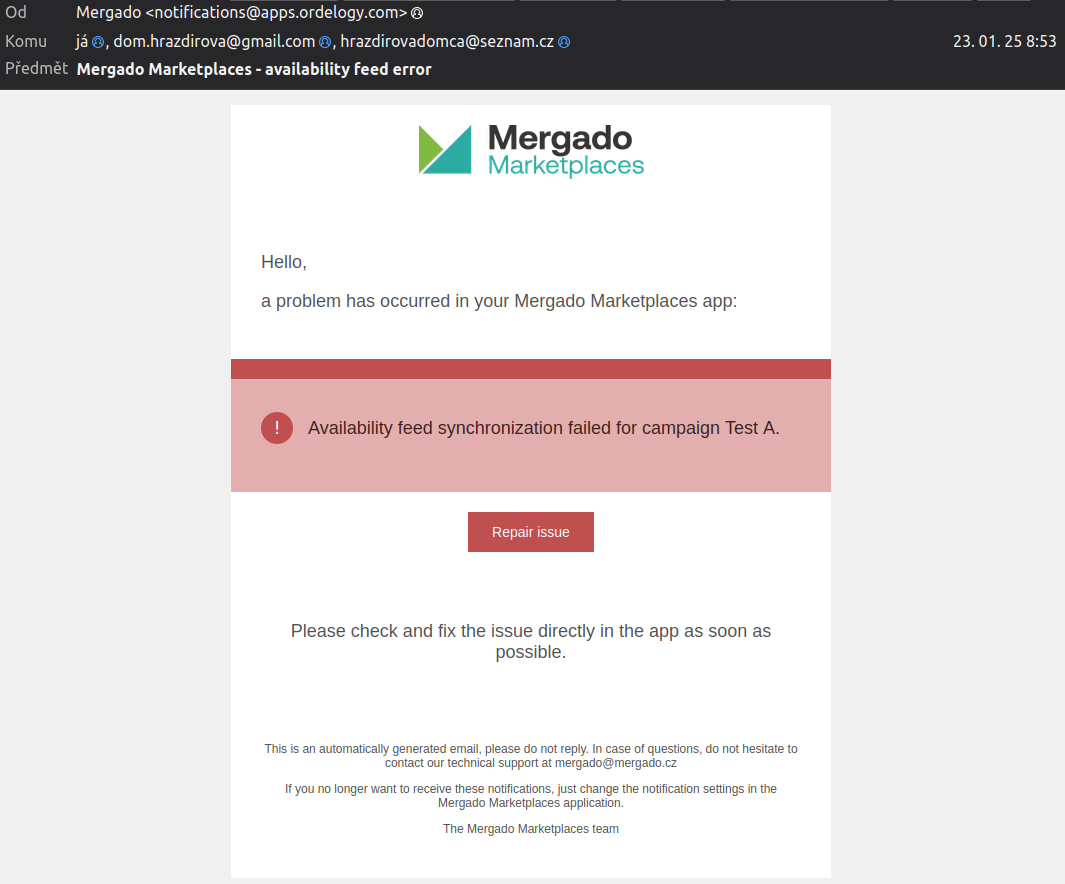
An alert email might look like this:
2. Error alerts#
It’s also important to choose what issues you want to be informed about. You currently have these options:
- Connection errors — if there’s a problem with the Kaufland or Allegro connection, you’ll be notified through your chosen communication channel.
- Order synchronization errors
- Availability feed errors — your availability feed may become unavailable for some reason, preventing availability updates on the marketplace.
- Failed feed synchronization — alert about an error during product feed synchronization.
- Active offer drop — alert about a significant drop in active offers for any campaign.
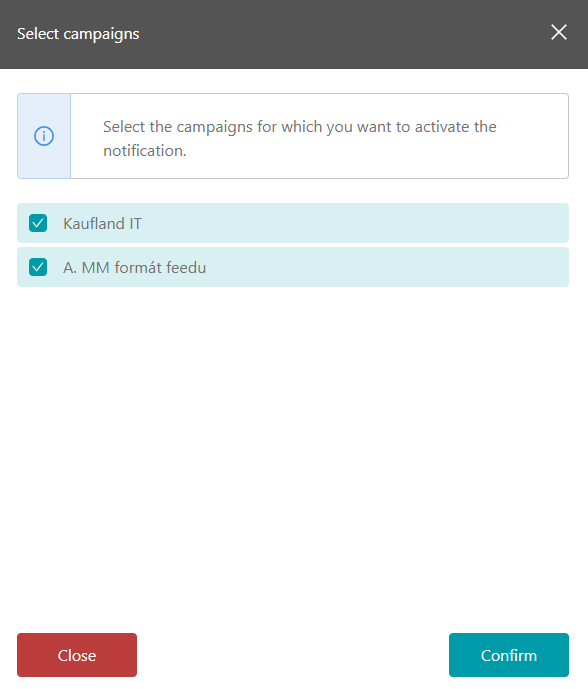
For availability feed error alerts, a window will appear showing an overview of your campaigns, letting you choose which campaigns you want to be alerted about:
3. Order management#
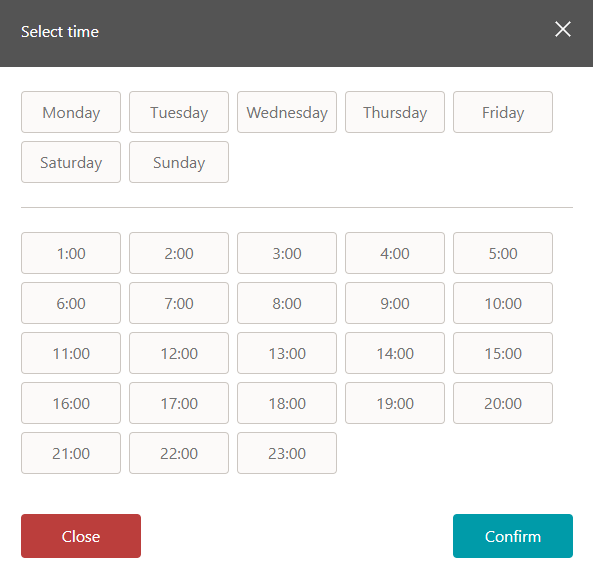
In the notifications section, you can also set up alerts for new orders. You can configure which days and times you want to receive notifications and choose whether to be notified via Mergado messages or email:
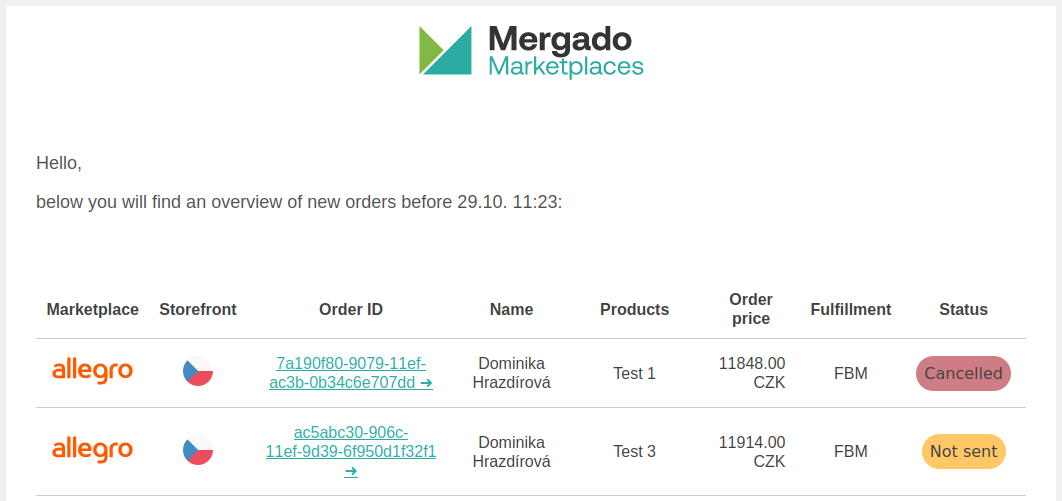
Email notifications redirect you to the order detail on Allegro/Kaufland when you click the order ID, or you can view new orders in Mergado Marketplaces.
And don’t forget to save your changes by clicking the blue “Save changes” button in the top right corner 💡