
Importing orders into the POHODA system#
This guide walks you through setting up order import from Allegro and Kaufland marketplaces into the POHODA accounting system using Mergado Marketplaces.
Need to get your marketplace orders into the POHODA system? Mergado Marketplaces now generates a feed with new orders that you can import into POHODA. In this guide, we will walk you through everything step by step:
📝 Notes before you start:
- For the Allegro order ID, only the first 30 characters are written to the feed due to a limitation on the POHODA side
- POHODA automatically prevents duplicate order imports
- Only orders with the “Not shipped” status are imported
Settings in Mergado Marketplaces#
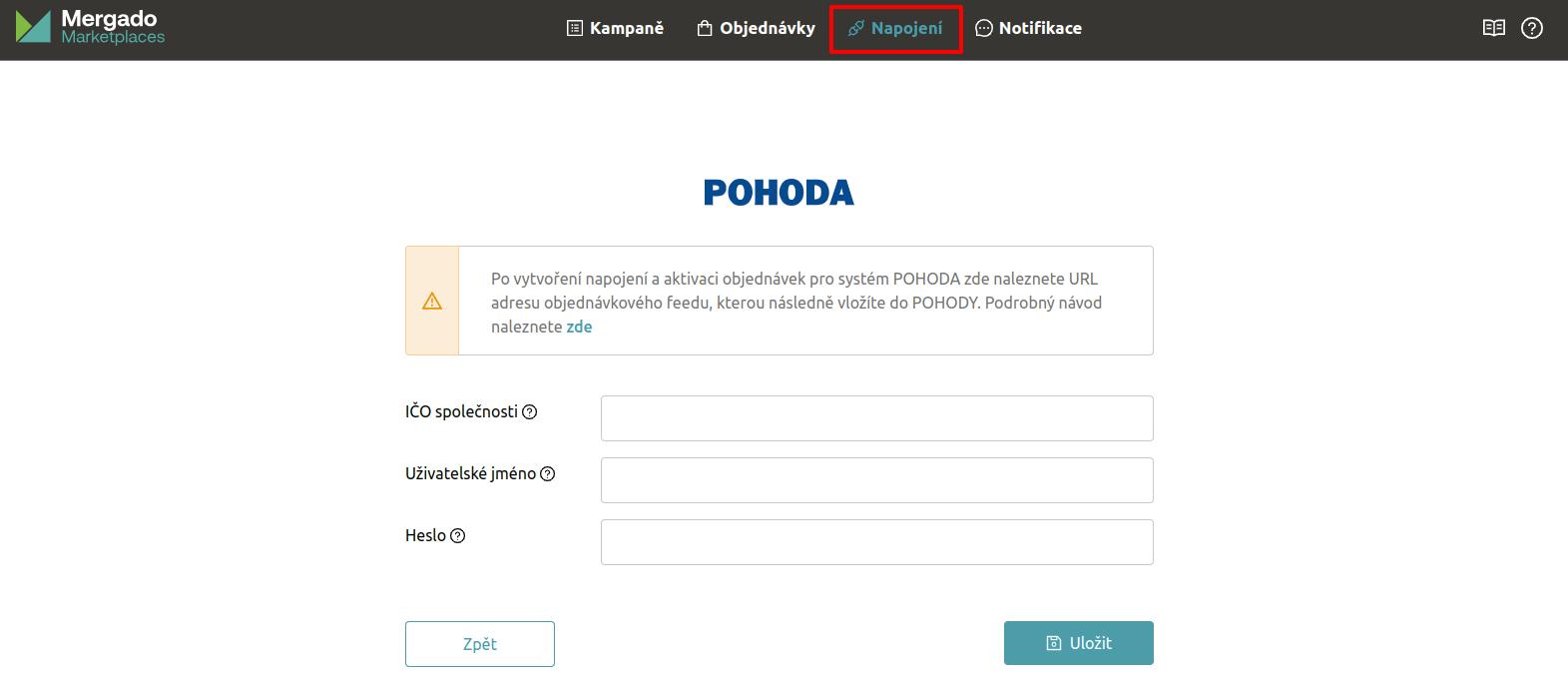
- In the “Connections” section, click on the POHODA logo and fill in the following details:
- Company ID number: The company ID must match the ID set in the POHODA accounting unit.
- Authorization: fill in the username and password to secure the order feed. Save these details carefully, as you will need to enter them into the POHODA system later.
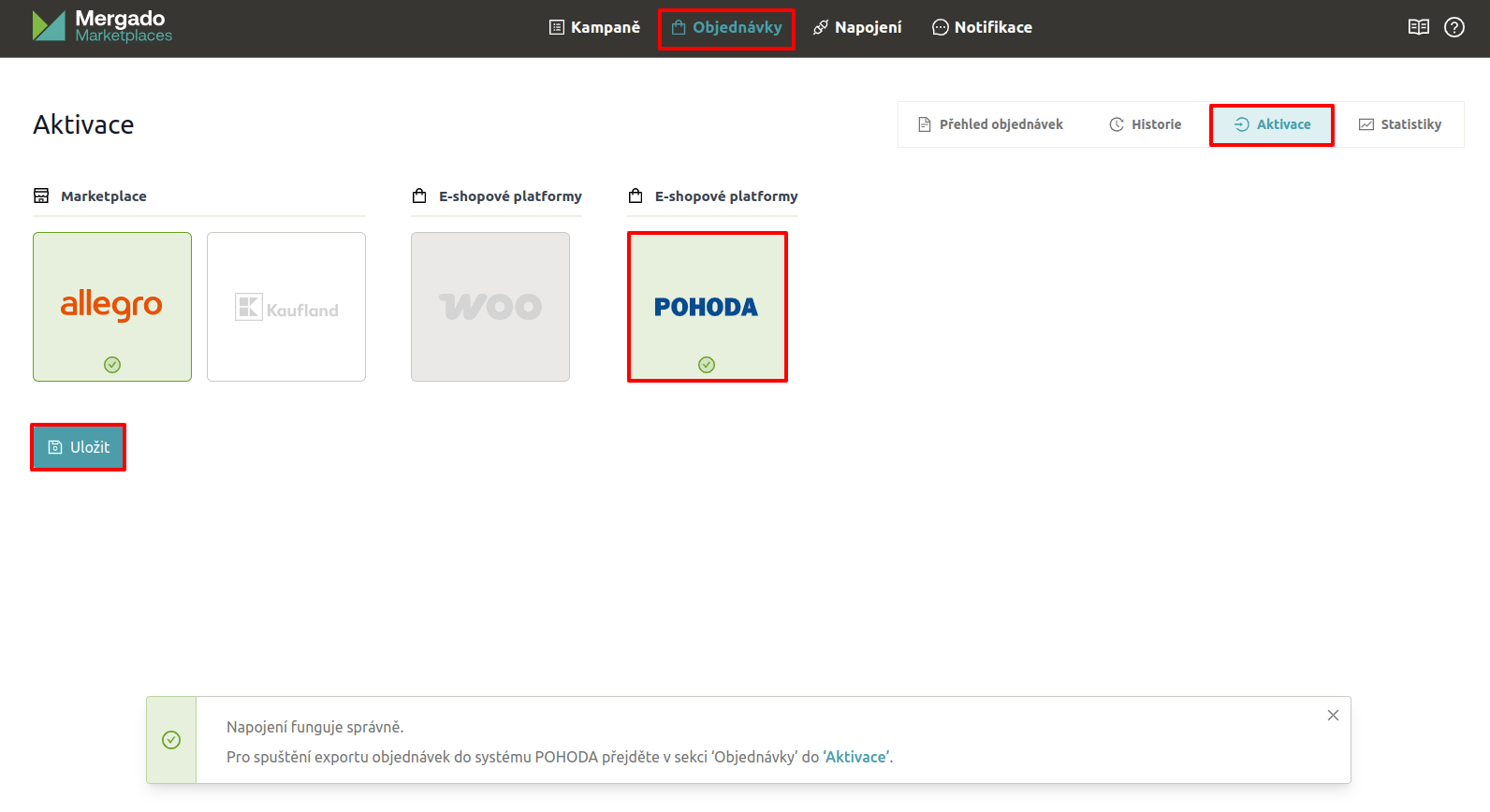
- After saving successfully, go to ‘Orders’ -> ‘Activation’, select POHODA and the marketplaces from which you want to download orders, and save the changes.
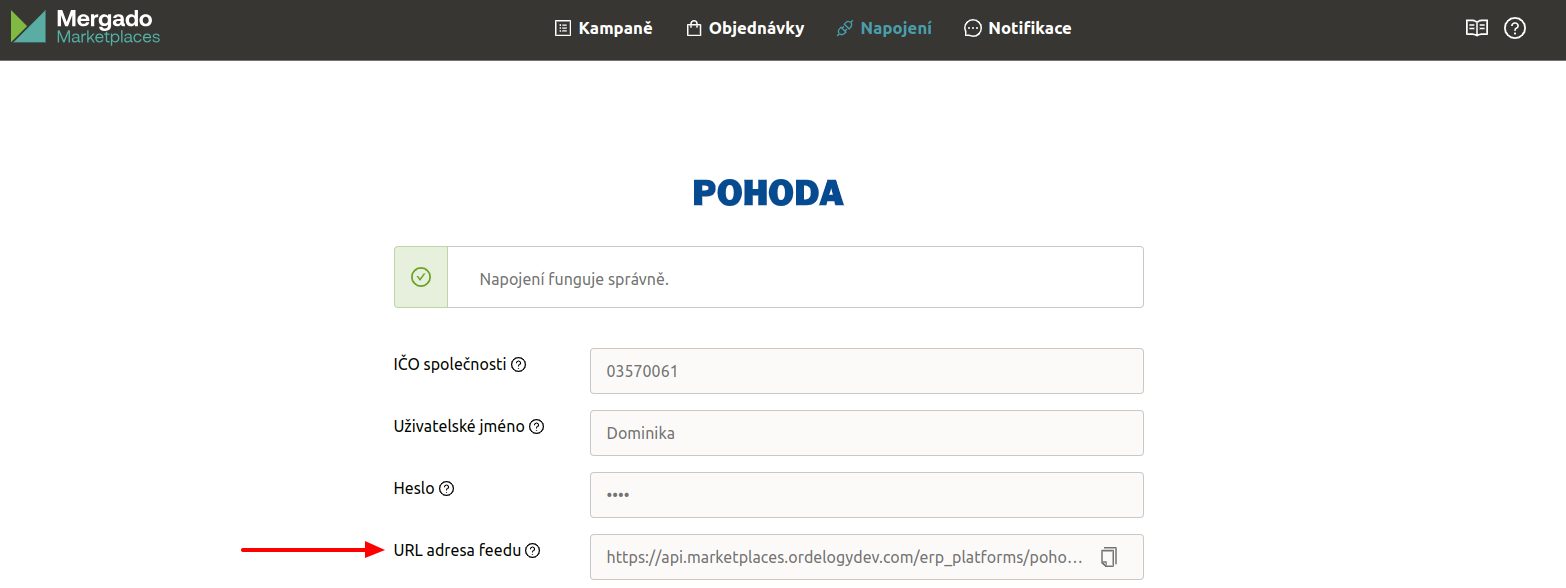
- You can then return to the POHODA system connection detail in the ‘Connections’ section, where you will find the order feed URL to enter into the POHODA system following the instructions below.
Matching payments and carriers#
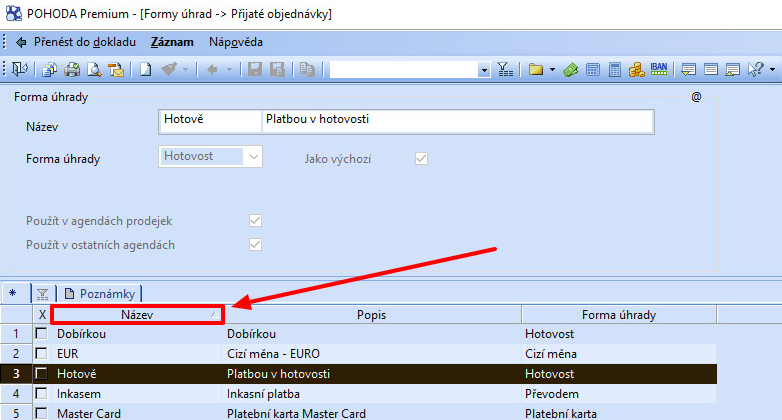
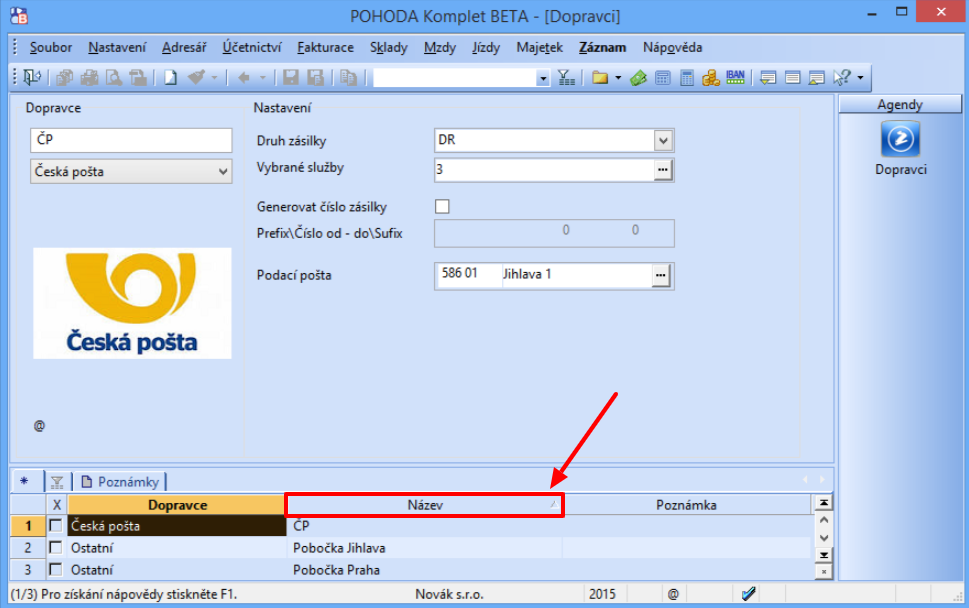
Both payments and carriers are matched by the ‘Name’ field. The name entered in Mergado Marketplaces and in the POHODA system must be completely identical for payments and carriers to be matched correctly.
In the payment and carrier matching section in Mergado Marketplaces, you will only see the values that have appeared in your orders with the “Not shipped” status:
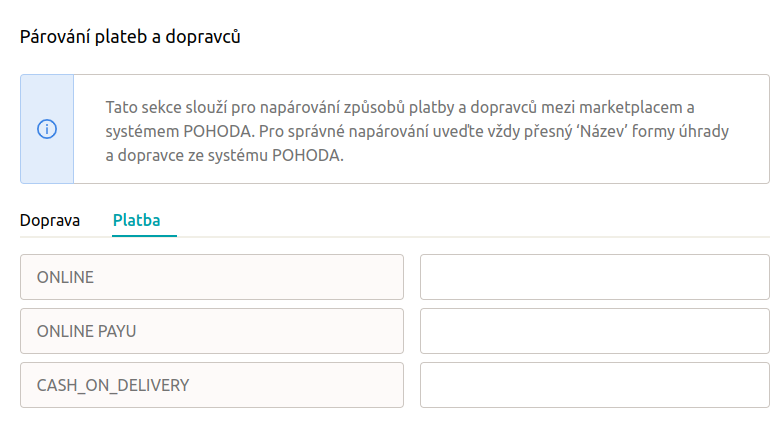
💡 We recommend leaving the order export enabled for at least one week and then matching payment methods and carriers. We also recommend regularly checking this section for new payment methods or carriers that may need to be matched.
⚠️ If an order appears with an unknown payment method or carrier (the detail has not been matched yet), the order will be written to the feed, but the carrier will not be passed to the POHODA system, and the payment will be automatically set to “By order”.
VAT rates for order items#
If we receive a VAT rate for the ordered goods from the marketplace, we also display the given rate in the order feed. The feed shows the rate value for the given country along with a high or low flag (e.g., <ord:rateVAT value="21.0">high</ord:rateVAT>) depending on whether it is a standard or reduced rate for the specific country. Make sure you have the correct VAT rates set up in your POHODA admin.
If your orders don’t include a VAT rate, you can select the VAT rate in the campaign settings for individual marketplaces, either uniformly or by mapping it to a feed element.
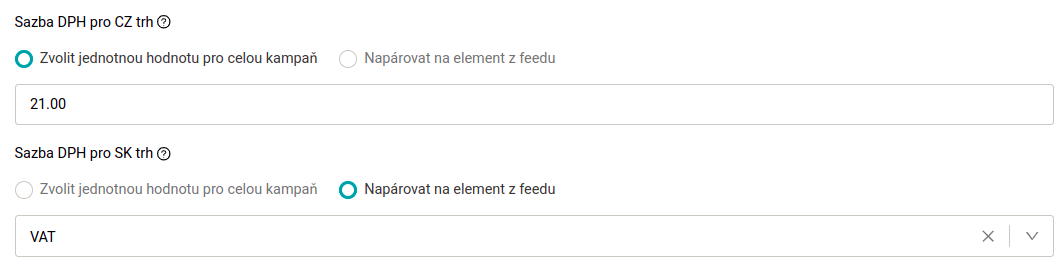
If we don’t receive a VAT rate for goods in the order, the goods will be written to the order feed without a VAT rate.
Basic settings in the POHODA system#
In the POHODA accounting unit, go to ‘Settings -> Internet shops -> Internet shop settings’:

- Internet shop: select ‘General internet shop’
- ‘General’ tab: fill in at least the “Shop name” (e.g., the e-shop domain)

- ‘Settings’ tab: check ‘Maximum response time [s]’ and increase the number to approximately 120 (for an average number of orders)

- ‘WEB client’ tab: check ‘Web service requires authentication’ and fill in the ‘Username’ and ‘Password’ that you entered in Mergado Marketplaces

- ‘Import’ tab: paste the feed URL copied from Mergado Marketplaces into the ‘URL for Orders’ field

Don’t forget to save the changed details!
⚠️ If you sell via marketplaces on international markets, you need to have foreign currencies enabled in the POHODA system. Instructions can be found here.
One-time order import#
- In the POHODA accounting unit, go to ‘File -> Data communication -> Internet commerce’.

- Select the internet shop and the ‘Download from the internet’ option:


- Check ‘Received orders’ -> ‘all’ (all orders from Mergado Marketplaces with the ’not shipped’ status):


- Click ‘Next’ to start the transfer -> if the transfer was successful, ‘Status: OK’ will be displayed:


⚠️ If an error occurred during the import, or if the import was incomplete, a link to a file will also appear in the window. Download this file and send us the document named “responseStatePohoda_XYZ” to support so we can determine the cause of the issue.
- In the ‘Invoicing -> Received orders’ section, you can see the imported orders:

Automatic order import#
With the POHODA E1 version, you can set up automatic order import as a scheduled task. The setup can be done as follows:
- In the POHODA system, go to ‘Settings – Internet shops – Internet shop settings’:
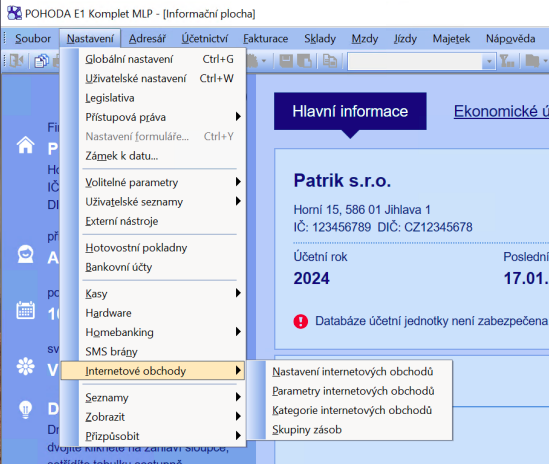
- Click on ‘Scenarios’, then right-click on ‘Shortcut’ and select ‘Create scenario’:
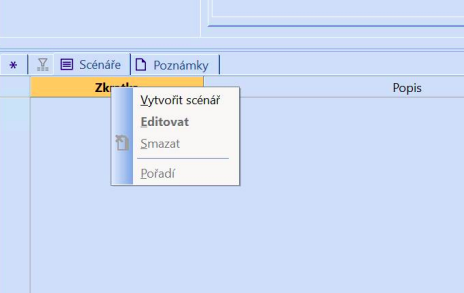
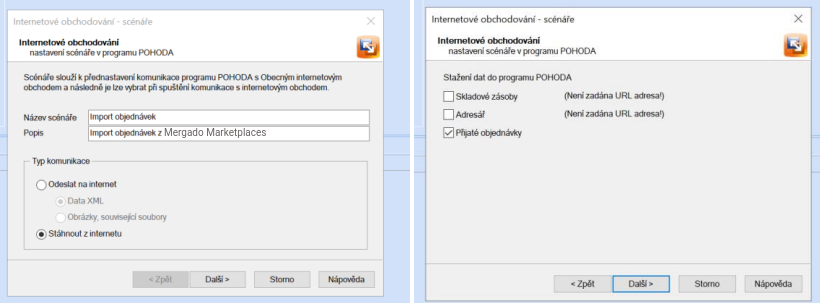
- In the scenario settings, choose a name and description, then select the activity the scenario should perform. Finally, save the scenario.
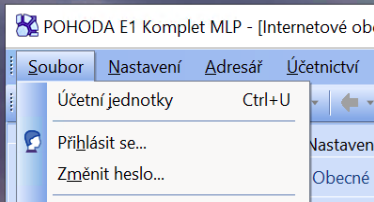
- The next step is creating automatic tasks. Click on ‘File -> Accounting units’ and select the accounting unit for which the tasks will be created.
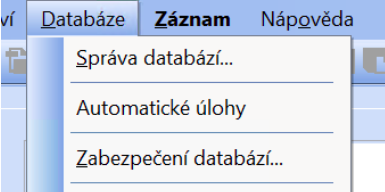
- In the menu, select ‘Database’ -> ‘Automatic tasks’:
- The first setting will be the activity configuration. Select the general internet shop, accounting unit, user and password (if needed), which internet shop it concerns, and which scenario you want to configure.
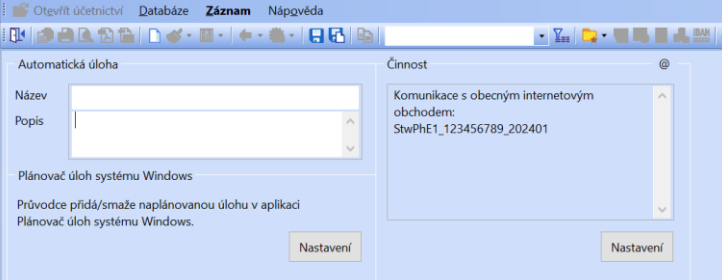
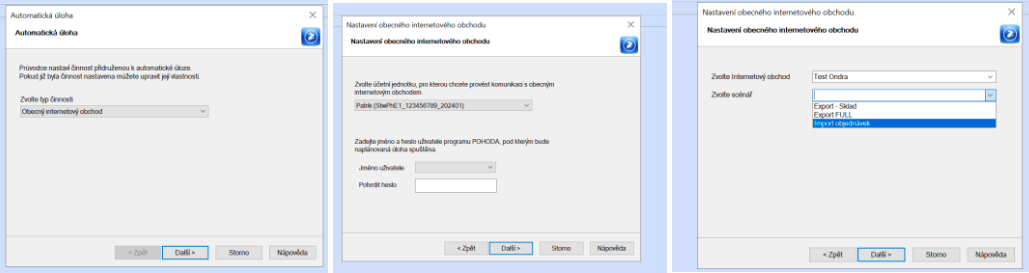
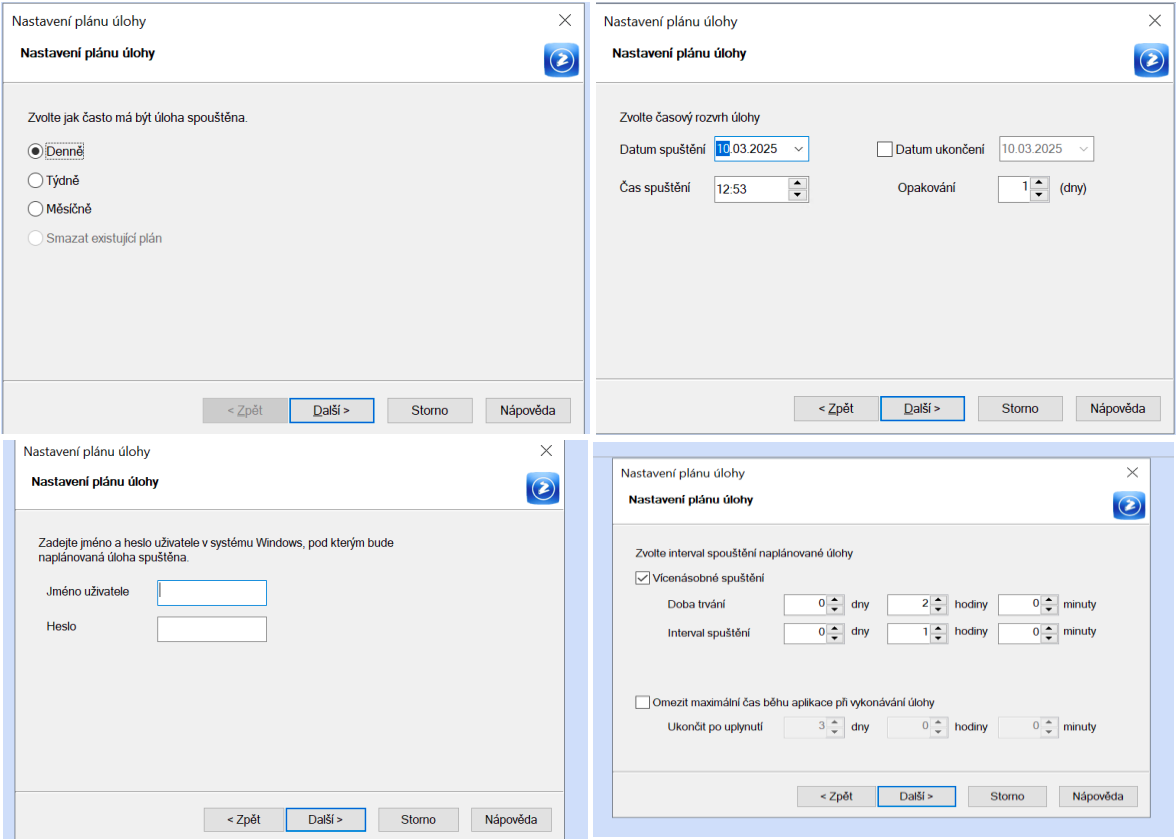
- In the ‘Automatic task’ field, set the name and description of the task and configure the scheduler. Select the frequency, first execution time, and its repetition. The longest period that can be set is 1 year.
ℹ️ If you encounter any issues or have an idea for improvement, let us know at support mergado@mergado.cz or on the forum. Thank you!