
How to create a campaign and upload products to Allegro#
This step-by-step guide walks you through creating a campaign in Mergado Marketplaces and uploading your products to the Allegro marketplace.
First, you need to activate the Mergado Marketplaces app in Mergado Store. Before you begin, make sure you have:
✅ A verified business account on Allegro
✅ A product feed in Mergado Editor with EAN codes
✅ A Heureka/Mall availability feed or Mergado Marketplaces product feed
💡 Not sure which output feed format is best? The Mergado Marketplaces extension accepts all formats offered by Mergado Editor. However, a new option is the Mergado Marketplaces feed format, which you can use to synchronize both product data and availability. More information here.
In this article, we will show you how to create a campaign and upload products to Allegro. Before we start, make sure you have a verified business account on Allegro, and that you have filled in the shipping price list, complaint terms, and return terms. A detailed guide on registering a business account on Allegro can be found here.
⚠️ Please note that the market where you create your account will be your default sales channel. The default sales channel cannot be changed later, and you must always have your offers listed on this market. So if you want to sell on allegro.cz, create an account on Czech Allegro; if you want to sell on allegro.pl, create an account on Polish Allegro; and to sell on allegro.sk, create an account on Slovak Allegro. Within Allegro, you can then publish these offers on other markets as well. More information is available here.
Creating a connection#
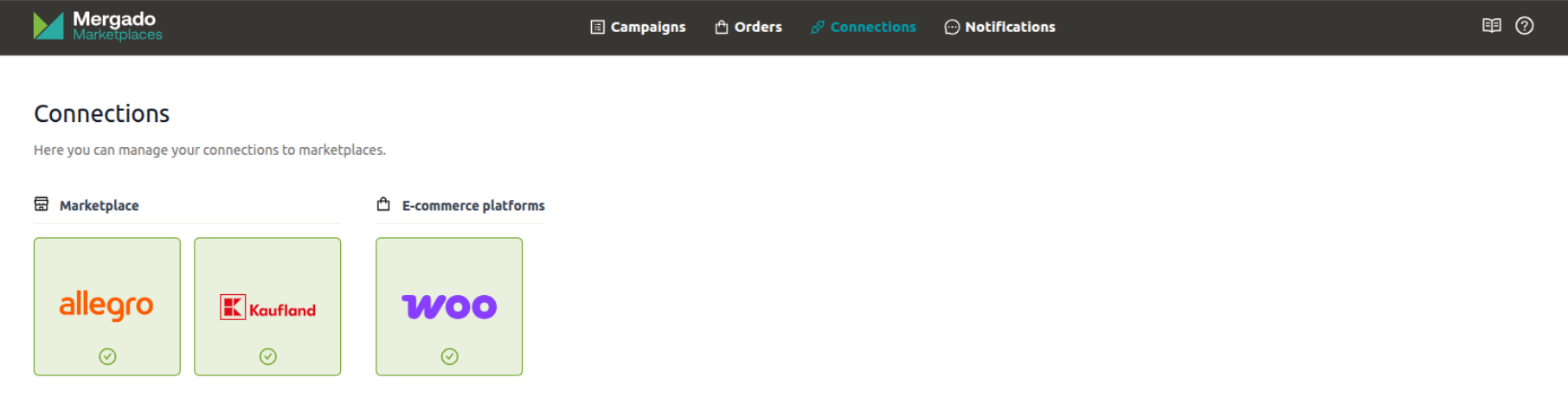
First, you need to create a new connection to Allegro in the app. Go to the Connections section and click on the Allegro logo.

Click the “Connect” button.
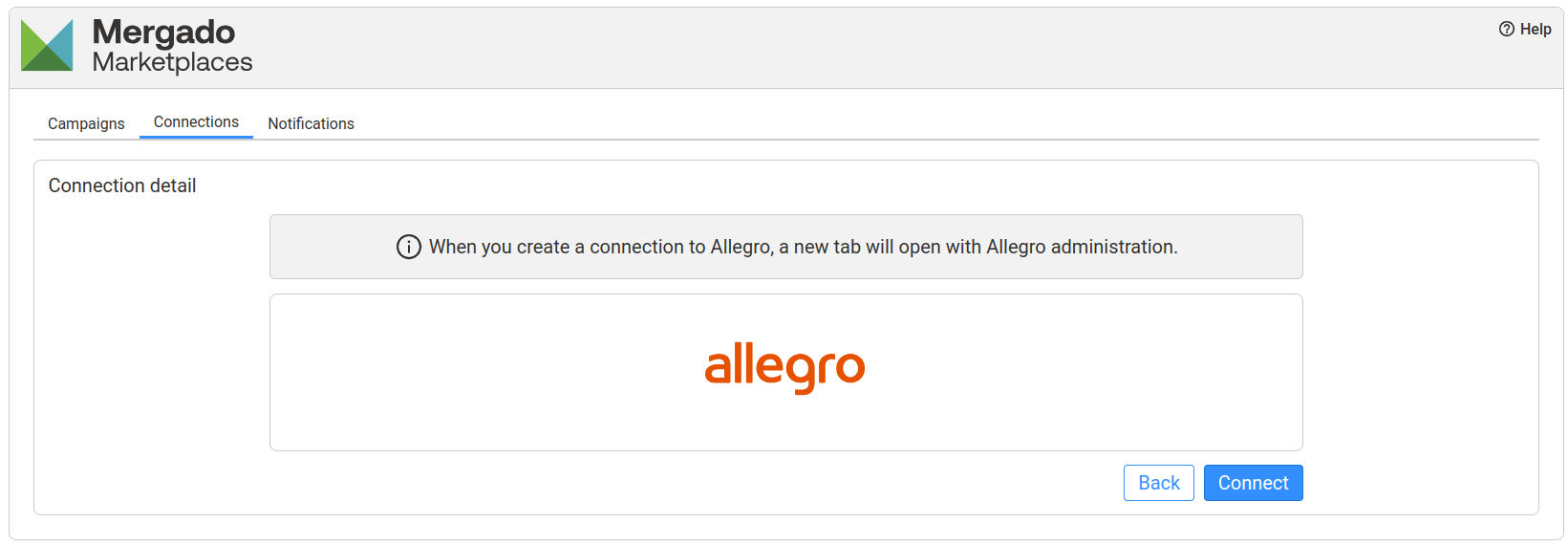
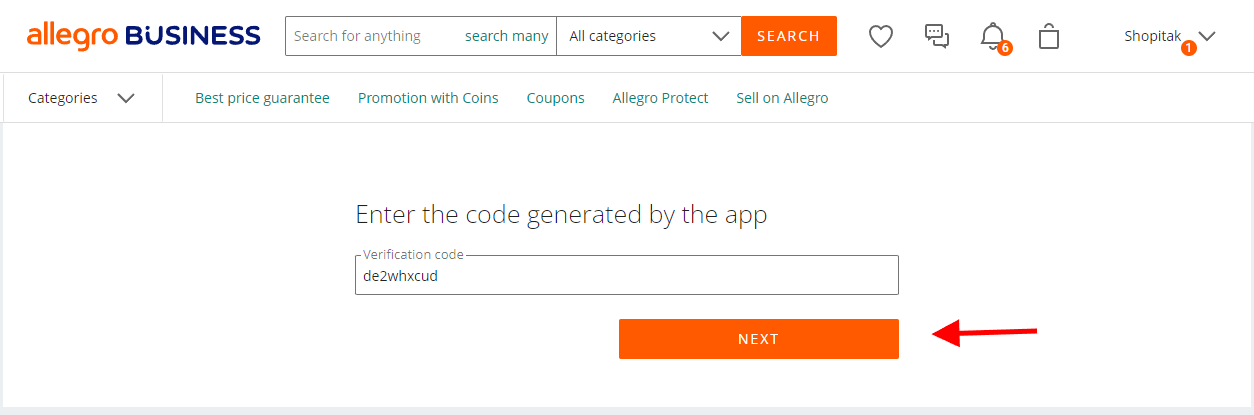
After clicking the “Connect” button, a new page will open in your browser. Click the “Next” button:
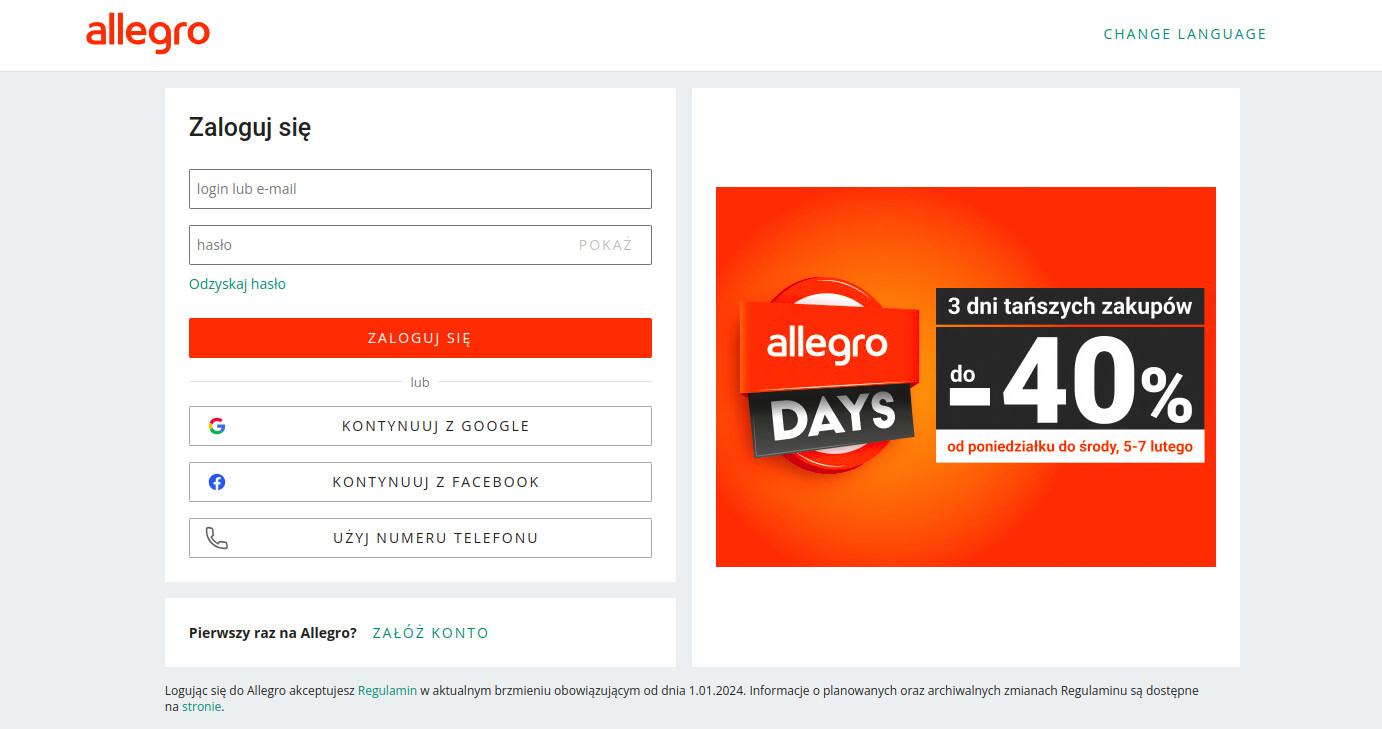
If you are not logged in, enter your credentials and log in:
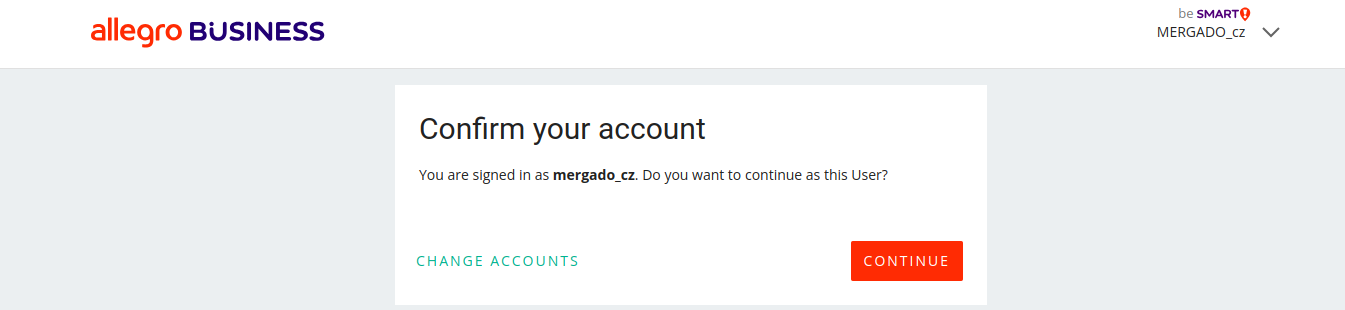
Confirm the app connection for your account by clicking “Continue”:
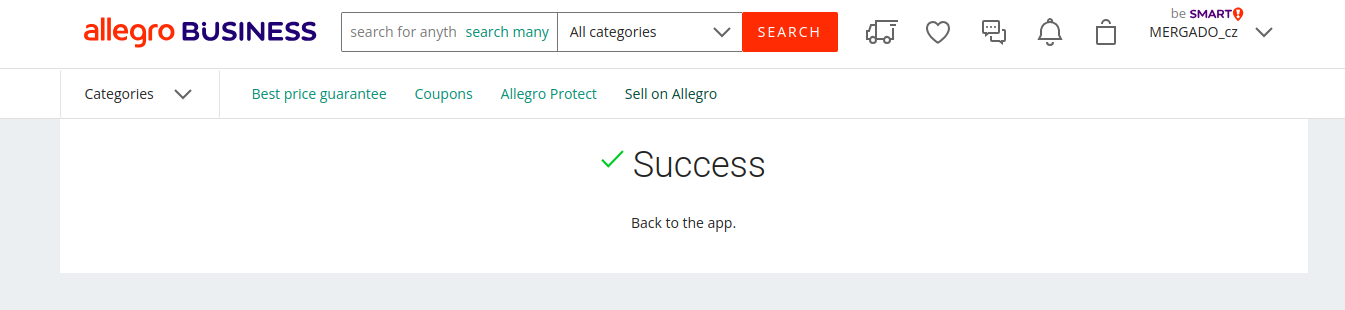
Allegro will notify you on the last page that you have successfully connected:
Then return to the app, where you will see a message about a successful connection:
Creating a campaign#
After creating a connection, go to the “Campaigns” tab in the menu. You will see a “Create campaign” button in the middle of the page. Our campaign creation wizard with 5 steps will greet you.

1. General#
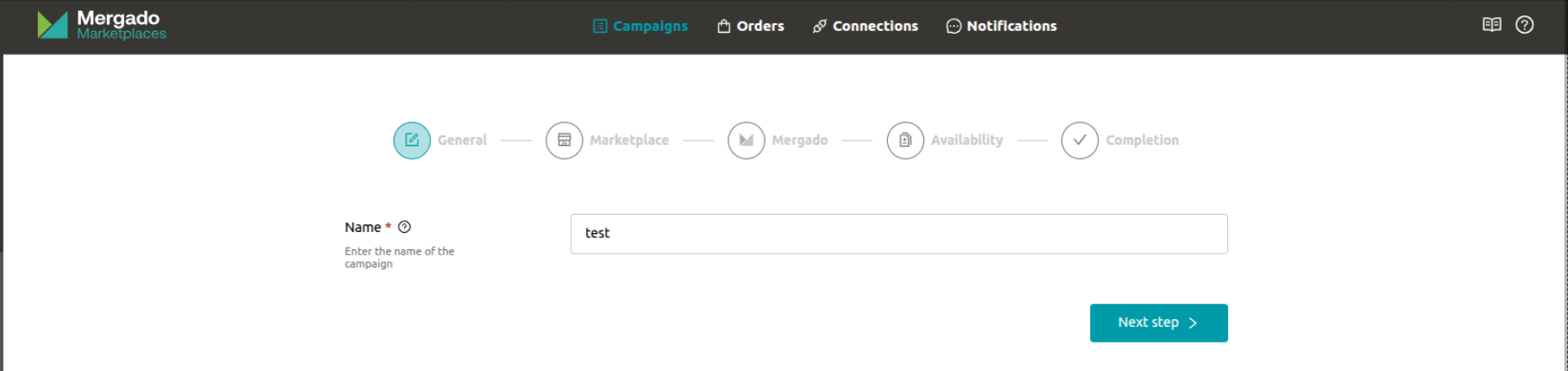
The first step is to set the campaign name. The name can be anything you like, but we recommend choosing one that makes it clear at a glance what the campaign is about.
2. Marketplace#
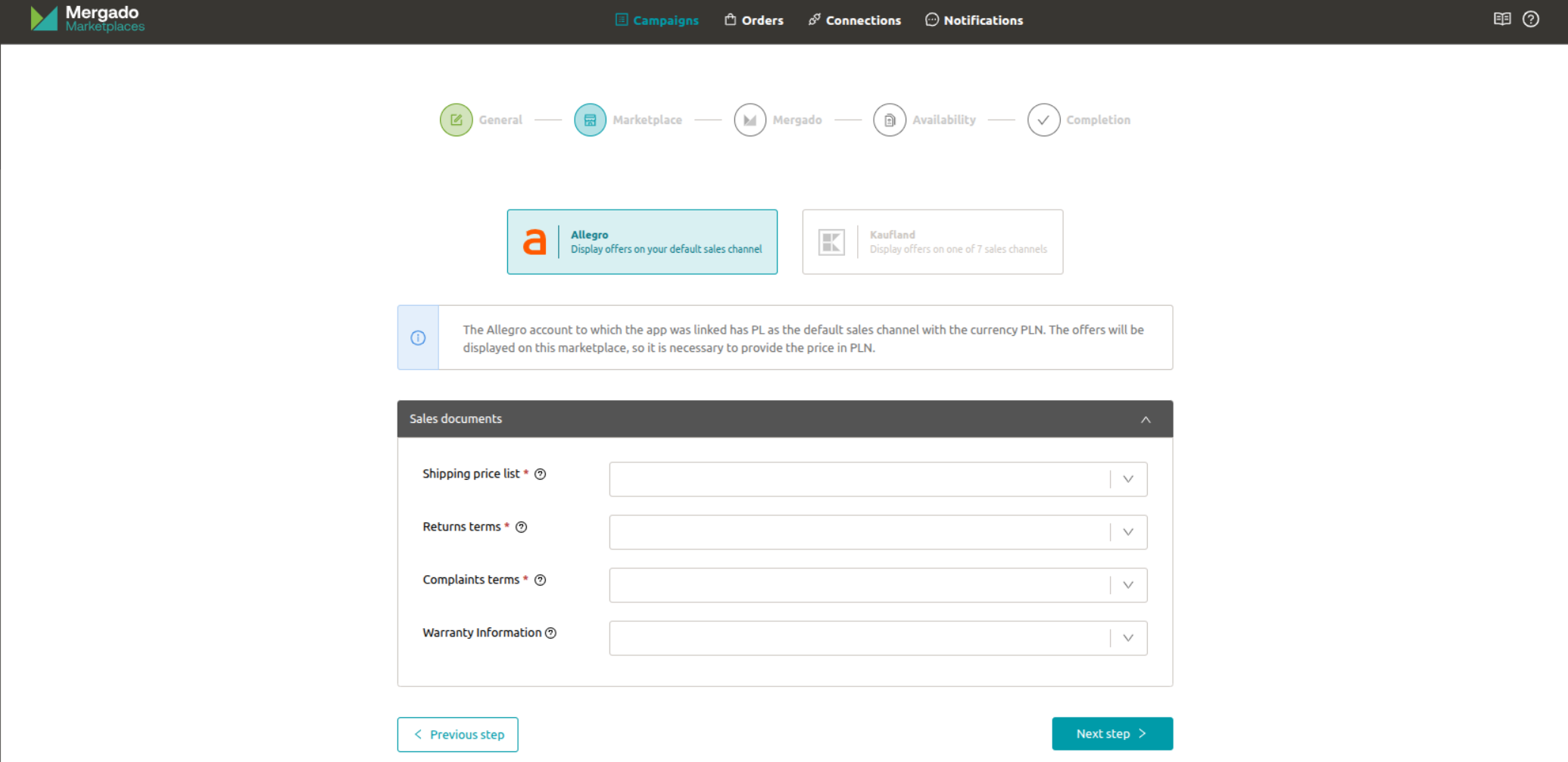
The next step is to select and configure the correct marketplace — in our case, Allegro. An information window will notify you of your default sales channel on Allegro, where you will be selling. Offers will be listed on this market, so you need to match the price in the currency of the default sales channel.
You now need to select a shipping price list, complaint terms, and return terms for the campaign. Optionally, you can also attach warranty information. You can create these sales documents directly in the Allegro admin under the sales settings section.
3. Mergado#
In the next step, you need to select which Mergado project and product selection you want to upload to the marketplace.
Don’t have any project to select yet? See how to upload a product feed to Mergado Editor here.
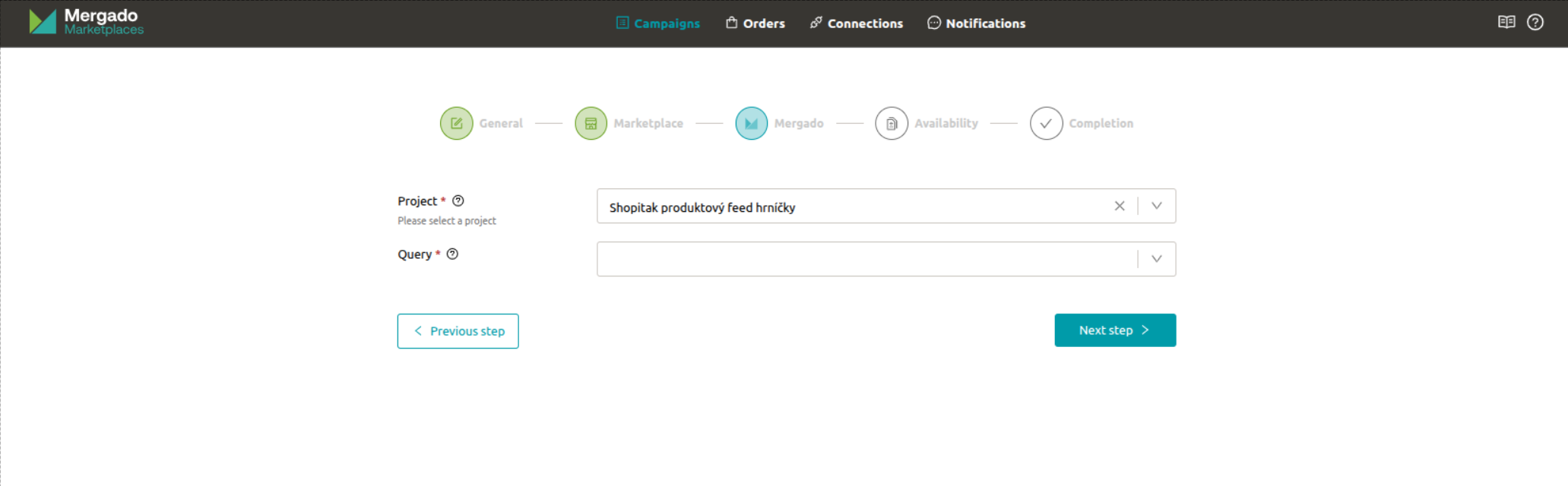
ℹ️ If you don’t want to send all products from the project to the marketplace, create a product selection in Mergado Editor with the products you want to list on the marketplace.
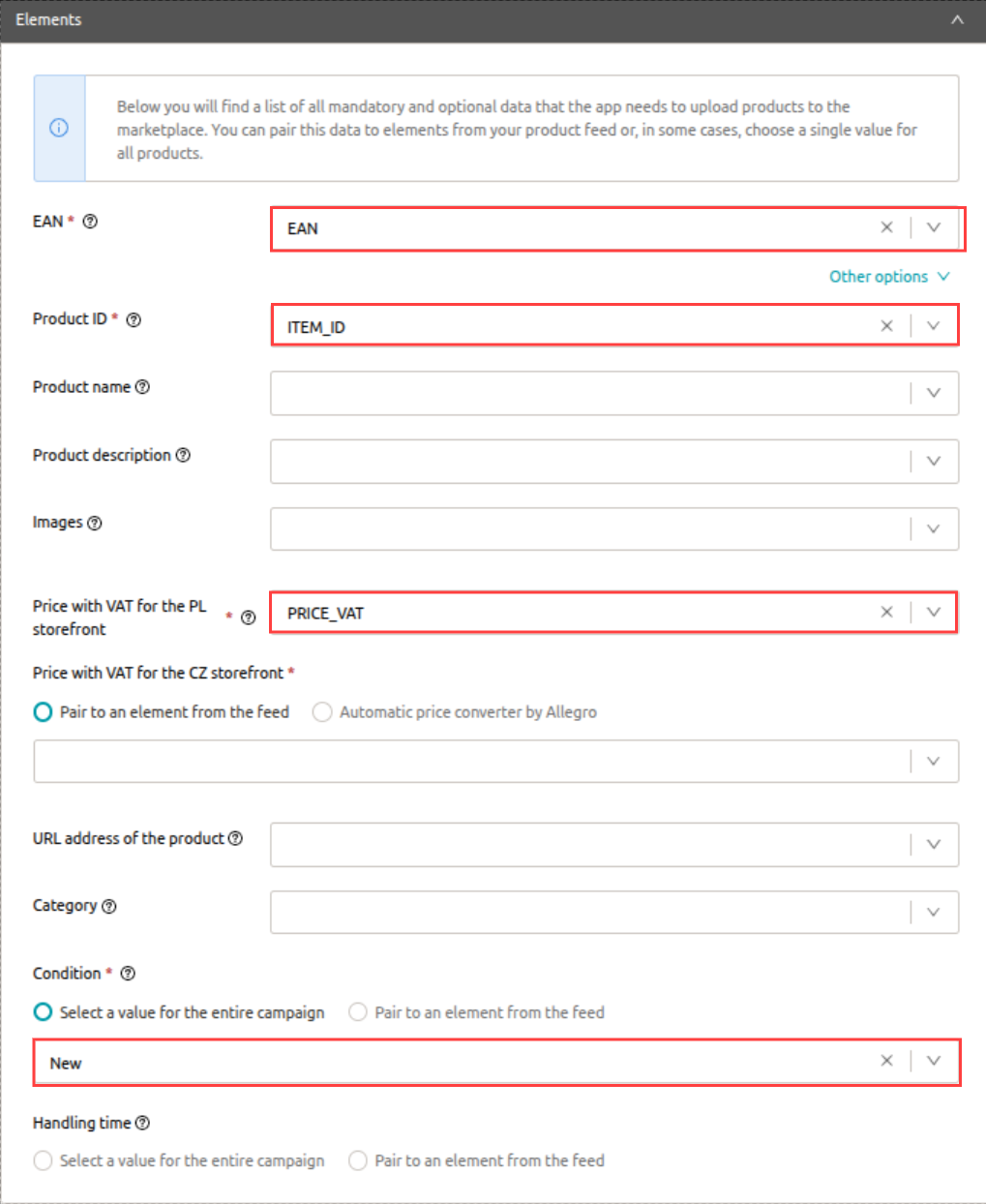
Next, a section for mapping elements from the selected Mergado Editor project to elements in the Marketplaces app will open. You must map the elements ‘EAN’, ‘Product ID’, ‘Price incl. VAT’, and ‘Product condition’.
In this step, you can also set ‘Product condition’ and ‘Order processing time’ uniformly for the entire campaign (for example, if you only sell new products). The other option is to map these values to your feed elements.
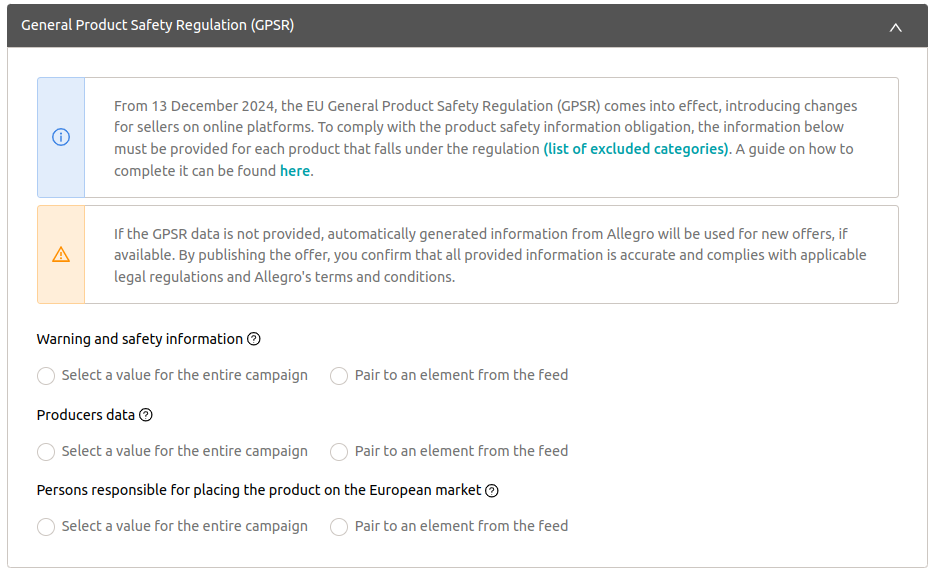
⚠️ GPSR regulation At the end of the Mergado section, you need to fill in information related to the GPSR regulation. More information can be found here.
4. Availability feed#
The second-to-last step is setting up the availability feed. Simply enter the URL of your availability feed. We support Mall and Heureka availability feeds, as well as the Mergado Marketplaces feed format. The app will check the submitted availability feed. If you receive a message that all products are missing, you likely entered a different availability feed, or you incorrectly mapped the Product ID in the Mergado step.
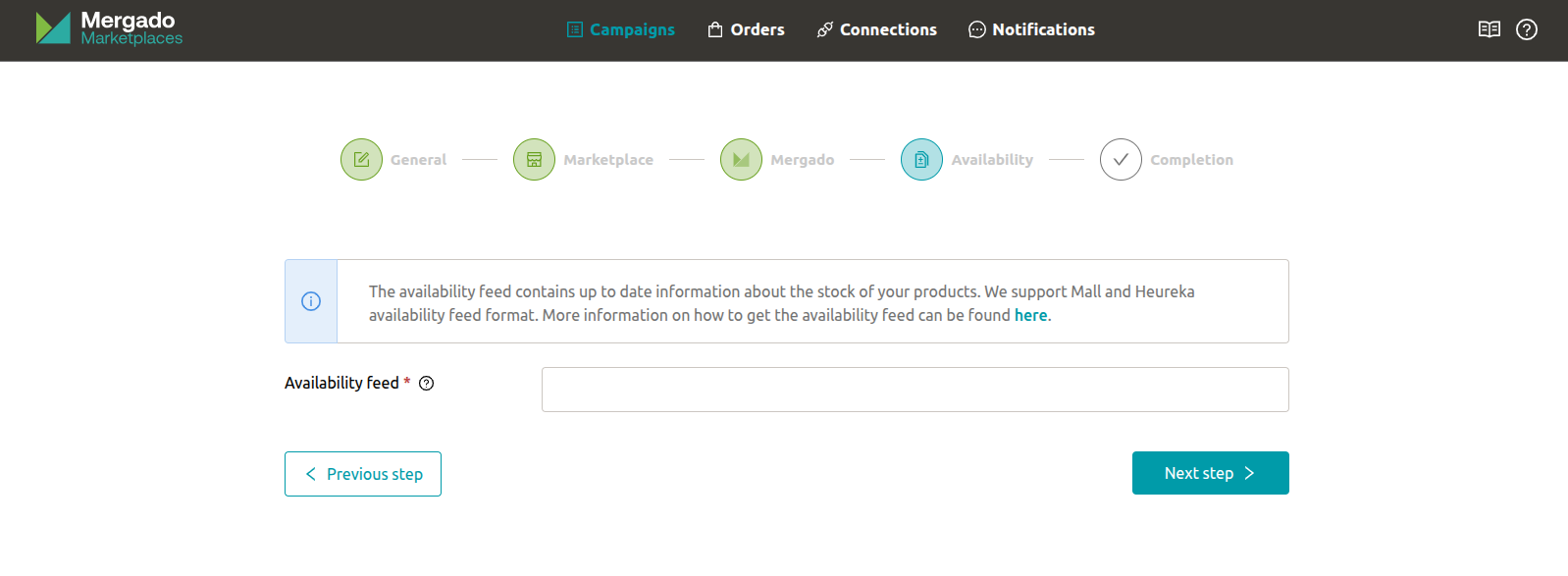
💡 If you don’t have an availability feed in Mall or Heureka format, you can create one using Mergado Editor. More information can be found in our article here.
ℹ️ If you encounter the error message “An error occurred while downloading the availability feed, make sure the file is accessible”, your availability feed is likely secured and the app cannot access it. If your e-shop runs on Shoptet, you can find instructions on how to adjust your availability feed security settings here.
5. Completion#
The last step is a summary of the campaign settings. Simply verify that everything is set up correctly and make any corrections if needed. Finally, click “Save”.
✅ The campaign has been created and your offers are now being uploaded to Allegro. This process may take a while, so please be patient. However, the process of uploading offers to Allegro doesn’t end here. It’s a good idea to check the number of uploaded and failed products and fix any errors.

After the product feed synchronization is complete, click on the campaign detail and check for any error messages in the validation section. An explanation of the most common validation messages can be found here.
❓ Do you see the validation error message “No product card was found in the Allegro catalog under this product identifier. To create one, go to the ‘Product cards’ section”? This message means that a product card doesn’t exist yet in the Allegro catalog for the given products. A detailed guide on how to create a product card through our app can be found here.