
GPSR on Allegro and Kaufland#
GPSR in brief
From 13 December 2024, the EU General Product Safety Regulation comes into effect, applying to most consumer products (more here). Online marketplaces including Kaufland and Allegro require additional information from sellers as a result. Failure to provide this information may result in the marketplace hiding your offers. On Allegro, you need to fill in safety instructions and information, as well as manufacturer data or data about the person responsible for placing the product on the European market. On Kaufland, the required elements are the manufacturer/responsible person in the EU name, CE marking, and safety instructions. In this article, you will learn how to add these details to your products on online marketplaces.
What is GPSR?#
You may have already noticed that from 13 December 2024, the EU General Product Safety Regulation (GPSR) comes into effect, introducing changes for sellers on online platforms. GPSR covers most consumer products, including new, used, repaired, and refurbished products as well as spare parts. Excluded from the regulation are:
- medicines intended for humans or animals
- food
- animal feed
- live plants and animals, genetically modified organisms, and genetically modified microorganisms in contained use, such as products from plants and animals directly relating to their future reproduction
- animal by-products and derived products
- plant protection products
- equipment in or by which consumers are transported or travel, where that equipment is directly operated by a service provider as part of a transport service provided to consumers
- aircraft referred to in Article 2(3)(d) of Regulation (EU) 2018/1139
- antiques
To meet the product safety information obligation, the following details must be provided for each product covered by the regulation:
a. The manufacturer’s name, registered trade name, or registered trademark, postal address, and email address
- Data about the person responsible for placing the product on the European market — this must be provided only if the manufacturer’s headquarters are outside the European Union: name, postal address, and email address
b. Information enabling product identification, including its image, category, and other identifiers such as EAN code, model, etc.
c. Warnings and safety information — informing about how to safely use the product, for example:
- Product user manual — add attachments in the official language of the country where you sell the product
- Images of labels on the product packaging
- A note with warnings related to the product
d. If required, CE marking and declarations of conformity
ℹ️ More information about GPSR can be found here: https://eur-lex.europa.eu/CS/legal-content/summary/general-product-safety-regulation-2023.html
How to add information to your products on online marketplaces?#
Allegro#
IMPORTANT CHANGES ON ALLEGRO FROM AUGUST 2025
💡 How did it work until now? Allegro previously introduced the option to fill in the ‘Products placed on the EU market before 13.12.2024’ parameter on its platform. If your products were placed on the European market before this date, you didn’t need to fill in additional mandatory GPSR details. Now, also due to pressure from regulators, Allegro is changing its approach to GPSR data.
📢 What is changing on Allegro from August 2025? 1️⃣ The ‘Products placed on the EU market before 13.12.2024’ field From 12 August 2025, this parameter can only be set for products with the condition ‘Used’, ‘Retreaded’, ‘For parts’, ‘Remanufactured’, ‘Damaged’, ‘Refurbished by manufacturer’, ‘Refurbished by seller’, ‘For restoration’, ‘Renovated’, ‘No renovation needed’, and ‘After disassembly’.
For all new goods, complete safety information and manufacturer data must be provided — regardless of the date of market placement.
2️⃣ The ‘Warnings and safety information’ field From 4 August 2025, it will no longer be possible to use the value ‘Do not send safety information’, which sellers could use to indicate that no safety information is available for the product. Going forward, you must provide safety information in the form of an attachment or text.
⚠️ Why should you address this and what steps should you take? Once the changes take effect, Allegro will return an error message when editing active offers, and the offer will not be active until the data is provided. There is a risk that a large number of your offers could be deactivated within days of the changes being implemented.
Adding these details can be time-consuming, so it’s better to start working on it as soon as possible. Instructions for adding the elements “Warnings and safety information”, “Manufacturer data”, and “Responsible persons for placing on the European market” can be found below.
💡 If you don’t fill in GPSR information for your offers, we will attempt to supplement this data from the Allegro product catalog during manual product feed synchronization (by clicking “Synchronize product feed” in the campaign settings) and during offer creation (for new campaigns or new products in a campaign). This data is generated by Allegro using artificial intelligence, so we recommend carefully reviewing the details on your offers afterwards.
As part of GPSR, the following details are filled in at the offer level on Allegro:
- Products placed on the EU market before 13.12.2024
- From 12 August 2025, the parameter “Products placed on the EU market before 13.12.2024” can only be set for products with the condition ‘Used’, ‘Retreaded’, ‘For parts’, ‘Remanufactured’, ‘Damaged’, ‘Refurbished by manufacturer’, ‘Refurbished by seller’, ‘For restoration’, ‘Renovated’, ‘No renovation needed’, and ‘After disassembly’.
- Manufacturer data
- Responsible persons for placing on the European market
- Warnings and safety information
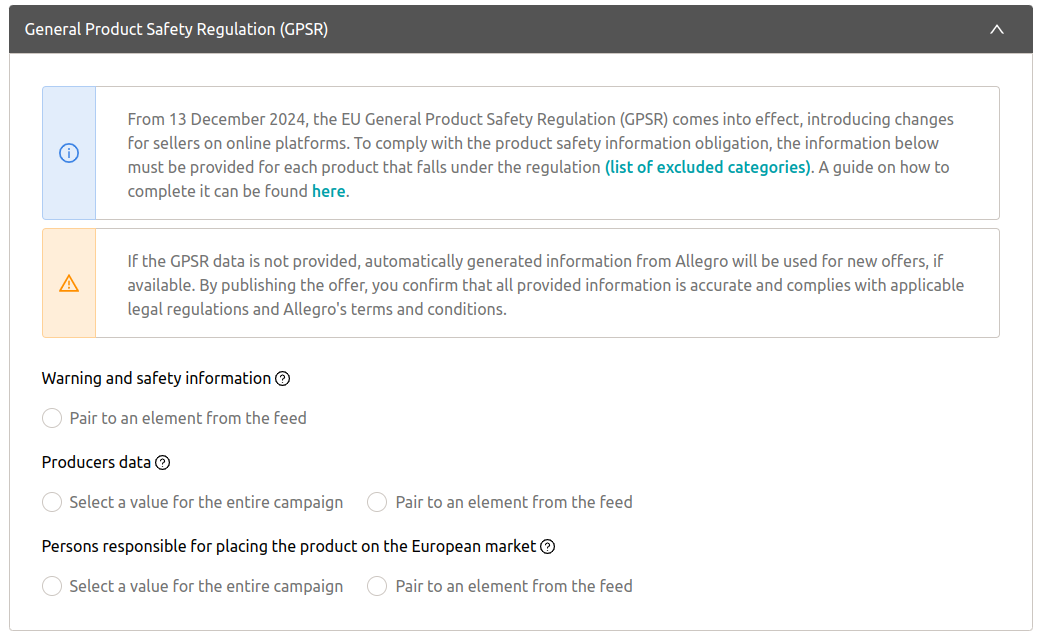
1. Manufacturer data and data about the person responsible for placing the product on the European market
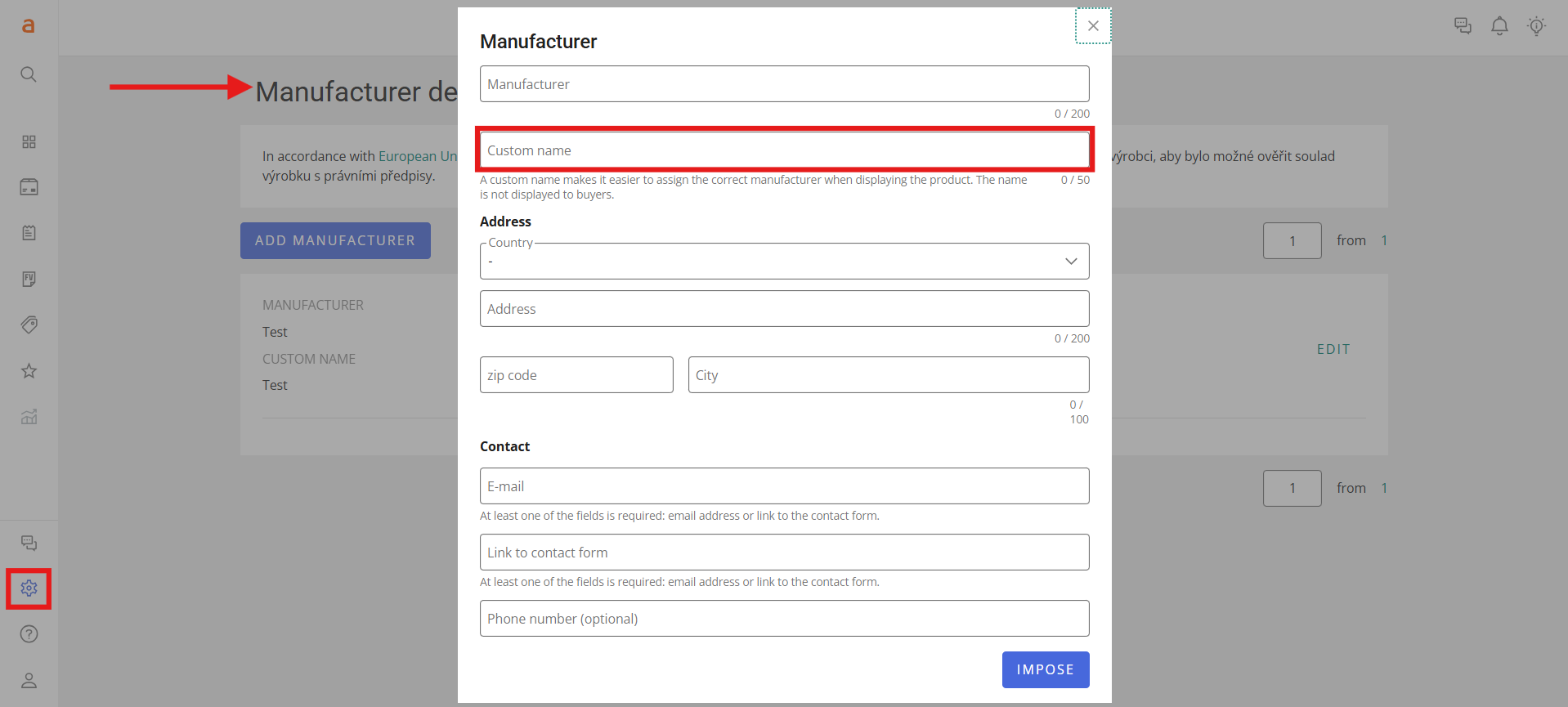
You can add manufacturer data in the “Manufacturer data” section under the “Sales settings” tab directly in Allegro Sales Center. Data about the person responsible for placing the product on the European market needs to be provided only if the manufacturer’s headquarters are outside the European Union. You can add this information in the “Responsible persons” section under the “Sales settings” tab directly in Allegro Sales Center.
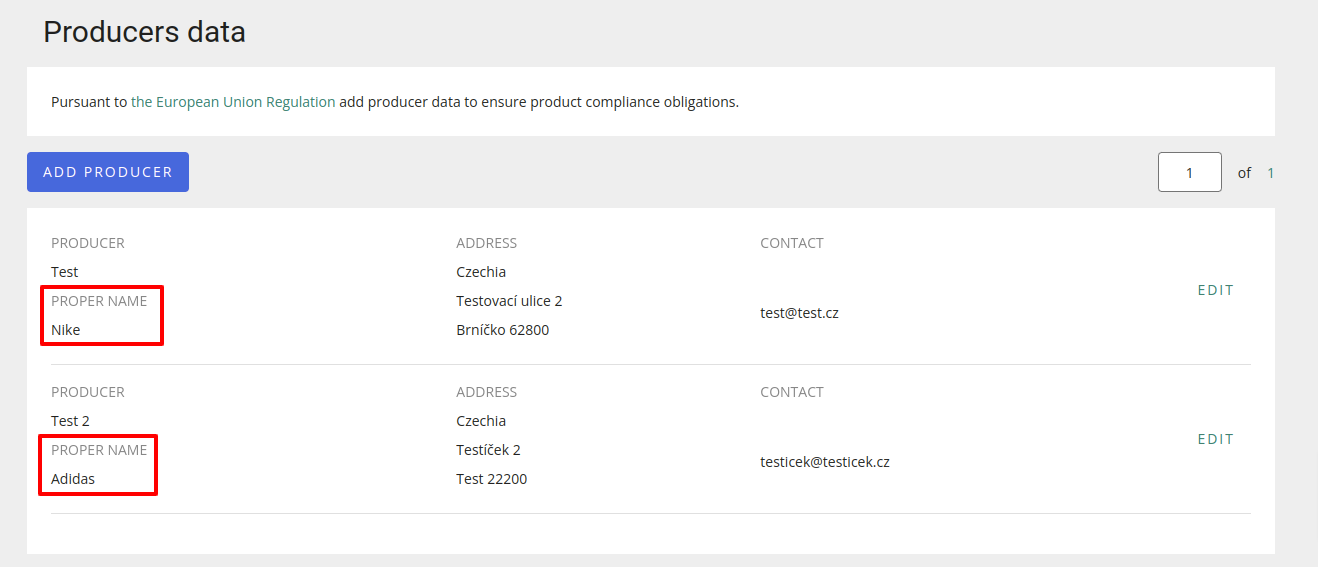
This way, you prepare all manufacturer and responsible person cards on Allegro, which should contain:
- First name and surname, registered trade name, or registered trademark
- Address
- Email address or a link to a contact form
For each manufacturer/person, you also enter a “Custom name” — pay attention to this detail, as you will use this name to assign manufacturers and responsible persons to offers in Mergado Marketplaces.
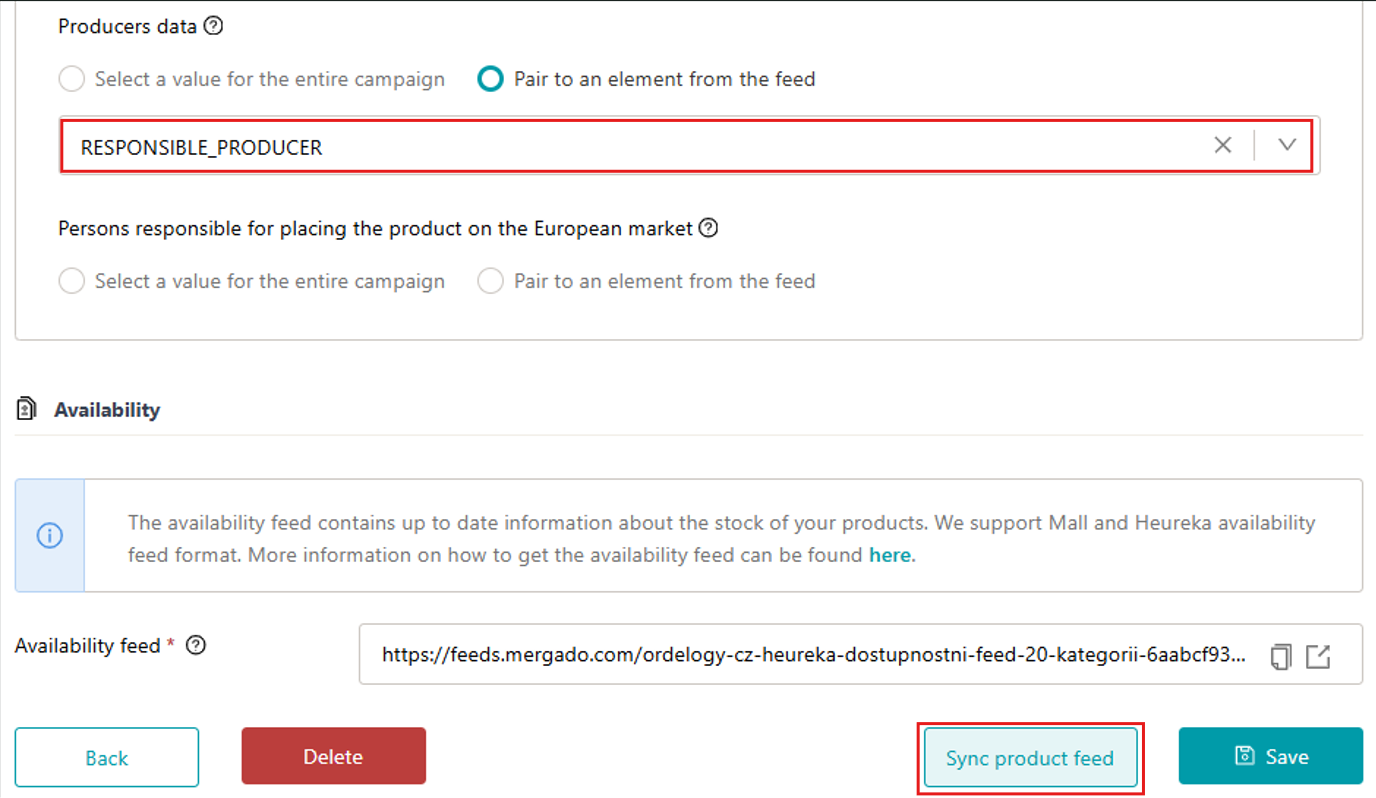
Once you have all manufacturers and responsible persons prepared in Allegro Sales Center, you can go to the Mergado Marketplaces app. You can then add these details in the campaign settings in Mergado Marketplaces, where you can choose a single manufacturer for all products in the campaign or map the element to a feed. When mapping to a feed element, use the custom names of the sellers as you entered them in the Allegro admin as values. Then save the campaign settings changes and click “Synchronize product feed” at the bottom of the settings.
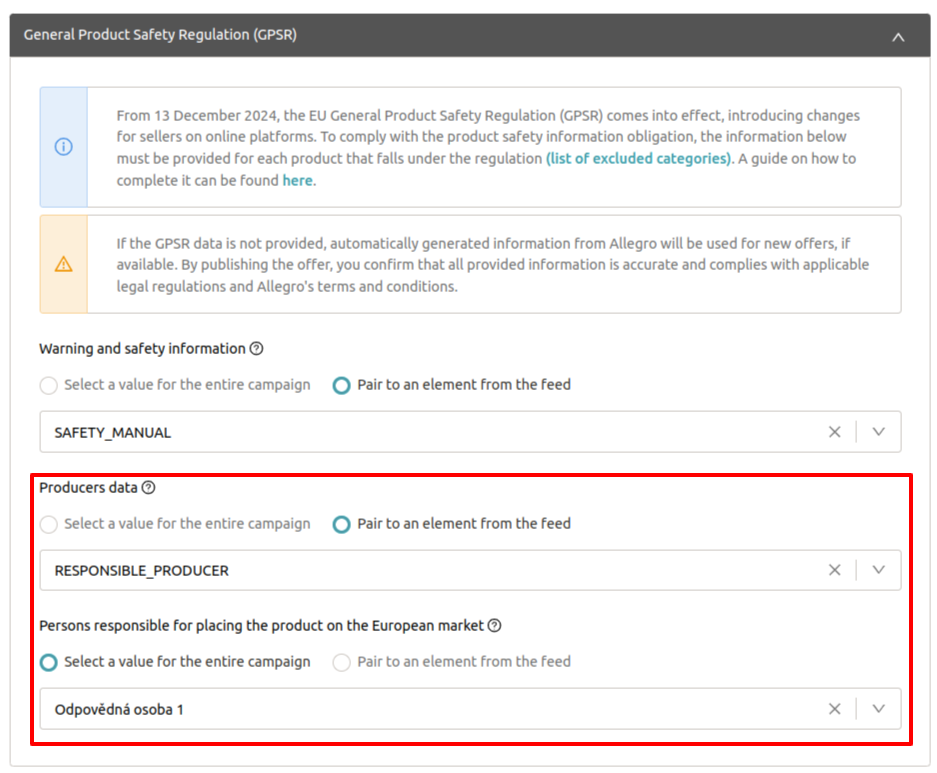
ℹ️ You can add custom names of manufacturers and responsible persons to the feed in 2 ways:
1. Creating a new element and adding values using selections
Go to the “Elements” section of the project you use in the Mergado Marketplaces app. Then click “Add new element”:
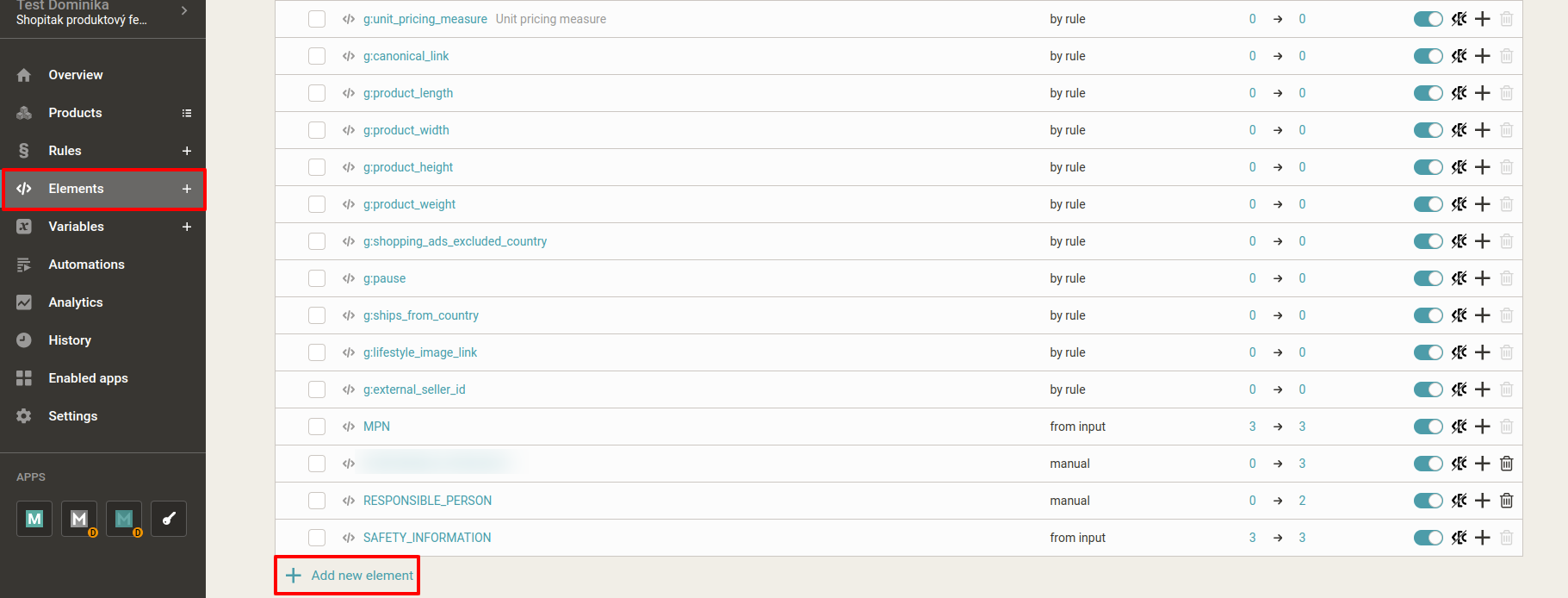
The name is entirely up to you. For our purposes, we chose the name RESPONSIBLE_PRODUCER for manufacturer data:

Create different product selections in Mergado Editor for groups of products to which you want to assign the same manufacturer data. For example, by values in the MANUFACTURER element:
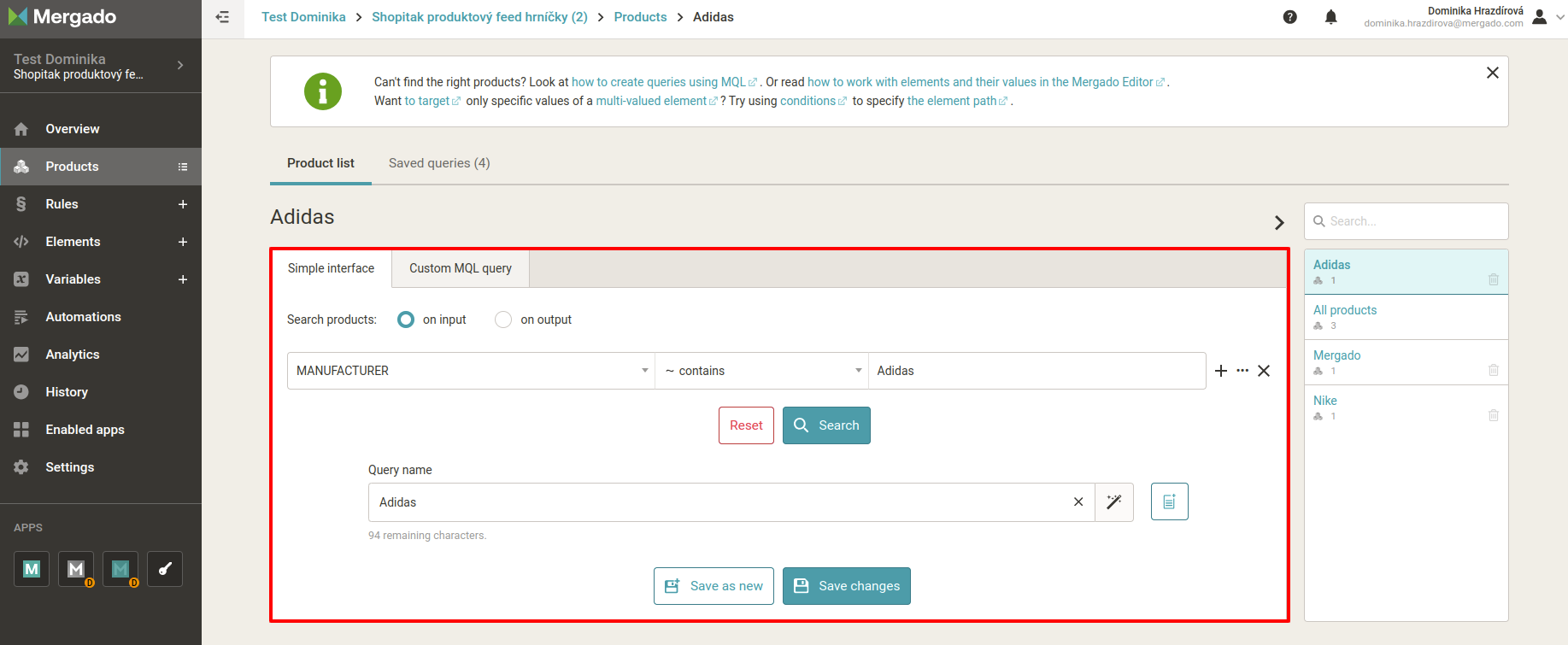
Once you have all selections prepared, go to the “Rules” section and select “New rule”. The rule name is arbitrary — in our case, for example, “Adding custom names for RESPONSIBLE_PRODUCER”. As the rule type, select “Bulk overwrite by selections” and choose your newly created element:
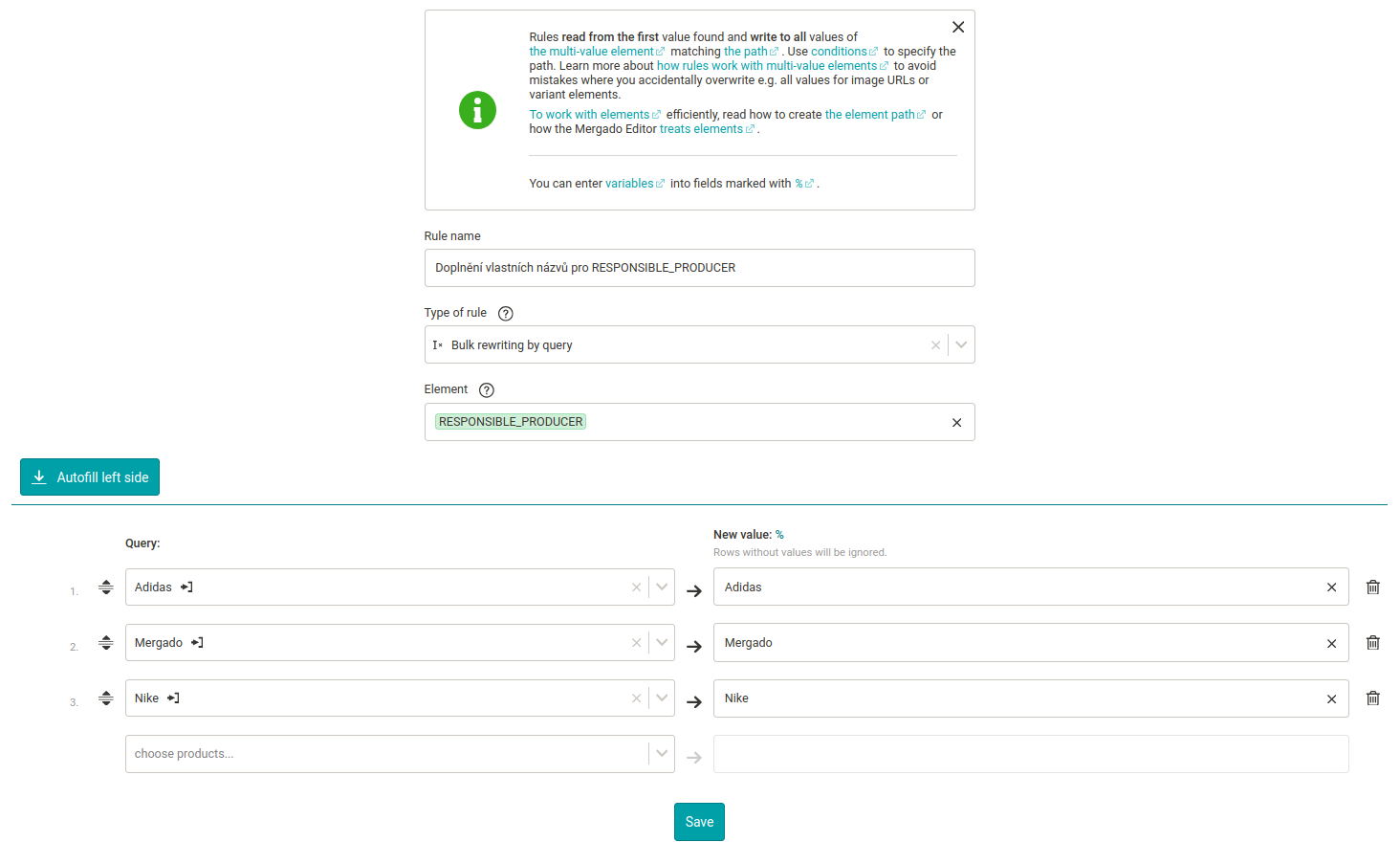
Under “New value”, enter the “Custom name” of the given manufacturer from your Allegro admin for each product selection:
In the Mergado Marketplaces campaign settings, map “Manufacturer data” to your newly created feed element and launch the product feed synchronization:
After synchronization is complete, check the “Validation” section in the Mergado Marketplaces app to see if any errors occurred when uploading this data to Allegro.
You can use the same procedure for “Responsible persons for placing on the European market”. If you don’t want to send this detail for certain products, just leave the element value empty in your feed.
2. CSV file import
You can also import data into the feed using a CSV file, where the first column serves as the product identifier and additional columns contain elements and their values that you want to import into the feed. Let’s demonstrate this with the example of “Responsible persons for placing on the European market”.
Prepare individual person cards on Allegro:
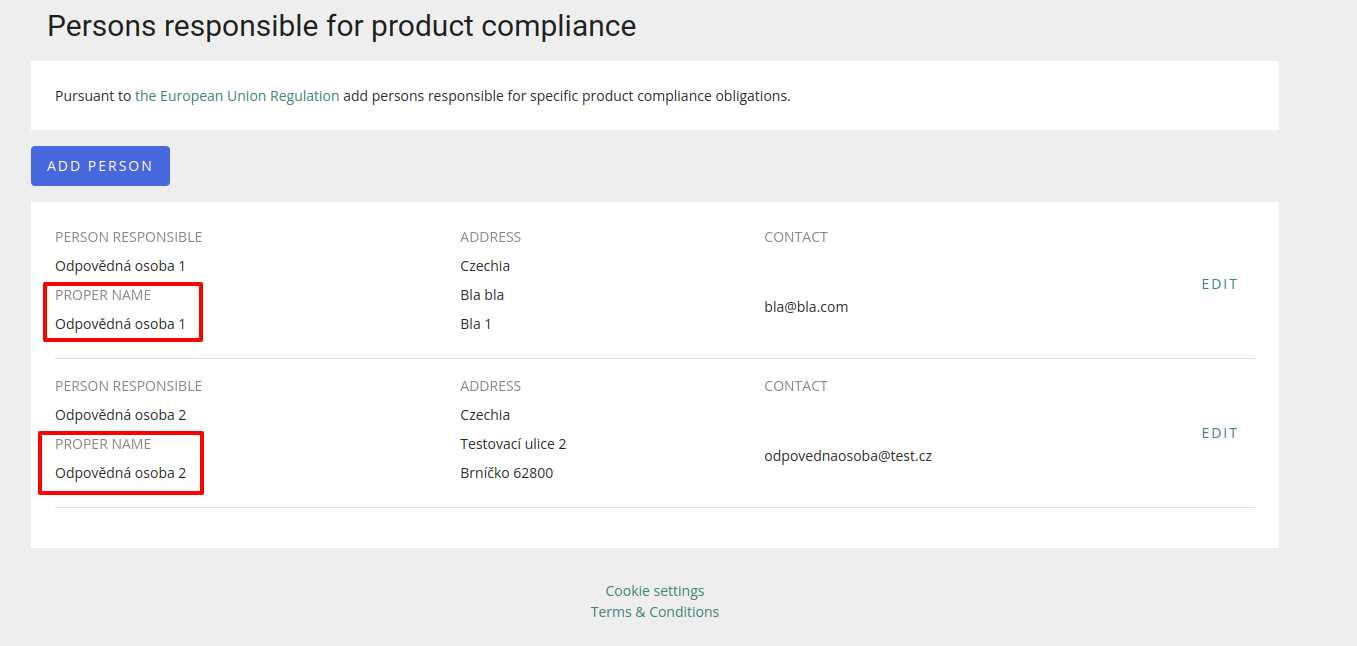
In the given Mergado Editor project, create a new element that you will populate with values via CSV import:

The column names in the CSV file must match the names of existing elements in your project. Also, remember to enter the “Custom names” of individual responsible persons from the Allegro admin:
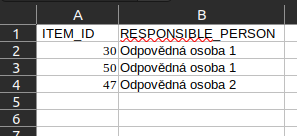
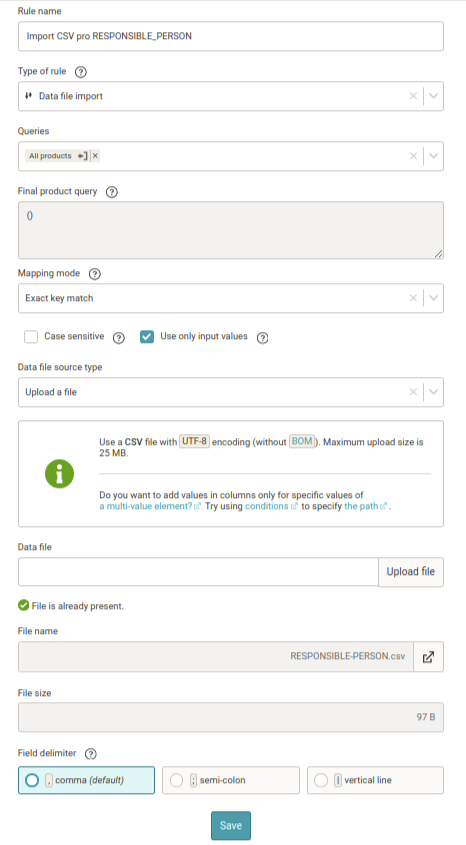
Once you have the CSV file ready, go to the “Rules” section of the given project and create a new rule.
As the rule type, select “Data file import” and upload the CSV file:
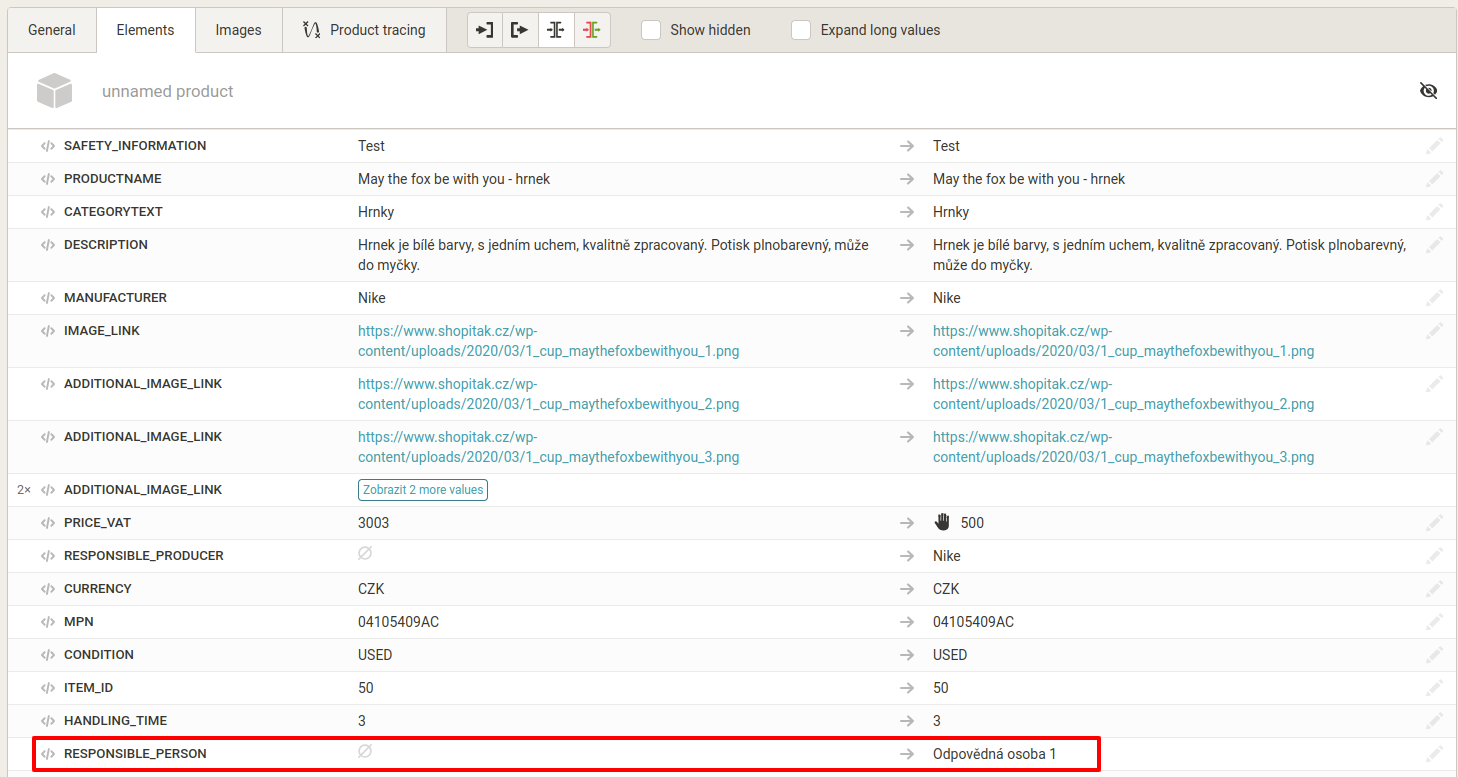
After applying the rules, you can check the product overview to verify that the element values were correctly filled in:
In the Mergado Marketplaces campaign settings, map “Responsible persons for placing on the European market” to your newly created feed element and launch the product feed synchronization.
🔗 More information about CSV import can be found here: https://www.mergado.cz/blog/csv-import-mergado-release
💡 If the “Custom name” you entered on Allegro for manufacturer data is identical (including letter case, etc.) to the value you have in the feed for the MANUFACTURER element (or another element for manufacturer), you can map manufacturer cards using this element without needing to create a new one.
2. Warnings and safety information
This can be a product user manual in the sales channel language, images of labels on the product packaging, or a text with warnings. You can add this detail in the campaign settings in Mergado Marketplaces by mapping to a feed element or entering a single value for all products in the campaign:
- When choosing a single value for the entire campaign, enter plain text without HTML formatting with a maximum length of 2,000 characters
- When mapping to a feed element, the values can be:
- Publicly accessible URLs starting with http:// or https://, from which files in PDF, JPEG, JPG, or PNG format with a maximum size of 50 MB can be downloaded.
- Plain text without HTML formatting with warnings related to the product.
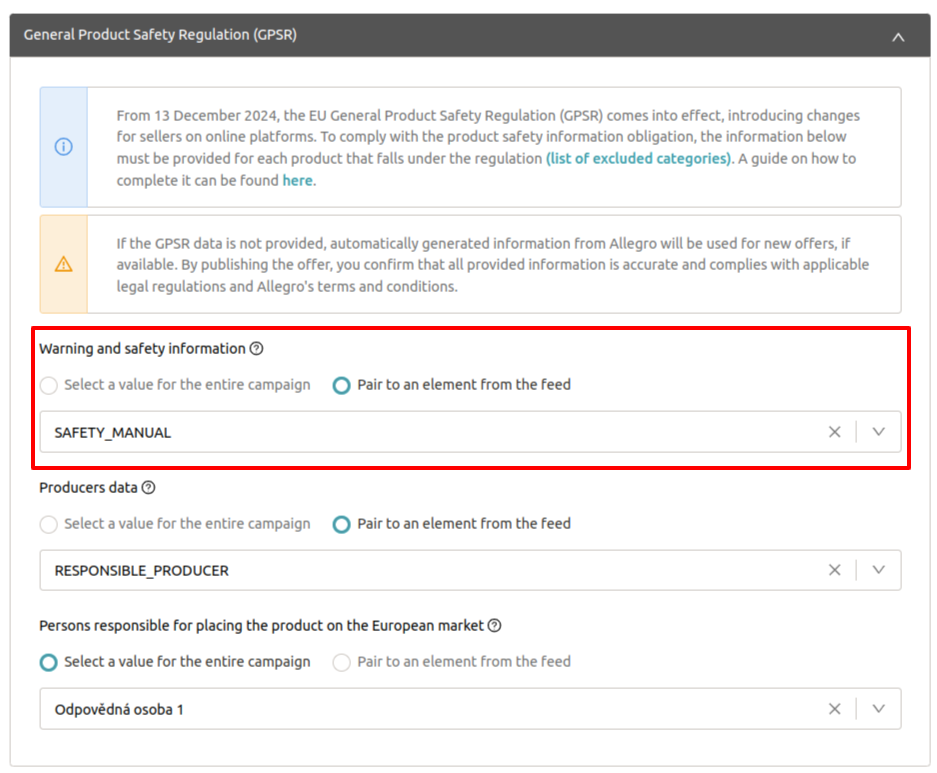
ℹ️ You can add information to the feed in two ways (see the procedure above):
- Creating a new element and adding values using selections
- CSV file import
⚠️ Since all GPSR details on Allegro are filled in at the offer level, you can change these details in the campaign settings at any time.
🔗 More information can be found on the Allegro website here.
Kaufland#
On Kaufland, GPSR details are provided at the product card level. For products covered by the regulation, the following should be added:
- Manufacturer/responsible person in the EU name
- CE marking
- Safety instructions
Selling on Kaufland via Mergado Marketplaces (API connection)
These details can be added via the Mergado Marketplaces app only when you are creating new product cards or completing incomplete cards. The Mergado Marketplaces app does not allow editing of already existing product cards.
1. Creating new product cards or completing incomplete cards
When creating or completing product cards in the “Product cards” section, simply add these three details if the given product falls under GPSR:
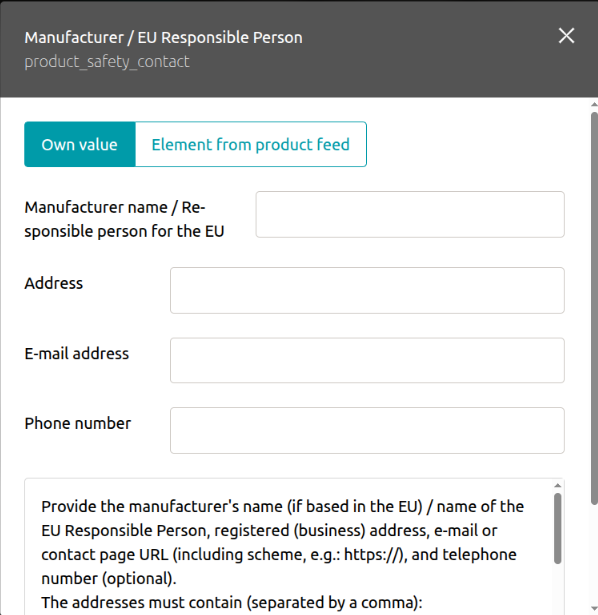
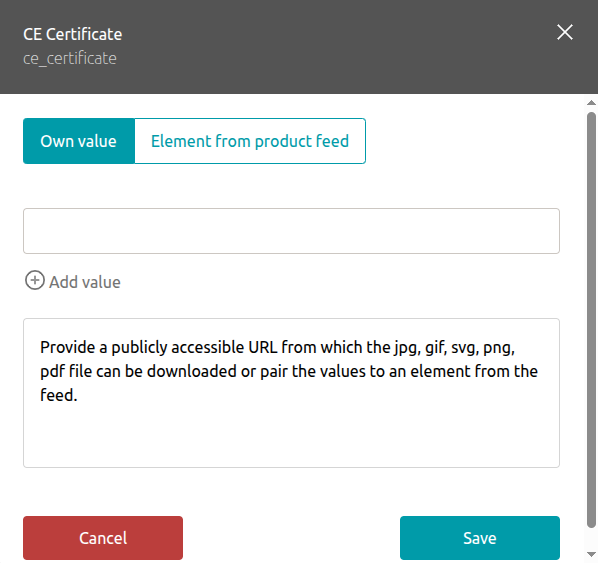
2. Adding details to already existing product cards
If you already have products listed on Kaufland, you can add the necessary data to product cards in 2 ways:
a) Via a one-time import:
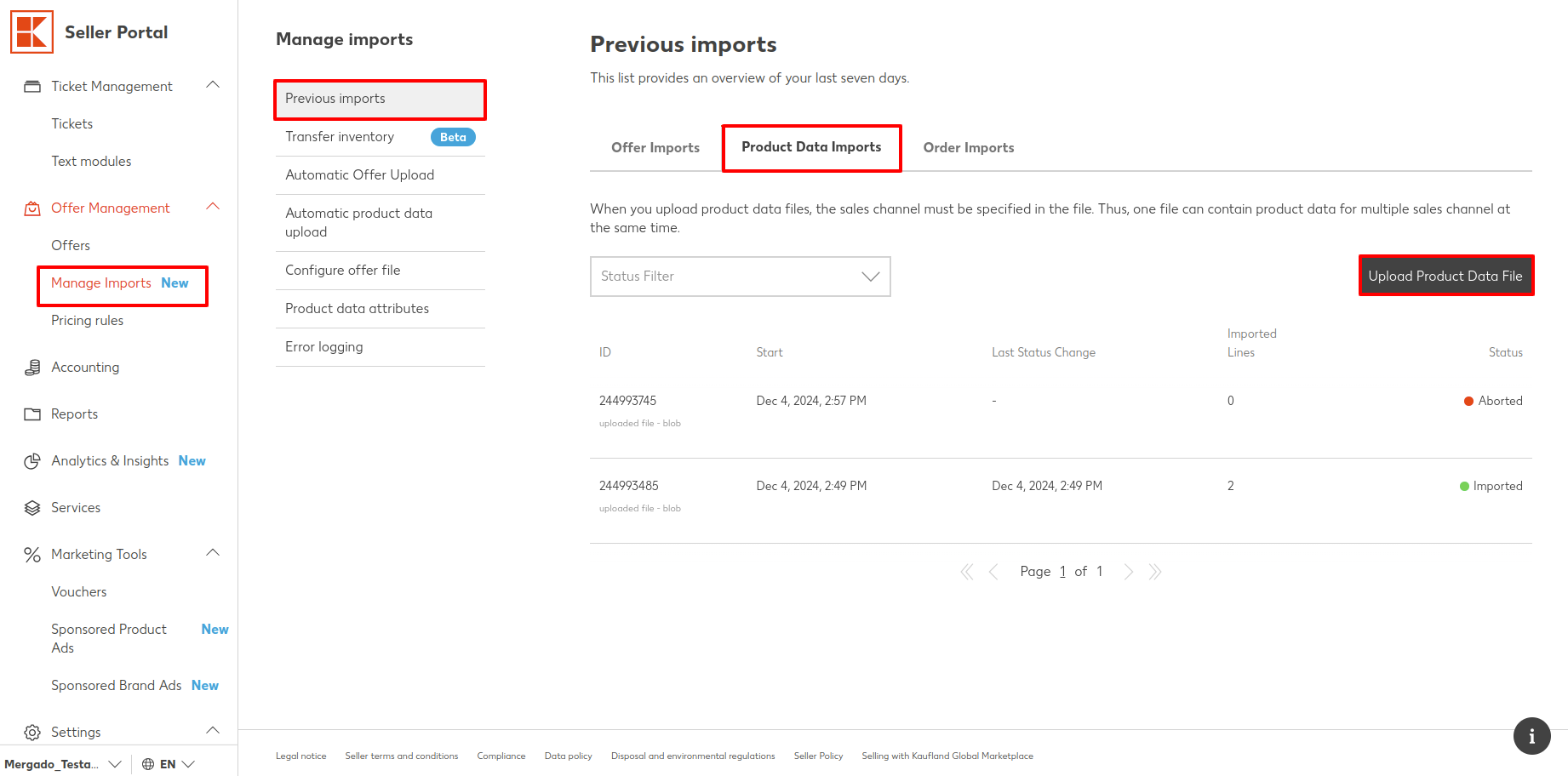
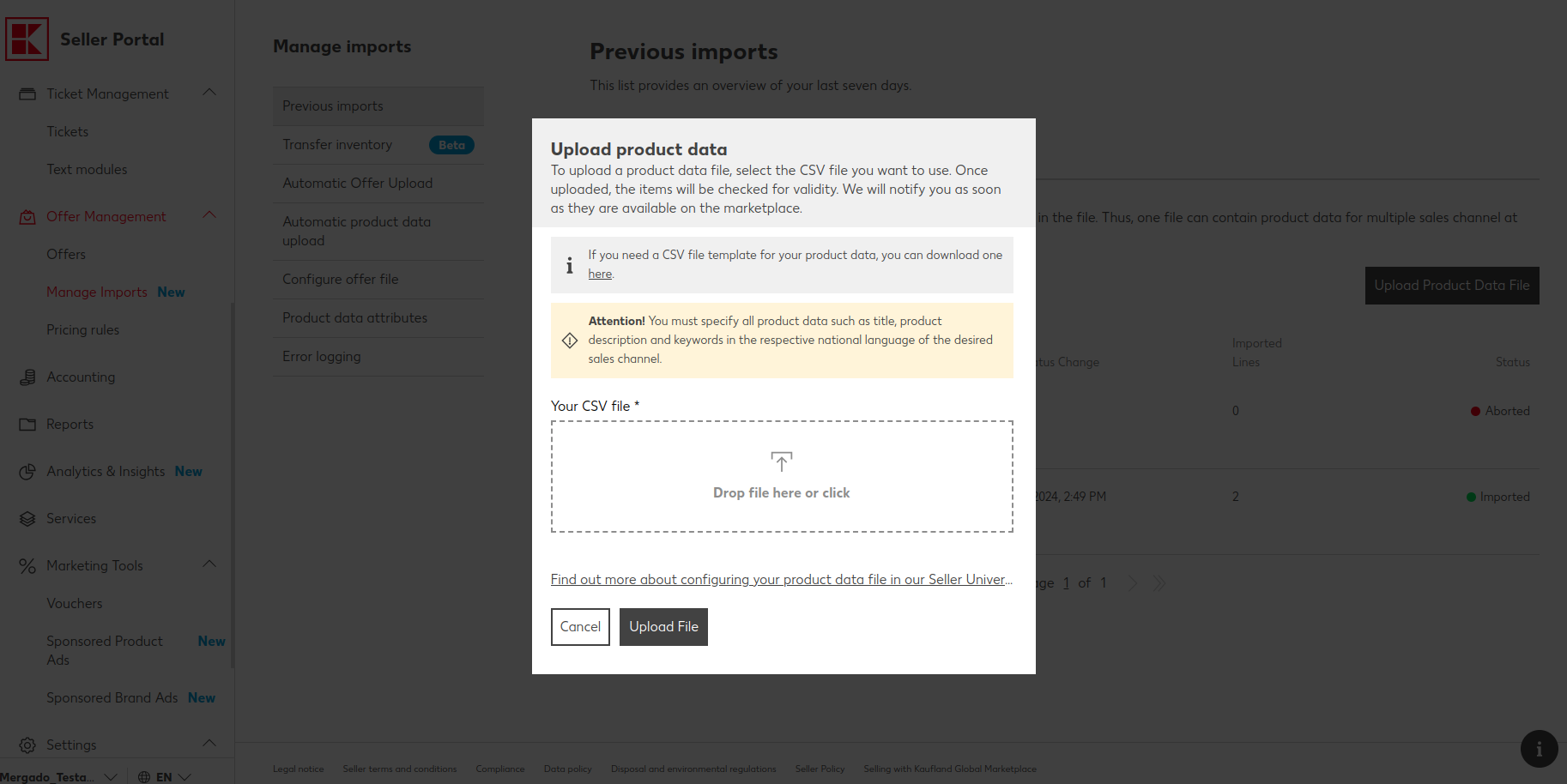
The import should contain:
- ean
- locale (e.g. cs-CZ)
And the elements you want to add as part of GPSR, such as:
- product_safety_contact.name
- product_safety_contact.address (in the format “Street 1, City, 615 00, CZ”)
- product_safety_contact.email_address
- product_safety_contact.phone_number
- safety_guidelines (these are legal texts for which Kaufland has specific allowed values, such as: “Warning! Product is not suitable for children under 36 months”)
- ce_certificate (a publicly accessible URL from which a file in jpg, gif, svg, png, or pdf format can be downloaded)
A list of allowed values for safety_guidelines here.
You can create the file in Google Sheets, for example, and it could look like this:

Download the file in CSV format and upload it to Kaufland.
b) Via Mergado Editor, where you can easily create these elements and add their values in two ways (see the procedure above):
- Creating new elements and adding their values using selections
- CSV file import
In Mergado Editor, prepare these elements and populate them with allowed values:

For the purposes of a one-time import, the file can contain only the ean, locale, and new elements you want to add as part of GPSR. Then download the feed from the Editor and perform a one-time import to Kaufland.
Selling on Kaufland via Mergado Editor (feed connection)
If you are connected to Kaufland via feeds and are already regularly sending a product feed to Kaufland, you can add the following elements to your feed (see the image above):
- product_safety_contact.name
- product_safety_contact.address (in the format “Street 1, City, 615 00, CZ”)
- product_safety_contact.email_address
- product_safety_contact.phone_number
- safety_guidelines (these are legal texts for which Kaufland has specific allowed values, such as: “Warning! Product is not suitable for children under 36 months”)
- ce_certificate (a publicly accessible URL from which a file in jpg, gif, svg, png, or pdf format can be downloaded)
A list of allowed values for safety_guidelines here.
If you have “Automatic product data upload” set up in Kaufland, there is no need to perform a one-time import. The new data will be automatically sent to Kaufland when Kaufland next downloads the output feed.
🔗 More information can be found here: https://www.kauflandglobalmarketplace.com/cs/seller-university/pravni-pruvodce/gpsr/
Disclaimer: This information does not constitute and does not replace legal advice. Please inform yourself at your own responsibility and, if necessary, seek legal advice regarding whether the products you offer fall under the relevant categories and requirements.