
Creating product cards for Allegro and Kaufland#
This guide shows how to create new product cards on Allegro and Kaufland via Mergado Marketplaces when a product does not yet exist in the marketplace catalog.
If you encountered the validation message “No product card was found in the Allegro catalog under this product identifier. To create one, go to the ‘Product cards’ section” or “No product card was found in the Kaufland catalog under this EAN code. To create one, go to the ‘Product cards’ section” after creating a campaign, it means that a product card doesn’t exist yet in the marketplace catalog for the given product, and you need to create a new one. In this article, we will show you how.
⚠️ For Kaufland, the product card creation process includes both products with the validation message “No product card was found in the Kaufland catalog under this EAN code. To create one, go to the ‘Product cards’ section” and products with the “Incomplete” status. This status means that your offer was successfully uploaded to Kaufland, but the product card it’s linked to is incomplete and needs additional product data before the offer can be activated. After creating a new Kaufland campaign, it’s a good idea to wait for the first status synchronization and only then start creating product cards. This way, all relevant products will be included in the process from the start.
📔 Glossary:
Marketplace catalog = A product catalog where each product has one product card that sellers can link their offers to.
Product card = A card in the marketplace catalog containing all required product parameters (dimensions, material, color, etc.). Offers are then linked to the product card by product identifier.
Offer = After uploading a product feed to the Mergado Marketplaces app, products become offers on the marketplace. On the marketplace, each product has one product card to which offers from various sellers are linked. Offers differ in price and purchasing terms, but the basic product details on the product card, such as EAN code, manufacturer, or brand, are identical.
You can access the product cards section either directly from the campaign menu or by clicking the icon next to the validation message:
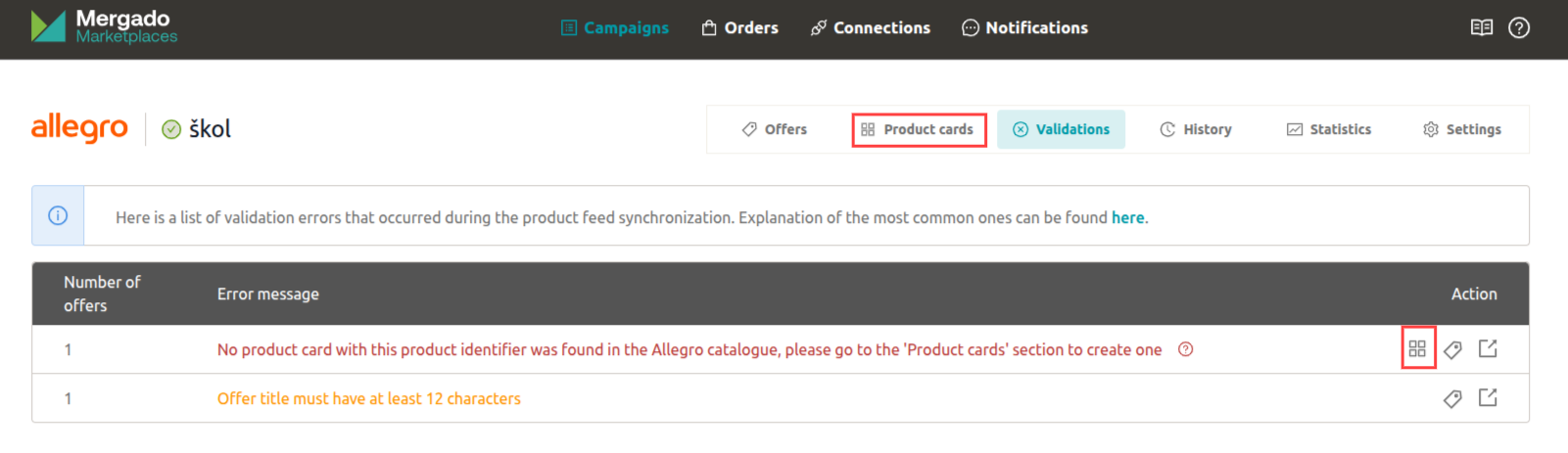
1. MAPPING ALL REQUIRED ELEMENTS
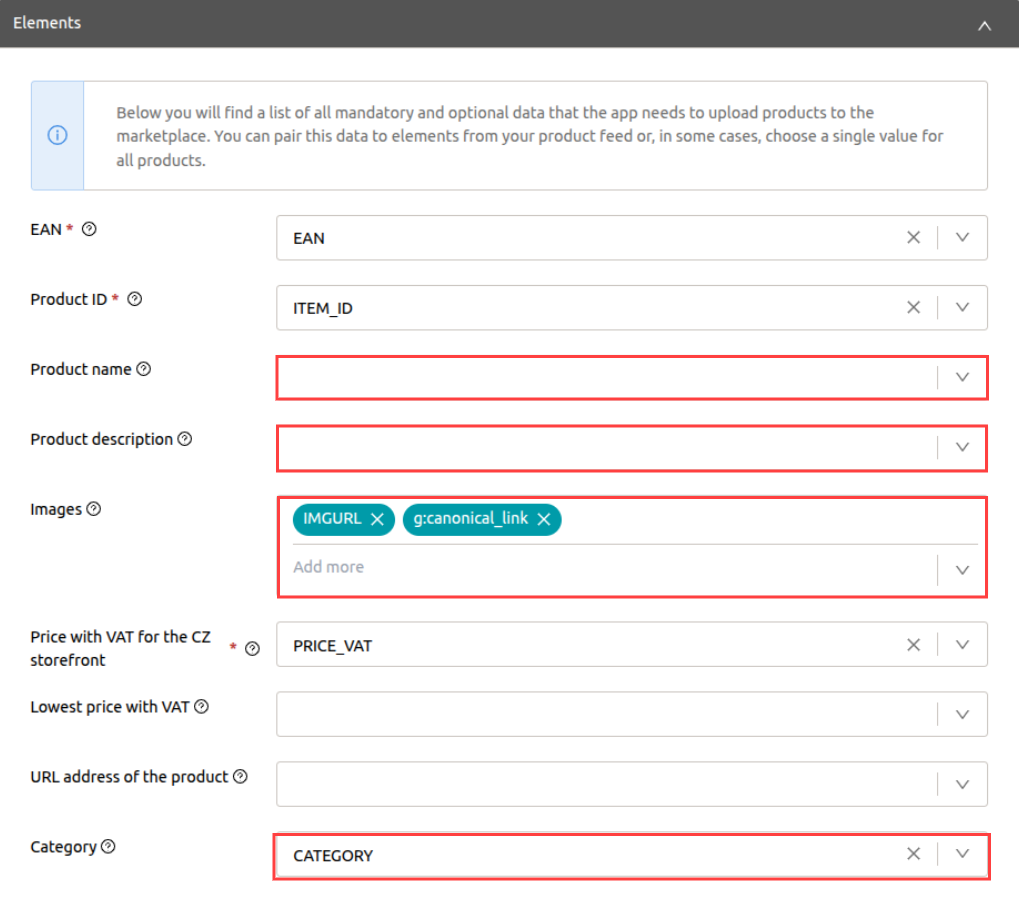
To create product cards, you need to map certain elements that were previously optional within the app. These are:
- Images
- Product name: Make sure the product name is in the language of the storefront where you are selling.
- Category
- Product description: This element is required only for Kaufland.
❗ You must have a filled-in EAN code as the product identifier.
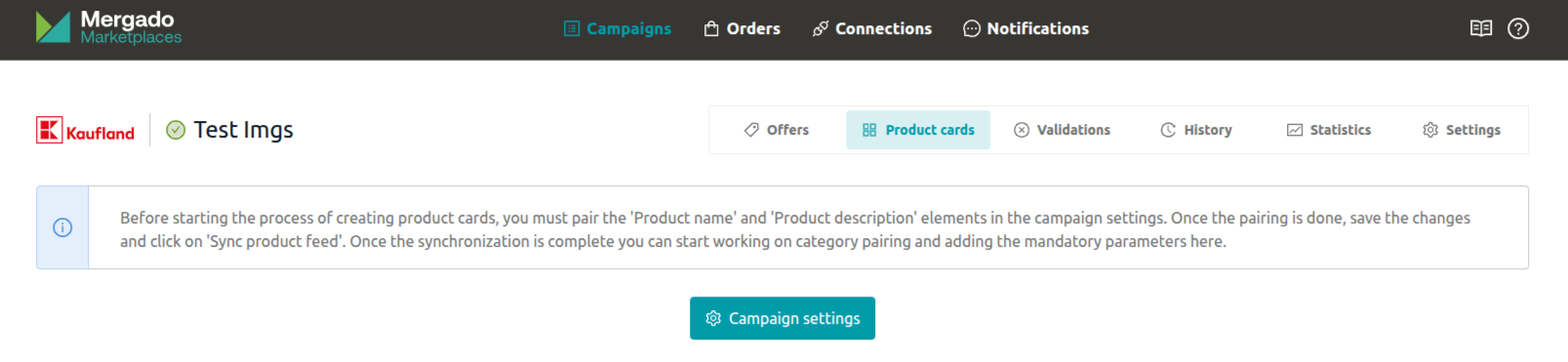
If you haven’t mapped these elements yet, go to the campaign settings, open the elements section, and map the required elements.
Then save the changes and click “Synchronize product feed” at the bottom of the campaign settings.
2. MAPPING CATEGORIES
After mapping these elements, the product cards section will become available:
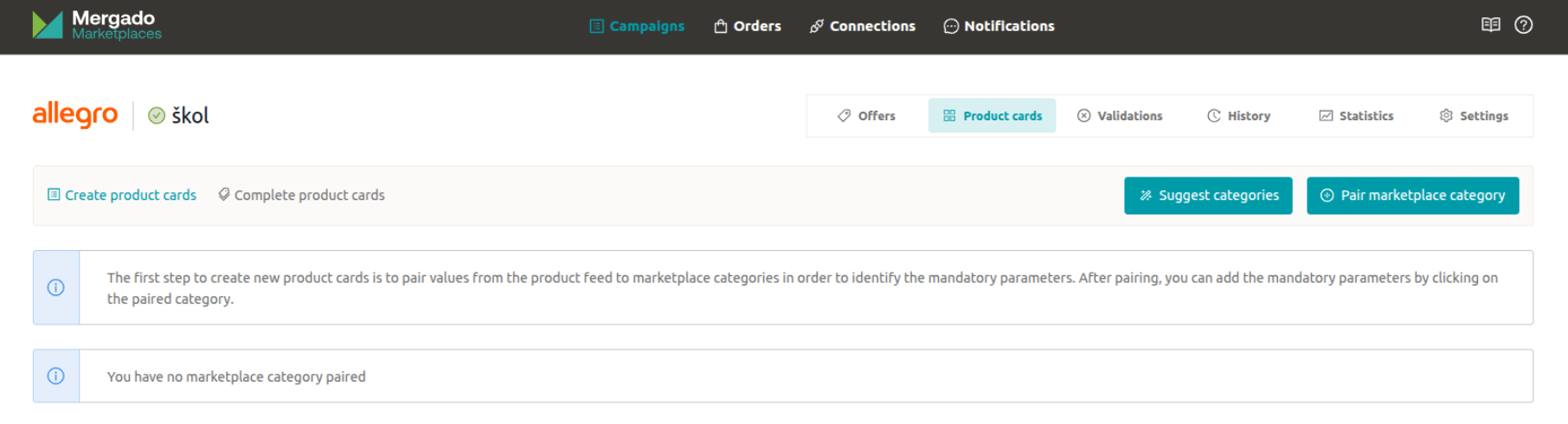
Here, you just need to map your product feed categories to the corresponding categories on Allegro/Kaufland and save the mapping. This way, the app can determine which parameters are required for the given category on the marketplace.
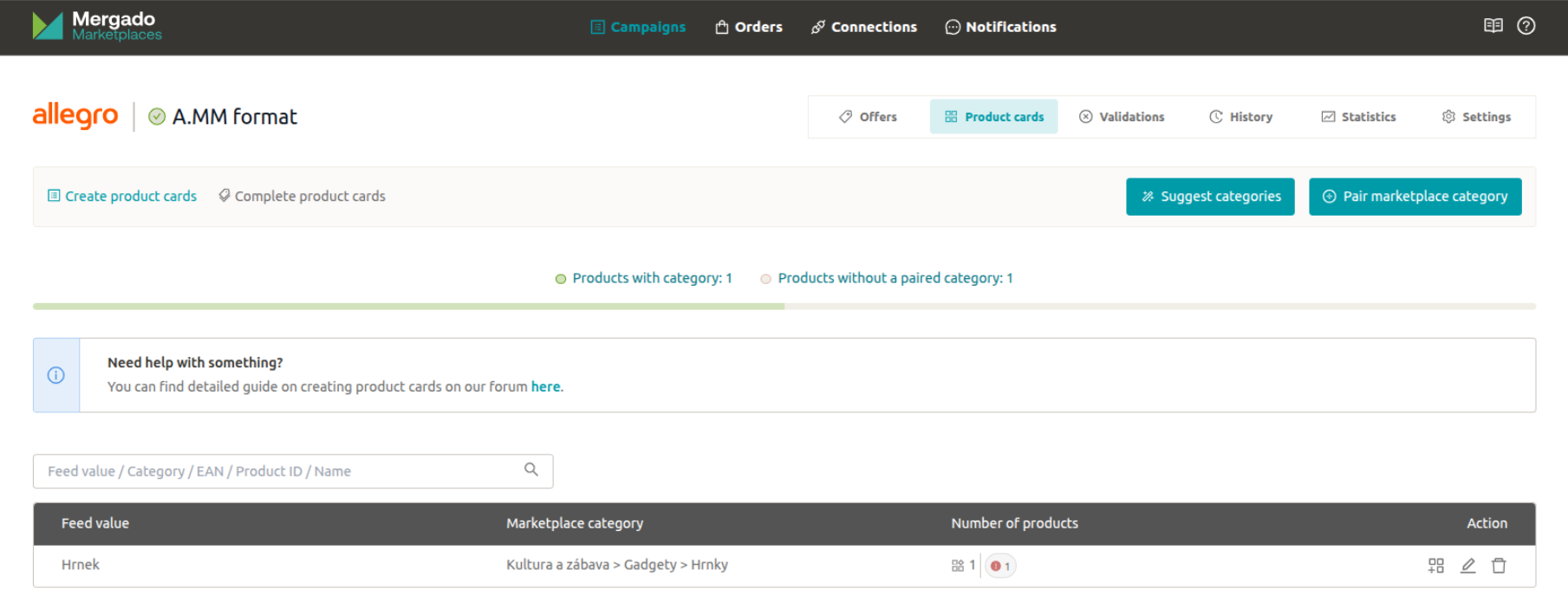
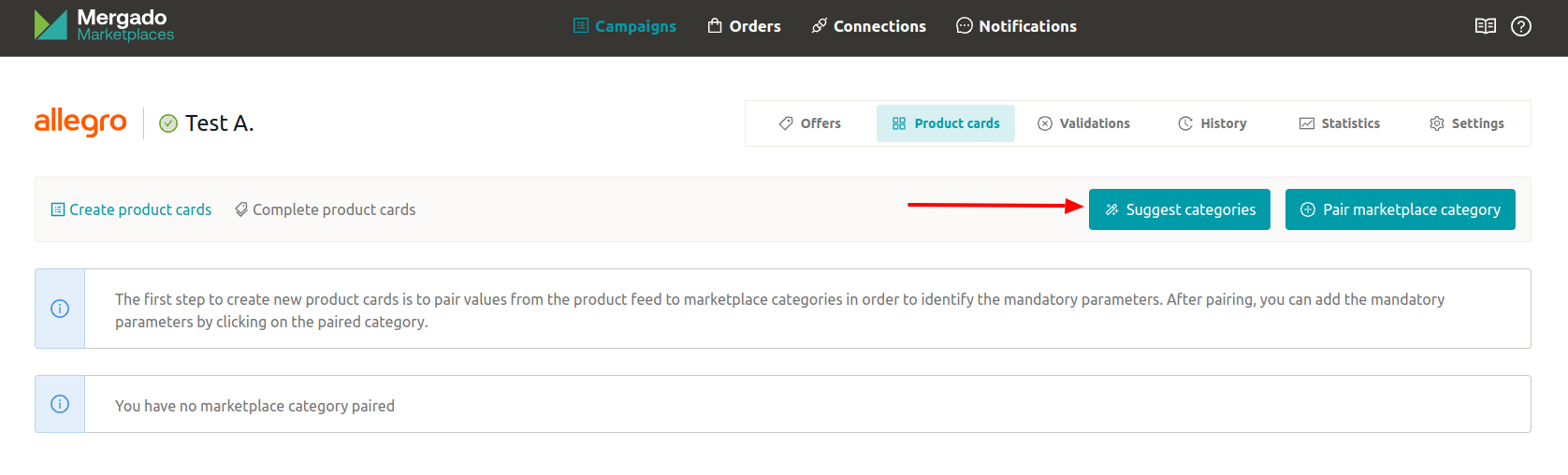
When mapping categories, you have several options:
- Bulk pre-mapping of categories using the “Suggest categories” function:
- Finding a suitable category using the category tree:

- Searching within the category tree:

- Using the “Suggest category” function, where Allegro and Kaufland attempt to suggest the most suitable category:
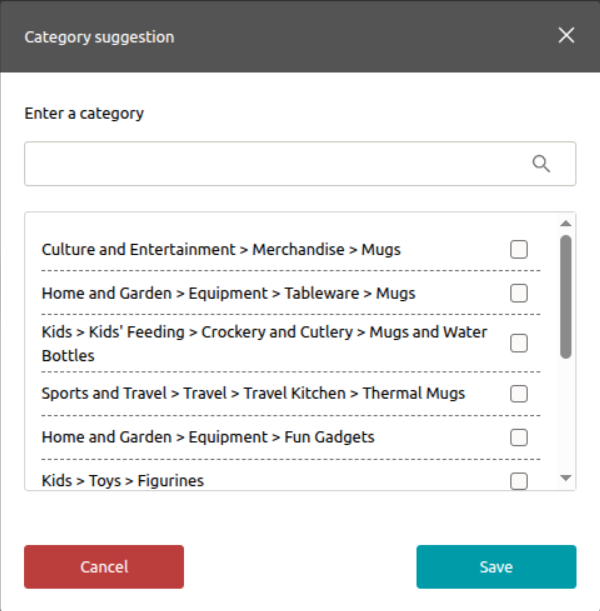
- Searching via category suggestion, where you enter your own search term in the search field:
3. FILLING IN PARAMETERS
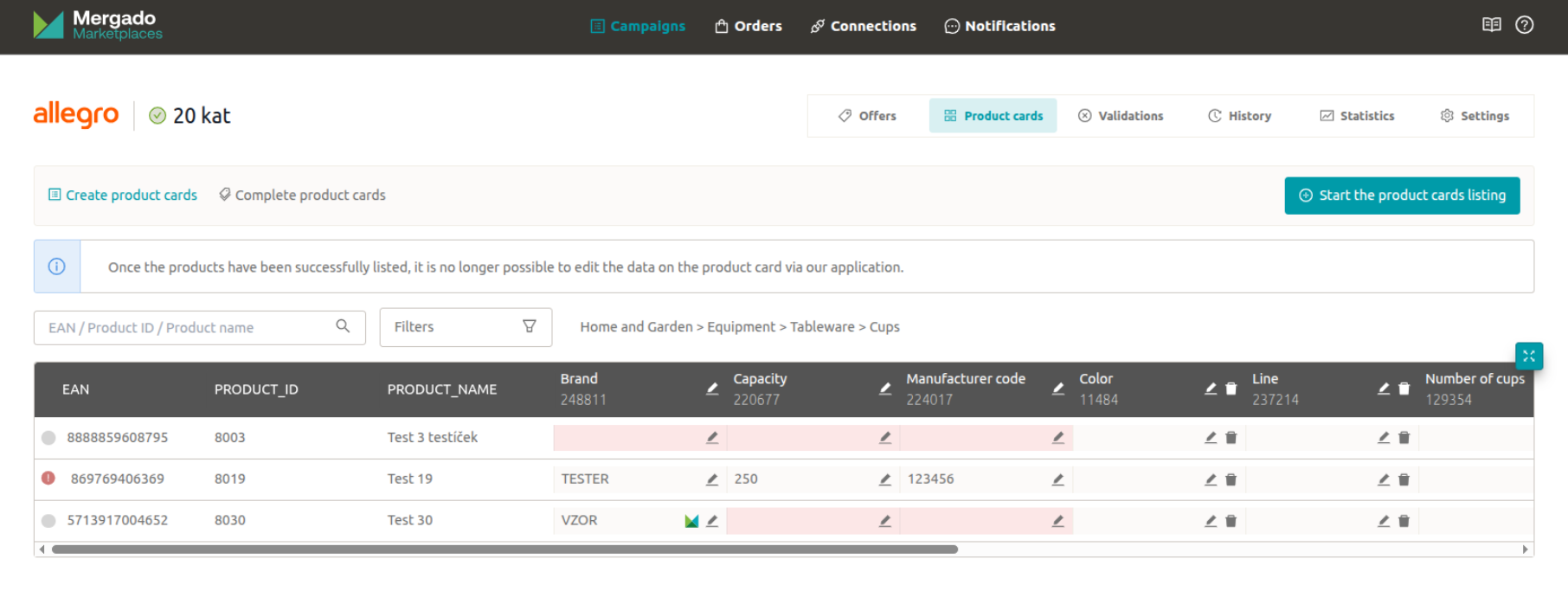
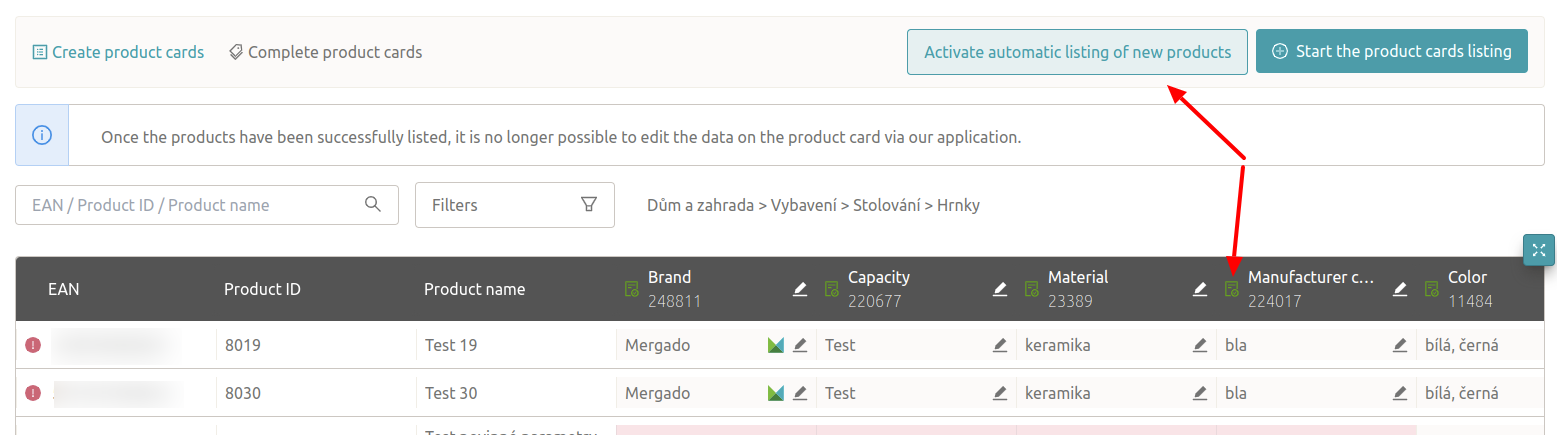
Clicking on a mapped category displays a table of products that need a product card created in the given category. The table shows an overview of all required parameters that Allegro/Kaufland requires for creating a product card.
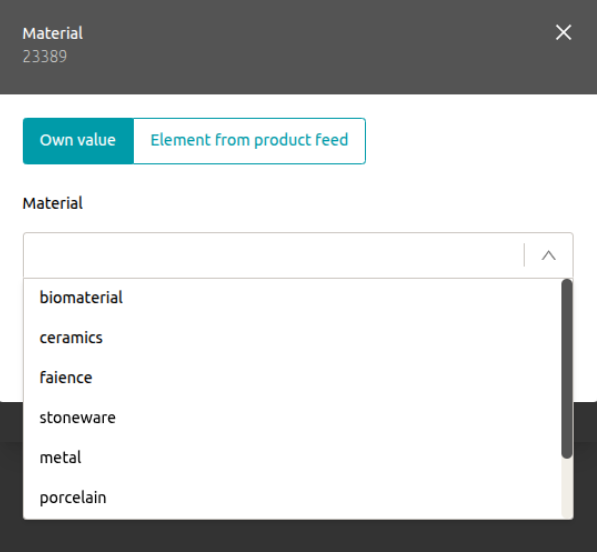
In the table, you can fill in two types of parameters:
- Required parameters, which are highlighted in red and must be filled in to create a product card.
- Optional parameters, which have a white background and are voluntary. You can fill in any number of optional parameters and also delete their values. Note that, just like with required parameters, their values cannot be changed after a product card is successfully created.
When filling in parameters, you can add values:
- At the individual product level
- Or fill in values for the entire column of a given parameter
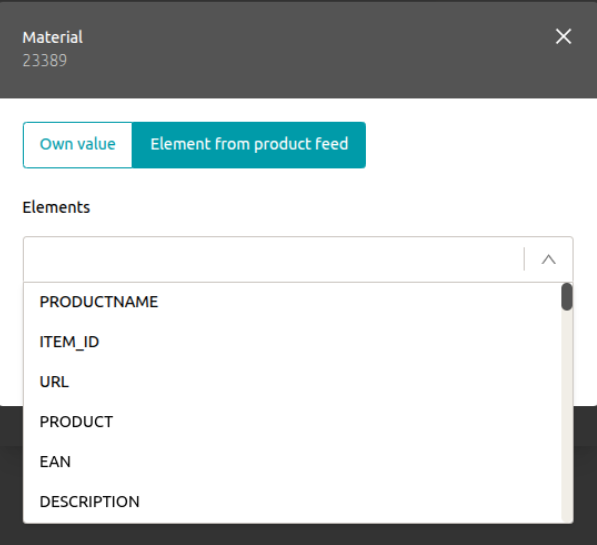
You can also choose between entering a custom value and mapping to a feed element.
Custom value:
Mapping to a feed element:
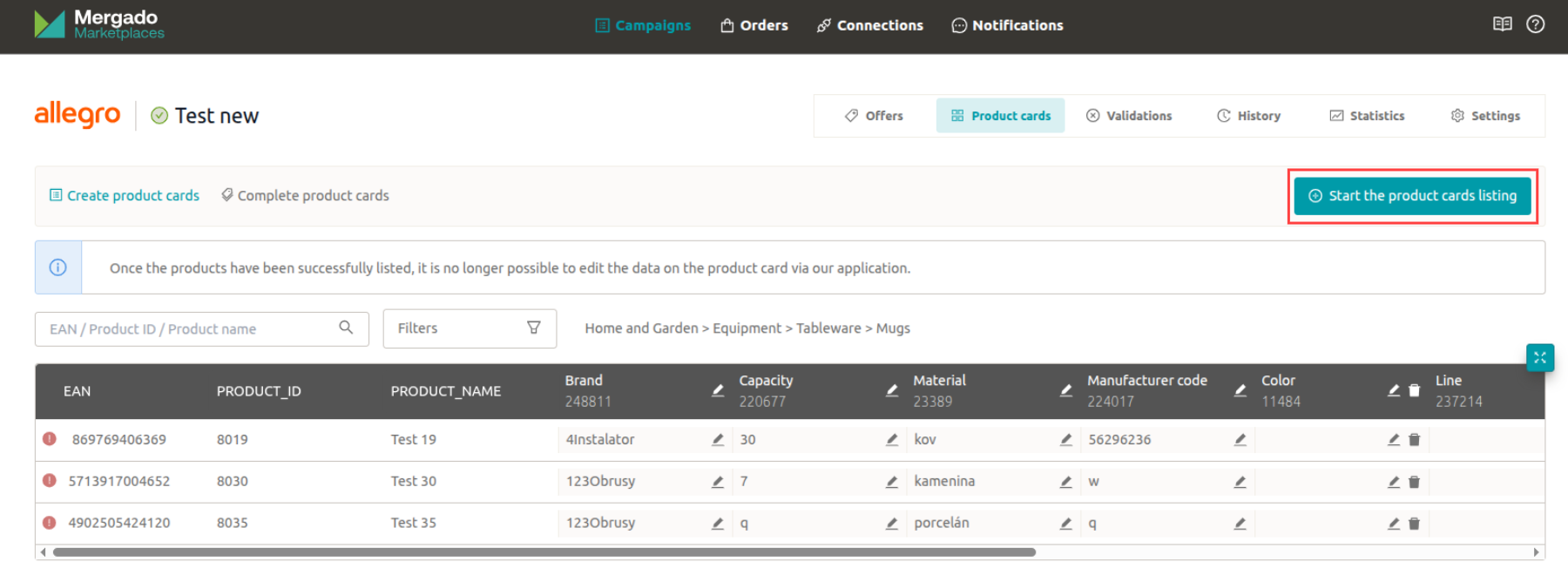
When mapping to a feed value, only the element name is displayed in the table, but the actual values will be sent to the marketplace when listing.
ℹ️ If your brand is not in Allegro’s list of allowed values, you can choose “no brand” or apply to add the brand to Allegro’s list via this form. Once Allegro approves the brand addition for the given category, you can list product cards with this brand through our app.
4. LAUNCHING THE LISTING
After filling in all required parameters for at least one product, the “Launch product card listing” button will become available.

💡 After successful listing, you can edit parameters on the product card in the “Listed card edits” section. For both Allegro and Kaufland, only a change proposal for the product card is submitted, and it’s up to the marketplace itself to accept or reject the change. For Allegro, after clicking “Propose product card changes”, a window will pop up where you can choose whether Allegro should notify you about the proposal processing result (Allegro sends the result to the email associated with your Allegro account). For Kaufland, you need to check the result directly in the Seller Portal.
The listing result can be found after some time directly in the product listing table, where you’ll see the following icons:
 The product card has not been listed yet.
 An error occurred during product listing. Click the icon to see the specific error.
The product card was successfully created.
This status is displayed only for Kaufland and means the product card is in the approval process by Kaufland. This process can take several days. Once we receive feedback from Kaufland, the status will change to an exclamation mark or a checkmark. If the product card is approved, your offer will be linked to it during the next product feed synchronization.
An error occurred during product listing. Click the icon to see the specific error.
The product card was successfully created.
This status is displayed only for Kaufland and means the product card is in the approval process by Kaufland. This process can take several days. Once we receive feedback from Kaufland, the status will change to an exclamation mark or a checkmark. If the product card is approved, your offer will be linked to it during the next product feed synchronization.
You can also check the listing result in the history section:
5. CHECKING PRODUCTS ON THE MARKETPLACE
After listing a product card on the marketplace, check the product and offers directly in the marketplace admin as well.
Approval of a product card on Kaufland can take several days. Once the card is approved, we will assign the “Not synchronized” status to the offer, and the offer will be linked to your newly created card during the next product feed synchronization.
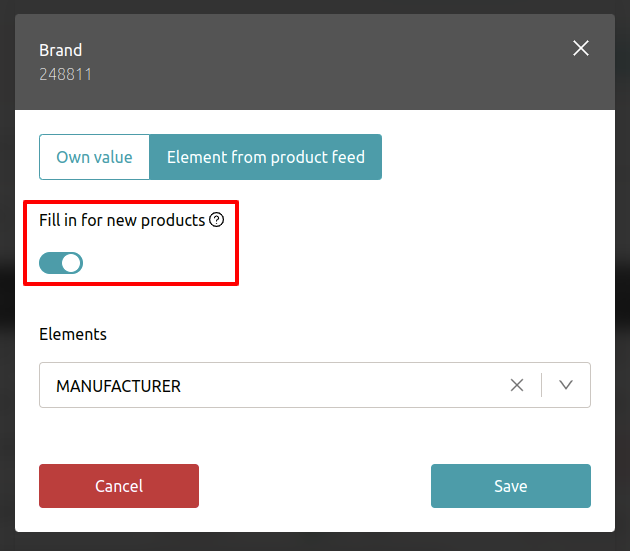
💡 TIP AT THE END: Automatic product card creation for new products In the product card creation section, you can check the ‘Fill in for new products as well’ option for both required and optional parameters when filling in a parameter for the entire column. Once this option is enabled for all required parameters, the ‘Activate automatic listing of new products’ option will become available.
By activating automatic listing of new products, product card creation will immediately start for all unlisted products with filled-in required parameters. After successful listing, you can edit the product card details in the “Listed card edits” section.
You can deactivate automatic listing of new products at any time. If an error occurs during automatic listing for a product card, you still need to correct the details according to the Allegro validation message and try to list the product manually.