
Availability feed#
This article explains what an availability feed is, what formats are supported, how to find or create one, and how to use it in Mergado Marketplaces.
What is an availability feed?#
An availability feed is a file containing up-to-date information about product stock levels and availability in your e-shop.
What a proper availability feed should look like#
A proper availability feed should contain these key pieces of information:
- Product identifier
- Stock count
The format may vary depending on the platform the feed is intended for (e.g. Heureka vs. Mall).
Heureka availability feed#
The Heureka availability feed should have the following structure:
<item_list>
  <item id="536234275543">
    <stock_quantity>13</stock_quantity>
    <delivery_time orderDeadline="2011-09-10 12:00">2011-09-11 13:00</delivery_time>
    <depot id="434">
      <stock_quantity>2</stock_quantity>
    </depot>
    <depot id="437">
      <pickup_time orderDeadline="2011-09-10 12:00">2011-09-11 18:00</pickup_time>
    </depot>
</item_list>
Mall availability feed#
The Mall availability feed has a similar structure:
<AVAILABILITIES>
  <AVAILABILITY>
    <ID>1</ID>
    <IN_STOCK>5</IN_STOCK>
    <ACTIVE>true</ACTIVE>
  </AVAILABILITY>
</AVAILABILITIES>
Key elements are:
item id/ID: This element represents an individual product in the availability feed, where theidattribute serves as a unique product identifier that MUST EXACTLY MATCH the product ID in the product feed — otherwise availability can’t be properly paired.stock_quantity/IN_STOCK: This element contains a numerical value of the current stock count for the given product.
How to get an availability feed#
- Check whether your e-shop platform automatically generates an availability feed.
- If not, you can create one manually using tools like Mergado Editor.
You can also use the
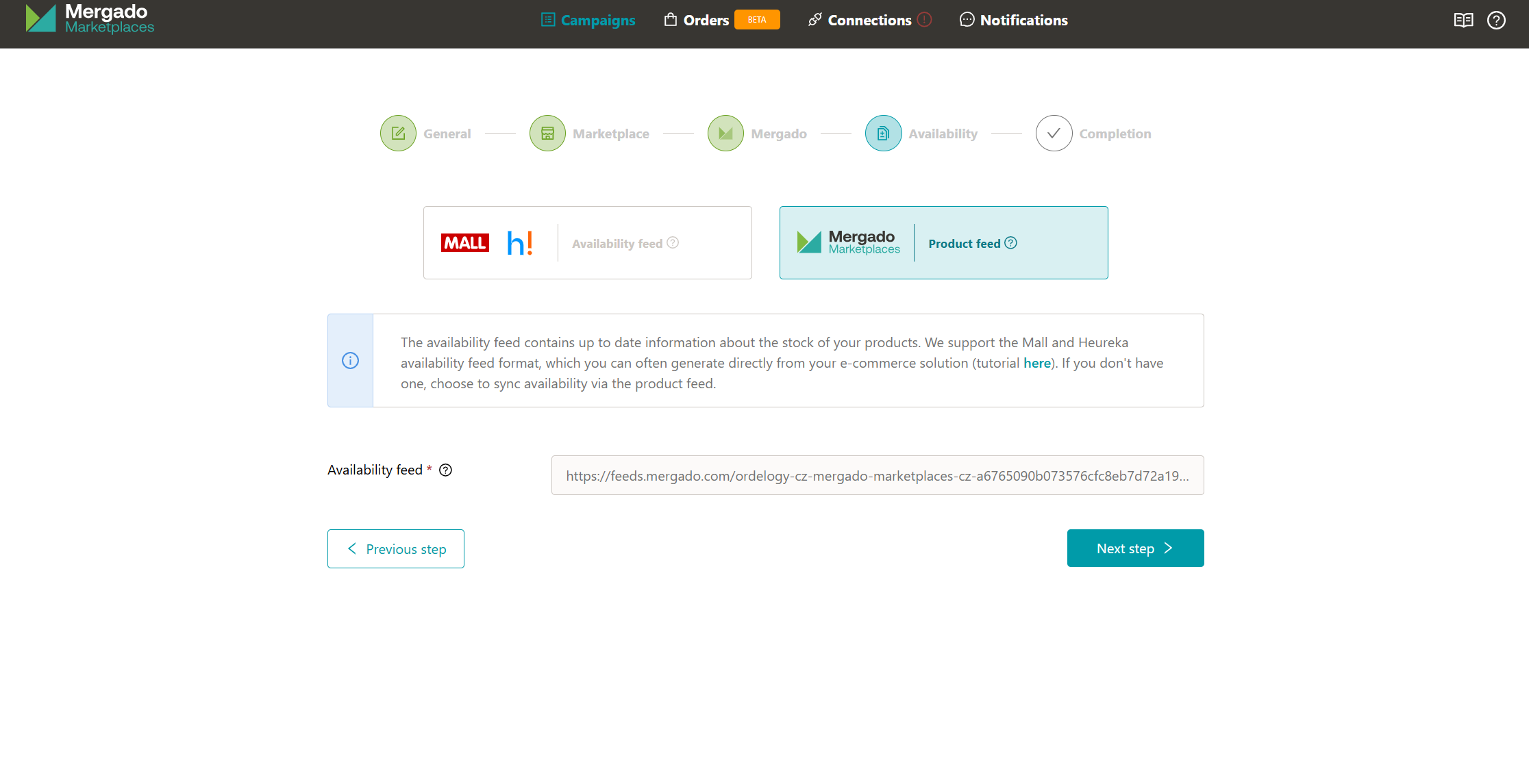
Mergado Marketplacesfeed format, which works as both a product and availability feed. This means you don’t need two separate feeds in Mergado Editor — one is enough 💡 More information here.
Where to find the availability feed in your e-shop#
Shoptet#
- In your Shoptet admin, go to Integrations → Heureka.
- Select “XML feeds”.
- Find the “Availability XML feed” section.
- Copy the generated feed URL.
- Use this URL as the availability feed in Mergado Marketplaces or other services.
ℹ️ More information can be found on the Shoptet website here.
UPgates#
- To access the Heureka availability feed, you need to activate the Heureka add-on (the add-on is free).
- In your e-shop, open the “Add-ons” section and search for “Heureka”.
- Click “Activate” on the Heureka add-on.
- Go to the “Add-ons > Heureka” section.
- In this section, you’ll find the “Availability feed” area.
- Here you’ll find the generated URL of your availability feed.
- Copy this URL.
- Use this URL as the availability feed in Mergado Marketplaces or other services.
ℹ️ More information can be found on the UPgates website here.

⚠️ The first screenshot shows a test e-shop. The availability export on your actual e-shop will provide a URL.
Eshop-rychle#
- The availability feed is generated automatically and can be found in E-shop → Export → Product export.
- In the “Portal” section, select “heureka.cz availability”.
- Generate the feed.
- Copy the generated feed URL.
- Use this URL as the availability feed in Mergado Marketplaces or other services.
ℹ️ More information can be found on the Eshop-rychle website here.
WooCommerce#
- While WooCommerce doesn’t natively support creating availability feeds for Heureka or Mall, plugins like Toret or WPify Woo Feedy can help.
FASTCentrik#
You can easily generate the availability feed in the “XML feeds” section.
Availability feed security#
⚠️ When generating a feed from your e-shop, pay attention to access settings. Some e-shops may automatically lock feeds, so it’s important to check and set them as publicly accessible.
If you encounter the error message “An error occurred while downloading the availability feed, make sure the file is accessible” in Mergado Marketplaces, your availability feed is likely secured and the application can’t access it. If your e-shop runs on Shoptet, you can find instructions on how to adjust your availability feed security settings here.
How to create an availability feed in Mergado Editor#
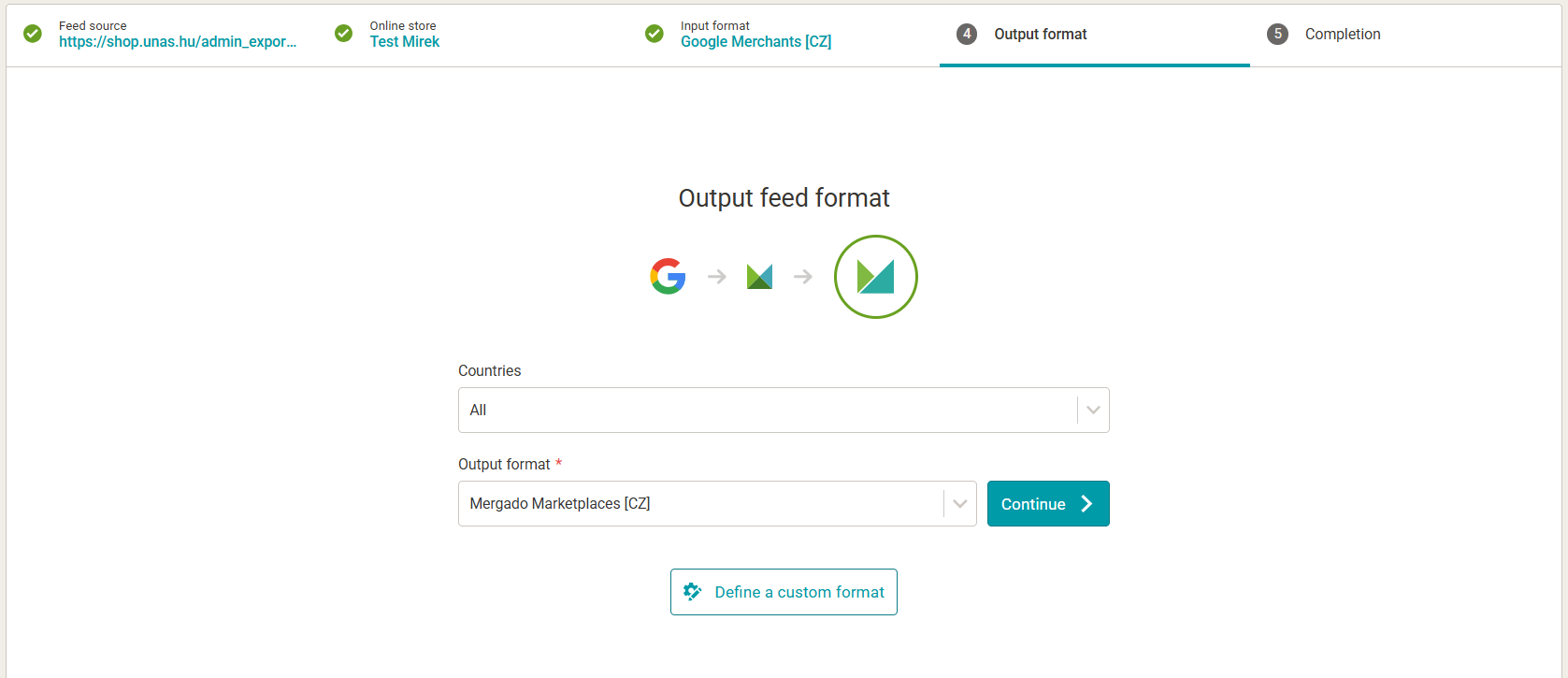
If your e-shop platform doesn’t offer an availability feed, you have two options for solving this with Mergado Editor:
- If your product feed contains availability in numeric format, choose
Mergado Marketplacesas the output format when creating a project in Mergado Editor. This lets you use the feed in Mergado Marketplaces for both product data and availability synchronization. More information here.
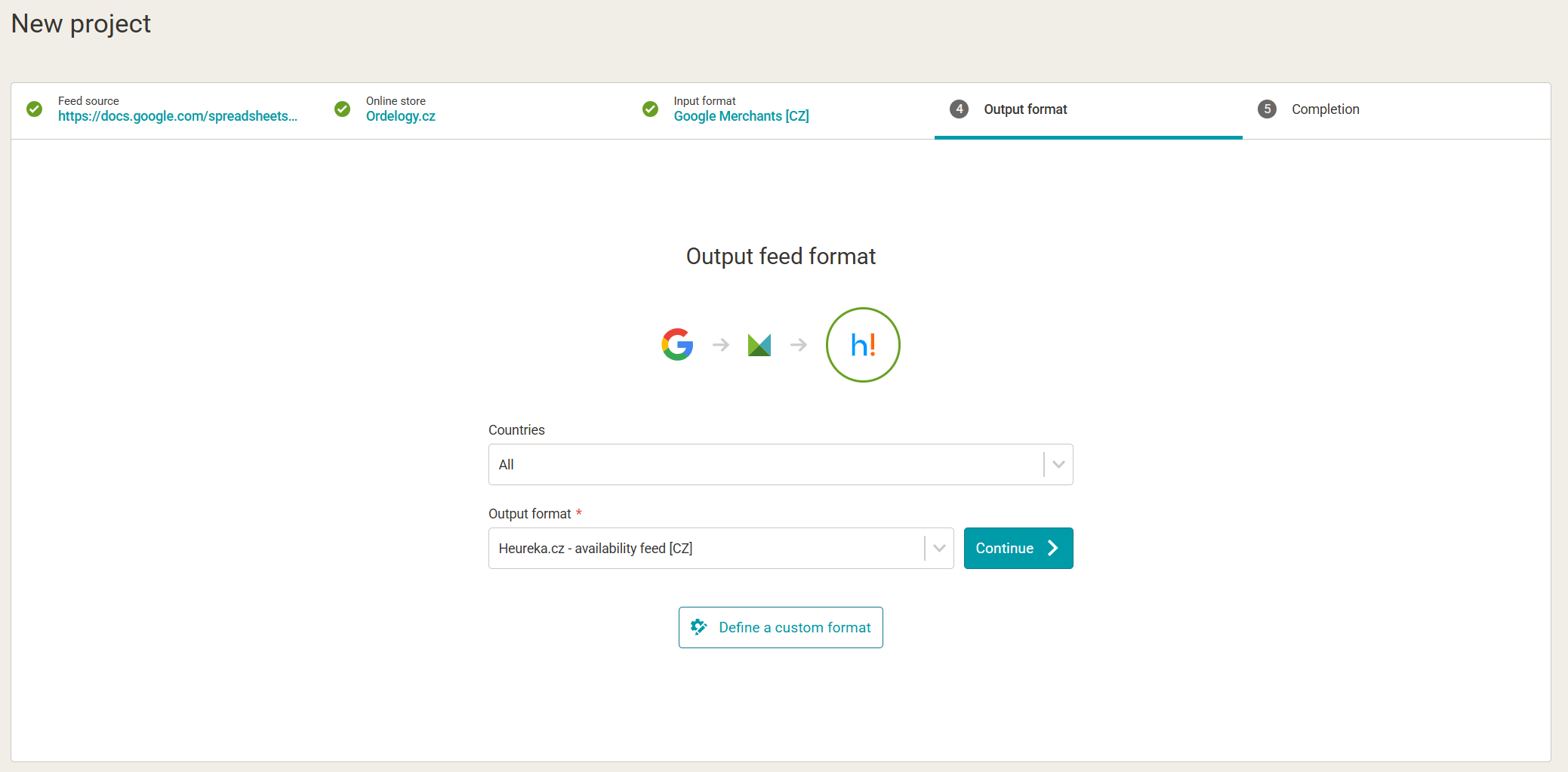
- If your product feed doesn’t contain availability, you can create an availability feed in Mall or Heureka format as a separate project and use an input feed with availability data (even a Google Sheets spreadsheet works).
- Prepare your feed — it must contain a product identifier and stock count.
⚠️ The product identifier MUST EXACTLY MATCH the product ID in your existing product feed — otherwise availability can’t be properly paired.
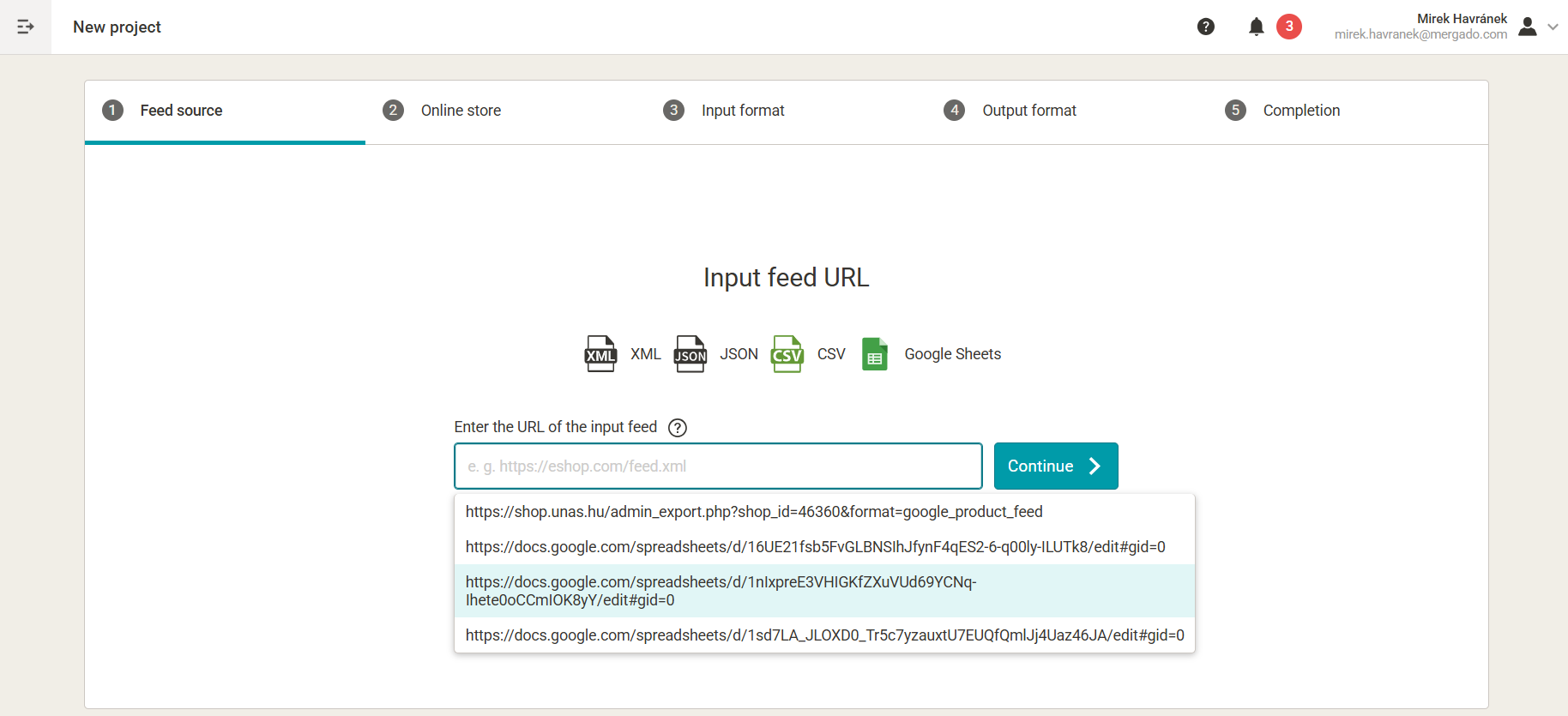
- Log in to Mergado Editor and click “New project”.
- Enter the URL of your input feed. Mergado Editor supports these formats: XML, JSON, CSV, or Google Sheets.
- Wait for the initial feed analysis to complete and select your e-shop.
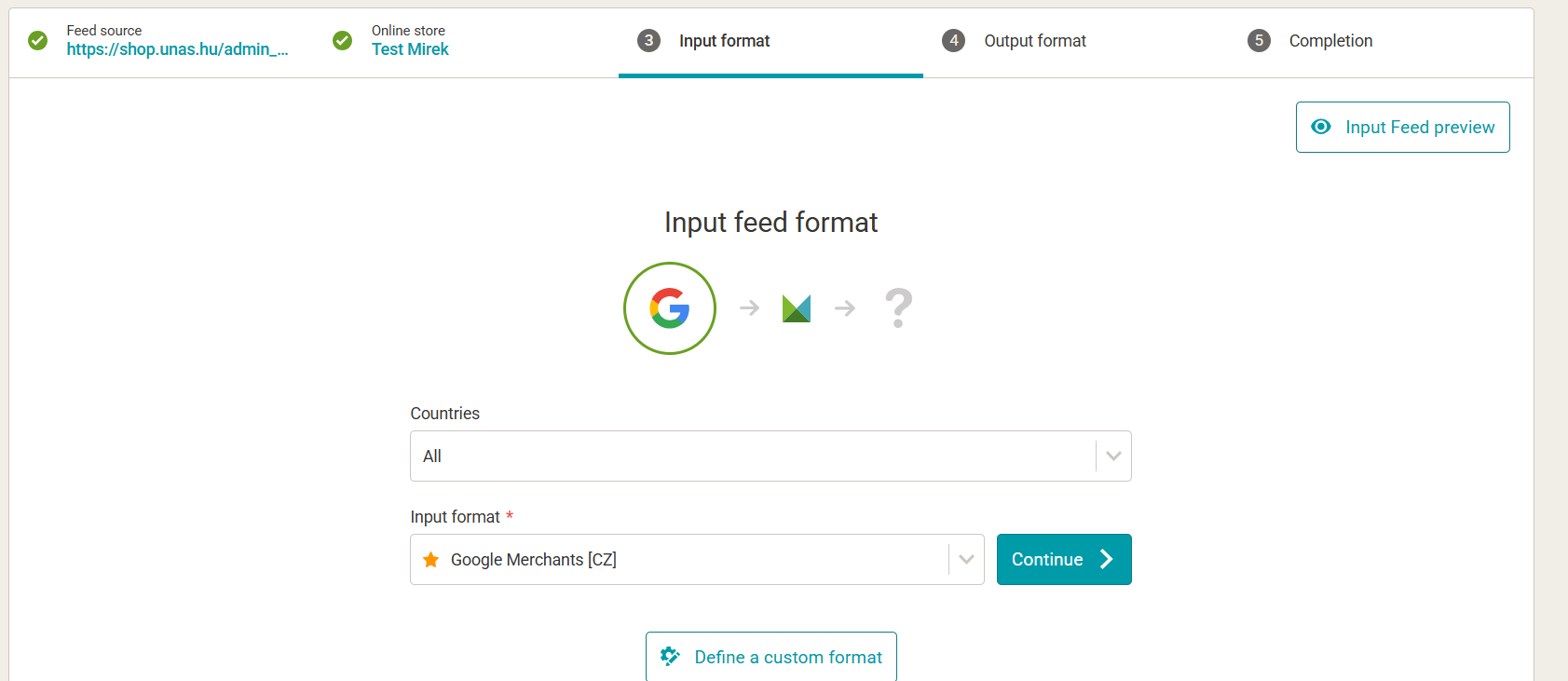
- After analysis, the Editor pre-selects the correct format based on the feed content. However, you’re not bound to the pre-selected format.
- If Mergado couldn’t recognize the input feed format, you can define your own format. If you know what format it is, select it from the input format options.
- On the output format page, select either Heureka availability or MALL marketplace availability feed.
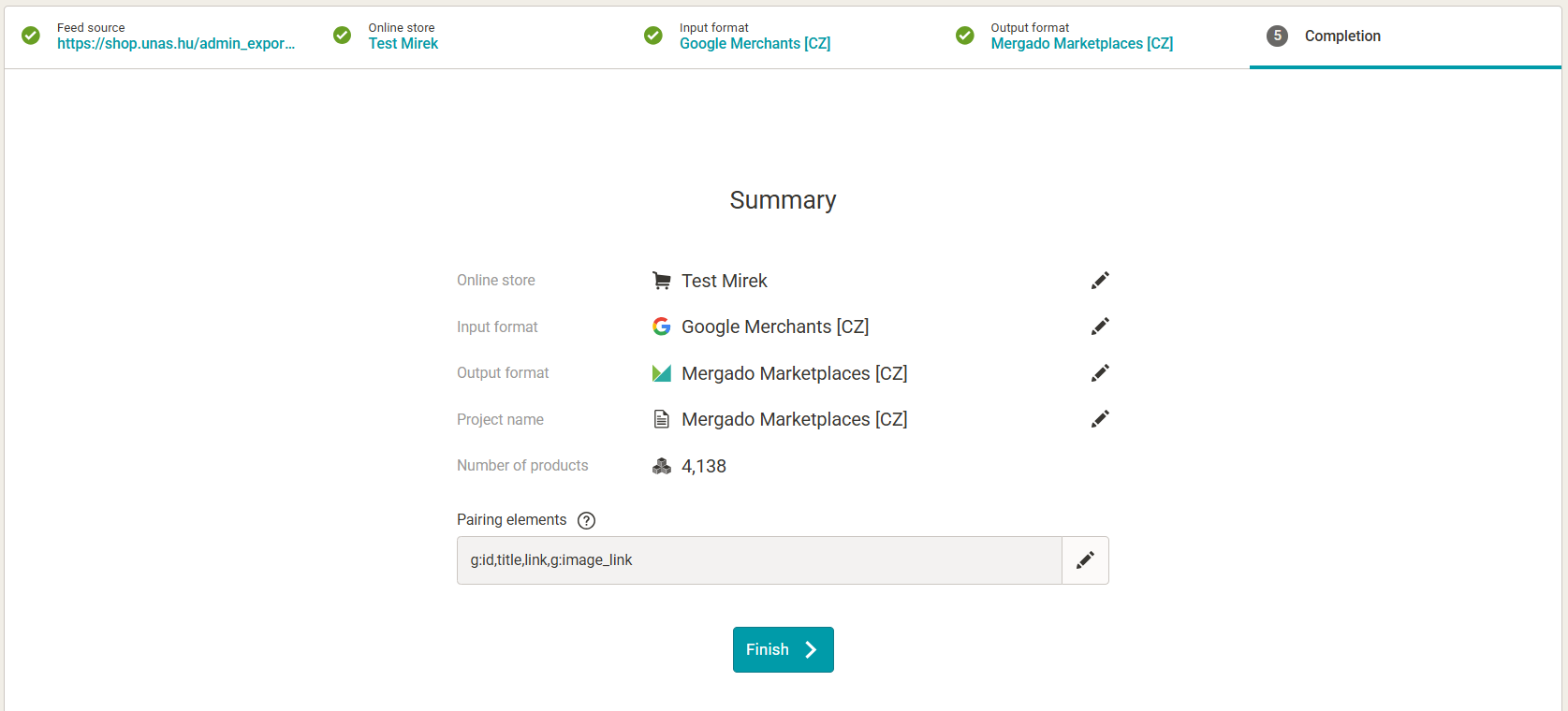
- In the summary, you can review all the details you’ve entered.
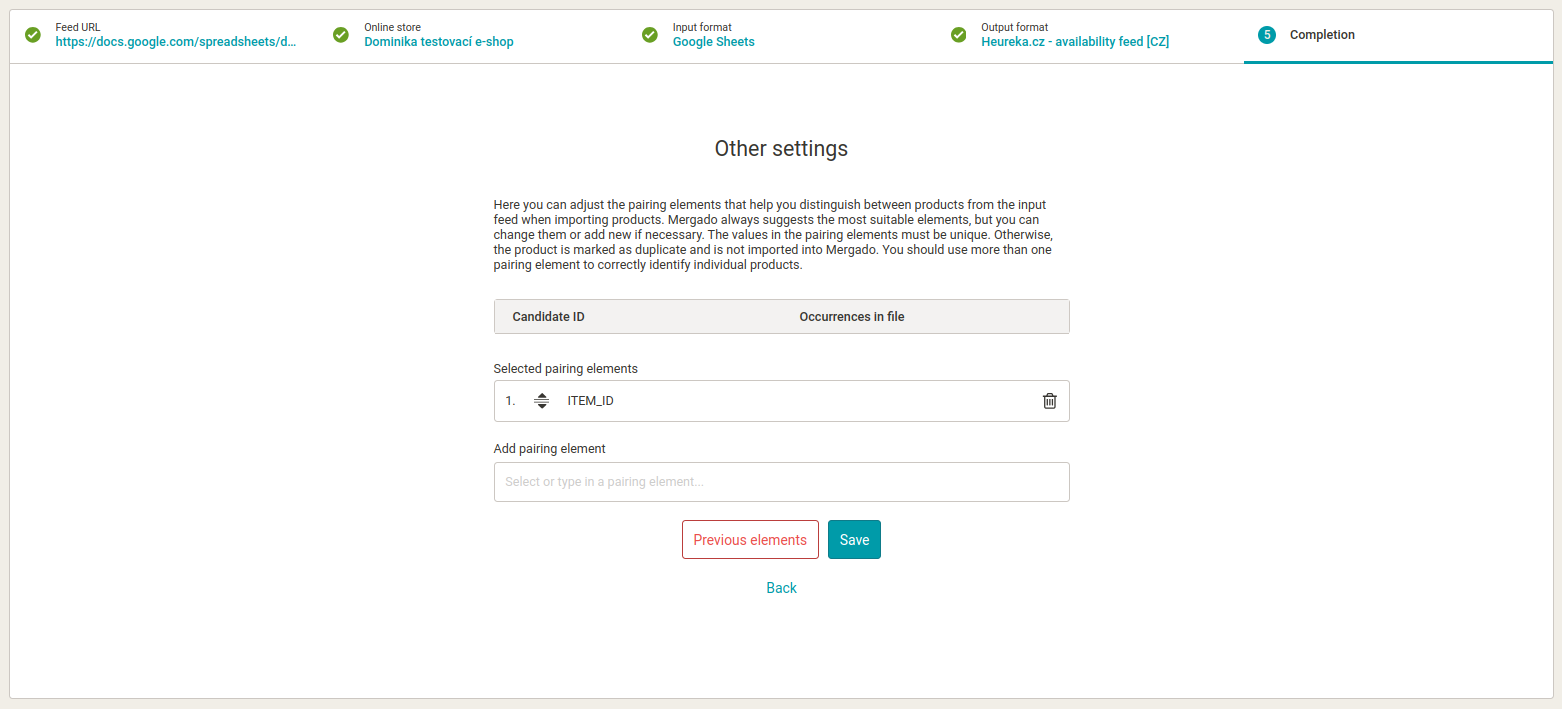
- If you see a “Pairing elements error” message, click the “Edit” button (on the right) and add the product ID as a pairing element.
- Click the “Finish” button.
How to properly use the availability feed in Mergado Marketplaces#
- In Mergado Marketplaces, create a new campaign.
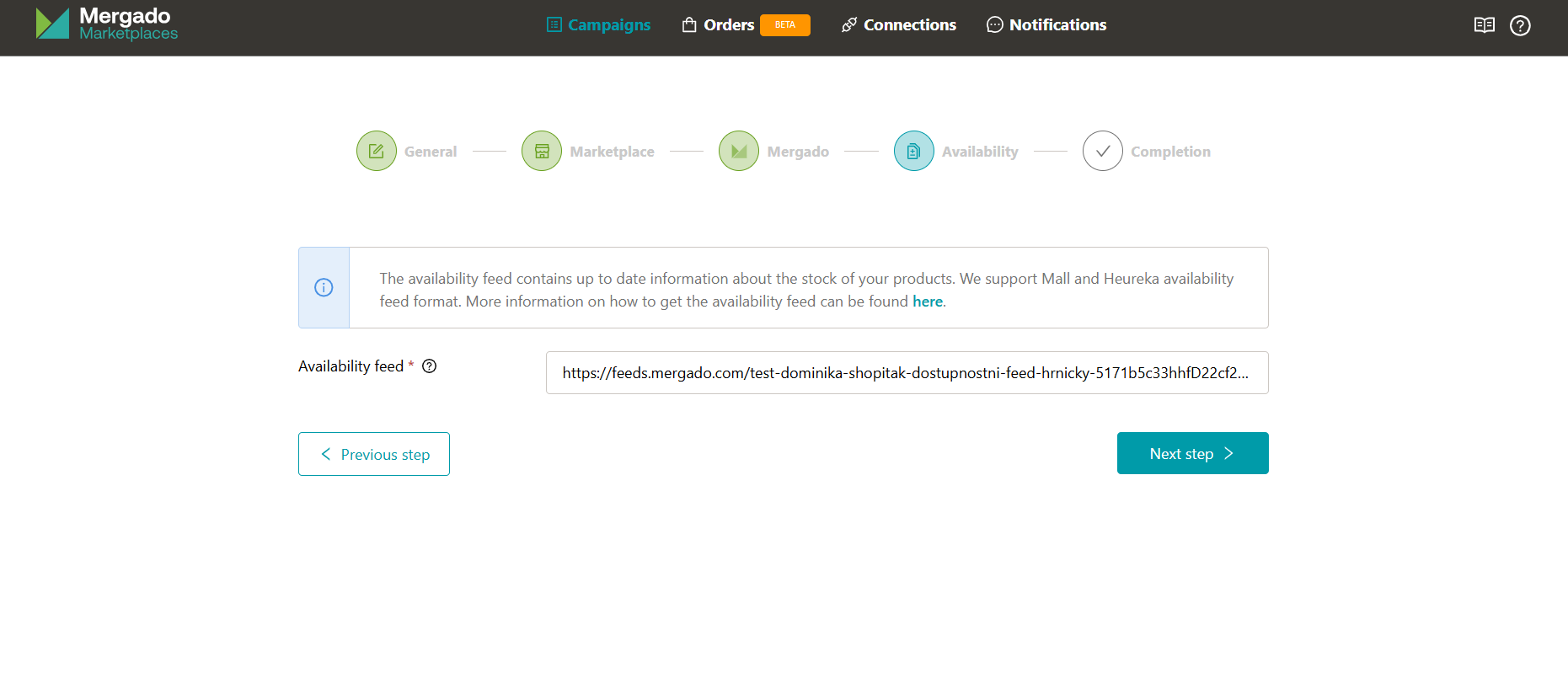
- During campaign setup, you’ll reach the step for adding an availability feed.
- Enter the URL of your availability feed. The availability feed must meet these conditions for successful product pairing:
- The URL must be a Heureka or Mall availability feed, or a feed in Mergado Marketplaces format.
- The availability feed must contain the same product IDs as the product feed.
- The availability feed must be accessible to the application.
-
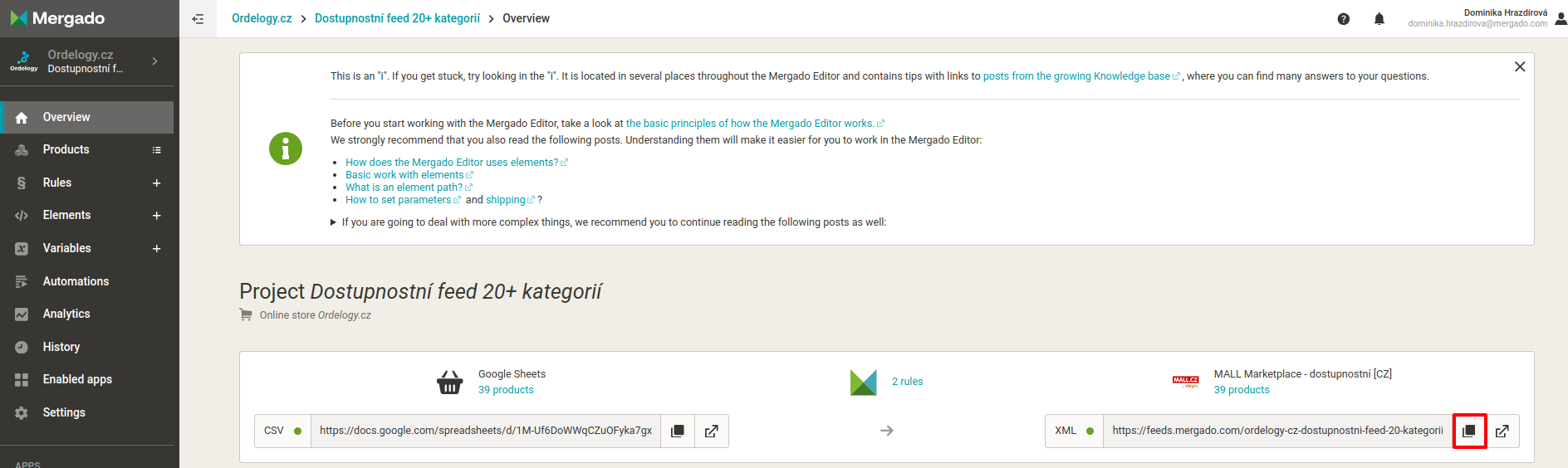
Get your availability feed either from your e-shop (as described in the examples above) or through Mergado Editor. In Mergado Editor, you can find your availability feed in the “Overview” section, where you’ll find the “Copy URL to clipboard” option.
-
Enter this URL into the text field.
-
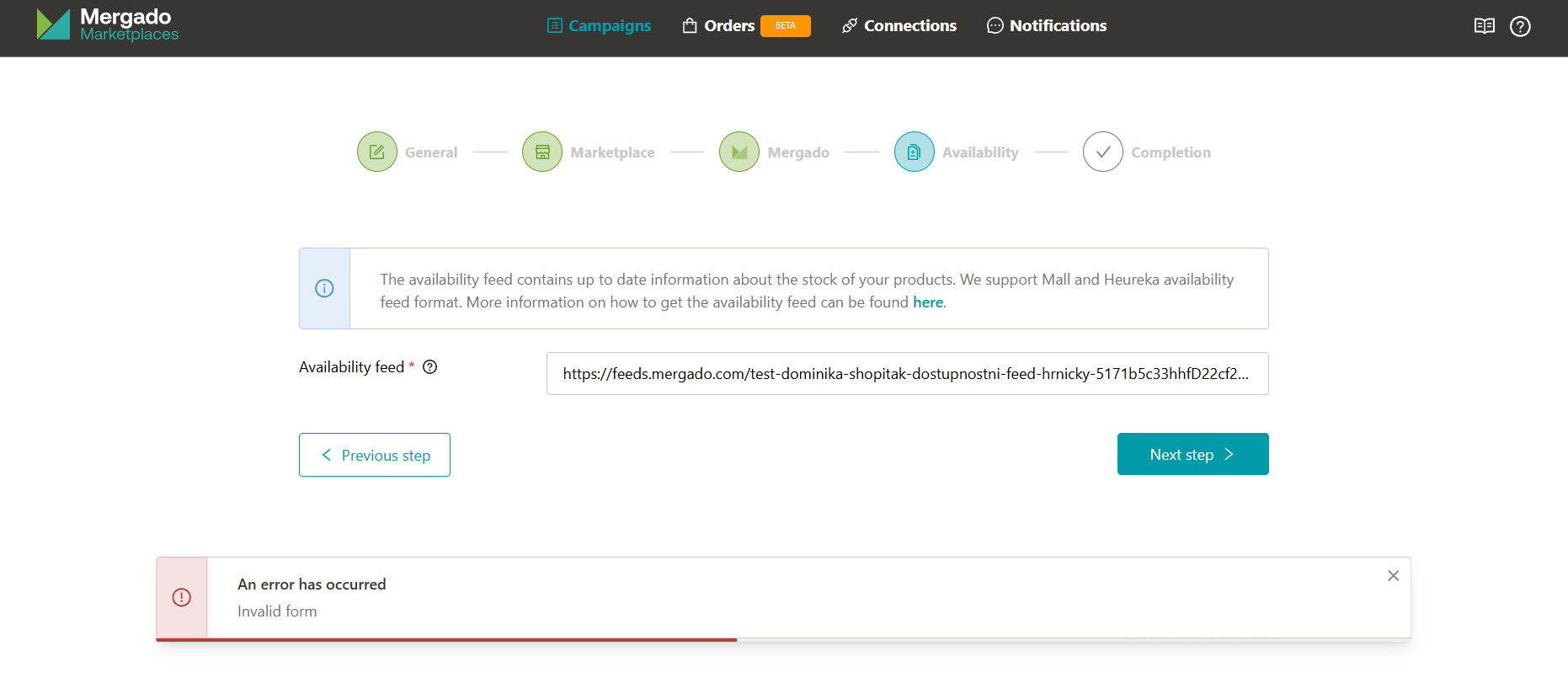
If you use any URL other than an XML format, or if the URL is incomplete (in the example image, the XML extension is missing), you’ll see an “Invalid URL” or “An error occurred” message and the campaign creation process won’t let you continue. In this case, make sure the URL is complete, in XML format, and is a Heureka or Mall availability feed, or a Mergado Marketplaces format feed.
-
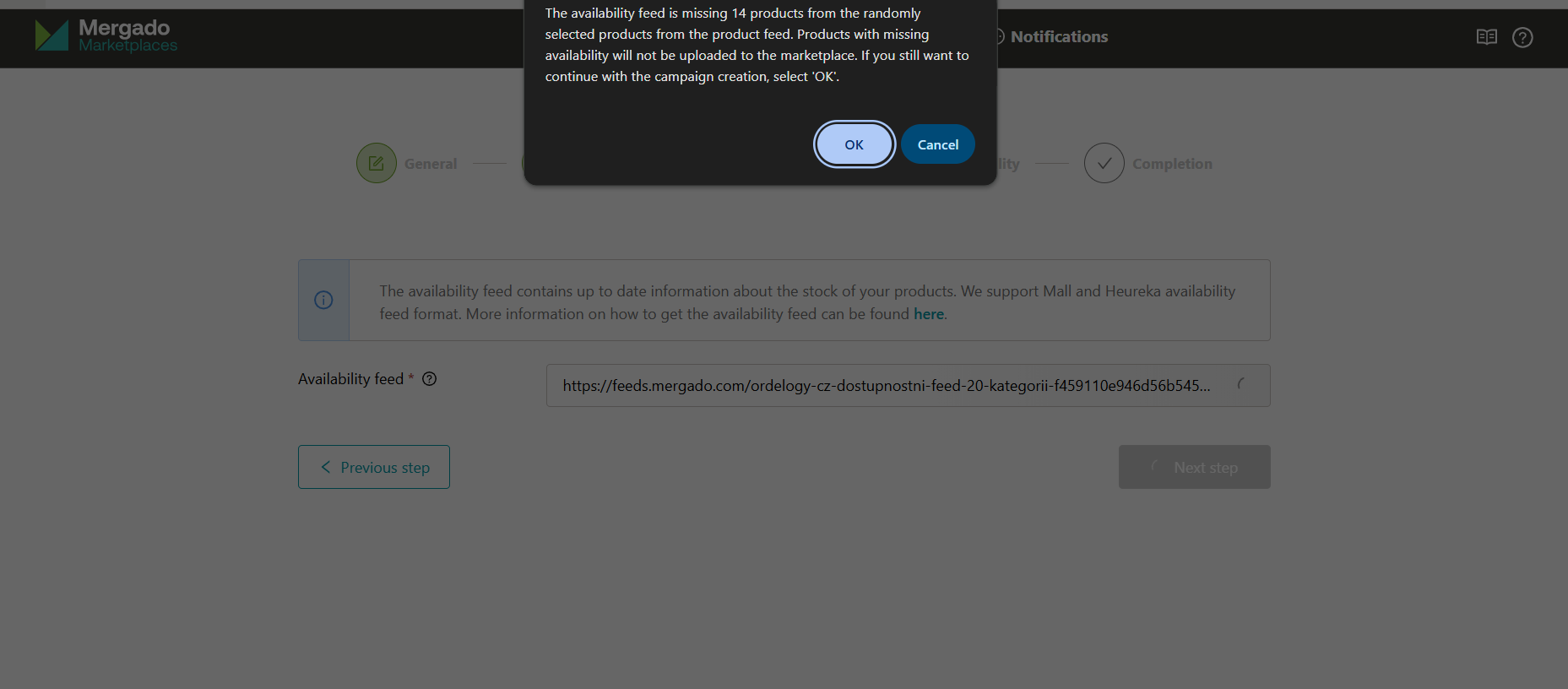
If some product IDs don’t match or are missing from the availability feed, clicking “Next step” will show a notification about the number of missing product IDs. This warning won’t prevent you from continuing with campaign creation, and all other products will be paired correctly. If only a few products are affected, they’re likely sold-out items and it’s not an error. If the notification shows that the number of missing products equals the total number of products in your product feed, the availability feed doesn’t contain any correct IDs and no products will be uploaded to the marketplace. Check that you’re uploading the correct availability feed with the right product IDs matching your product feed.
-
If the availability feed is correct, finish creating the campaign. After successfully creating and synchronizing the campaign, you’ll see which products uploaded correctly.
-
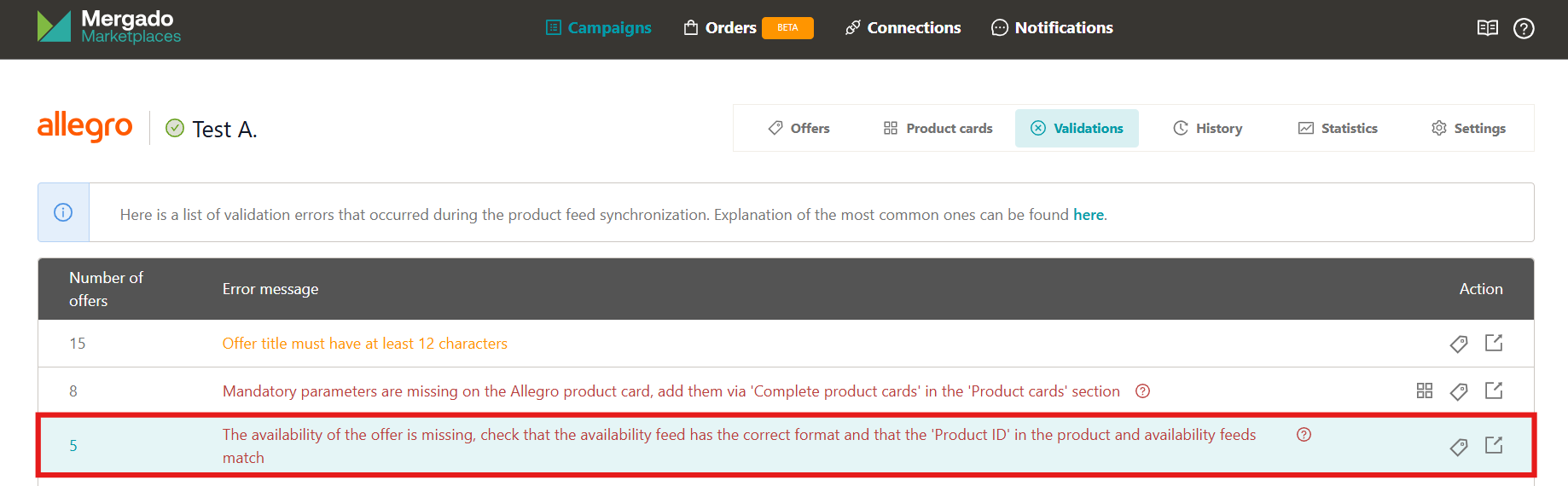
All products that weren’t uploaded due to availability feed issues can be found in the campaign detail → Validation, where you’ll see a list titled “The offer is missing availability, check that the availability feed has the correct format and that ‘Product ID’ matches in both the product and availability feeds”.
If only a few products are affected, they’re likely sold-out products and it’s not an error. When restocked, the offer will be activated (provided a product card exists on the marketplace for that product).